Getting Started with Ollama
Introduction
Ollama is the simplest way to run Large Language Models (LLMs) locally. Think of it as "Docker for LLMs"—it handles model downloading, storage, and inference with a clean command-line interface. No complex setup, no dependency headaches—just one command to install, and one command to start chatting.
In this module, you'll learn to:
- Install Ollama on your Jetson device
- Download and run your first LLM
- Explore different models and their capabilities
- Set up a web-based chat interface using Open WebUI
Why Ollama?
| Feature | Description |
|---|---|
| One-line Install | Single command to get started |
| Auto Model Management | Automatically downloads and manages model files |
| Simple Commands | ollama run modelname to start chatting |
| REST API | Built-in HTTP server for integration |
| Multiple Models | Run different models side by side |
| OpenAI Compatible | API compatible with OpenAI's interface |
System Requirements
Before installing Ollama, ensure your Jetson device meets these requirements:
| Requirement | Minimum | Recommended |
|---|---|---|
| JetPack | 5.1+ | 6.0+ |
| RAM | 8GB | 16GB+ |
| Storage | 10GB free | 50GB+ (for multiple models) |
| Swap | 8GB | 16GB |
First-time users: If you haven't set up swap space on your Jetson, check Chapter 3: Swap Configuration
Installing Ollama
Method 1: Direct Installation (Recommended)
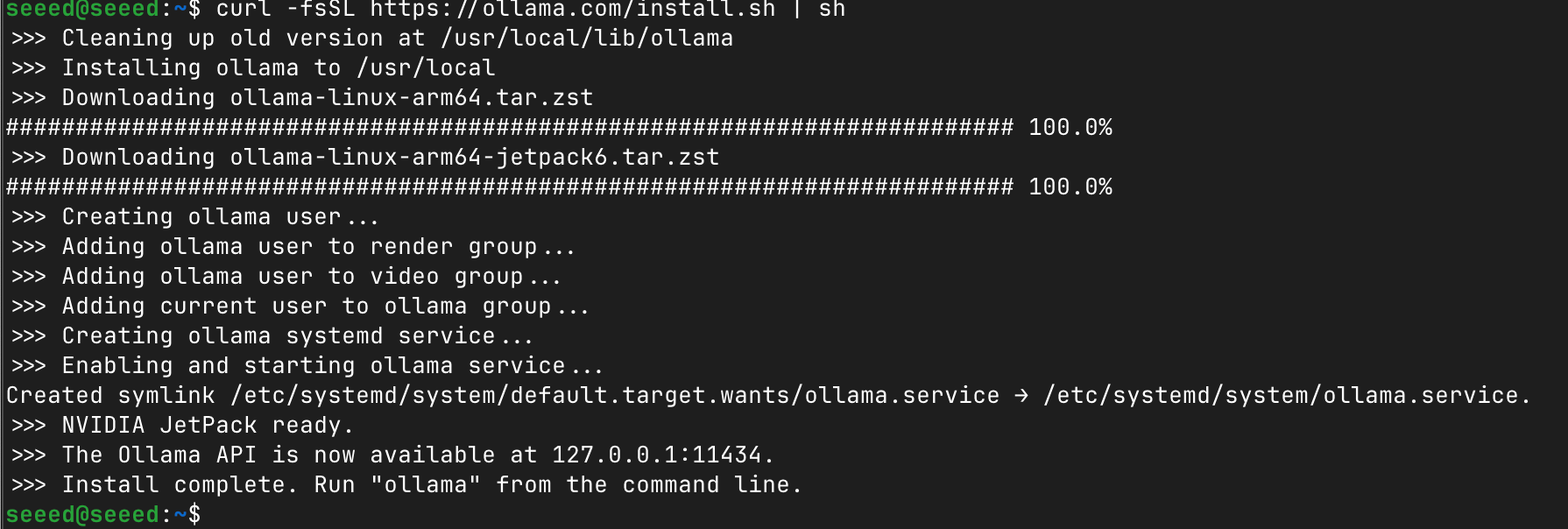
Open a terminal on your Jetson device and run:
# Download and install Ollama
curl -fsSL https://ollama.com/install.sh | sh
The installation script will:
- Detect your system architecture (ARM64)
- Download the appropriate Ollama binary
- Set up the systemd service
- Verify the installation
Verify Installation
# Check Ollama version
ollama --version

# Check if the service is running
systemctl status ollama
Your First LLM Interaction
Now let's run your first LLM. Ollama will automatically download the model on first run.
You can find the deployed models supported by Ollama here. Select the model you wish to deploy on your device.
Running a Model
# For example
ollama run qwen3.5:2b
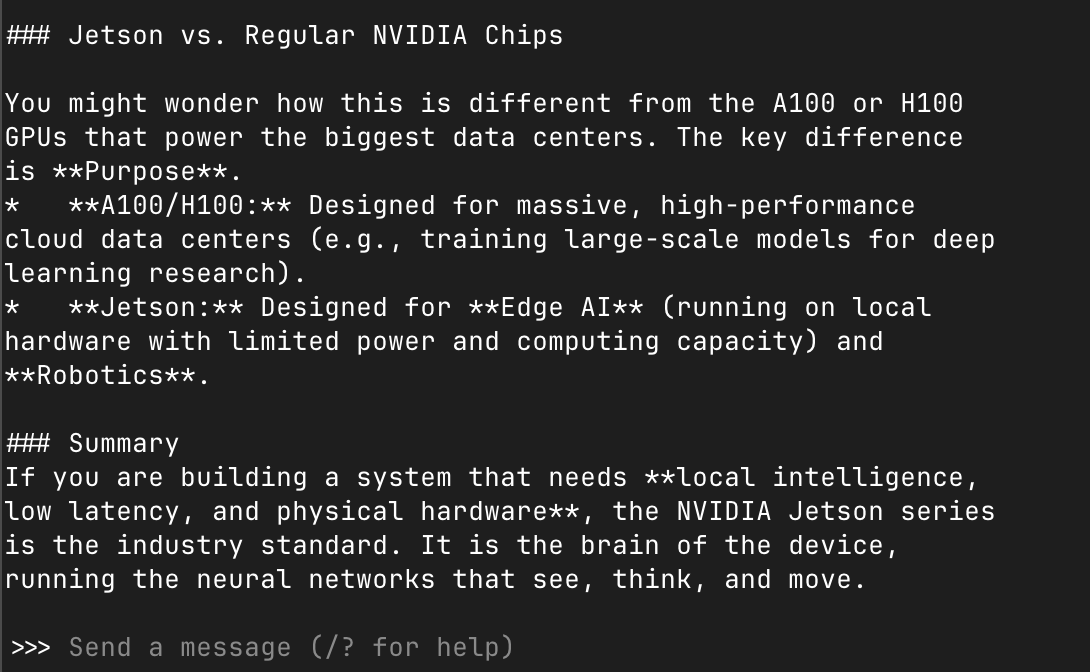
Once downloaded, you'll see a chat prompt:
What is NVIDIA Jetson?Useful Chat Commands
| Command | Description |
|---|---|
/? | Show help |
/bye | Exit the conversation |
Ctrl+D | Exit the conversation |
/clear | Clear conversation history |
/history | Show conversation history |
Exploring Different Models
Vision-Language Models (Multimodal)
# Qwen3.5 - Understand images and text
ollama run qwen3.5:2b
#You can specify an image and let it describe the content within the image.
What can you see in /home/seeed/test.jpg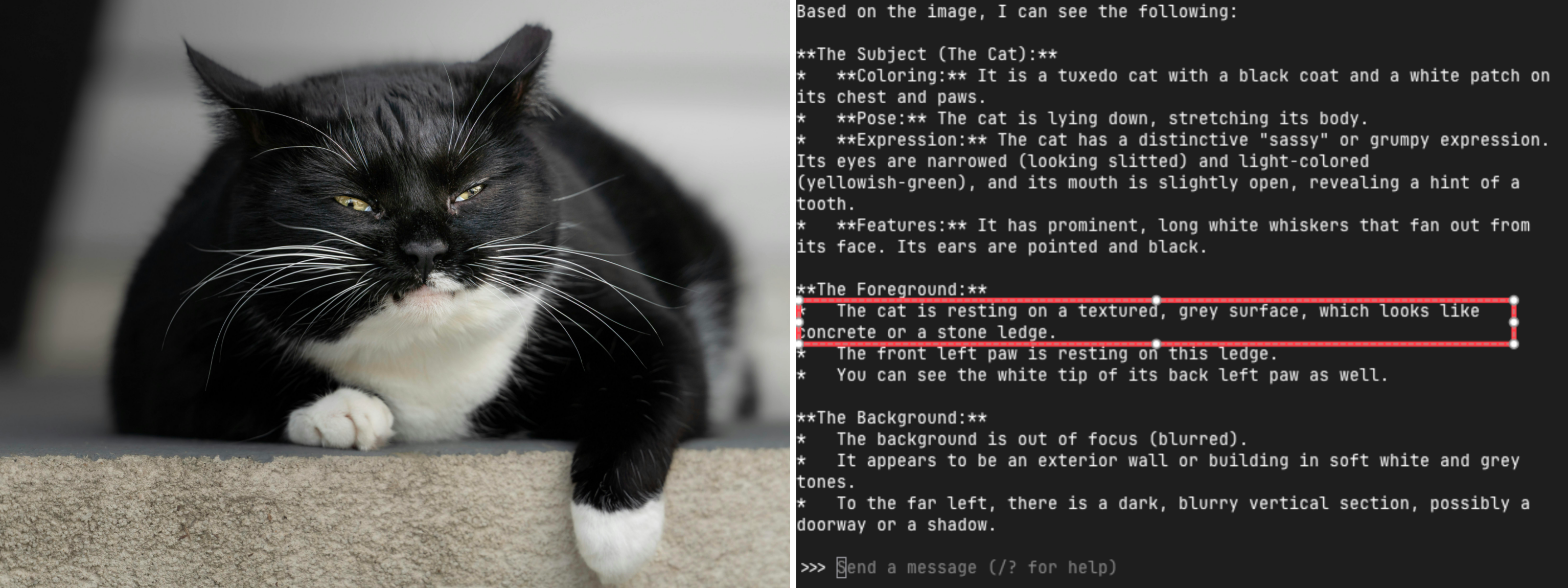
Using the REST API
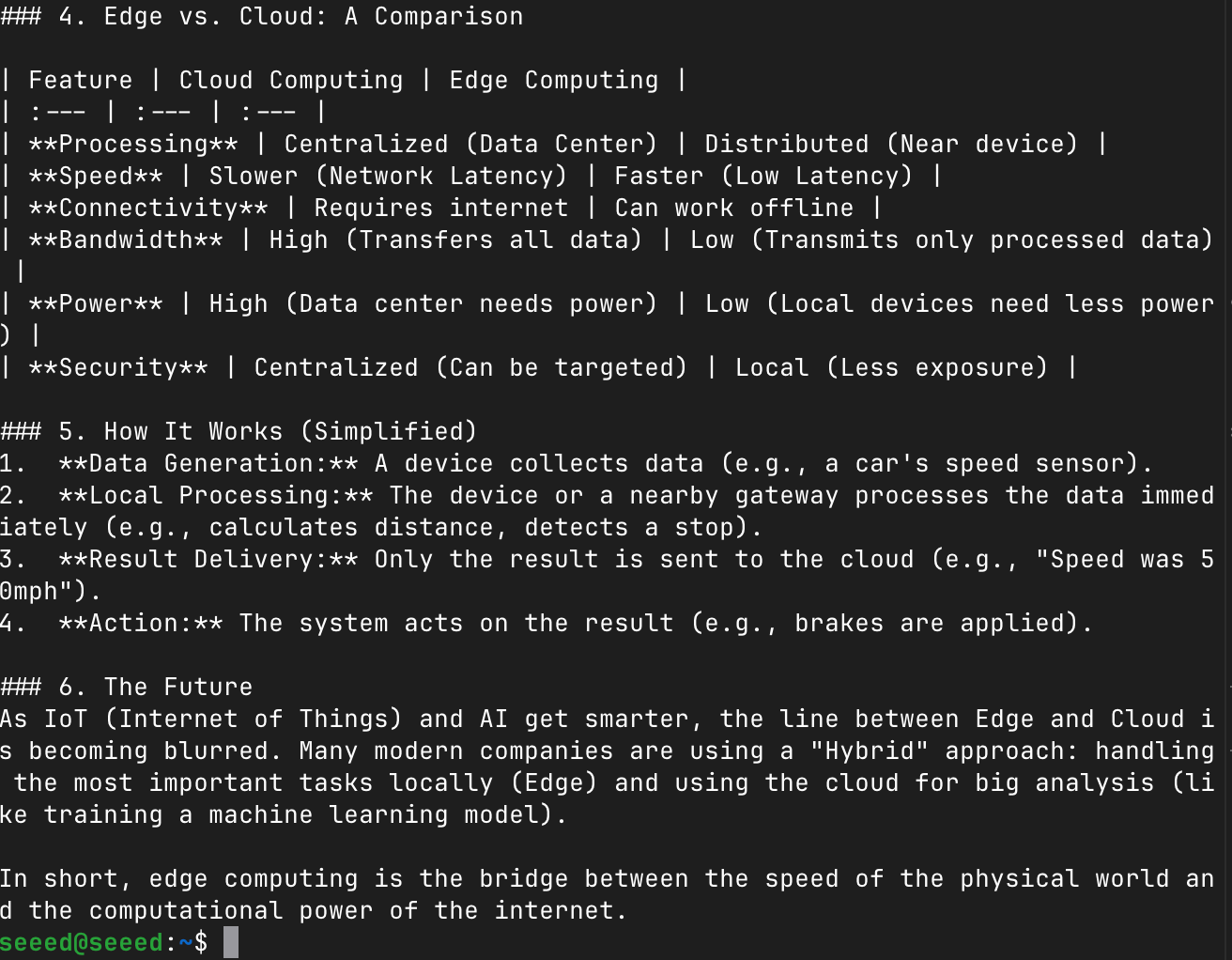
Ollama runs a local HTTP server on port 11434, making it easy to integrate with other applications.
Send a Chat Request
# Simple text generation
curl http://localhost:11434/api/generate -d '{
  "model": "qwen3.5:2b",
  "prompt": "What is edge computing?",
  "stream": false
}'
Python Integration
import requests

def chat_with_ollama(prompt, model="qwen3.5:2b"):
    """Send a prompt to Ollama and get a response."""
    response = requests.post(
        "http://localhost:11434/api/generate",
        json={
            "model": model,
            "prompt": prompt,
            "stream": False
        }
    )
    return response.json()["response"]

# Example usage
response = chat_with_ollama("Write a simple Python function to calculate factorial")
print(response)
OpenAI-Compatible API
#install openai sdk
pip install openai
Ollama provides an OpenAI-compatible endpoint, allowing you to use existing OpenAI client libraries:
from openai import OpenAI

# Connect to local Ollama
client = OpenAI(
    base_url="http://localhost:11434/v1",
    api_key="not-needed"  # Ollama doesn't require an API key
)

response = client.chat.completions.create(
    model="qwen3.5:4b",
    messages=[
        {"role": "system", "content": "You are a helpful assistant."},
        {"role": "user", "content": "Explain quantum computing in simple terms."}
    ]
)

print(response.choices[0].message.content)
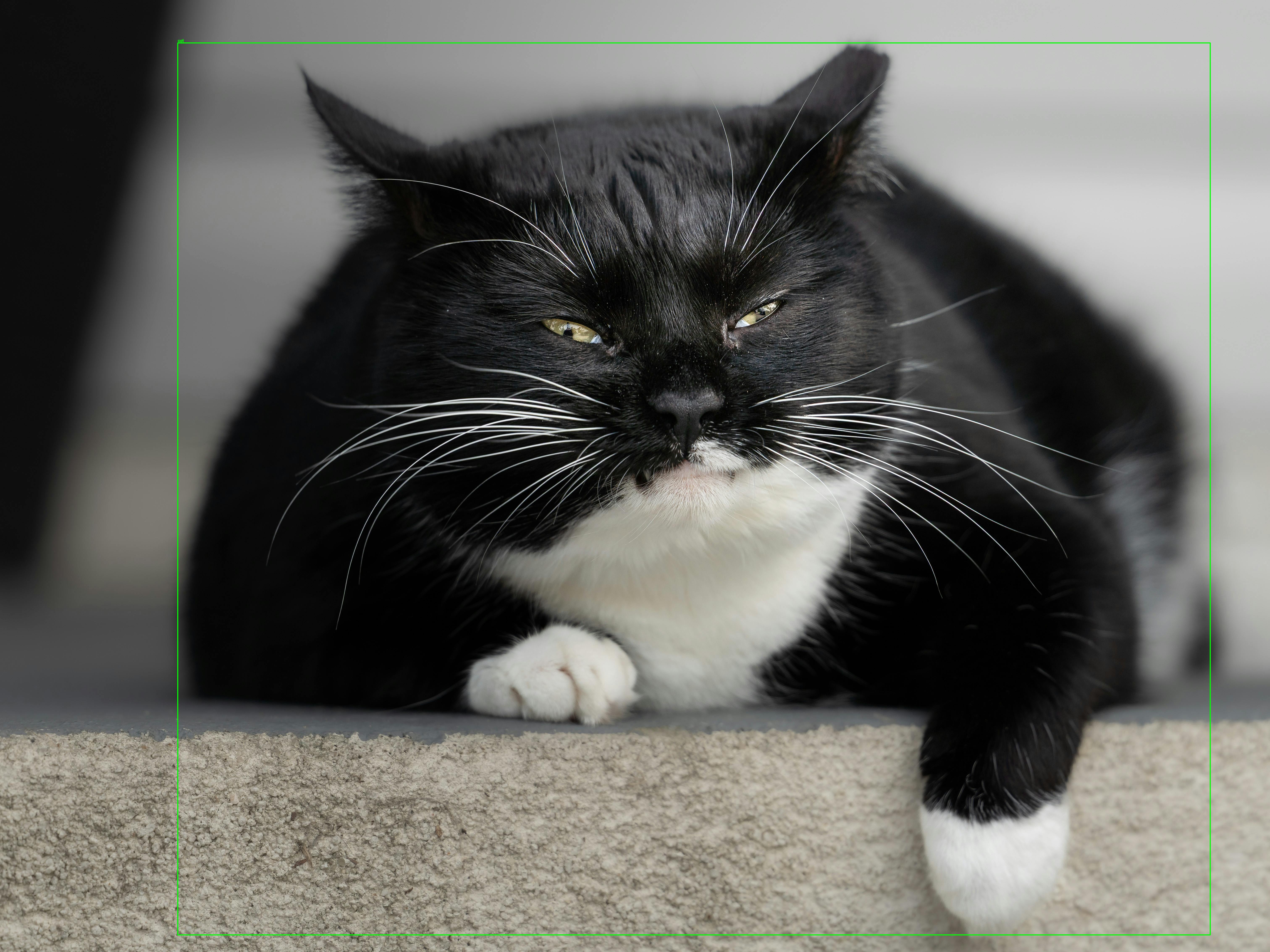
VLM find object in image
pip install ollama
git clone https://github.com/Seeed-Projects/reComputer-Jetson-for-Beginners
cd reComputer-Jetson-for-Beginners/5-Offline-Large-Model-Development/code
python vlm_object_detector.py
wait a minute you can see the result in img folder
Setting Up Open WebUI
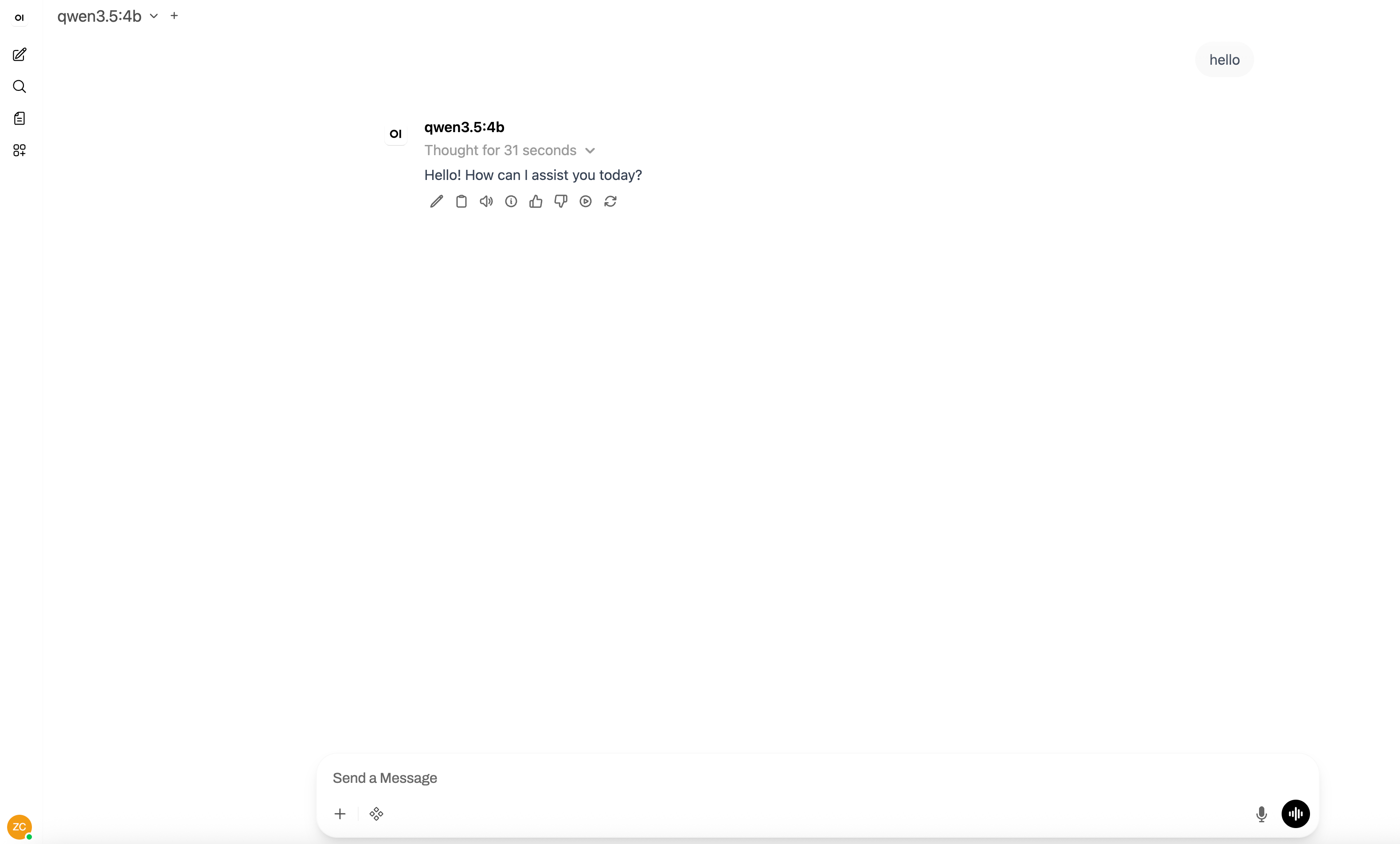
Open WebUI (formerly Ollama WebUI) provides a ChatGPT-like interface for interacting with your local models.
Installation via Docker
# Pull the Open WebUI image
docker pull ghcr.io/open-webui/open-webui:main

# Create data directory
sudo mkdir -p /opt/seeed/open-webui/data

# Run the container
docker run -d \
  --restart always \
  --name open-webui \
  --network host \
  -v /opt/seeed/open-webui/data:/app/backend/data \
  -e OLLAMA_BASE_URL=http://127.0.0.1:11434 \
  ghcr.io/open-webui/open-webui:main

# Check container status
docker logs -f open-webui
Accessing Open WebUI
Once the container is running:
- Open a browser on your Jetson (or another device on the same network)
- Navigate to
http://localhost:8080(orhttp://<jetson-ip>:8080) - Create an admin account on first access
- Select your model from the dropdown and start chatting!
Features of Open WebUI
- Model Management: Switch between different Ollama models
- Conversation History: Save and search through chat histories
- Multi-user Support: Create accounts for different users
- RAG Support: Upload and chat with documents
- Image Generation: Integrate with image generation models
- Plugin System: Extend functionality with community plugins
Tips for Better Performance
- Use appropriate model sizes: Start with 1B-3B models on Jetson Orin Nano
- Increase swap space: Add more swap for larger models
- Close unnecessary applications: Free up GPU memory
- Use quantized models: GGUF quantized models (Q4_K_M) offer the best speed/quality tradeoff
- Monitor temperature: Jetson may thermal throttle under sustained load—ensure proper cooling
Common Issues and Solutions
Issue 1: Model Download Fails
Problem: Error: pull model manifest: Get https://registry.ollama.ai/...
Solution:
# Check internet connection
ping google.com

# Try again with verbose output
OLLAMA_DEBUG=1 ollama pull llama3.2:3b
Issue 2: Out of Memory
Problem: Error: model requires more system memory (8.0 GiB) than is available (6.0 GiB)
Solution:
# Check available memory
free -h

# Increase swap (if not already configured)
sudo fallocate -l 16G /swapfile
sudo chmod 600 /swapfile
sudo mkswap /swapfile
sudo swapon /swapfile

# Use a smaller model
ollama run qwen3.5:2b
Issue 3: Slow Response Times
Problem: Very slow token generation (< 5 tokens/second)
Solution:
# Use a smaller model
ollama run qwen3.5:0.8b

# Reduce context window
ollama run qwen3.5:0.8b --num-ctx 2048

# Ensure GPU is being used (check nvidia-smi during inference)
Issue 4: Ollama Service Not Starting
Problem: System has not been booted with systemd as init system
Solution (for Docker environments):
# Start Ollama manually
ollama serve &

# Or run in background
nohup ollama serve > ollama.log 2>&1 &
Practice Exercise
Complete these steps to verify your setup:
- Install Ollama and verify the installation
- Run a model:
ollama run qwen3.5:2b - Have a conversation: Ask it about Jetson platforms
- Try a different model: Switch to
qwen3:4b - Use the API: Send a request via curl
- Optional: Set up Open WebUI and access it from a browser
References
- Ollama Official Documentation
- Ollama GitHub Repository
- Ollama Model Library
- Open WebUI Documentation
Next: Continue to Module 5.3: Running LLMs with llama.cpp to explore lightweight LLM inference!