Configuration on First Boot
This guide will walk you through the initial setup of the Armbian system based on the RK3576 chip. After flashing the image and powering it on for the first time, the system will enter an interactive configuration interface.
Note: Do Not Power Off During Initial Setup
Do not disconnect or cut power to the device while the first-boot configuration wizard is in progress. The wizard must complete all steps — from setting the root password through creating the user account — before the system is safe to power down.
Why this matters: The first-boot process writes critical system files to the storage medium. Cutting power mid-process can corrupt the system image and leave the device unable to boot.
If your device fails to boot due to image corruption:
- Download the firmware image: Armbain-reComputer-RK3576
- Re-flash the image by following the steps in Install System to MicroSD, then power on the device again.
Set the Root Password
The primary task upon system startup is to secure the root account.
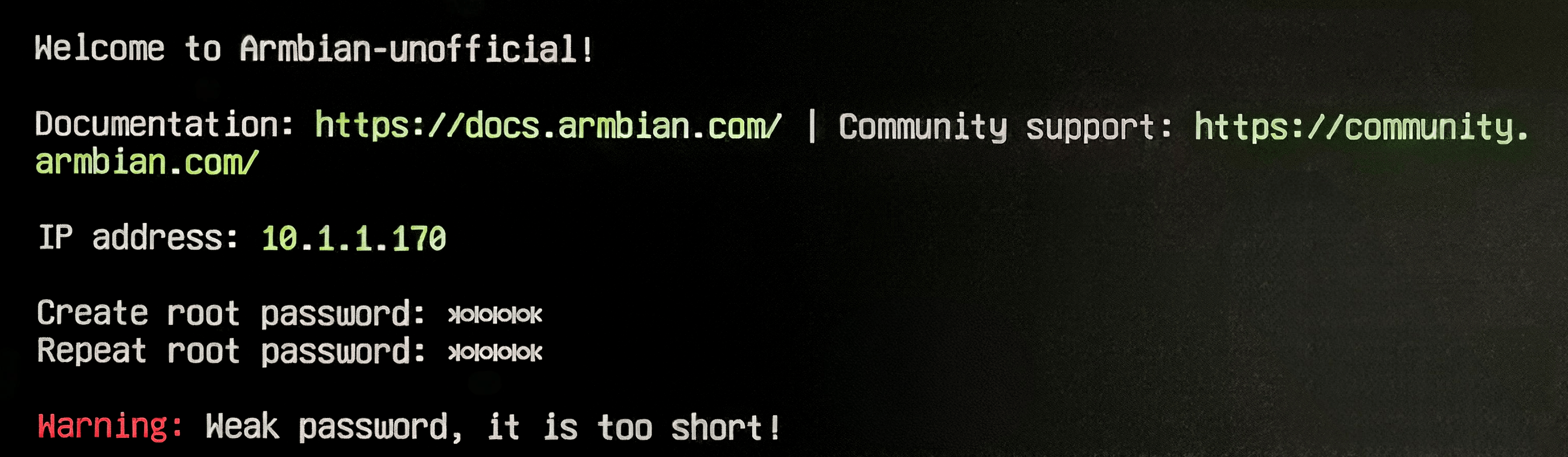
Action: Enter the desired root password twice as prompted.
Note: Characters will not appear on the screen while typing (this is standard Linux security behavior).
Warning: If the password is too short, the system will display a Warning: Weak password message. It is highly recommended to use a more complex combination.
Select the Default Shell
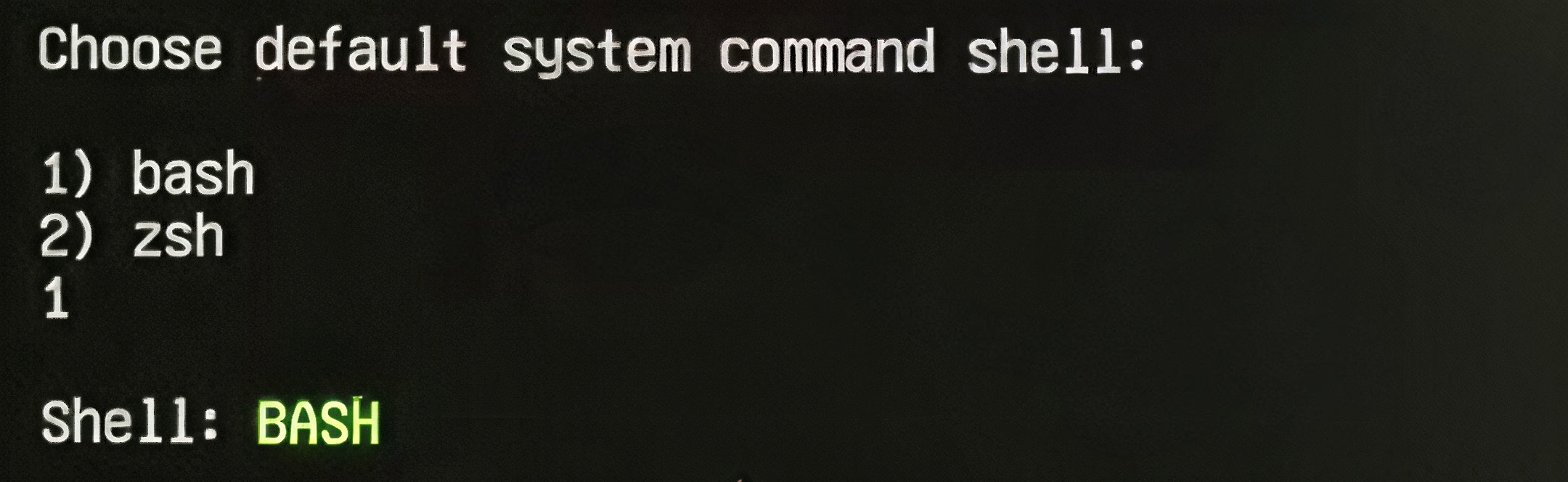
The system will ask you to specify your preferred command-line interpreter (Shell). Options: 1) bash or 2) zsh. Recommendation: Select 1) bash for better compatibility and its status as the industry standard for scripts and tutorials.
Action: Type 1 and press Enter.
Create a Regular User Account
For enhanced system security, Armbian requires the creation of a non-root user for daily operations.
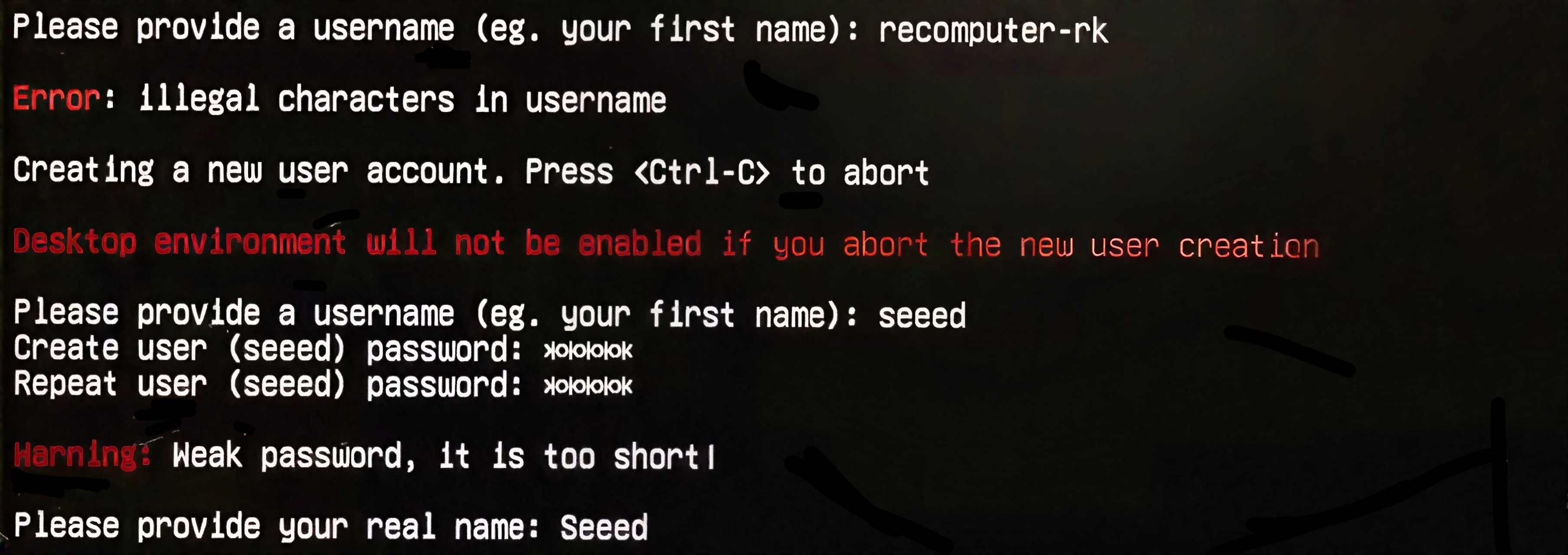
Username Rules: Use lowercase letters and numbers only. Do not include hyphens - or underscores _ (for example, recomputer-rk would be flagged as an invalid character).
Action:
Enter your desired username (e.g., seeed).
Set and confirm the password for this user.
Enter your Full Name (you can simply press Enter to skip this).
Privileges: This user will be automatically granted sudo privileges, allowing you to run administrative commands safely.
Timezone and Locale Settings
The system will attempt to automatically detect your location based on your network connection.
Timezone: Confirm whether the detected timezone (e.g., Asia/Singapore) is correct.
Locales (Language): * When asked Set user language based on your location? [Y/n], type y.
Select the specific language code from the provided list (e.g., selecting 1 for en_SG.UTF-8).
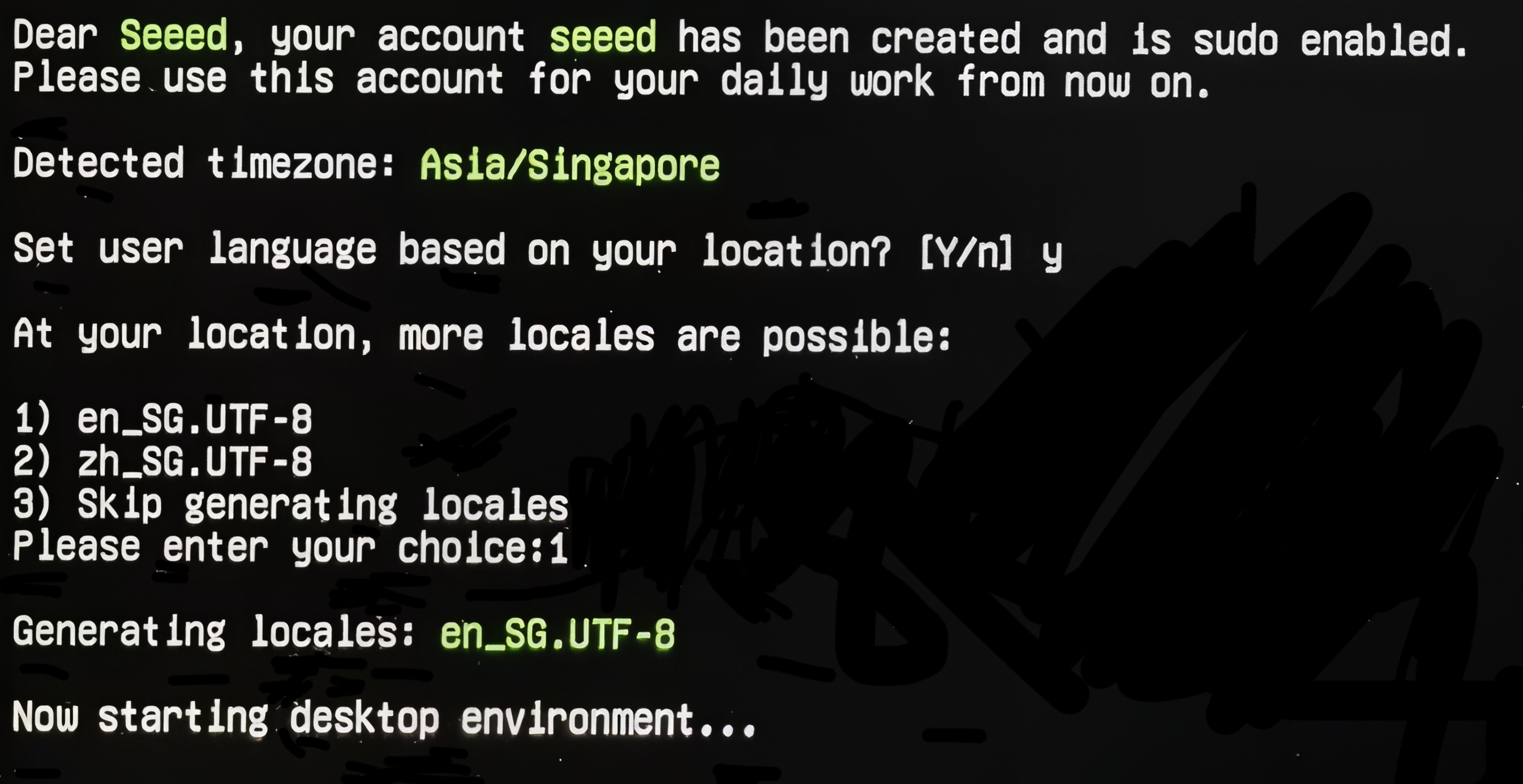
Please wait a moment. You will be directed to the login interface. Enter your configured username and password to access the desktop.