reComputer RK3576 Hardware Connection
Last updated:
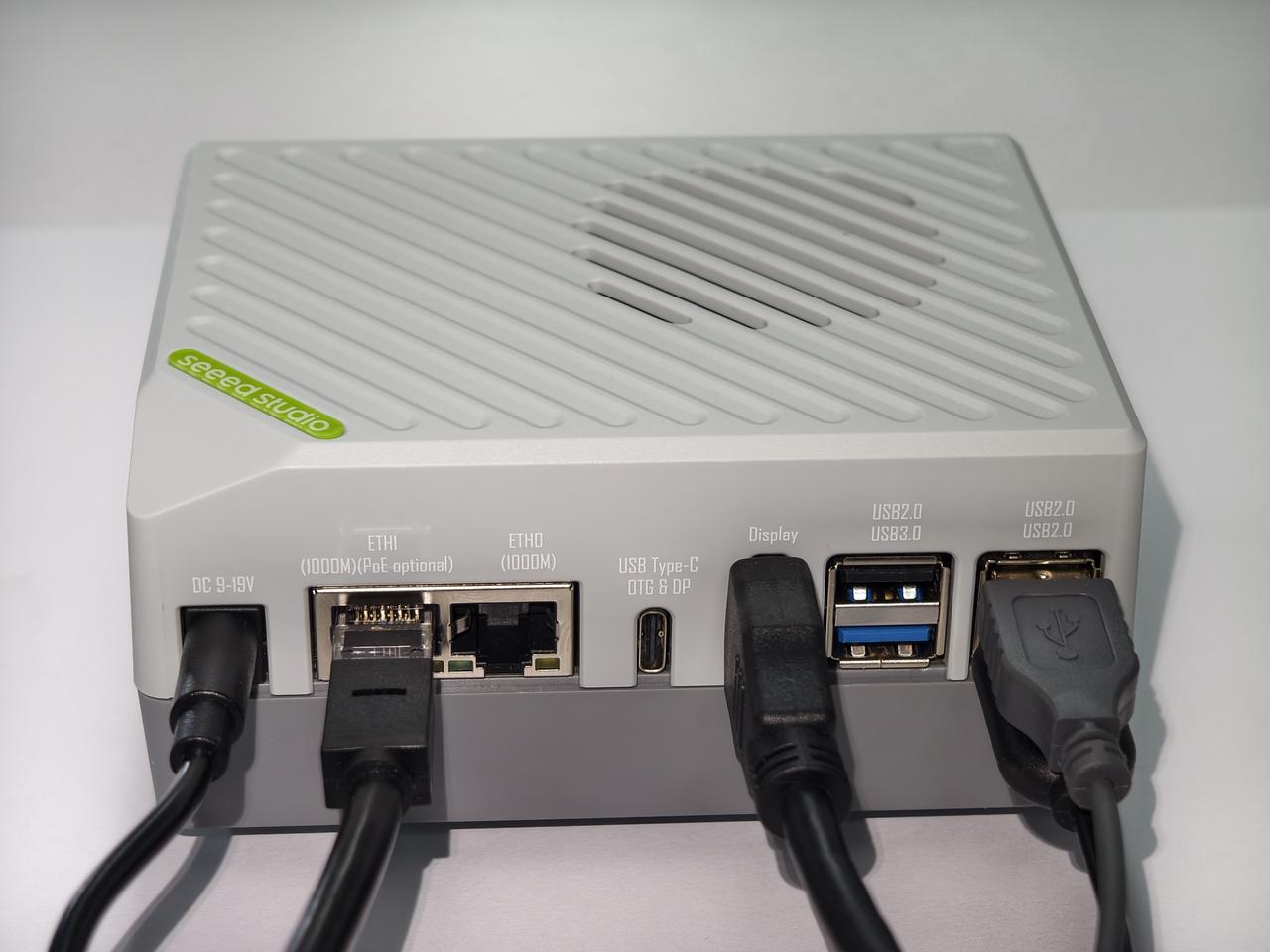
Connect your reComputer RK3576 for its first local boot. Keep power disconnected while attaching peripherals and connect the power adapter last.
Before you begin
Prepare a USB keyboard and mouse, an HDMI monitor and cable, an Ethernet cable, and the power adapter for your device. If you need to install a new system image, follow Install Armbian on reComputer RK3576 before powering on.
Ethernet is used for the initial network connection below. For Wi-Fi setup after login, see the networking guide.
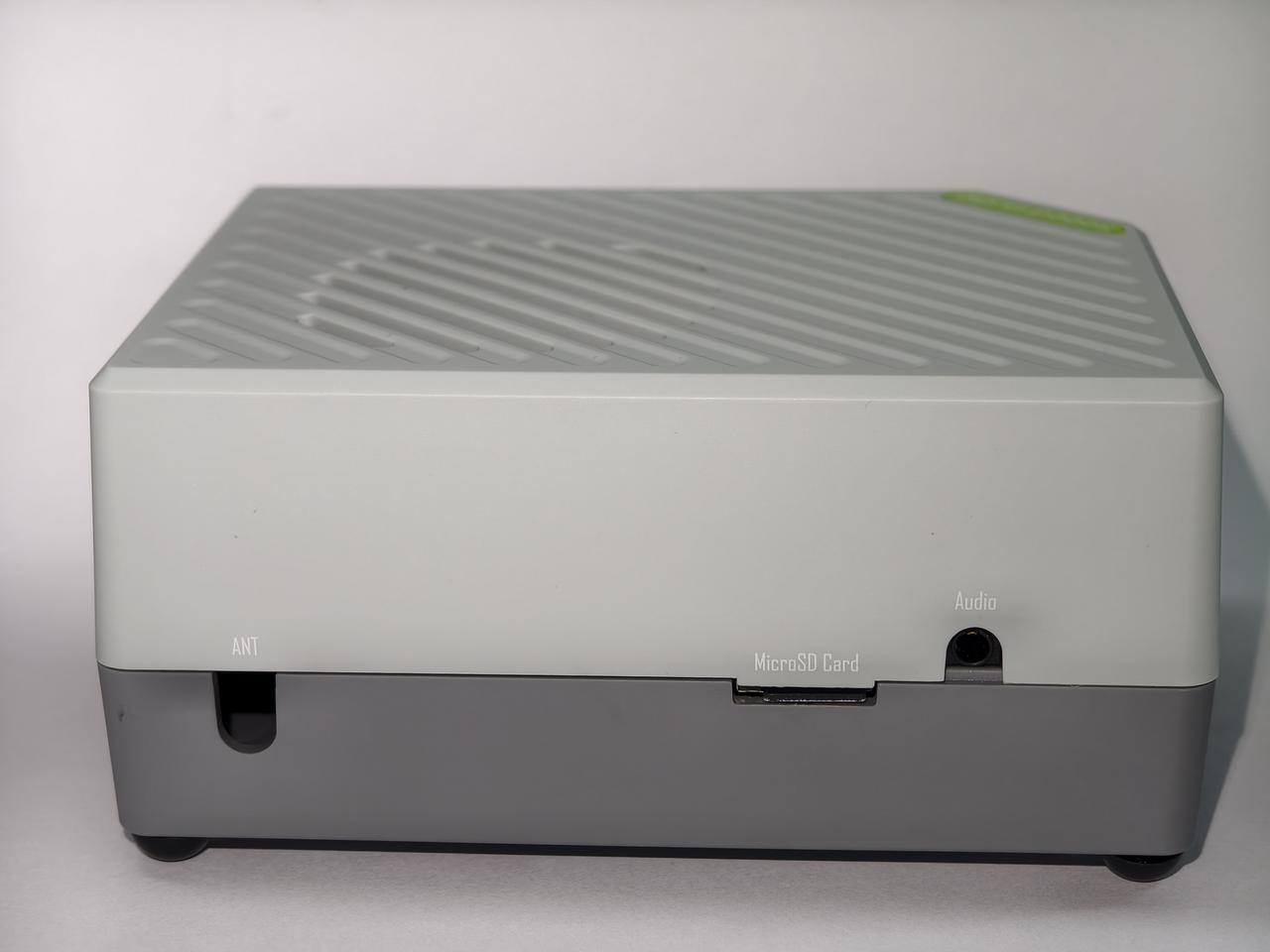
Connect Input Devices
Plug your keyboard and mouse into the USB 2.0 or USB 3.0 ports on the device.
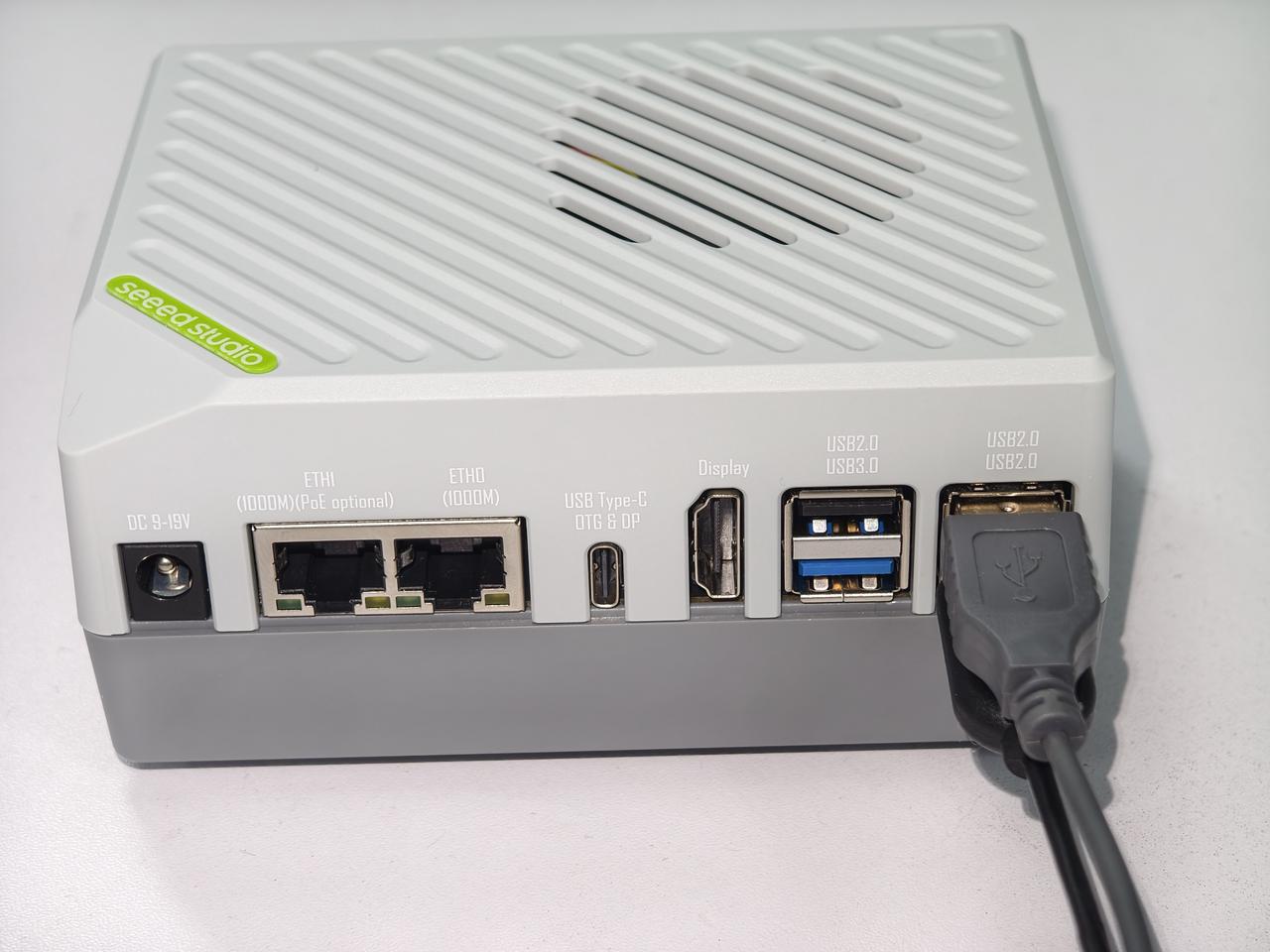
Connect a Display
Connect your monitor to the HDMI port using an HDMI cable.
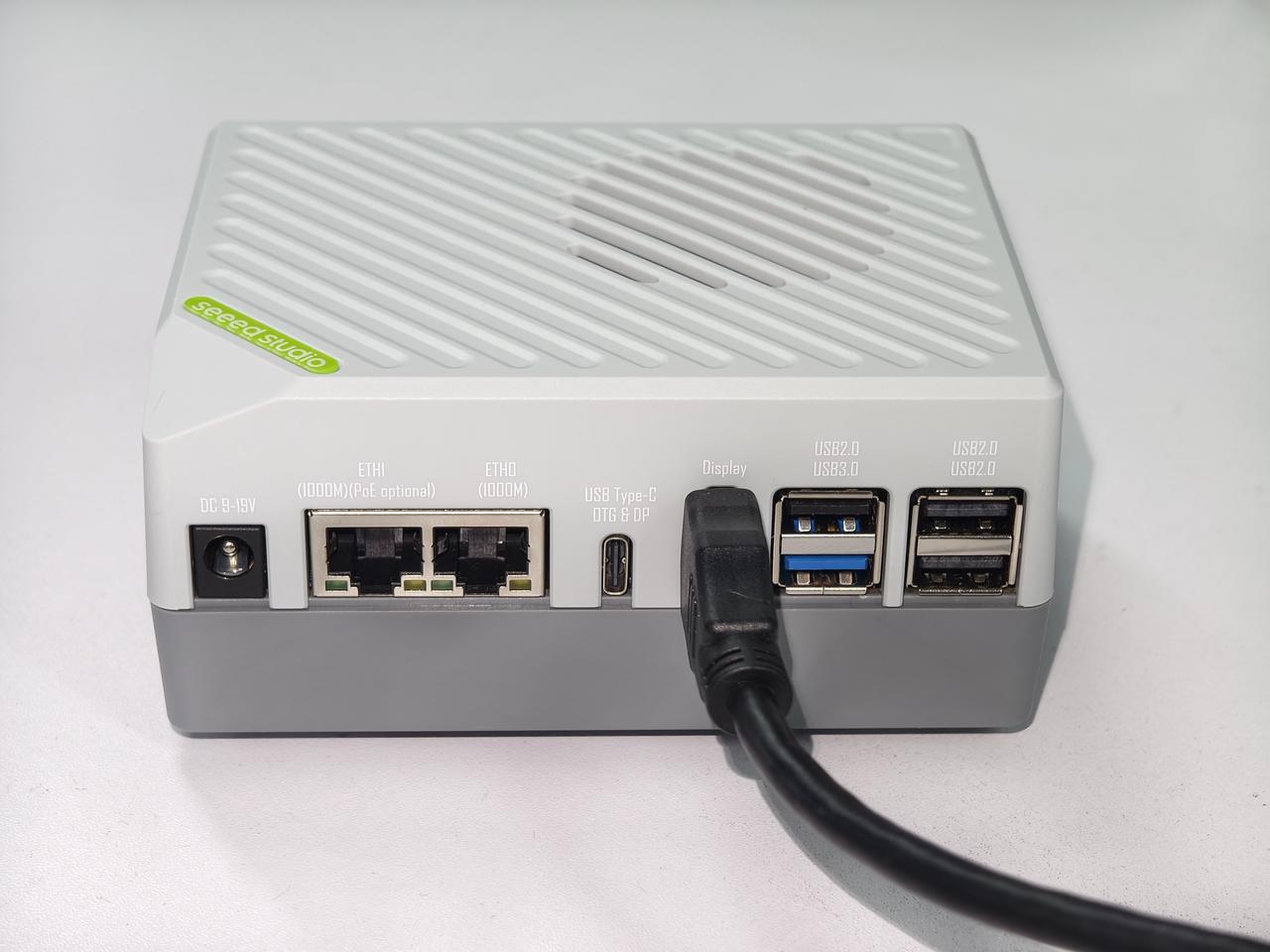
Connect to the Network
Insert a network cable into the Gigabit Ethernet port for a stable internet connection.
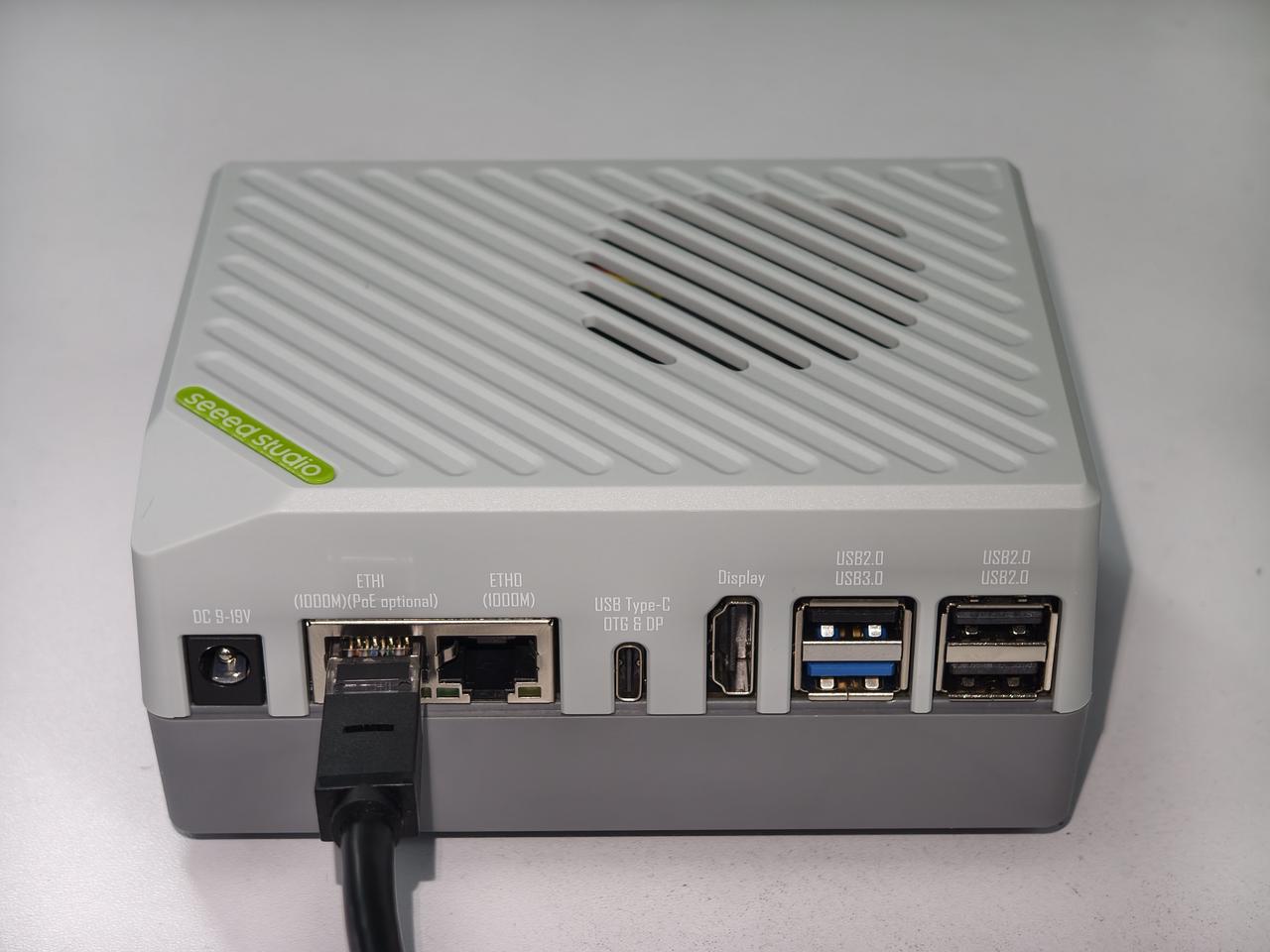
Connect Power
Finally, plug the power adapter into the DC Jack. The device will power on automatically.
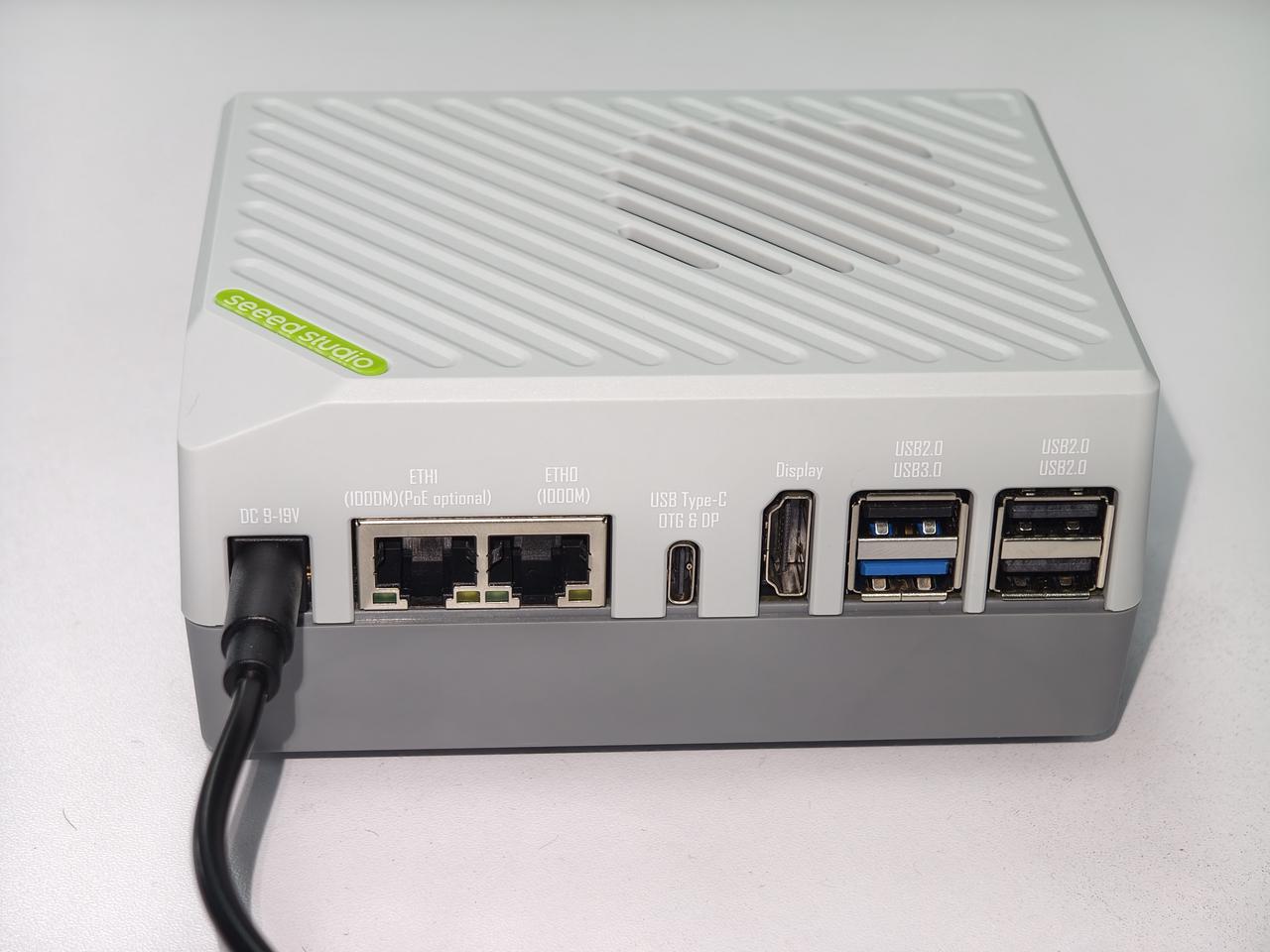
Interface Overview
Use the labeled photograph below to locate the ports on your device:
Continue with first-boot setup
Wait for Armbian to start, then set up your user account, language, and time zone. If there is no display, check the monitor input and HDMI connection before disconnecting power.