Install N3uron
Last updated:
Introduction
N3uron is an industrial edge software platform for Industrial IoT (IIoT) and DataOps. Its modular architecture collects, organizes, processes, and exchanges data between industrial devices and applications. A web interface provides node management and real-time data access. Modules such as Modbus, MQTT, and OPC UA can connect field devices to local systems or cloud services.
This tutorial installs N3uron on a reComputer RK series device and covers service checks, WebUI login, and basic verification. Installation runs directly on the device's ARM64 Linux system, without Docker.
Reference environment: reComputer RK3576, Armbian (Debian 12 Bookworm, ARM64), and N3uron v1.22.6. Installation and WebUI access were verified in this environment. For other RK series devices, such as RK3588, first check the distribution and architecture requirements in the official documentation.
Prerequisites
Hardware
- A reComputer RK series device running a compatible Linux system. The tested device was a reComputer RK3576.
- A network connection that lets the device reach N3uron's download server and the browser computer reach the device.
- A computer for SSH access and the WebUI.
Software
- A 64-bit Linux system (
aarch64/arm64). This example uses Armbian Debian 12. - A terminal account with
sudoaccess and thecurlcommand. - A modern web browser.
The N3uron v1.22 Linux installation documentation lists Debian 10 and later, Ubuntu 20.04 and later, and other compatible distributions. Minimum resources are a single-core 1 GHz CPU, 1 GB RAM, and 1 GB free disk space. Actual requirements depend on the modules and workload.
Step 1: Check the system and network
Connect to the RK device over SSH and check the CPU architecture:
uname -mThe ARM64 system used here reports:
aarch64Check the distribution and available resources:
cat /etc/os-release
free -h
df -h /
Confirm that the device can reach the installation script:
curl -I --connect-timeout 10 https://get.n3uron.com/install.shIf
curlis not installed, runsudo apt update && sudo apt install -y curlon Debian / Ubuntu.
Step 2: Install N3uron
Run N3uron's official automated installation command on the RK device:
curl -fsSL https://get.n3uron.com/install.sh | sudo bashThe script detects the architecture, downloads the matching package, installs N3uron, and attempts to start its service.
The key output recorded during the RK3576 test was:
[INFO] Detecting system architecture...
[INFO] Detected architecture: arm64
[INFO] Downloading the installation package for arm64...
[INFO] Installing into /opt/n3uron
[INFO] Starting service...

N3uron v1.22.6 successfully installed.
The successfully installed message indicates that the installer reported success. The tested version was v1.22.6. The automated script downloads the applicable current release, so its version may change over time.
Optional: download and inspect the script first
To review the script before an administrator executes it, use the following approach instead of the automated command above:
curl -fL --retry 3 https://get.n3uron.com/install.sh -o /tmp/n3uron-install.sh
less /tmp/n3uron-install.sh
sudo bash /tmp/n3uron-install.sh
The first command must complete before /tmp/n3uron-install.sh exists. If the automated installation already succeeded, you do not need to execute the saved script again.
Step 3: Check the N3uron service
Inspect its systemd status:
sudo systemctl status n3uron --no-pagerThe active (running) status indicates that the service is running.
To start or restart it manually:
sudo systemctl start n3uron
sudo systemctl restart n3uron
For startup troubleshooting, inspect recent logs:
sudo journalctl -u n3uron -n 50 --no-pagerCheck the WebUI listening ports:
sudo ss -ltnp | grep -E ':8003|:8443'The default ports are HTTP 8003 and HTTPS 8443. Check the actual listening state on your installation.
Step 4: Open the WebUI
Find the RK device's LAN IP address:
hostname -IOn a computer on the same network, open:
http://<RK_DEVICE_IP>:8003For example, if the device address is 192.168.1.100, open:
http://192.168.1.100:8003If HTTPS is configured correctly, you can also use https://<RK_DEVICE_IP>:8443. A self-signed certificate can cause a browser trust warning; configure certificate trust according to your deployment.
Initialize the administrator password
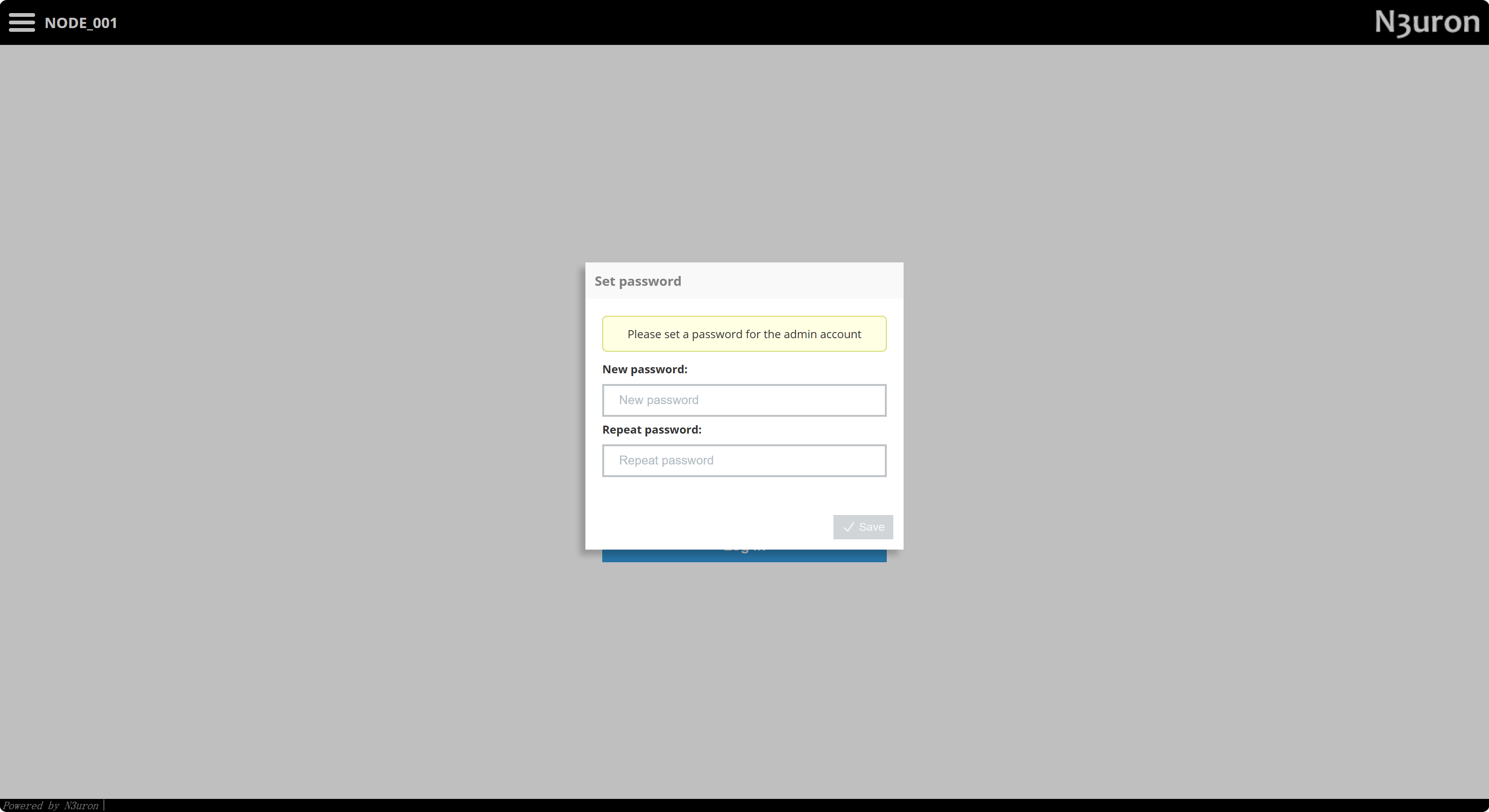
On first access, follow the page prompts to set a password for the admin account. In the Set password dialog shown below:
- Enter a new administrator password in New password.
- Enter the same password in Repeat password.
- Select Save. The initial password setup is also described in the N3uron Linux installation documentation.
Log in to the WebUI
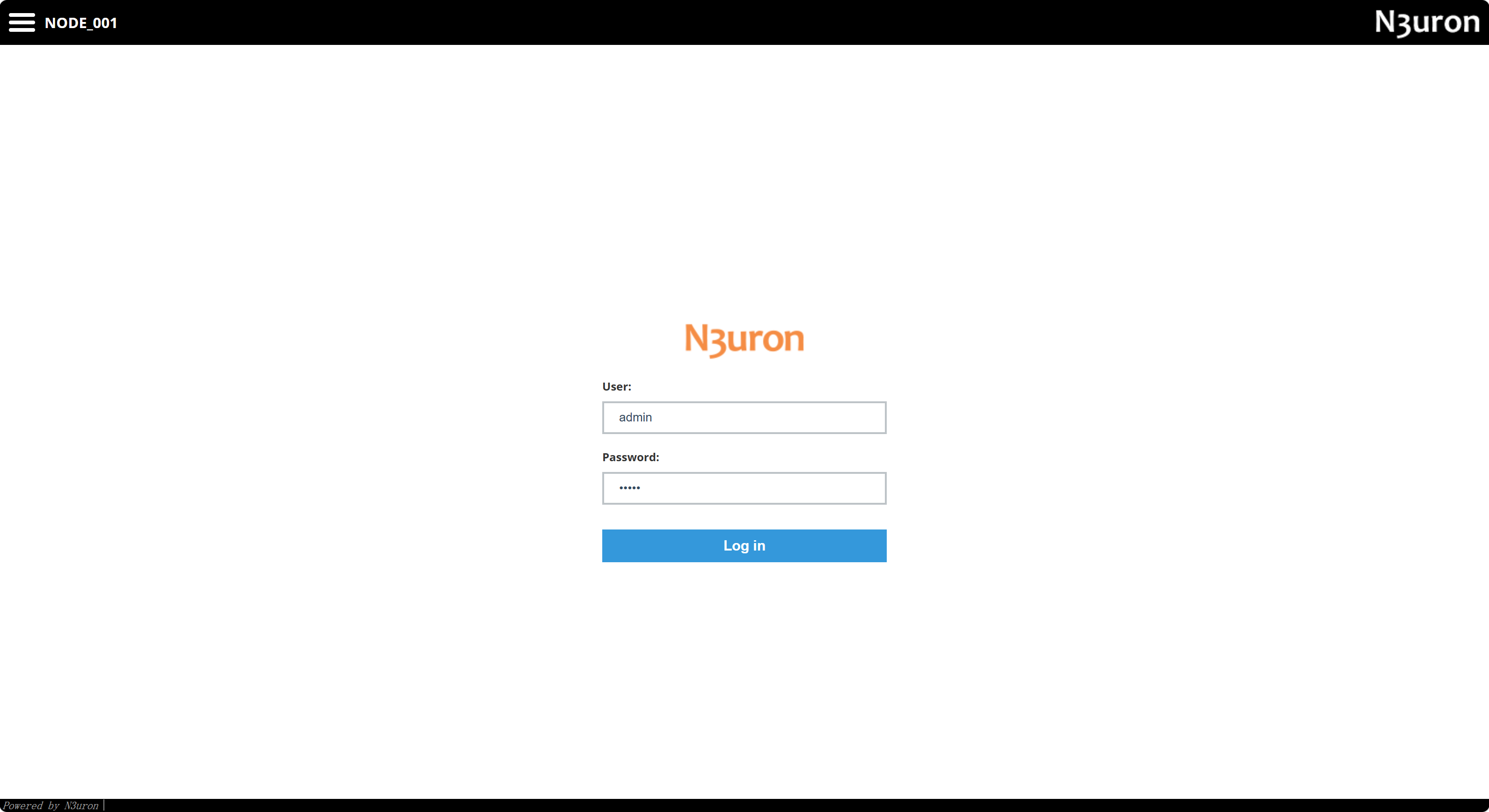
On the login page, enter admin in User, enter the password you just set in Password, and select Log in.
If the node has already been initialized, use its existing administrator credentials.
For production, configure appropriate access controls and HTTPS, and do not expose the WebUI directly to the public Internet.
Step 5: Verify the installation
After login, the WebUI opens. In the RK3576 test, the header showed the node NODE_001, and the navigation included these entries:
| Menu | Purpose |
|---|---|
| Data → Realtime | View real-time Tag values and status |
| Data → Historical | Access configured historical data features |
| Alarms | View alarm information |
| System → Diagnostics | Check node and module operation |
| System → Config | Configure the node and its modules |
| System → Licensing | View and manage licenses |
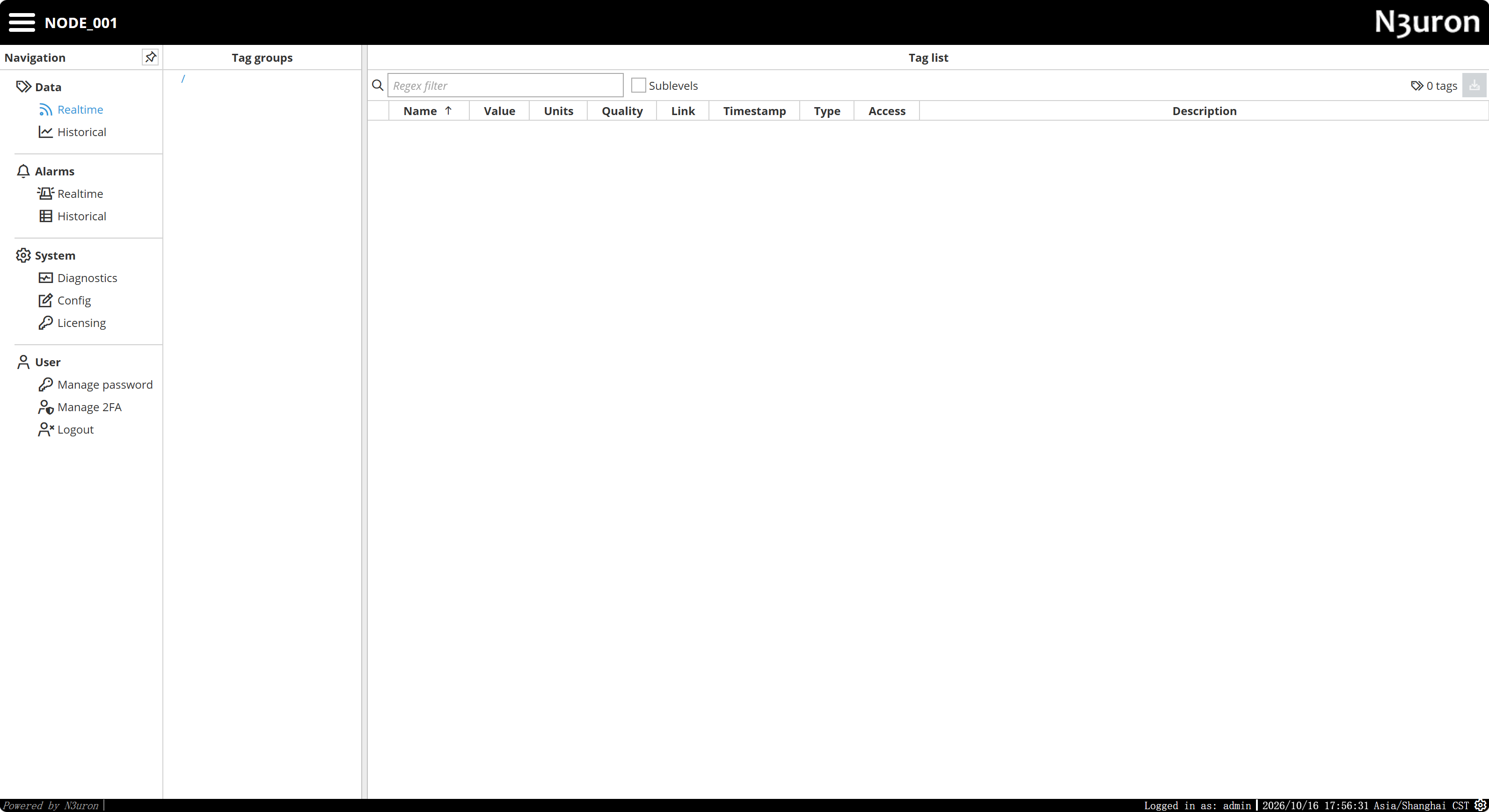
Seeing 0 tags under Data → Realtime is normal before creating data sources and Tags. The installation and basic verification are complete when the service is running and you can log in to the WebUI.
Licensing and optional modules
Basic WebUI access does not require a separate WebUI license. Other commercial modules generally require the corresponding licenses and may run in time-limited demo mode without a valid license. Check the current N3uron documentation and the Licensing page for the applicable limits.
The Historian embedded database in N3uron v1.22 requires ARMv8.2-A or later on ARM64 CPUs. A successful platform installation does not verify compatibility with every optional module. See the Linux installation requirements.
Troubleshooting
The installation script cannot be downloaded
Check network connectivity and DNS resolution, then try downloading the script separately:
curl -fL --retry 3 https://get.n3uron.com/install.sh -o /tmp/n3uron-install.shIf the download fails, investigate the error before repeatedly attempting installation.
The browser cannot reach the WebUI
Check the service, listening ports, and device address:
sudo systemctl status n3uron --no-pager
sudo ss -ltnp | grep -E ':8003|:8443'
hostname -I
Also confirm that the browser computer can reach the device's network and that the firewall allows the configured port.
Why does the real-time page show 0 tags?
A fresh installation has no data sources configured. Configure a Modbus, MQTT, or OPC UA module under System → Config and create Tags to see their data under Data → Realtime.
Next steps
After installation, you can explore industrial edge gateway applications such as:
- Reading device or simulated sensor data over Modbus TCP.
- Publishing local Tag data to an MQTT broker with MQTT Client.
- Connecting N3uron to AWS IoT Core to build an industrial device-to-cloud data pipeline.
These features are outside this installation tutorial's verified scope and can be covered in separate application guides.