reComputer RK3576 Module Dev Kit Interface Usage Guidelines
Last updated:
System Configuration
Wi-Fi
By default, the Wi-Fi and Bluetooth antennas are not assembled. Install the antennas before use to improve signal strength, and make sure they are connected to the correct antenna connectors.
Wi-Fi Test
nmcli device wifi list
sudo nmcli device wifi connect STU-TE password seeedkey968
sudo nmcli device wifi connect test-ap password 88888888
sudo nmcli device wifi connect SEEED-OFFICE password edgemaker2025
# 1-hour ping packet loss test
ping -w 3600 192.168.254.100
Bluetooth
Bluetooth Test
bluetoothctl
scan on
scan off
Remote login guide (SSH)
Hardware: reComputer RK3576 Module
Operating System: Debian 12
This guide provides instructions on how to access your reComputer remotely using the Secure Shell (SSH) protocol.
Enable SSH After the First Flash
After the first system flash, the SSH service may not be running automatically. Enable it locally on the device in the following order:
Start the SSH service:
sudo systemctl start sshEnable SSH to start automatically at boot:
sudo systemctl enable sshCheck the SSH service status:
systemctl status sshPrerequisites
- The reComputer must be powered on and connected to the same Local Area Network (LAN) as your primary computer.
- An Ethernet connection is recommended for initial setup to ensure stability.
Identify the Device IP Address
You need the IP address of the reComputer to establish a connection.
- Via Local Terminal: If you have a monitor and keyboard connected to the reComputer, run:
hostname -I
- Via Router Dashboard: Access your router's web interface and look for a device named recomputer or similar in the DHCP client list.
Connection Methods
Option A: Windows (PowerShell or Command Prompt) Modern Windows versions include a built-in SSH client.
- Press Win + R, type cmd, and hit Enter.
- Input the following command (replace 10.0.x.x with your actual IP):
ssh seeed@10.1.x.x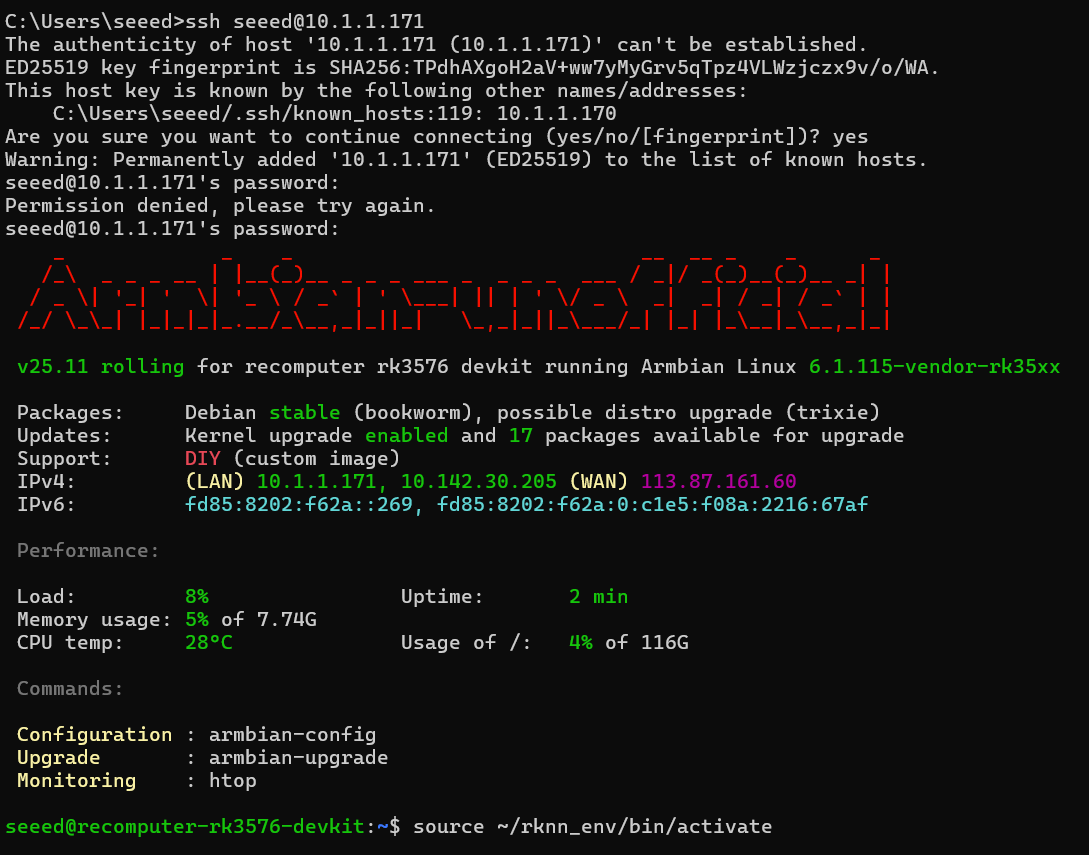
- Type yes when asked to confirm the host's fingerprint.
- Enter the password seeed (characters will not appear as you type).
Option B: Linux / macOS Terminal Open your native terminal and run:
ssh seeed@<Your_Device_IP>Option C: Professional Tools (Recommended) For a more robust development environment, consider:
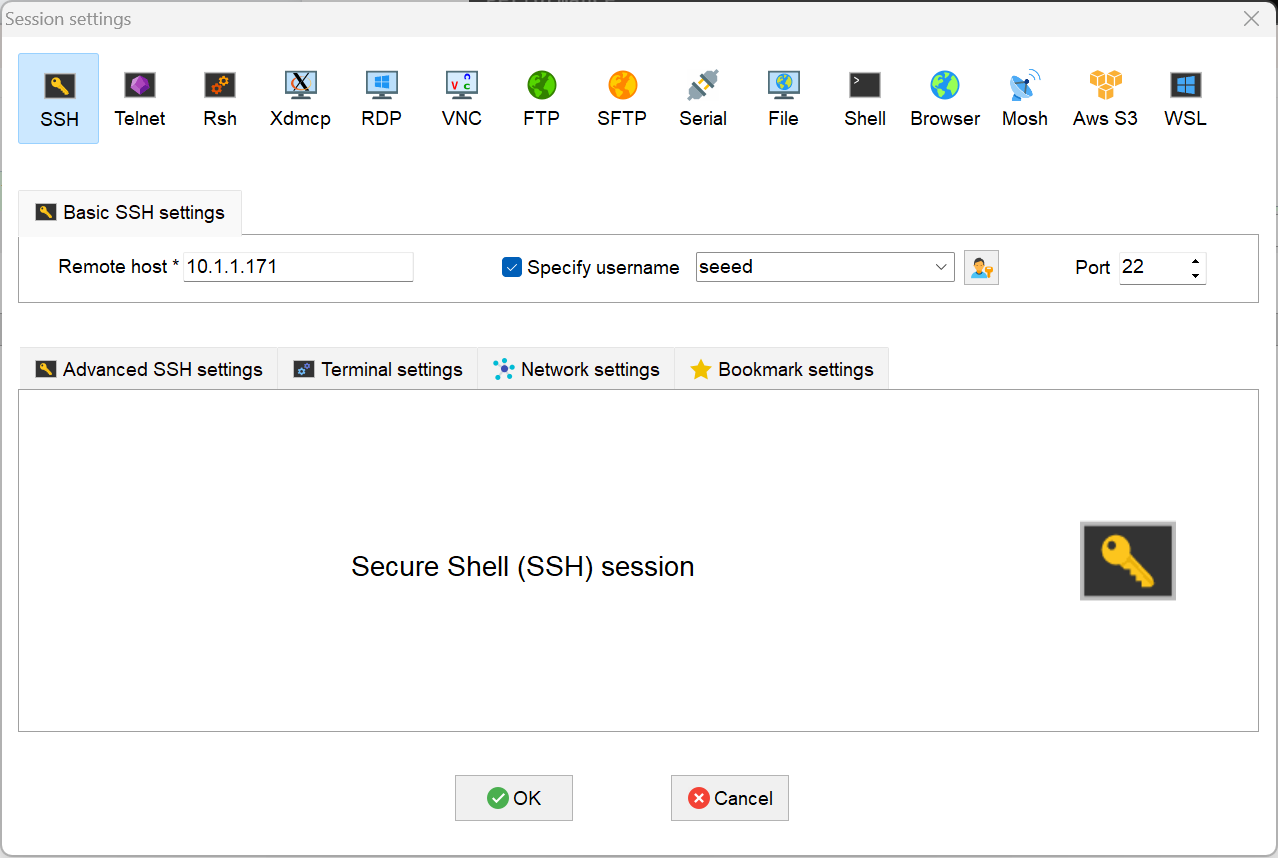
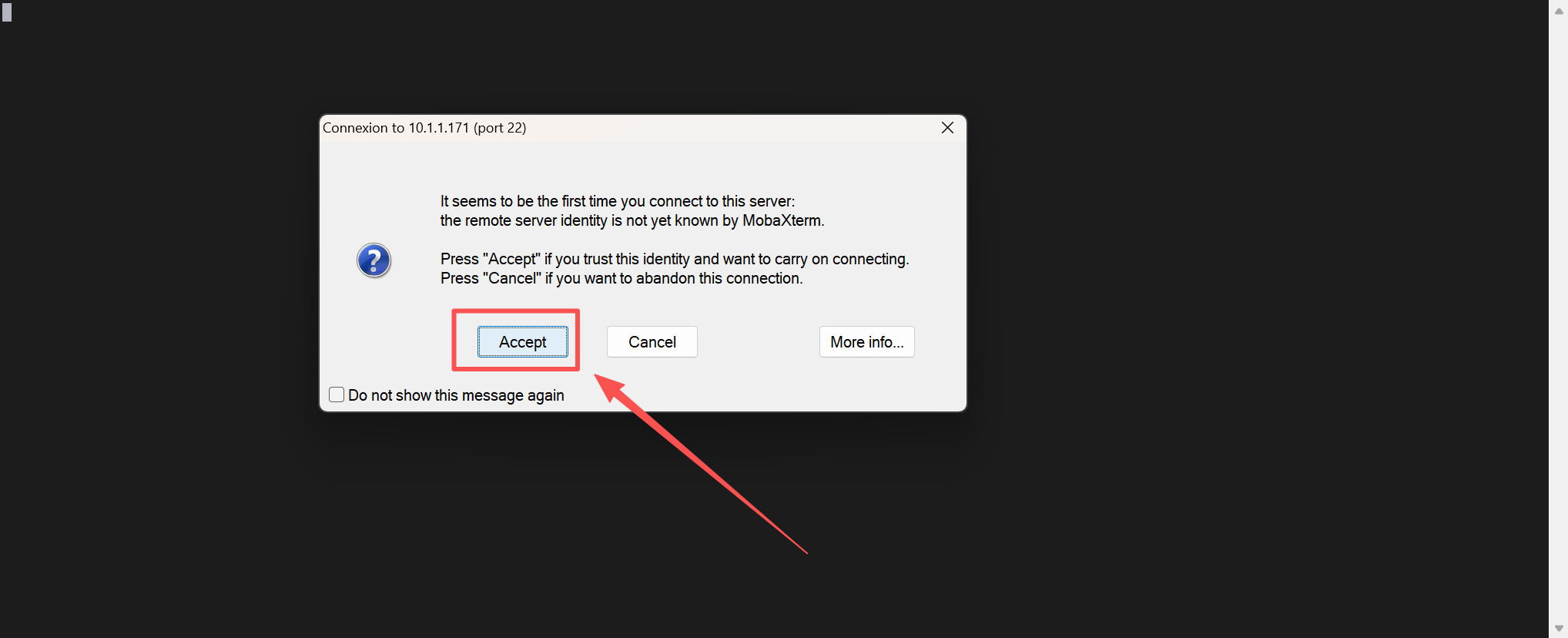
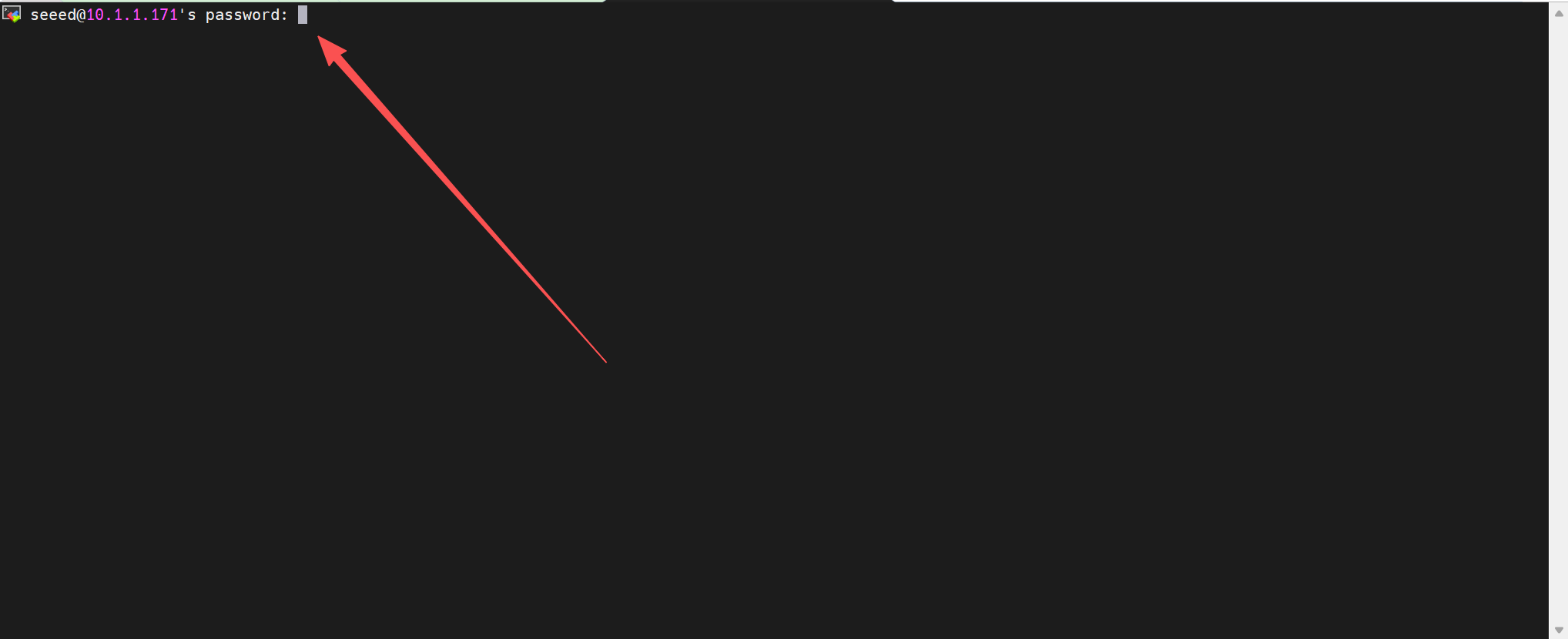
- MobaXterm: Features a built-in SFTP sidebar for easy file dragging.
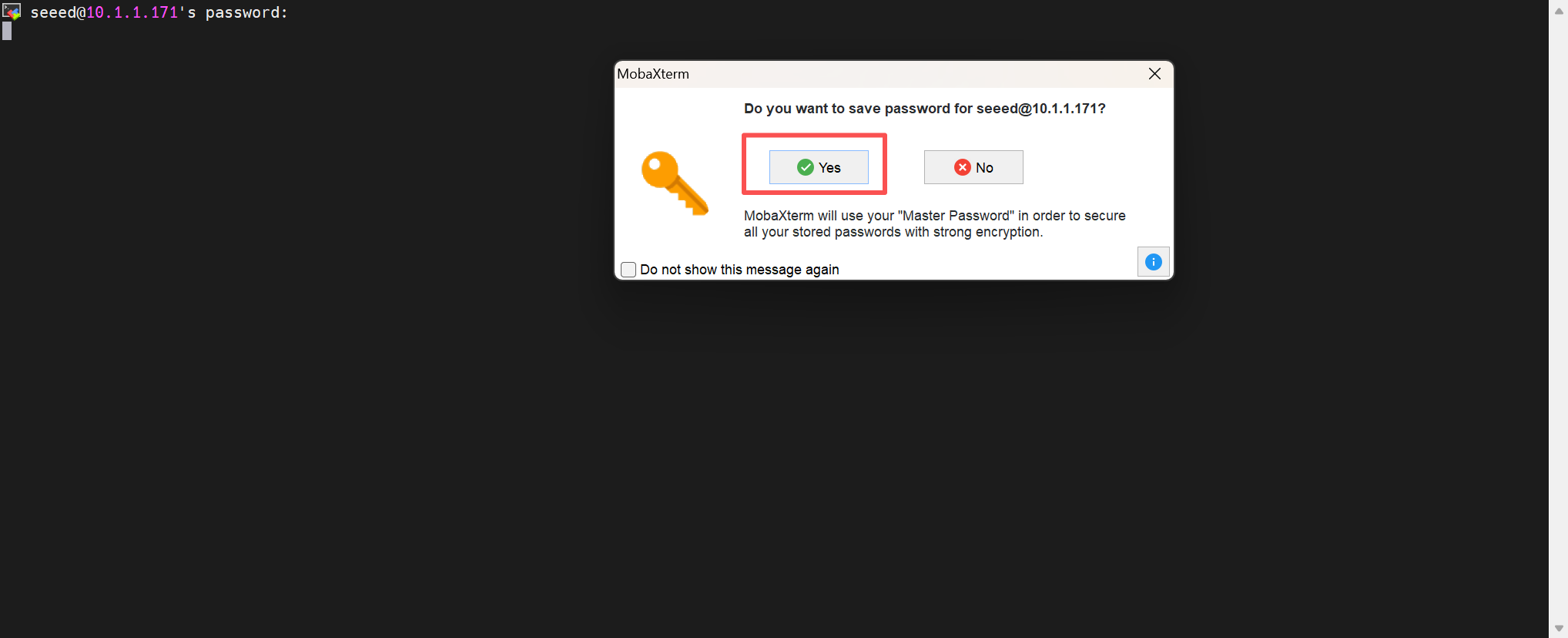
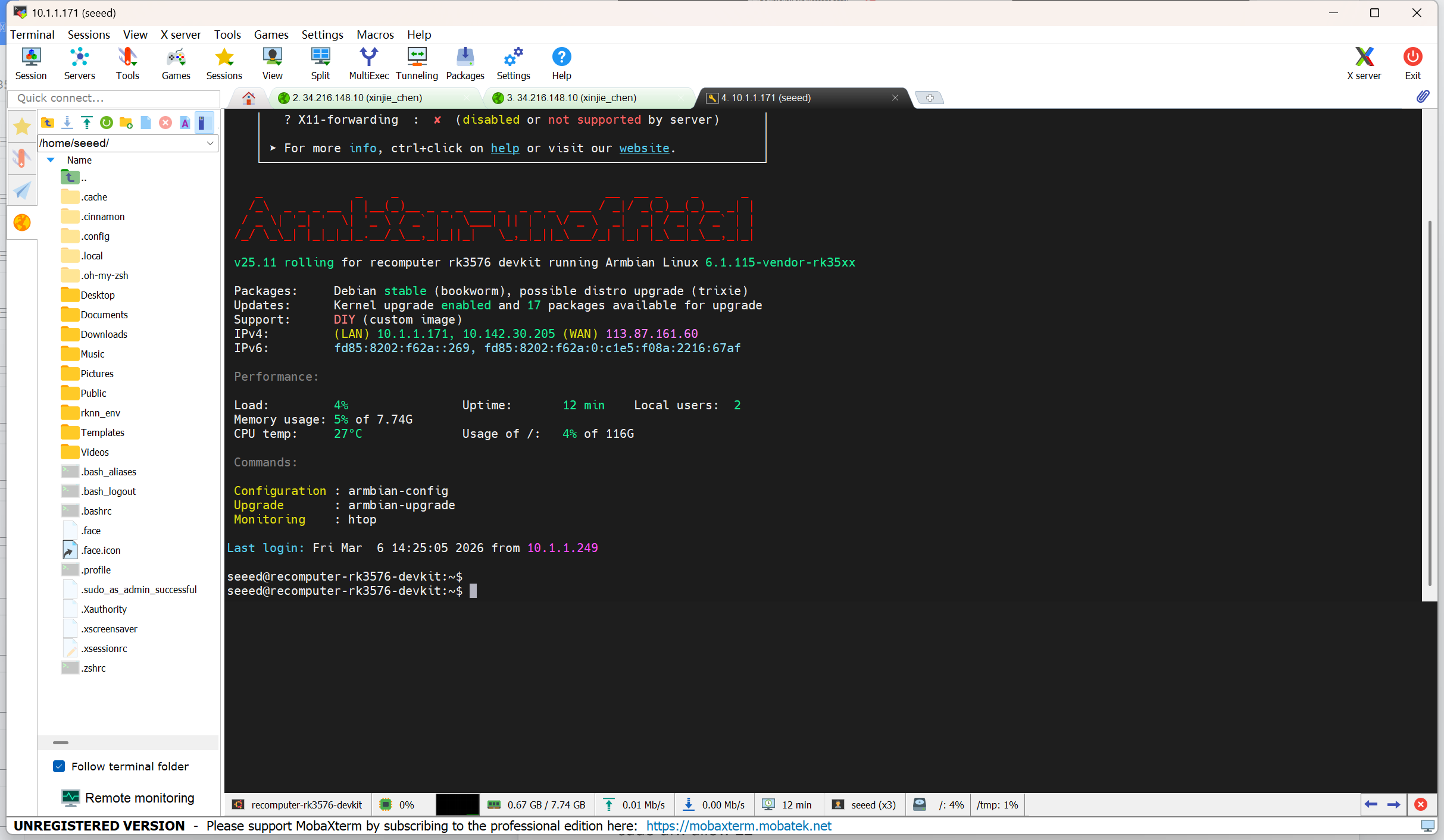
Troubleshooting
- Connection Refused: Ensure the SSH service is active on the reComputer. You can check this locally by running:
sudo systemctl status ssh- Firewall Issues: If the service is running but blocked, allow port 22 through the firewall:
sudo ufw allow 22- Host Key Verification Failed: If you recently reflashed the OS on the same IP address, clear the old key on your PC using:
ssh-keygen -R <Your_Device_IP>Debugging
UART0 Serial Debugging
Debugging via UART0
For serial debugging, you need a USB-to-serial cable to connect the UART0 interface on the board to the USB port of the PC.
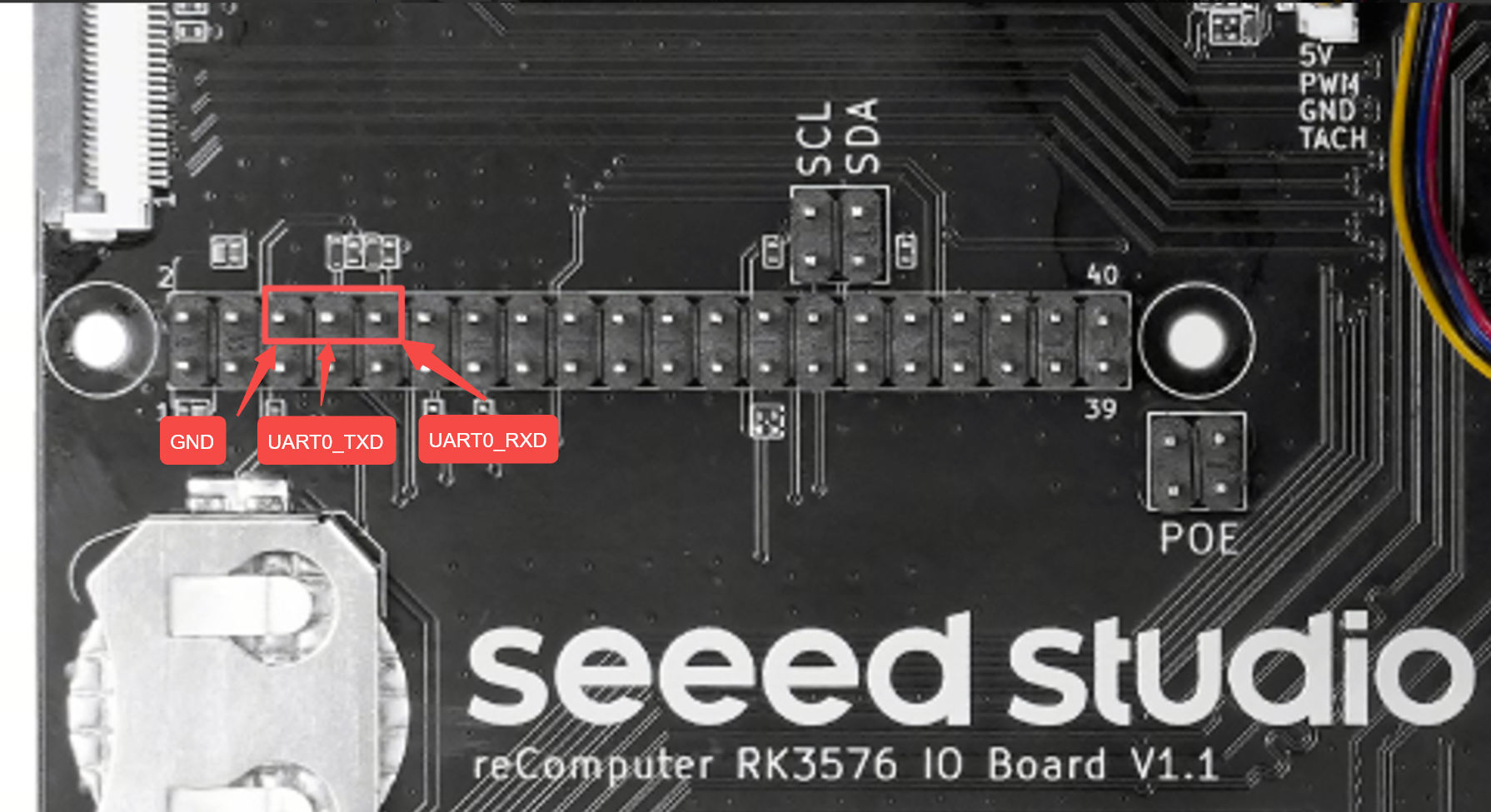
Serial Login
Serial Parameters
Baud rate: 1500000
Data bits: 8
Stop bits: 1
Parity: None
USB-C OTG Login
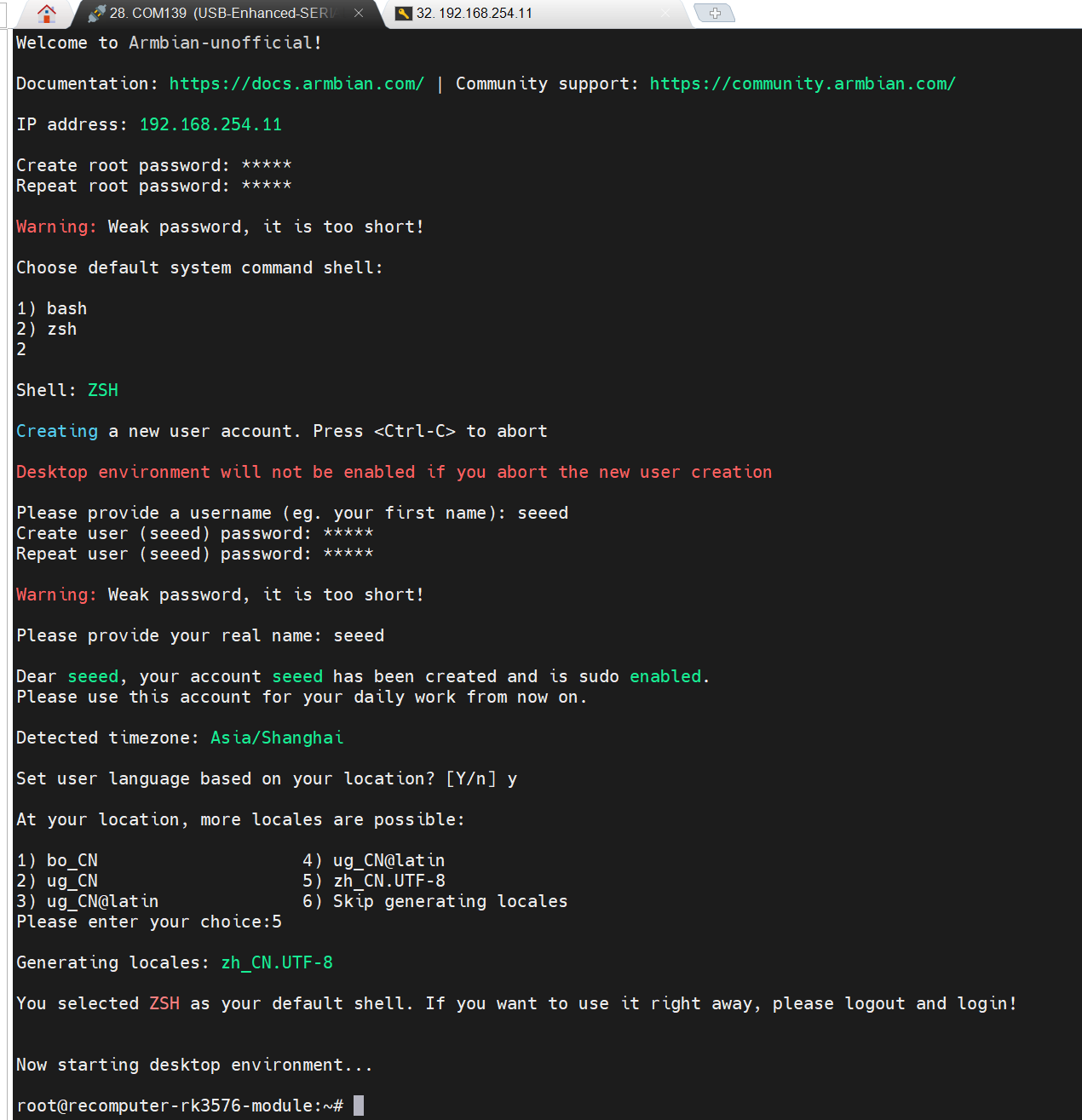
Log in with MobaXterm
If you connect via USB-C on the first login, you need to complete the user initialization configuration:
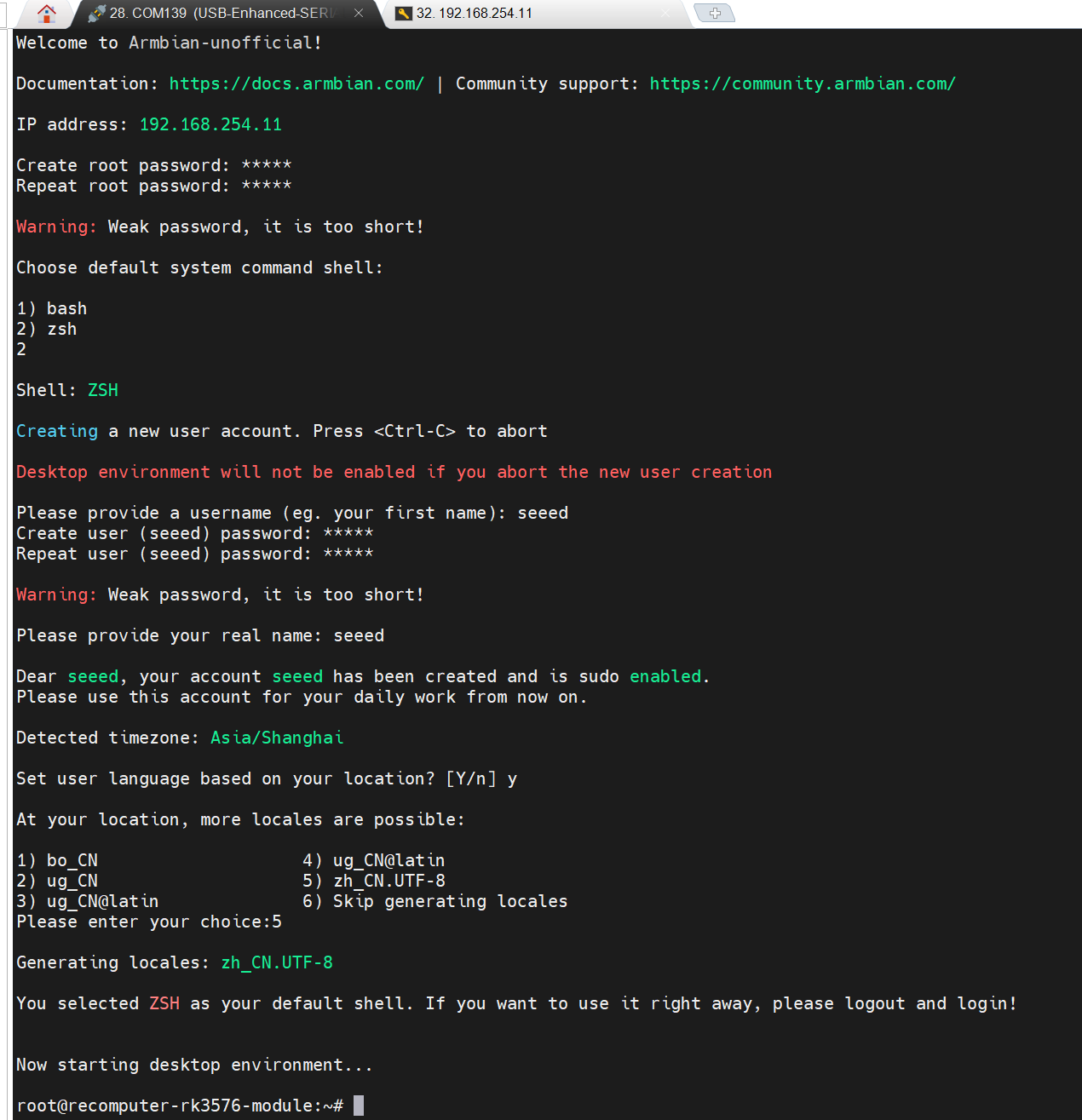
root
1234
After the configuration is complete, you can enter the desktop
Interface Usage
SD Card Slot
The microSD card can be used as a system boot medium or as extended storage space. It is compatible with microSD / microSDHC / microSDXC cards.
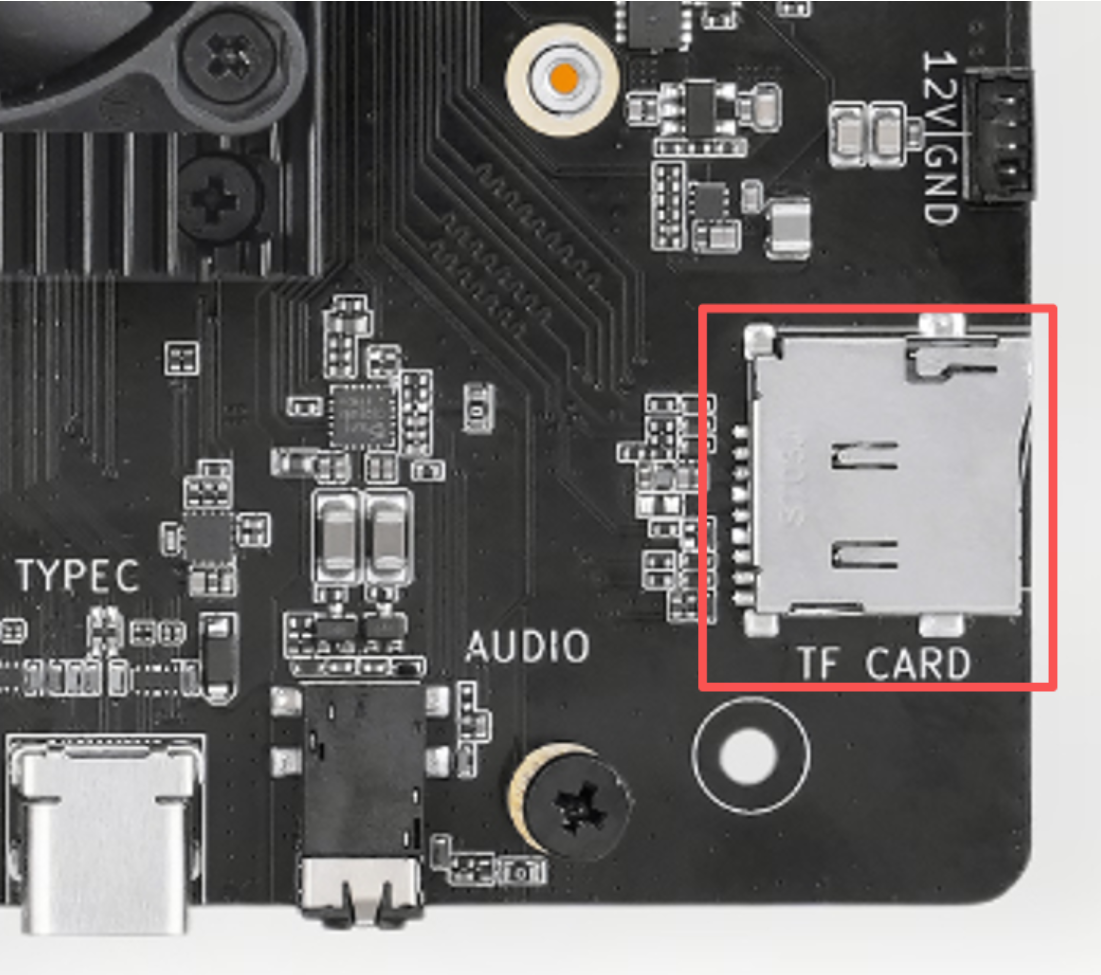
When used as a system boot medium, the reComputer RK3576 Module boots from the microSD card by default. See the system installation tutorial for the image-writing procedure.
When used as extended storage space, simply insert the card and it will be recognized without flashing an image.
Hot-plug recognition and read/write speed test:
lsblk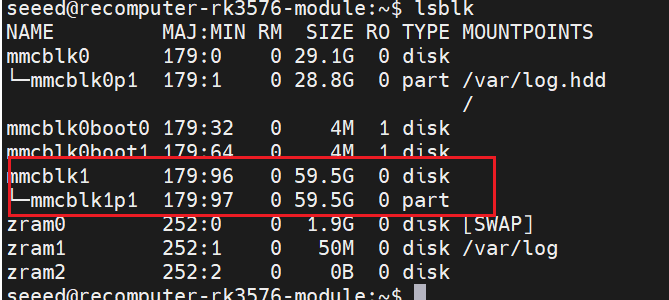
# read
dd if=/dev/mmcblk1p1 of=/dev/null bs=512M count=1 iflag=direct
#clear cache
echo 3 > /proc/sys/vm/drop_caches
# write
dd if=/dev/zero of=/dev/mmcblk1p1 bs=512M count=1 oflag=direct conv=fdatasync
M.2 M Key Interface Usage
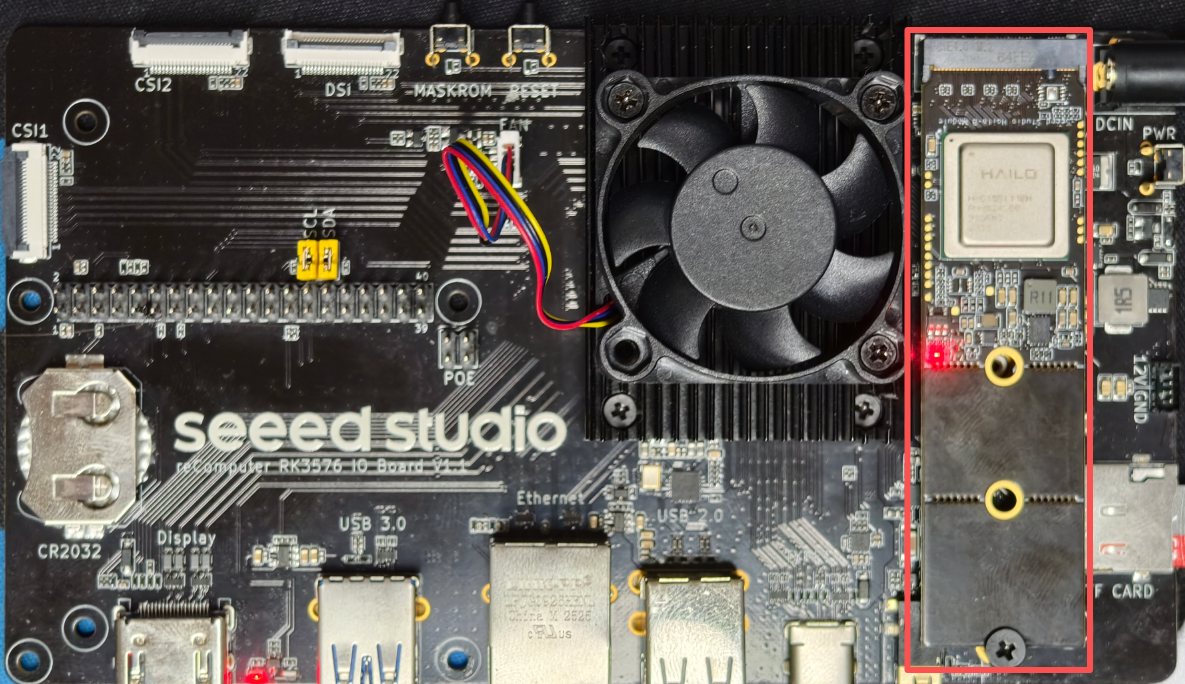
The board provides one M.2 Key M interface, which can meet the needs of memory expansion or computing power expansion.
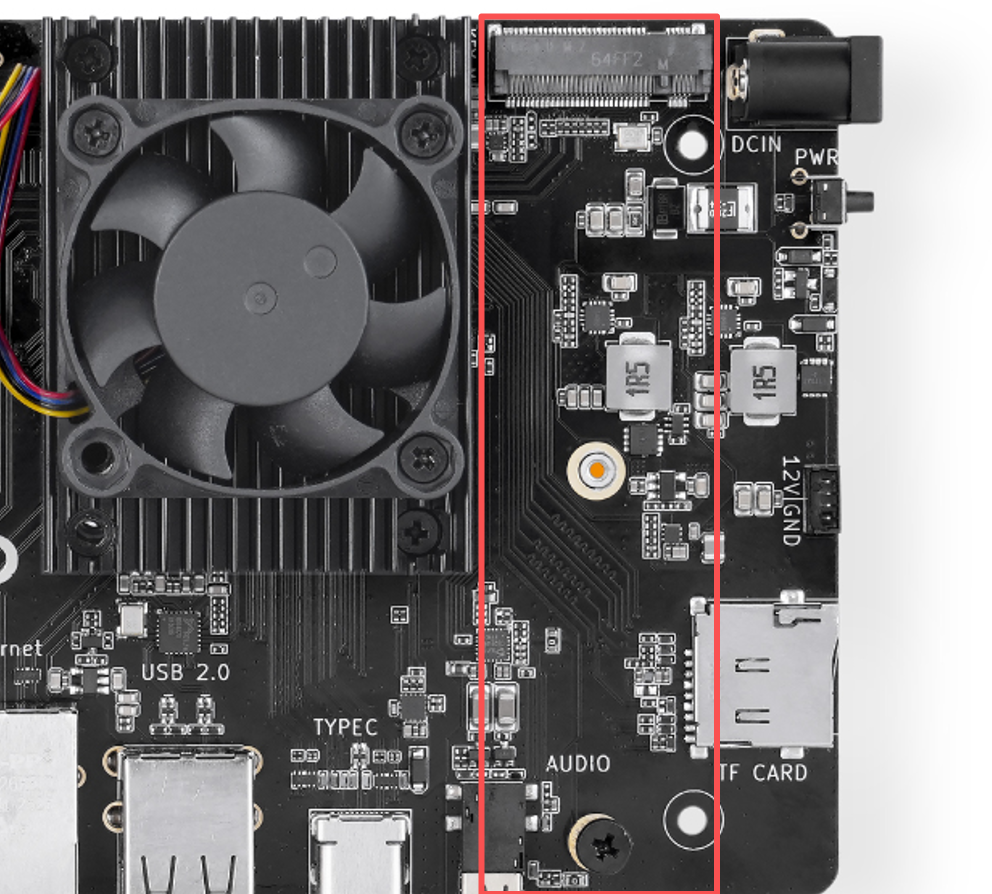
The M.2 Key M interface supports mounting SSDs and various AI Accelerators. The tested SSD and AI Accelerator models are as follows:
-
SSD
-
Seeed NVMe (128GB/256GB/512GB/1TB/2TB)
-
SAMSUNG 980
-
KIOXIA-EXCERIA G2 SSD
-
NXM-128
-
TWSC TSC3AN128-F2T70S
-
-
AI Accelerator
-
RK1820/RK1828
-
Hailo-8/8L/10H
-
Note
The models above only indicate that compatibility verification has been completed under the current hardware and software versions; they do not guarantee that other models of the same brand or different batches are compatible. The device may behave differently due to differences in controller, firmware, power consumption, and hardware version. It is recommended to verify in practice before bulk purchasing or deployment. This interface only supports PCIe NVMe SSDs, not M.2 SATA SSDs.
SSD Usage Guide
Use the following command to identify the SSD device:
lsblk
Test the SSD read/write speed:
# Read
dd if=/dev/nvme0n1 of=/dev/null bs=1024M count=4 iflag=direct
#Clear Cache
echo 3 > /proc/sys/vm/drop_caches
# Write
dd if=/dev/zero of=/dev/nvme0n1 bs=1024M count=4 oflag=direct conv=fdatasync
where /mnt/nvme needs to be replaced with the actual mount directory of the SSD.

Hailo Usage Guide
Follow the Hailo installation video, then install the required packages below.
Install the software packages. After installing the basic PCIe driver, you need to reboot the system for the changes to take effect.
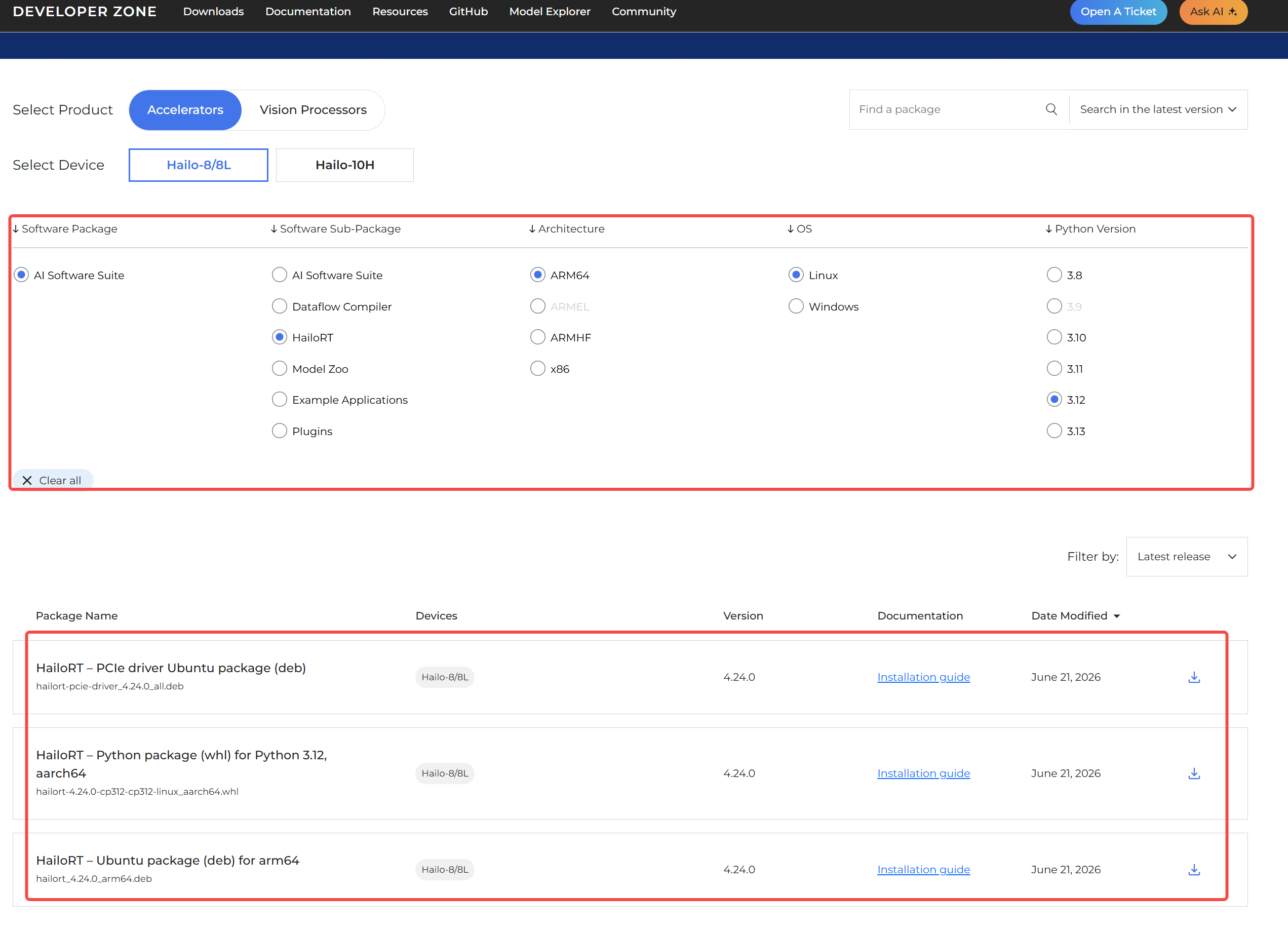
# Install the PCIe driver
sudo dpkg -i hailort-pcie-driver_4.24.0_all.deb

# Reboot the system
sudo reboot

# After reboot, verify that the driver has been loaded
lsmod | grep hailo

# Install HailoRT
sudo dpkg -i hailort_4.24.0_arm64.deb

# Scan and verify the device status
hailortcli scan

# Create and activate the virtual environment
python3 -m venv hailo_env
source hailo_env/bin/activate

# Install the HailoRT Python library
pip install hailort-4.24.0-cp312-cp312-linux_aarch64.whl

# Verify the installation and device connection
python3 -c "from hailo_platform import VDevice; vdev = VDevice(); print('Successfully connected via VDevice! Device info:', vdev)"


Install Hailo Model Zoo. To run the official pre-trained models, you need to install Hailo Model Zoo and its system dependencies.
# 1. Install the required system libraries
sudo apt update
sudo apt install -y git libglib2.0-0t64 libgl1 libglx-mesa0

# 2. Clone the official repository (the latest branch is recommended)
git clone https://github.com/hailo-ai/hailo_model_zoo.git
cd hailo_model_zoo
mkdir -p ~/hailo_models
cd ~/hailo_models

wget \
https://hailo-model-zoo.s3.eu-west-2.amazonaws.com/ModelZoo/Compiled/v2.19.0/hailo8/yolov8n.hef
Confirm the file:
ls -lh yolov8n.hefThen parse the HEF first:
hailortcli parse-hef yolov8n.hefMake sure to confirm that it is for:
HAILO8instead of:
HAILO8L
HAILO10H
Then run it directly:
hailortcli run yolov8n.hef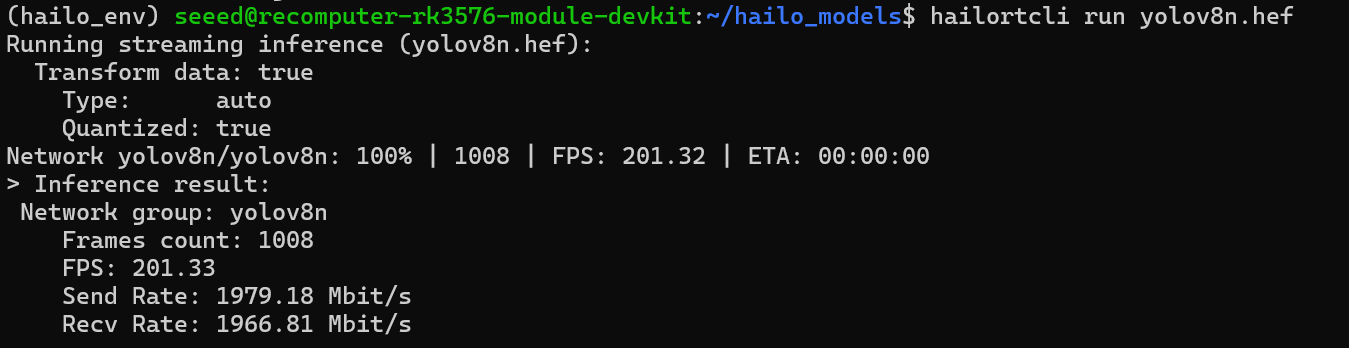
RK182x Usage Guide
The Seeed reComputer RK3576 Module natively supports the RK182x series accelerator sticks. No complex driver installation steps are needed; they work out of the box.
Install RK1820
Turn off the power of the reComputer RK3576.
Install the RK1820 AI Accelerator into the corresponding M.2 slot and secure it with a screw.
After installation, power on the device and enter the system. The following image shows the installation position.
Note:
Do not insert or remove the RK1820 while the device is powered on.
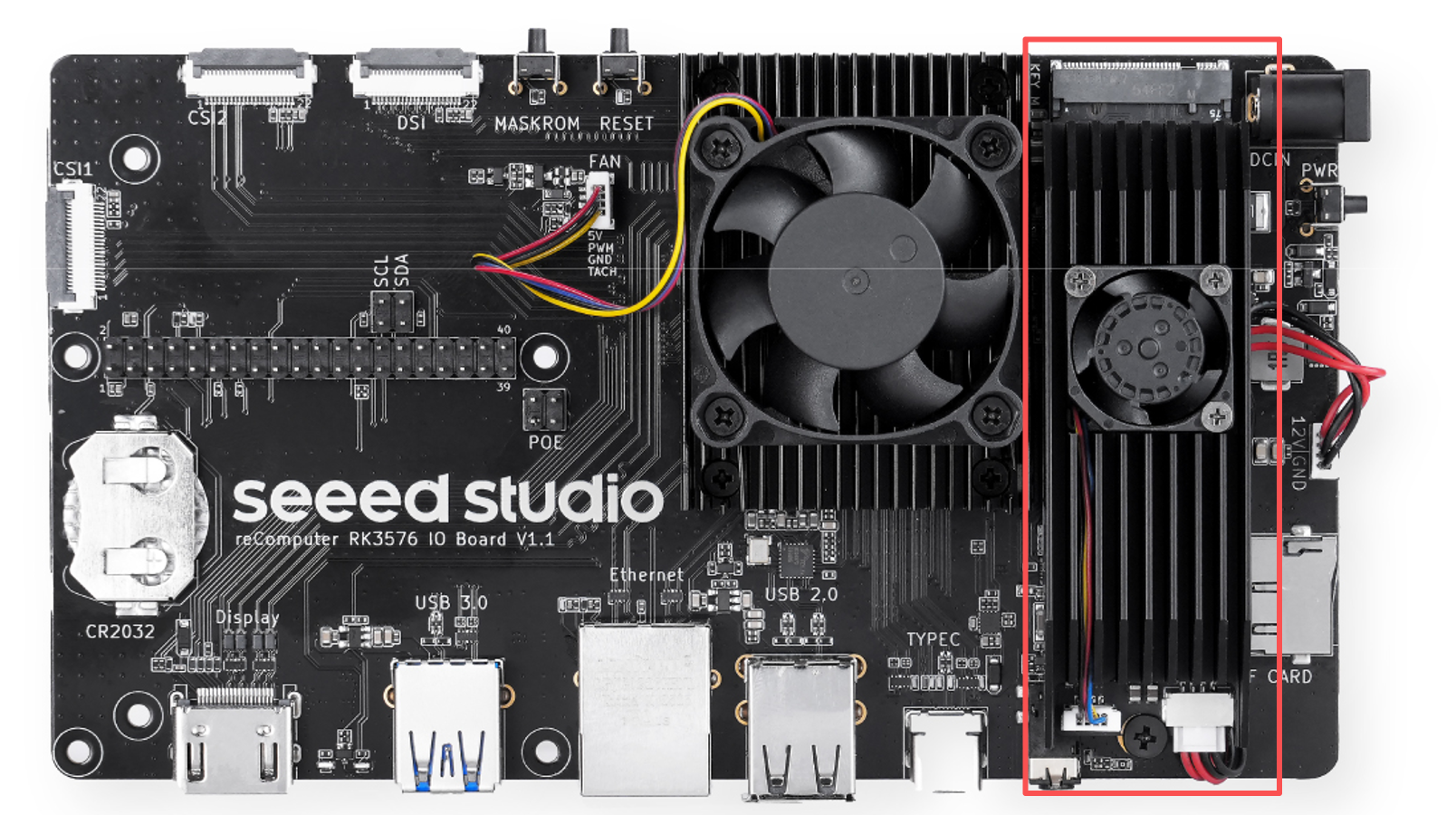
Check the RK1820 PCIe Connection
After entering the system, run:
lspciUnder normal conditions, the RK1820 should be recognized as a PCIe Processing Accelerator.
Example:

Further check the PCI Vendor ID and Device ID:
lspci -nnExample:

1d87:182aindicates that the RK1820 has been correctly enumerated by the system.
Check the PCIe Link Status
Run:
sudo dmesg | grep -Ei "pcie|rkep|182a"Under normal conditions, you should see something like:
PCIe Link up
PCIe Gen.2 x1 link up
pcie-rkep 0000:01:00.0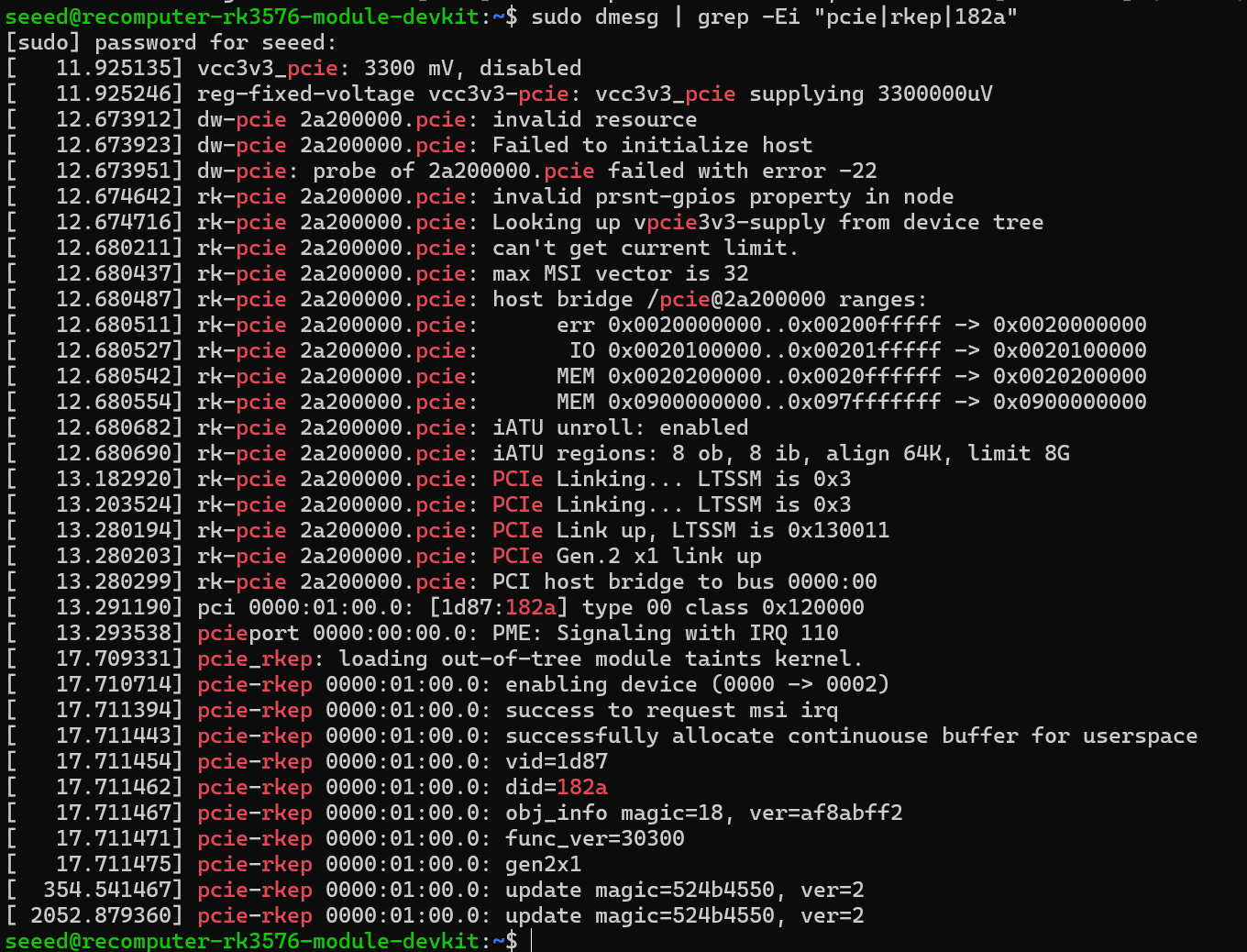
This indicates that the PCIe link between the RK3576 and the RK1820 has been established normally.
Further check the RK1820 Device Node:
ls -l /dev/pcie-rkep-*Example:

/dev/pcie-rkep-0000:01:00.0If you can see this device node, it means the RK1820 PCIe driver is working normally.
Install RKNN3 Runtime
This article uses RKNN3 V1.1.0. The installation package is available at this download link.
Installation package name:
rknn3_rk182x_m2_v1.1.0_installer_arm64.tgz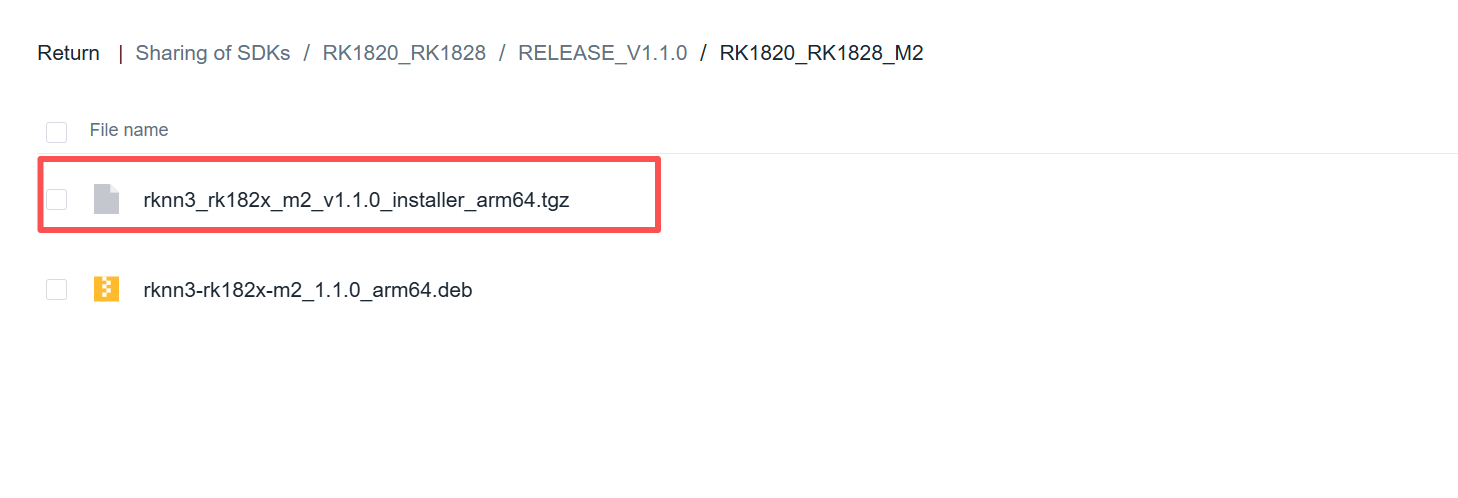
After downloading it to your PC, upload it to the reComputer RK3576 Dev Kit. Here we use uploading to the Downloads folder as an example.
Enter the download directory:
cd ~/DownloadsCreate an extraction directory:
mkdir -p rk182x_m2_installerExtract the installation package:
tar -xzf rknn3_rk182x_m2_v1.1.0_installer_arm64.tgz \
-C rk182x_m2_installer
Enter the installation directory:
cd rk182x_m2_installerRun the installation:
sudo ./install.shReboot after installation:
sudo rebootNote:
The RKNN3 Runtime version should be compatible with the RKNN3 Toolkit used during model conversion.
If the model and Runtime versions do not match, errors such as:
PlainMODEL_SETUP fail rknn3_model_init failmay occur during model initialization.
Verify the RKNN3 Runtime Environment
After the system reboots, check the RKNN3 Service:
systemctl status rknn3.service --no-pagerUnder normal conditions, it should show:
Active: active (running)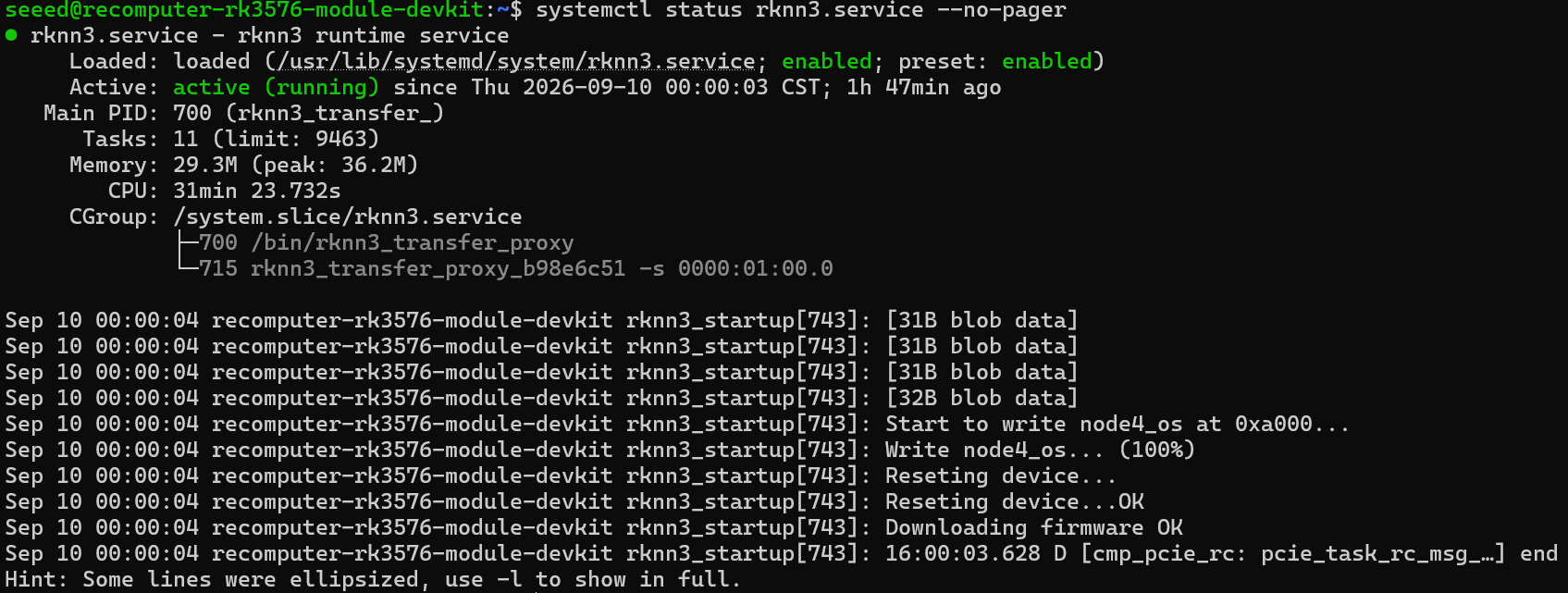
Check the RKNN3 Version
sudo rknn-smi -vYou can check:
rknn-smi version
PCIe driver version
RC chips connect version
EP chips connect version
PCIe Device firmware version
rknn3 API version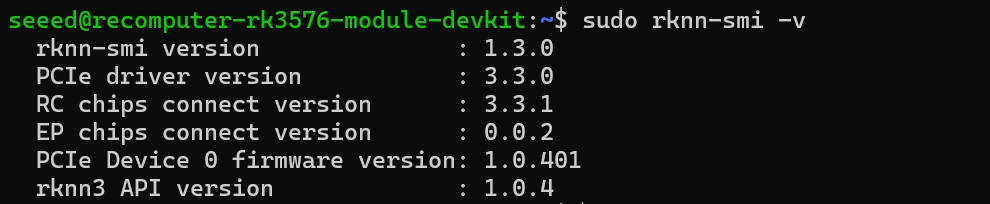
Check the RK1820 Device Information
sudo rknn-smi info -lUnder normal conditions, you should see something like:
Device Count: 1

Device ID: 0
Communication mode: PCIe
Product Name: RM1820MC0-F
Chip Count: 1
Chip ID: 0
Chip Name: RK1820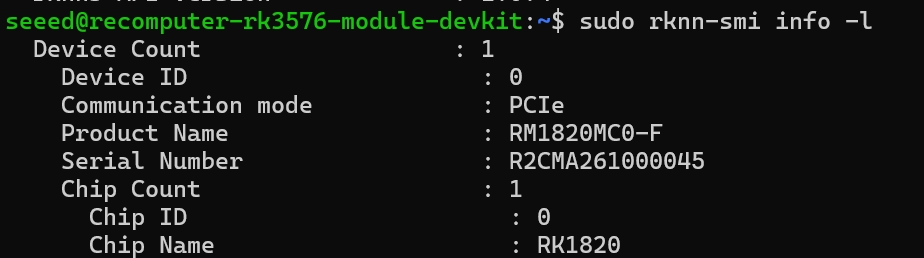
This indicates that the RKNN3 Runtime has successfully recognized the RK1820.
Check the RK1820 Runtime Status
sudo rknn-smi infoYou can check:
-
Device Status
-
Health
-
NPU Utilization
-
Temperature
-
Memory Usage
Under normal conditions, it should show:
Status: Online
Health: OK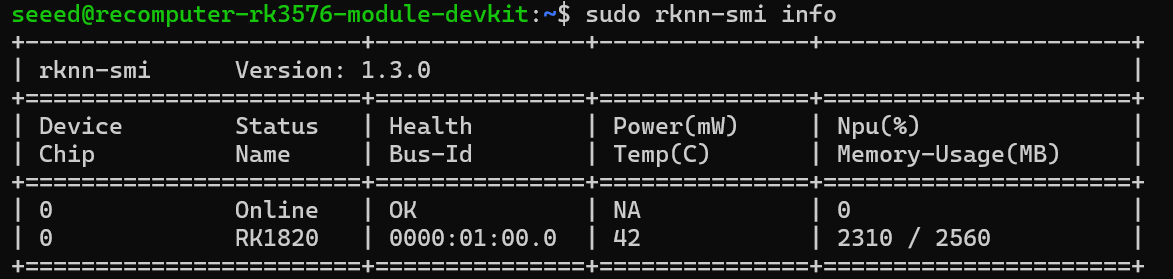
If you need to view the RK1820 status in real time, run:
sudo rknn-smi info -wThis command is suitable for observing NPU utilization, memory, and temperature changes during model inference.

Test RK1820 with Qwen3.5-0.8B
Next, use Qwen3.5-0.8B to verify the LLM inference capability of the RK1820. The model download link is:
Model package (rknn3_models/v1.1.0):
Download the Qwen3.5-0.8B model (extraction code: rknn)
The Qwen3.5-0.8B model directory contains the following files:
Qwen3.5-0.8B/
鈹溾攢鈹€ Qwen3.5-0.8B.rknn
鈹溾攢鈹€ Qwen3.5-0.8B.weight
鈹溾攢鈹€ Qwen3.5-0.8B.tokenizer.gguf
鈹斺攢鈹€ Qwen3.5-0.8B.embed.bin
Enter the model directory:
cd ~/Downloads/Qwen3.5-0.8BView the files:
ls -lhExample:
Qwen3.5-0.8B.embed.bin        485M
Qwen3.5-0.8B.rknn              21M
Qwen3.5-0.8B.tokenizer.gguf     11M
Qwen3.5-0.8B.weight            499M
Before running the model, it is recommended to check the RKNN3 Toolkit version used by the model.
Run:
strings Qwen3.5-0.8B.rknn | \
grep -Eai "compiler version|rknn3-toolkit|RK1820"
Confirm the model:
-
The Target Platform is RK1820
-
The RKNN3 Toolkit version is compatible with the current Runtime
If the model version does not match the current Runtime, it is recommended to replace the model or upgrade the RKNN3 Runtime instead of continuing to run the model.

Run the Qwen3.5-0.8B performance test. Execute:
sudo rknn3_session_test \
Qwen3.5-0.8B.rknn \
Qwen3.5-0.8B.weight \
Qwen3.5-0.8B.tokenizer.gguf \
Qwen3.5-0.8B.embed.bin \
1024 256 0xff
The main parameters used in this test are:
Context Length : 1024
Max Output     : 256 Tokens
NPU Core Mask  : 0xff
The parameters are:
Context Length
1024indicates the context length used in this test.
Max Output
256indicates that this test generates at most 256 Tokens.
NPU Core Mask
0xffindicates that all available NPU Cores of the RK1820 are used.
Qwen3.5-0.8B measured results, tested on the reComputer RK3576 Dev Kit + RK1820 AI Accelerator, are as follows:
Detailed test data:

Test Result Explanation
Prefill indicates the speed at which the model processes the input Prompt.
Measured in this test:
319.55 tokens/sGenerate indicates the speed at which the model generates text token by token, and is a more important metric for evaluating the actual interactive experience of an LLM.
Measured in this test:
95.81 tokens/sThe average generation time per token is:
10.44 ms/tokenThe test results show that:
Qwen3.5-0.8B runs normally on the RK1820. Under this test configuration, the measured generation speed is about 95.81 tokens/s.
Monitor RK1820 During Inference
While running the model test, you can open another terminal and run:
sudo rknn-smi info -wObserve in real time:
NPU Utilization
Memory Usage
Temperature
Health Status
This allows you to judge the load, memory usage, and temperature status of the RK1820 while the model is running.
Common Issues
MODEL_SETUP fail
If the following appears when running the model:
MODEL_SETUP fail, ack = ACK_FAIL
rknn3_model_init, recv model setup fail ack
First check the model conversion version:
strings *.rknn | \
grep -Eai "compiler version|rknn3-toolkit|RK1820"
Then check the current RKNN3 Runtime:
rknn-smi versionConfirm that the Runtime is compatible with the RKNN3 Toolkit version used during model conversion.
RK1820 Not Recognized
Run:
lspci -nnConfirm whether the following exists:
1d87:182aThen check the device node:
ls -l /dev/pcie-rkep-*Finally check:
rknn-smi info -lIf lspci all fail to recognize the RK1820, check the M.2 installation and PCIe link first, rather than the RKNN3 Runtime.
RK1820 Status Abnormal
Run:
sudo rknn-smi infoThe normal status should be:
Online
Health: OK
If the device is offline, you can further check:
sudo dmesg | grep -Ei "pcie|rkep|182a"Check the logs related to PCIe and the RK1820 driver.
Test Conclusion
After completing the above configuration, you can use the RK1820 AI Accelerator on the reComputer RK3576 Dev Kit via PCIe.
This test uses Qwen3.5-0.8B for verification:
Model            : Qwen3.5-0.8B
Prefill Speed    : 300.49 tokens/s
Generate Speed   : 92.89 tokens/s
Time per Token   : 10.77 ms
Result           : PASS
This shows that RK3576 鈫?PCIe 鈫?RK1820 鈫?RKNN3 鈫?Qwen3.5-0.8B the entire LLM inference chain works normally.
HDMI 2.1 Guide
The board has an HDMI 2.1 interface for connecting displays and other video devices, with support for up to 4K at 120 fps.
Note
The actual available resolution and refresh rate depend on the display device, HDMI cable, and system driver. When using 4K@120 Hz, an HDMI 2.1 cable that supports the corresponding bandwidth is recommended.
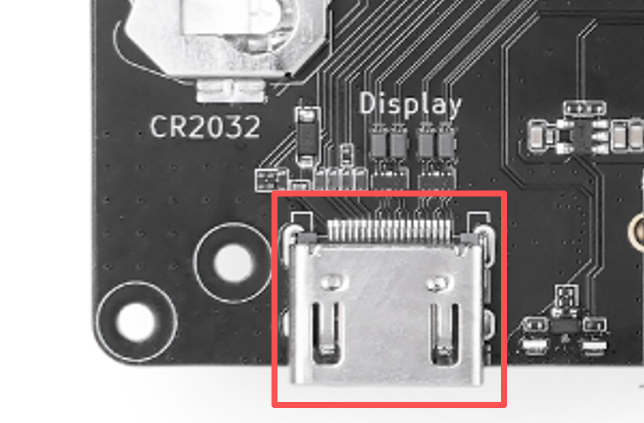
In the Armbian Desktop system, you can adjust the HDMI output parameters through the graphical interface or the command line.
Configure via the Graphical Interface
-
Open Settings from the Armbian desktop.
-
Open Displays.
-
Select the connected HDMI display device.
-
Set the resolution, refresh rate, screen orientation, and scaling ratio.
-
Click Apply, confirm the display is normal, and then save the settings.
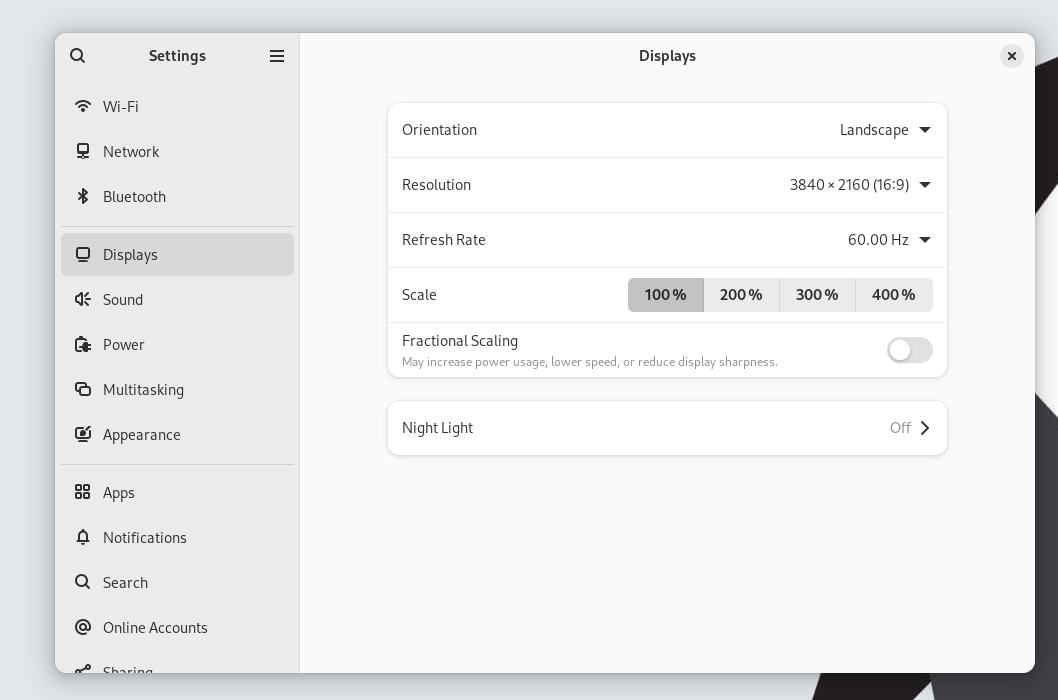
Configure via the Command Line
First check the current desktop session type:
echo "$XDG_SESSION_TYPE"If the output is x11, you can use xrandr to set the HDMI output parameters. Run the following commands in an Armbian desktop terminal as the current user; do not use sudo.
Check the display interfaces and their supported resolutions and refresh rates:
xrandr --queryIf the system reports that the xrandr command cannot be found, run:
sudo apt update
sudo apt install x11-xserver-utils
The HDMI interface name may be displayed as HDMI-1, HDMI-A-1, or another name. Use the name reported by xrandr --query in the commands below.
For example, set the HDMI output to 4K 60 Hz:
xrandr --output HDMI-1 --mode 3840x2160 --rate 60If xrandr --query mode list includes 4K 120 Hz, run:
xrandr --output HDMI-1 --mode 3840x2160 --rate 120Set HDMI as the primary monitor:
xrandr --output HDMI-1 --primaryTurn off the HDMI output:
xrandr --output HDMI-1 --offNote:
xrandrsettings usually take effect only in the current graphical session and may return to their defaults after reboot. To make them persistent, configure them through the graphical display settings.If
$XDG_SESSION_TYPEoutputswayland, please use the graphical interface to adjust the display parameters first.If the output is
tty, no graphical desktop is running, so neither the graphical settings norxrandrcan be used directly.If the target resolution or refresh rate does not appear in the supported list, check the display specifications, HDMI cable, and system driver.
Ethernet (PoE Supported) Interface Guide
Connect the Ethernet port to access a wired network.
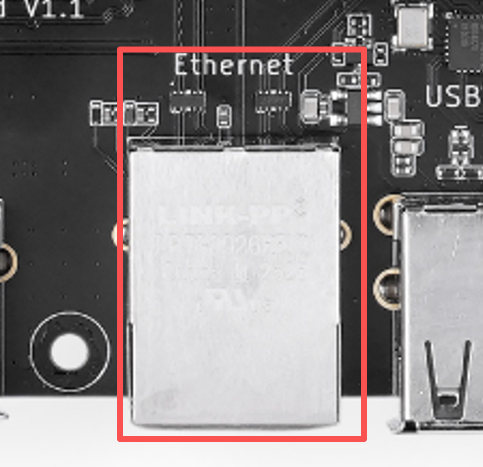
Get the network address:
ip -br addr
ip route
nmcli device status
Check the negotiated link speed:
sudo apt install -y ethtool
sudo ethtool <interface>
Test the network:
ping -c 4 8.8.8.8
ping -c 4 www.seeedstudio.com
Speed test:
sudo apt install -y iperf3
iperf3 -c <server_ip>
PoE Usage
The reComputer RK3576 IO Board supports connecting a Raspberry Pi PoE+ HAT, which provides both power and network connectivity through a single Ethernet cable.
PoE power delivery is handled automatically by the PoE+ HAT. No driver installation or additional configuration in Armbian is required.
Install the PoE+ HAT according to the hardware installation instructions, then connect the Ethernet cable.
After the system boots, you can use the following commands to check the network interfaces and IP address:
ip -br addrIf an IP address is obtained successfully, the Ethernet connection is available.
PoE and DC 12V can be connected to the reComputer RK3576 IO Board at the same time.
When both power sources are connected:
-
Disconnect PoE, and the system will continue to run on DC 12V without restarting.
-
Disconnect DC 12V, and the system will continue to run on PoE without restarting.
This means you can switch the power supply between PoE and DC 12V during use without interrupting the system operation.
Before installing or removing the PoE+ HAT, disconnect all power sources first. It is recommended to use a PoE+ switch or injector that complies with the IEEE 802.3at standard.
MIPI CSI Guide
The reComputer RK3576 IO Board provides two MIPI CSI interfaces, CSI1 and CSI2, which support direct connection of the Raspberry Pi Camera Module 3.
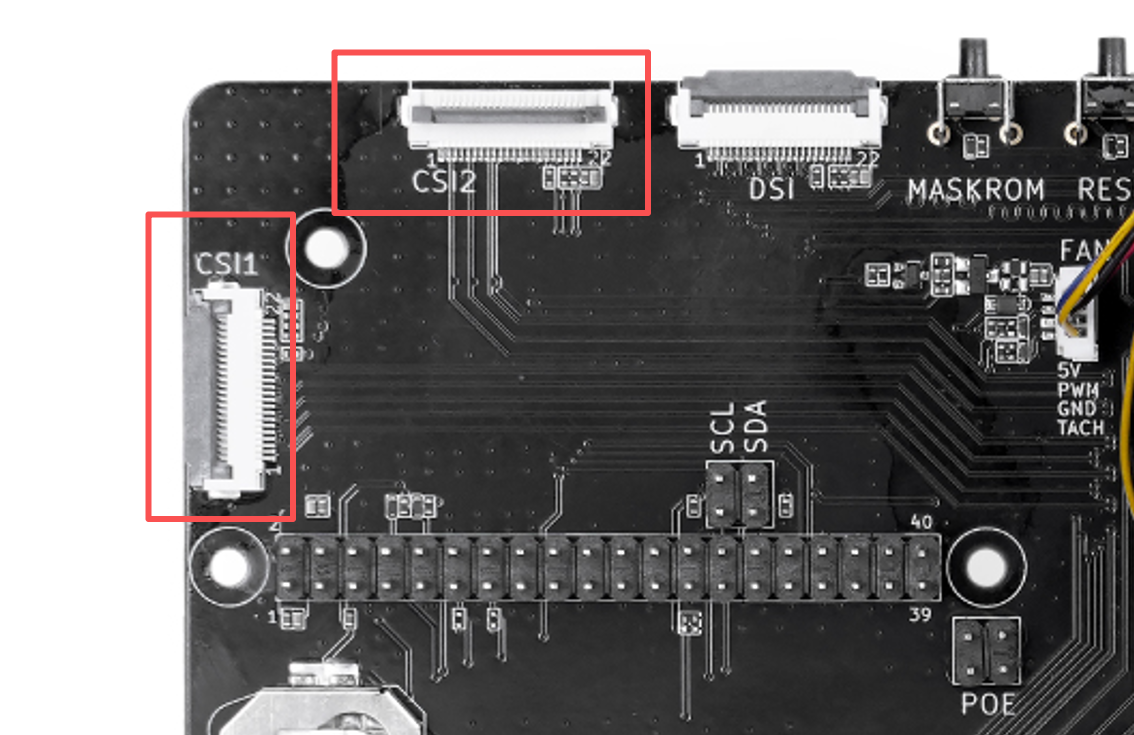
In the pre-installed Armbian system, Camera Module 3 works without installing additional drivers or configuring the device tree; it is ready to use after proper connection.
Hardware Connection
Do not insert or remove the CSI camera while the device is powered on, to avoid damaging the camera or the IO Board.
Install Tools
Install GStreamer and the camera detection tools:
sudo apt update
sudo apt install -y \
    v4l-utils \
    gstreamer1.0-tools \
    gstreamer1.0-plugins-base \
    gstreamer1.0-plugins-good \
    gstreamer1.0-plugins-bad \
    gstreamer1.0-plugins-ugly \
    gstreamer1.0-libav
Find the Camera Node
Use the following command to view the camera devices recognized by the system:
v4l2-ctl --list-devicesYou can also view the Media Controller topology:
media-ctl -d /dev/media2 -pIn the current system image, the default video device nodes are as follows:
The video nodes may change with the system version, camera connection method, or device boot order. If the default nodes are unavailable, confirm the actual video nodes via
v4l2-ctl --list-devicesandmedia-ctl.
Take a Photo with CSI1
When the camera is connected to CSI1, run:
gst-launch-1.0 \
    v4l2src device=/dev/video22 num-buffers=1 ! \
    videoconvert ! \
    jpegenc ! \
    filesink location=test1.jpg
After the photo is taken, it will be saved to the current directory:
ls -lh test1.jpgTake a Photo with CSI2
When the camera is connected to CSI2, run:
gst-launch-1.0 \
    v4l2src device=/dev/video31 num-buffers=1 ! \
    videoconvert ! \
    jpegenc ! \
    filesink location=test2.jpg
View the generated photo:
ls -lh test2.jpg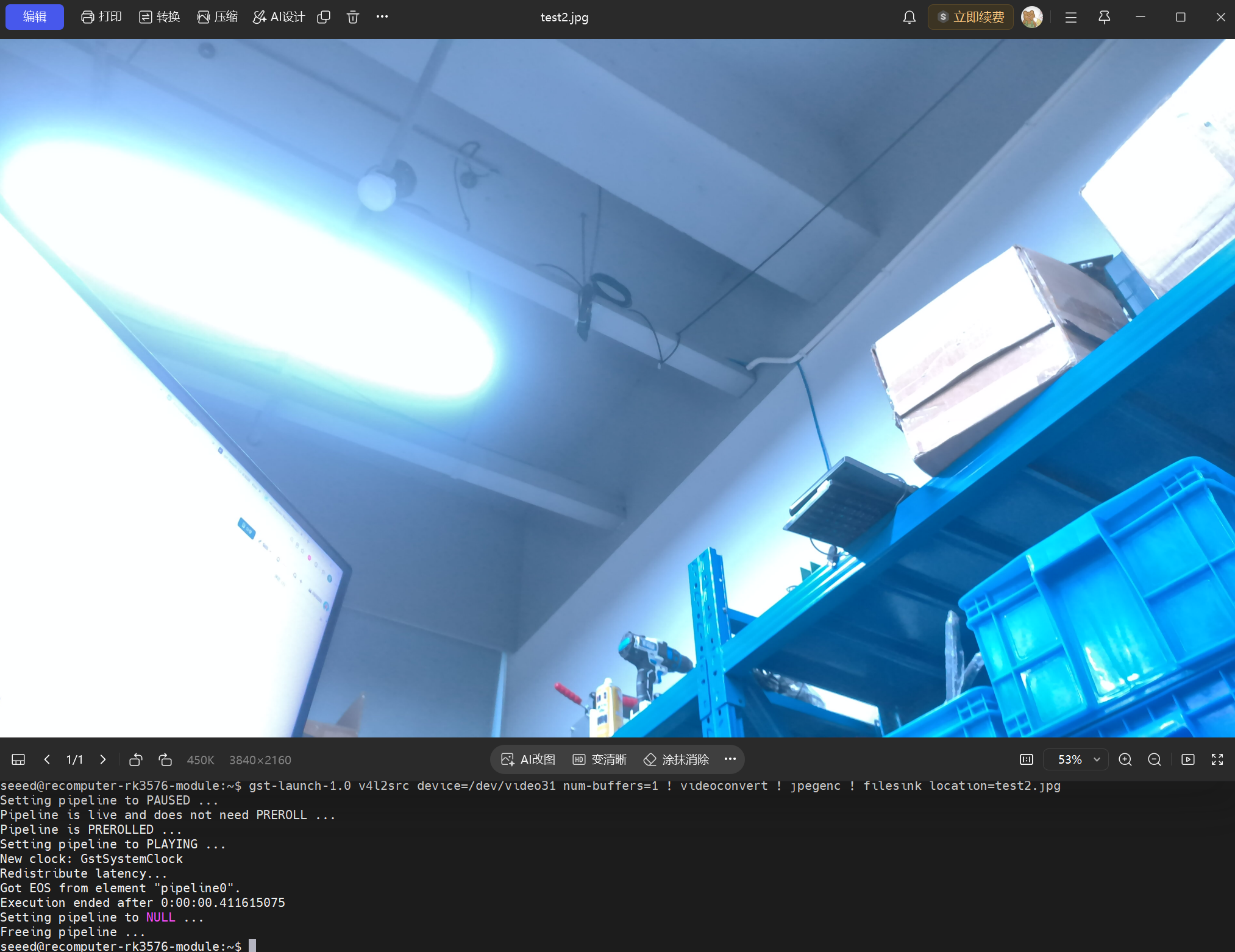
Troubleshooting
If no camera node is found, check:
-
Whether the camera ribbon cable is fully inserted.
-
Whether the ribbon cable orientation is correct.
-
Whether the CSI interface latch is locked.
-
Whether the camera is connected with the device powered off.
-
Whether the system recognizes the Camera Module 3:
dmesg | grep -Ei "imx708|csi|rkisp"The Raspberry Pi Camera Module 3 uses the IMX708 sensor. If the log contains imx708銆乣rkisp` or related CSI information, the camera has been recognized by the system.
MIPI DSI Guide
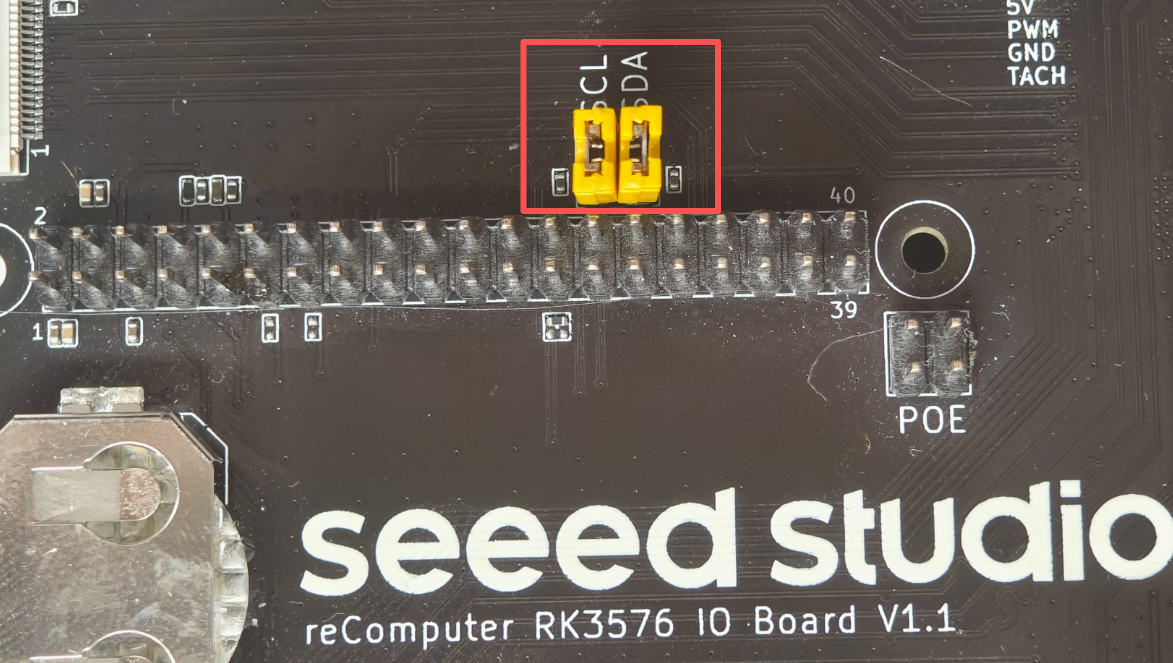
The reComputer RK3576 IO Board supports connecting the official Raspberry Pi 7-inch DSI touchscreen. Before use, you need to connect the DSI ribbon cable, short the I虏C jumper, and enable the corresponding device tree overlay in Armbian.
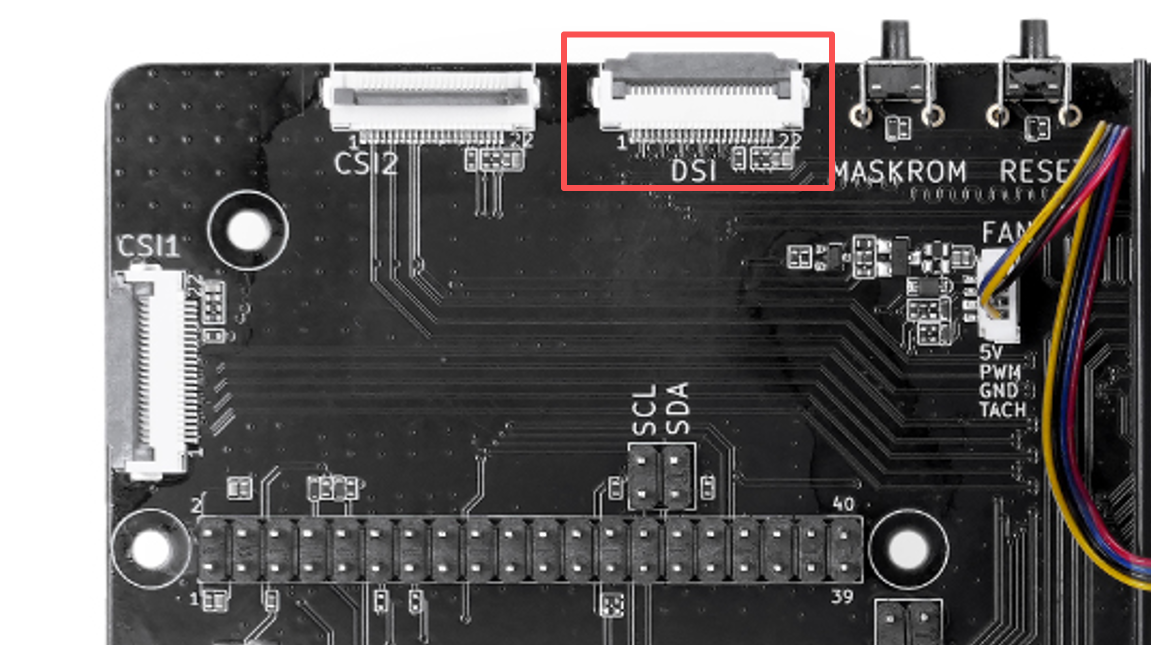
Hardware Connection
Follow the hardware connection diagram shown above.
The I虏C interface is used for touch controller communication. If this jumper is not shorted, the screen may display images, but the touch function will not work properly.
If you purchased the reComputer RK3576 Module Dev Kit series, the jumper cap is pre-installed, so you don't need to worry about this issue.
Enable the Device Tree Overlay
To enable the device tree overlay, back up the current configuration file:
sudo cp /boot/armbianEnv.txt /boot/armbianEnv.txt.bakOpen the configuration file:
sudo vim /boot/armbianEnv.txtSet overlay_prefix to:
overlay_prefix=recomputer-rk3576-ioboardAdd the following overlay:
overlays=raspi-7inch-touchscreenAfter the configuration, the relevant content should be as follows:
overlay_prefix=recomputer-rk3576-ioboard
overlays=raspi-7inch-touchscreen
If
overlays=already has other overlays enabled, separate them with spaces and keep the original content, for example:Plainoverlays=existing-overlay raspi-7inch-touchscreen
For systems without other overlays enabled, you can also use the following command to complete the configuration quickly:
sudo sed -i '/^overlay_prefix=/d; /^overlays=/d' /boot/armbianEnv.txt

printf '%s\n' \
    'overlay_prefix=recomputer-rk3576-ioboard' \
    'overlays=raspi-7inch-touchscreen' \
    | sudo tee -a /boot/armbianEnv.txt
Configure the Desktop Display
Create the Xorg configuration directory:
sudo mkdir -p /etc/X11/xorg.conf.dCreate the DSI display configuration:
sudo tee /etc/X11/xorg.conf.d/99-dsi.conf > /dev/null <<'EOF'
Section "Device"
    Identifier "DSI"
    Driver "modesetting"
    Option "kmsdev" "/dev/dri/card1"
    Option "DRI" "3"
    Option "AccelMethod" "glamor"
EndSection

Section "Screen"
    Identifier "Screen0"
    Device "DSI"
EndSection

Section "ServerLayout"
    Identifier "Layout"
    Screen 0 "Screen0" 0 0
EndSection
EOF
Reboot the system to make the configuration take effect:
sudo rebootVerify Display and Touch
After the system restarts, the DSI screen should display the Armbian desktop and support touch operation.
To confirm whether the touch device is recognized, run:
sudo apt install -y evtest
sudo evtest
Select the corresponding touch device in the device list, then click or swipe the screen. If the terminal keeps outputting touch coordinates and key events, the touch function works normally.
The current configuration uses
/dev/dri/card1as the DSI display device. If the DRM device number changes after a system upgrade, check it with the following command:Plainls -l /dev/dri/
GPIO Interface Guide
# Calculation formula: gpionum=(letter_index-1)*8+num
recomputer-rk3576-module:~:# gpioset 0 23=0
recomputer-rk3576-module:~:# gpioset 0 23=1

#Read status
gpioget 0 23| RK3576 gpio | Header Number | Header Number | RK3576 gpio |
|---|---|---|---|
| VCC3V3_SYS | 1 | 2 | VCC5V0_SYS |
| GPIO0_C7 | 3 | 4 | VCC5V0_SYS |
| GPIO0_C6 | 5 | 6 | GND |
| GPIO3_A0 | 7 | 8 | UART0_TX_M0_DEBUG |
| GND | 9 | 10 | UART0_RX_M0_DEBUG |
| GPIO4_B4 | 11 | 12 | GPIO2_D6 |
| GPIO4_B5 | 13 | 14 | GND |
| GPIO3_A2 | 15 | 16 | GPIO2_D0 |
| VCC3V3_SYS | 17 | 18 | GPIO2_D1 |
| GPIO2_C2 | 19 | 20 | |
| GPIO2_C3 | 21 | 22 | GPIO3_A1 |
| GPIO2_C5 | 23 | 24 | GPIO2_C4 |
| 25 | 26 | GPIO2_C1 | |
| GPIO4_C7 | 27 | 28 | GPIO4_C6 |
| GPIO2_B6 | 29 | 30 | GND |
| GPIO2_B7 | 31 | 32 | GPIO2_C0 |
| GPIO0_C4 | 33 | 34 | GND |
| GPIO2_B5 | 35 | 36 | GPIO3_A3 |
| GPIO2_B4 | 37 | 38 | GPIO4_A4 |
| GND | 39 | 40 | GPIO4_A6 |
40-Pin Header GPIO and Peripheral Reference
The reComputer RK3576 Module Dev Kit provides a Raspberry Pi-compatible 40-pin expansion header. The header can connect external GPIO devices, UART modules, I2C sensors, SPI devices, PWM actuators, and CAN interfaces. Rockchip RK3576 pinctrl multiplexing selects the active function for each pin.
Supported interfaces include:
- GPIO
- UART
- I2C
- SPI
- PWM
- CAN
The following table lists the signal pins and their RK GPIO names. Power and ground pins are shown in the complete pinout table above.
| Pin | Function | RK GPIO |
|---|---|---|
| 3 | GPIO | GPIO0_23 |
| 5 | GPIO | GPIO0_22 |
| 7 | GPIO | GPIO3_96 |
| 8 | UART TX/RX | GPIO0_28 |
| 10 | UART RX/TX | GPIO0_29 |
| 11 | GPIO | GPIO4_140 |
| 12 | GPIO | GPIO2_94 |
| 13 | GPIO | GPIO4_141 |
| 15 | GPIO | GPIO3_98 |
| 16 | GPIO | GPIO2_88 |
| 18 | GPIO | GPIO2_89 |
| 19 | SPI MOSI | GPIO2_82 |
| 21 | SPI MISO | GPIO2_83 |
| 22 | GPIO | GPIO3_97 |
| 23 | SPI CLK | GPIO2_85 |
| 24 | SPI CS | GPIO2_84 |
| 26 | GPIO | GPIO2_81 |
| 27 | GPIO | GPIO4_151 |
| 28 | GPIO | GPIO4_150 |
| 29 | GPIO | GPIO2_78 |
| 31 | GPIO | GPIO2_79 |
| 32 | GPIO | GPIO2_80 |
| 33 | GPIO | GPIO0_20 |
| 35 | GPIO | GPIO2_77 |
| 36 | GPIO | GPIO3_99 |
| 37 | GPIO | GPIO2_76 |
| 38 | GPIO | GPIO4_132 |
| 40 | GPIO | GPIO4_134 |
GPIO Control
Install the Linux GPIO tools:
sudo apt update
sudo apt install gpiod
Inspect GPIO controllers, line names, and current ownership before selecting a line:
gpioinfo
gpioinfo gpiochip0
The gpiochip and line number are image- and kernel-dependent. Use the output of gpioinfo to confirm them rather than assuming that a physical header pin number is a Linux line number.
For example, with a line exposed as line 23 on gpiochip0, connect an LED through a current-limiting resistor:
GPIO ---- resistor ---- LED ---- GNDSet the output high and low:
gpioset gpiochip0 23=1
gpioset gpiochip0 23=0
Connect a button between the input and 3.3 V (use an appropriate pull-down or the board's configured pull resistor), then read the line:
3.3V
 |
Button
 |
GPIOgpioget gpiochip0 23UART Example
To enable UART3, add the overlay to /boot/armbianEnv.txt:
sudo nano /boot/armbianEnv.txtoverlays=recomputer-rk3576-devkit-40pin-uart3Reboot and check the available serial devices:
sudo reboot
ls /dev/tty*
Send a test string on the UART device exposed by the selected overlay (for example, /dev/ttyS3):
echo "Hello RK3576" > /dev/ttyS3I2C Example
Enable I2C3 in /boot/armbianEnv.txt:
overlays=recomputer-rk3576-devkit-40pin-i2c3Install the I2C utilities and scan bus 3 after reboot:
sudo apt install i2c-tools
sudo i2cdetect -y 3
An output row such as the following indicates a device at address 0x50:
40: -- -- 50 --SPI Example
The base RK3576 Module Dev Kit image may enable the 40-pin SPI bus by default. If SPI is not enabled on the installed image, add the matching overlay and reboot:
overlays=rk3576-spi1-m1-spidevCheck for the spidev node and run a basic test:
ls /dev/spidev*
spidev_test -D /dev/spidev1.0
The physical SPI signals share hardware with some onboard expansion interfaces. Check chip-select and bus ownership before attaching another SPI device.
PWM Example
PWM outputs can drive LED dimmers, fans, or servos. Enable the PWM overlay when it is not already enabled:
overlays=recomputer-rk3576-devkit-40pin-pwm2-ch6After reboot, identify the PWM controller and channel under /sys/class/pwm/, then configure the channel. The following values represent a 20 ms period and a 1.5 ms servo pulse:
ls /sys/class/pwm/
echo 20000000 > period
echo 1500000 > duty_cycle
echo 1 > enable
Run the echo commands from the selected exported pwmchipX/pwmY directory. The exact controller and channel can vary with the kernel device tree.
CAN Example
Enable CAN0 with the 40-pin overlay and reboot:
overlays=recomputer-rk3576-devkit-40pin-can0Configure the interface at 500 kbit/s, then send and receive a test frame:
sudo ip link set can0 up type can bitrate 500000
cansend can0 123#11223344
candump can0
Pin Multiplexing Notes
The RK3576 uses pin multiplexing. A physical pin can operate as GPIO or as a peripheral signal according to the selected device-tree overlay. Before using a peripheral function:
- Enable the corresponding overlay.
- Reboot the system.
- Confirm that the expected device node exists.
- Test it with the corresponding Linux tool.
If a pin is claimed by UART, I2C, SPI, PWM, or another kernel driver, it cannot be used as a normal GPIO until that function is disabled.
Troubleshooting GPIO and Pinmux
Check GPIO ownership:
sudo cat /sys/kernel/debug/gpioCheck enabled overlays:
cat /boot/armbianEnv.txtCheck device-tree pin multiplexing:
cat /sys/kernel/debug/pinctrl/*/pinmux-pinsThe 40-pin header follows the Raspberry Pi expansion-header layout, so many Raspberry Pi accessories can be wired to it. RK3576 pin multiplexing is different from Raspberry Pi platforms, however; always verify the pin function table and the selected overlay before connecting a HAT or other accessory.
FAN Guide
The reComputer RK3576 IO Board supports PWM fan control. In Armbian, you can use the Linux hwmon interface to check the fan speed and manually adjust the PWM.
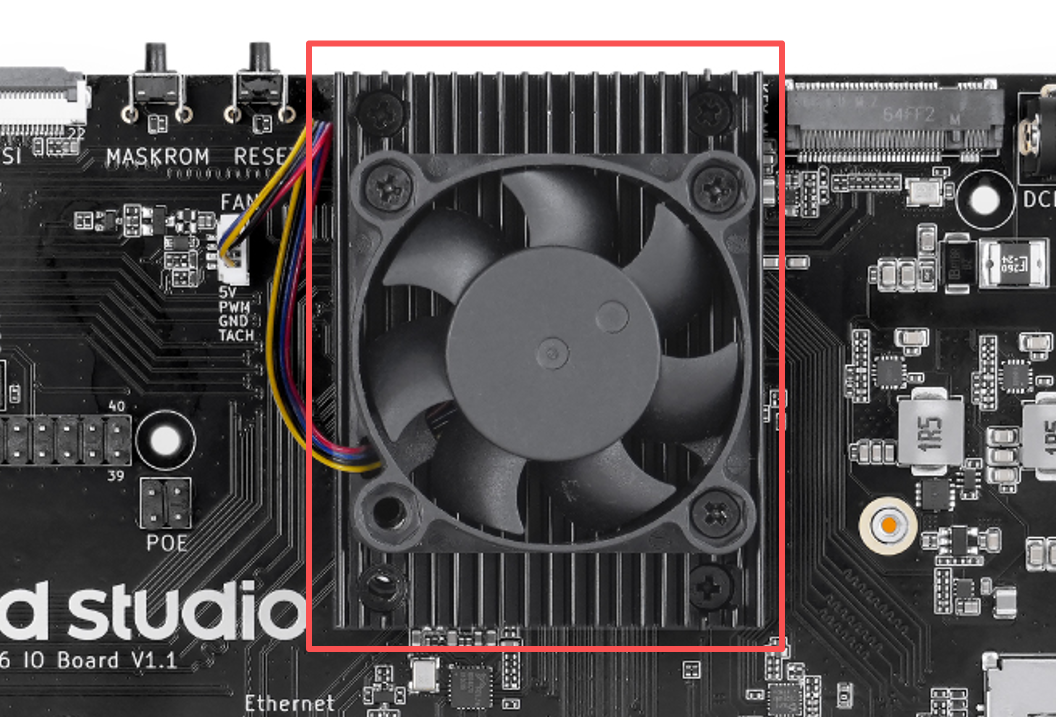
The
hwmonnumber may change after a system reboot, so do not rely on a fixed value such ashwmon6. The following commands use wildcards to match the fan device automatically.
Check the Fan Speed
Run the following command to check the current fan speed:
cat /sys/devices/platform/pwm-fan/hwmon/hwmon*/fan1_inputThe returned value is in RPM, for example:
3200To monitor the speed continuously, run:
watch -n 1 'cat /sys/devices/platform/pwm-fan/hwmon/hwmon*/fan1_input'Press Ctrl+C to exit monitoring.
Check the Current PWM Value
cat /sys/devices/platform/pwm-fan/hwmon/hwmon*/pwm1The valid PWM range is 0鈥?55.
The PWM ratio and the actual speed are not necessarily linear. The Linux pwm-fan driver specifies that pwm1 ranges from 0鈥?55, where 255 represents the maximum output.
Set the Fan Speed
Stop the fan:
echo 0 | sudo tee /sys/devices/platform/pwm-fan/hwmon/hwmon*/pwm1Set to approximately 50% PWM:
echo 128 | sudo tee /sys/devices/platform/pwm-fan/hwmon/hwmon*/pwm1Set to maximum PWM:
echo 255 | sudo tee /sys/devices/platform/pwm-fan/hwmon/hwmon*/pwm1After setting, you can check the fan speed again:
cat /sys/devices/platform/pwm-fan/hwmon/hwmon*/fan1_inputManually set PWM values are not retained permanently after a system reboot. The system will restore the default fan control policy after reboot. During high load, it is not recommended to keep the fan off for a long time, to avoid the processor throttling due to high temperature.

LED Indicator Status
The reComputer RK3576 IO Board provides power and system status indicator LEDs.
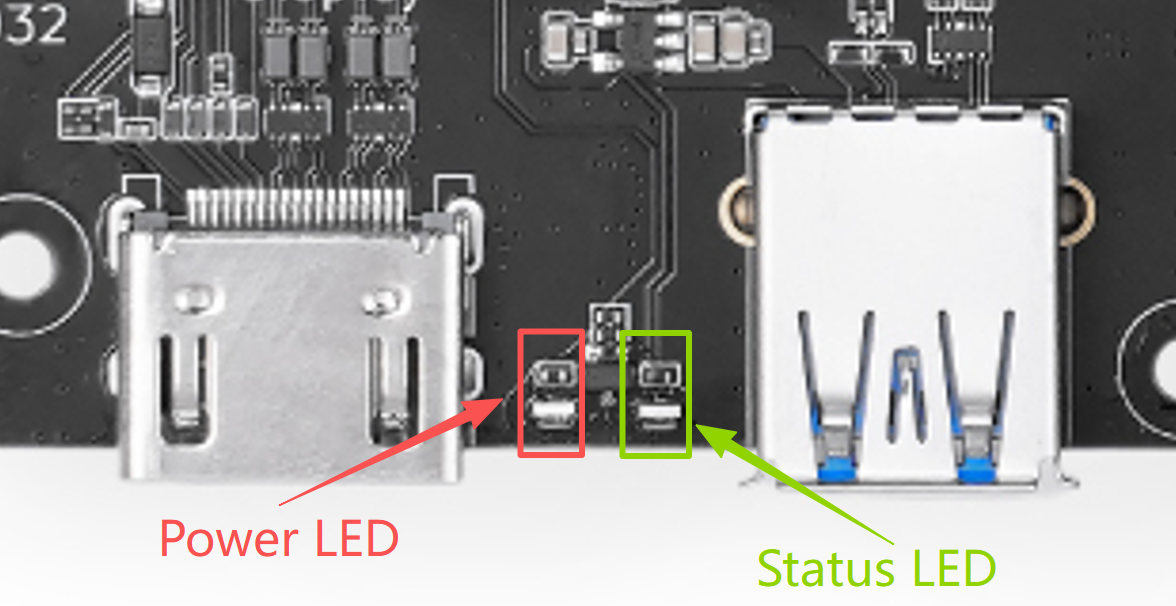
The system status LED blinking indicates that the Linux kernel has started, but it does not mean all system services or user applications are ready.
Check the LED Device
The system status LED is managed by the Linux LED subsystem. Use the following command to view the LEDs in the system:
ls /sys/class/leds/In the current Armbian device tree, the system status LED usually appears as:
user-ledCheck the current trigger mode:
cat /sys/class/leds/user-led/triggerIn the output, the item enclosed in square brackets represents the current mode, for example:
none timer default-on [heartbeat]Manually Control the System Status LED
To use the system status LED for application status indication, you can first turn off the heartbeat trigger:
echo none | sudo tee /sys/class/leds/user-led/triggerTurn on the LED:
echo 1 | sudo tee /sys/class/leds/user-led/brightnessTurn off the LED:
echo 0 | sudo tee /sys/class/leds/user-led/brightnessRestore the system heartbeat mode:
echo heartbeat | sudo tee /sys/class/leds/user-led/triggerThe above settings only take effect in the current boot cycle. After a system reboot, the default heartbeat mode configured in the device tree will be restored.
Notes
-
The red power LED only indicates that the board is powered; it cannot be used to determine whether Linux has finished booting.
-
The system status LED can be controlled by applications, but once switched to manual mode, it will no longer show the system heartbeat.
-
It is not recommended to control this indicator via a fixed
hwmonor GPIO number; the/sys/class/leds/user-led/interface should be used instead.
Button Description
The reComputer RK3576 IO Board provides three on-board buttons: PWR, RESET, and MASKROM.
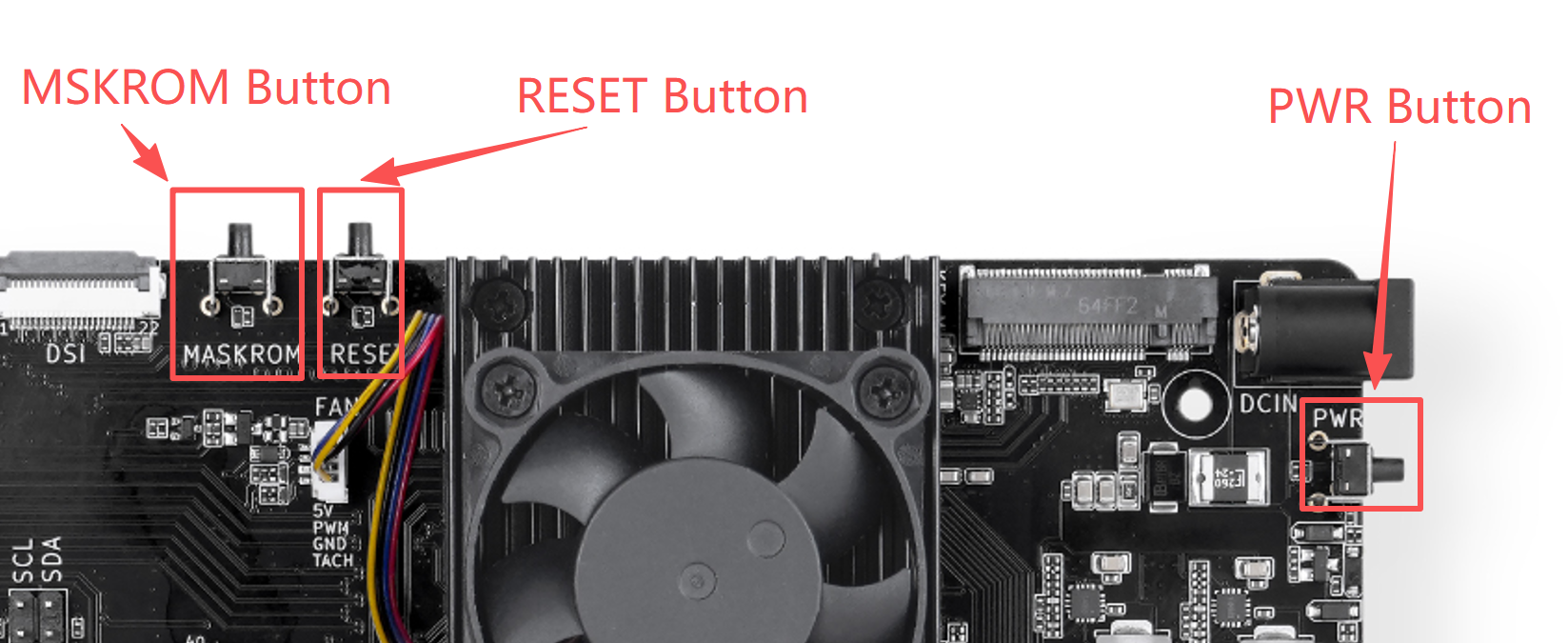
PWR Button
The PWR button is connected to the power key input. In Linux, it is recognized as rk806 pwrkey, and generates KEY_POWER events when pressed.
Different system environments may configure this event to power off, hibernate, or pop up the power menu.
Install the button test tool:
sudo apt update
sudo apt install -y evtest
Run the test:
sudo evtestIn the device list, select:
rk806 pwrkeyAfter pressing the PWR button, you can see output similar to:
Event: type 1 (EV_KEY), code 116 (KEY_POWER), value 1
Event: type 1 (EV_KEY), code 116 (KEY_POWER), value 0
To modify the system behavior after a short press of the PWR button, you can edit the systemd-logind configuration:
sudo nano /etc/systemd/logind.confFor example, set the short press action to power off:
HandlePowerKey=poweroffApply the configuration:
sudo systemctl restart systemd-logindIt is recommended to use
sudo poweroffor the desktop system's shutdown function to safely power off the device, avoiding file system or data damage caused by direct power-off.
RESET Button
Pressing the RESET button triggers a hardware reset, and the system will restart immediately.
RESET does not execute the normal Linux shutdown process, so unsaved data may be lost. Under normal conditions, it is recommended to use:
sudo rebootOnly use the RESET button when the system is unresponsive and cannot be restarted normally through the terminal or SSH.
MASKROM Button
The MASKROM button is used to force the device into Rockchip MaskROM mode. This mode is mainly used in the following situations:
-
The system cannot boot from eMMC or other storage devices
-
Bootloader is corrupted
-
Cannot enter Loader mode normally
-
Need to re-flash the system image
Enter MaskROM Mode
-
Use a USB-C cable that supports data transfer to connect the IO Board to the host.
-
Turn off the device power.
-
Press and hold the MASKROM button.
-
Turn on the device power.
-
After the host detects the Rockchip MaskROM device, release the button.
If the device is already powered on, you can also:
-
Press and hold the MASKROM button.
-
Briefly press the RESET button once.
-
Wait for the host to recognize the device, then release the MASKROM button.
On Windows, you can confirm the device status through RKDevTool or RK Driver Assistant:
Found One MASKROM DeviceOn a Linux host, you can run:
lsusbCheck whether a Rockchip USB device appears on the host.
MASKROM is a system recovery function. It is not recommended to use this button for normal application interaction. After entering MaskROM mode, the device will not boot Linux normally; you need to power on again or reset to exit.
USB Interface Guide
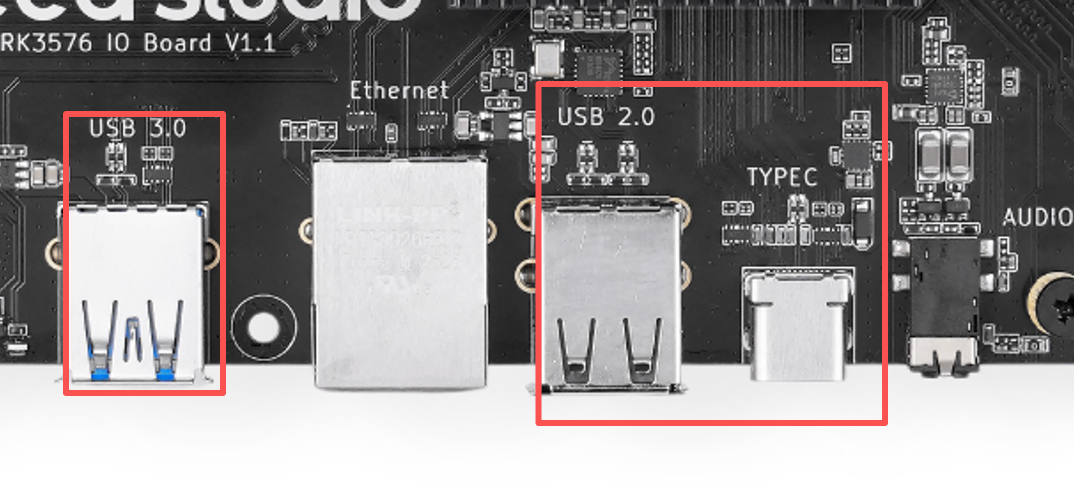
The reComputer RK3576 IO Board provides the following USB interfaces:
USB-C supports Host and Device role switching. The actual working mode is determined by the connection direction, cable, and connected device.
Check USB Devices
After connecting a USB device, run:
lsusbView the connection topology and negotiated speed of USB devices:
lsusb -tThe output is as follows:
seeed@recomputer-rk3576-module:~$ lsusb -t
/:  Bus 001.Port 001: Dev 001, Class=root_hub, Driver=xhci-hcd/1p, 480M
    |__ Port 001: Dev 002, If 0, Class=Hub, Driver=hub/4p, 480M
        |__ Port 004: Dev 003, If 0, Class=Human Interface Device, Driver=usbhid, 12M
        |__ Port 004: Dev 003, If 1, Class=Human Interface Device, Driver=usbhid, 12M
/:  Bus 002.Port 001: Dev 001, Class=root_hub, Driver=xhci-hcd/1p, 5000M
If a USB 3.0 device only shows as 480M, please check:
-
Whether the device supports USB 3.x
-
Whether the cable supports SuperSpeed
-
Whether the device is connected to a USB 3.0 Type-A interface
-
Whether the USB Hub or adapter supports USB 3.x
View Device Connection Logs
Before inserting the USB device, run:
sudo dmesg --followThen connect the device to view device recognition, driver loading, and error information in real time. Press Ctrl+C to exit.
You can also view the recent USB logs:
dmesg | grep -i usbUse USB Storage Devices
After inserting a USB flash drive or external hard drive, check the device node:
lsblkDesktop Armbian usually mounts storage devices automatically. You can also mount them manually:
sudo mkdir -p /mnt/usb
sudo mount /dev/sda1 /mnt/usb
After use, unmount the device first:
sudo umount /mnt/usb
/dev/sda1is only an example. Confirm the actual device node vialsblkto avoid operating on the wrong disk.
USB-C OTG
The USB-C interface can work in different roles in different scenarios:
-
Device mode: Connect to the PC for system flashing and Rockchip Loader/MaskROM communication.
-
Host mode: Connect USB peripherals through a suitable USB-C adapter.
-
DP Alt Mode: Connect display devices that support DisplayPort Alt Mode.
For system flashing, use a USB-C cable that supports data transfer. Charging-only cables cannot recognize the device.
For high-power USB peripherals such as external hard drives and AI accelerators, it is recommended to use an independently powered USB Hub to avoid device disconnection or system instability caused by insufficient power.
The on-board interfaces include one USB 3.0 Type-A and two Type-A interfaces expanded through a USB 2.0 Hub; the USB-C is configured as an OTG dual-role interface in the Armbian device tree.
RTC Interface Guide
The reComputer RK3576 IO Board integrates RTC, which continues to keep the date and time after the device loses network connection or power.
The RTC is connected via I虏C, with a default address of:
0x51The carrier board provides a CR2032 backup battery holder. After installing the battery, the RTC can continue timing even if DC, PoE, and USB-C power are disconnected.
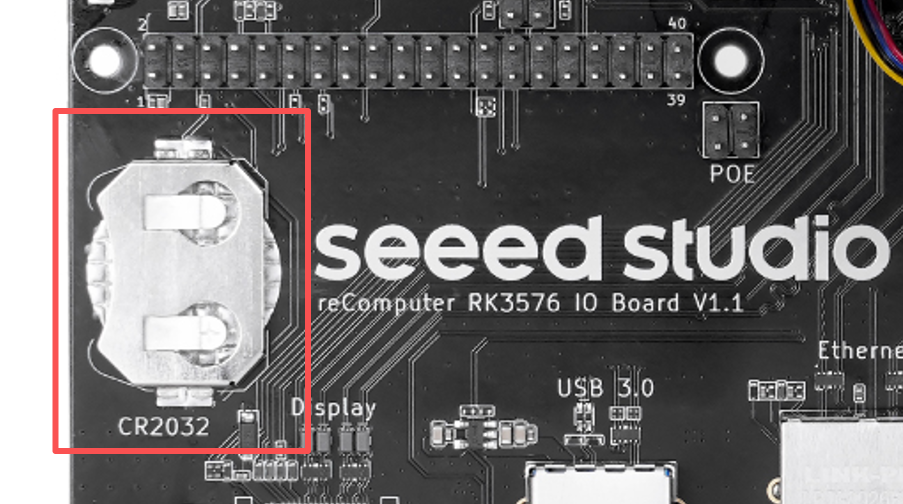
Please use a non-rechargeable 3V CR2032 coin cell battery and confirm the battery polarity is correct.
Check the RTC Device
Run the following command to confirm whether the RTC has been recognized by the system:
ls /dev/rtc*Check the RTC driver name:
for rtc in /sys/class/rtc/rtc*; do
    echo "$rtc: $(cat "$rtc/name")"
done
Under normal conditions, you can see the RTC device corresponding to the PCF8563.
Check the kernel recognition log:
dmesg | grep -i rtcView the System Time and RTC Time
Check the system time:
timedatectlCheck the RTC time:
sudo hwclock --showIf the system reports that hwclock cannot be found, install the related tools:
sudo apt update
sudo apt install -y util-linux-extra
Write the System Time to the RTC
After the device connects to the network, you can first enable network time synchronization:
sudo timedatectl set-ntp trueConfirm the system time is correct:
timedatectlThen write the system time to the RTC:
sudo hwclock --systohc --utcIt is recommended that the RTC use UTC time to avoid time deviations caused by time zone or daylight saving time changes:
sudo timedatectl set-local-rtc 0Restore the System Time from the RTC
When the device cannot access the network, you can sync the RTC time to the system:
sudo hwclock --hctosysCheck after syncing:
dateSet the Time Manually
If the device cannot access the network temporarily, you can set the system time manually first:
sudo timedatectl set-time "2026-09-10 14:00:00"Then write it to the RTC:
sudo hwclock --systohc --utcVerify the Power-off Retention Function
-
Confirm that the CR2032 battery is installed correctly.
-
Write the current system time to the RTC:
sudo hwclock --systohc --utc
sudo hwclock --show- Power off the device normally:
sudo poweroff-
Disconnect all external power sources such as DC, PoE, and USB-C.
-
After waiting for a while, reconnect the power.
-
Check the RTC time again:
sudo hwclock --showIf the time changes continuously and normally, the RTC backup power supply works correctly.
The RTC only stores time information and cannot continue to power the system after the main power is disconnected. If no battery is installed or the battery is low, the RTC time may be lost after the device is fully powered off.
The PCF8563 and CR2032 battery interface can be confirmed in the RK3576 IO Board schematic; the PCF8563 has been enabled in the default Armbian device tree, so no additional overlay configuration is usually needed.
Audio
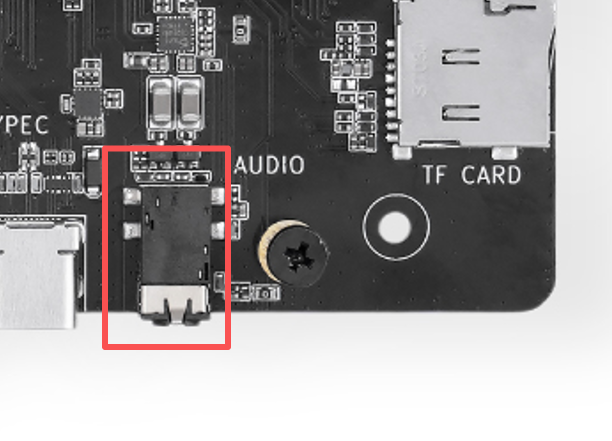
The reComputer RK3576 IO Board integrates the ES8311 audio codec, and provides a 3.5 mm audio interface that supports:
-
Stereo audio output
-
Analog microphone input
-
Headphone plug detection
-
HDMI and USB-C DisplayPort digital audio output
When using a regular 3-segment headphone, only audio output is supported; for recording, use a 4-segment headset with a microphone.
Check Audio Devices
Install ALSA audio tools:
sudo apt update
sudo apt install -y alsa-utils
List all sound cards:
cat /proc/asound/cardsCheck the playback and recording devices separately:
aplay -l
arecord -l
Under normal conditions, you can see devices like:
rockchip-es8311
rockchip-hdmi0
rockchip-dp0
Note:
The ALSA sound card number may change with connected USB, HDMI, or other audio devices. Confirm the actual number via
aplay -landarecord -l.
Test Audio Playback
The following example assumes that ES8311 is card 0, device 0. If the device number is different, replace 0,0 with the correct card and device numbers.
Use the test tone to play the left and right channels:
speaker-test -D plughw:0,0 -c 2 -t wavPress Ctrl+C to stop the test.
Play a WAV file:
aplay -D plughw:0,0 test.wavTo play an MP3 file:
sudo apt install -y mpg123
mpg123 -a hw:0,0 test.mp3
Test Microphone Recording
Connect a 3.5 mm headset with a microphone, then record a 5-second audio clip:
arecord -D plughw:0,0 \
    -d 5 \
    -f S16_LE \
    -r 48000 \
    -c 2 \
    recording.wav
Play back the recording:
aplay -D plughw:0,0 recording.wavYou can also perform a real-time record and playback test:
arecord -D plughw:0,0 -f cd |
    aplay -D plughw:0,0 -f cd
It is recommended to use headphones during the test to avoid squealing between the speaker and the microphone.
Adjust the Volume
Run ALSA Mixer:
alsamixerIn the interface:
-
Press
F6to selectrockchip-es8311. -
Use the left and right arrow keys to select the audio control item.
-
Use the up and down arrow keys to adjust the volume.
-
Press
Mto toggle the mute state. -
Press
Escto exit.
Make sure the following output or input channels are not muted:
Headphone
DAC
ADC
MIC PGA
Save the current settings:
sudo alsactl storeRestore the saved settings:
sudo alsactl restoreSelect the System Default Audio Device
In the Armbian desktop environment, you can select the 3.5 mm, HDMI, or DisplayPort audio device through the volume icon.
View the PipeWire/PulseAudio audio devices in the terminal:
pactl list short sinks
pactl list short sources
Set the default output device:
pactl set-default-sink <sink_name>Set the default input device:
pactl set-default-source <source_name>Replace <sink_name> and <source_name> with the actual names shown by the previous command.
Common Issues
No sound from the 3.5 mm headphone
First confirm that the system has selected ES8311, not HDMI or DisplayPort:
aplay -l
pactl list short sinks
Then check the mute state in the Mixer:
alsamixerIf there is no sound at boot with an older test image, refer to the ES8311 playback configuration script in the project.
No input from the microphone recording
Confirm that you are using a 4-segment headset with a microphone, and check the recording device:
arecord -lEnter the Mixer and check ADC銆乣MIC PGA` and the input channels:
alsamixerIf an older test image records empty data, refer to the ES8311 recording configuration script.
Popping or noise occurs
-
Confirm that the headphone plug is fully inserted.
-
Avoid using adapter cables with poor contact.
-
Lower the headphone output and microphone gain.
-
When recording, avoid keeping the microphone too close to the headphones.
-
Use the
plughwdevice so that ALSA automatically performs sample rate and format conversion.