reComputer RK3576 Flash OS
Last updated:
This guide shows how to install Armbian on a microSD card or NVMe SSD for the reComputer RK3576. We recommend Armbian Imager for Windows, Linux, and macOS: it downloads the image, writes it to your storage, and checks the result. You can also use balenaEtcher to flash a downloaded image, or dd from the command line on macOS and Linux.
Before you begin
Prepare your reComputer RK3576, its power supply, and a computer with an internet connection. Choose the storage you want to boot from:
| Target storage | Preparation |
|---|---|
| microSD card | Insert the card into a card reader and connect it to your computer. |
| NVMe SSD | Connect the SSD to your computer using a compatible USB-to-NVMe enclosure or adapter. After flashing, install it in the reComputer RK3576's M.2 NVMe slot with the device powered off. |
Armbian Imager (Recommended)
Install Armbian Imager
Download Armbian Imager for your computer:
| Operating system | Download format |
|---|---|
| Windows | .exe installer |
| Linux | .rpm or .deb package |
| macOS | .dmg disk image |
Install or open the application for your platform. The screenshots below show macOS; follow the same selection steps on Windows and Linux. Image versions and storage names may differ from those shown.
Select an Image
Choose an Image from the Catalog
-
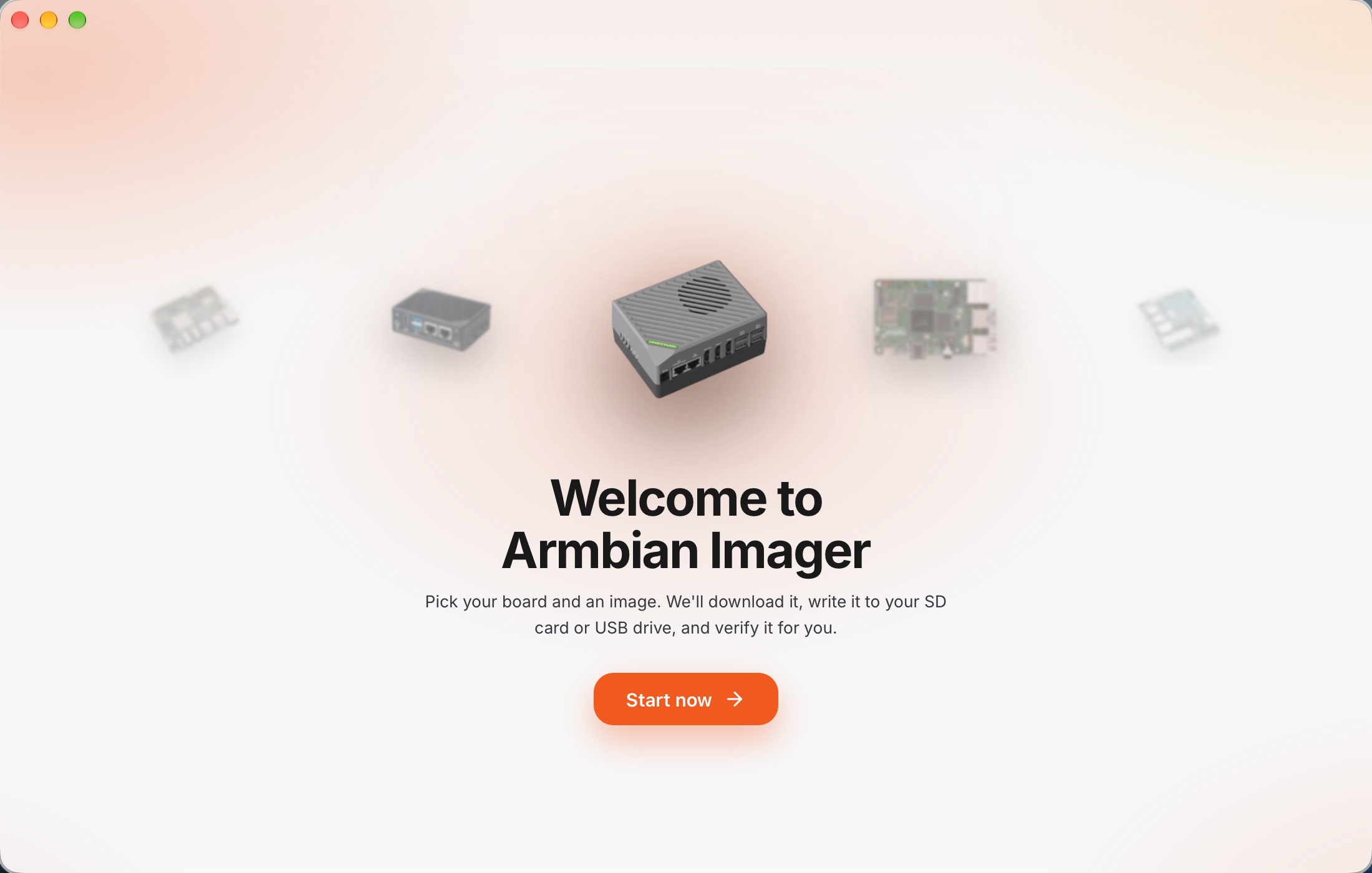
Open Armbian Imager and click Start now.
-
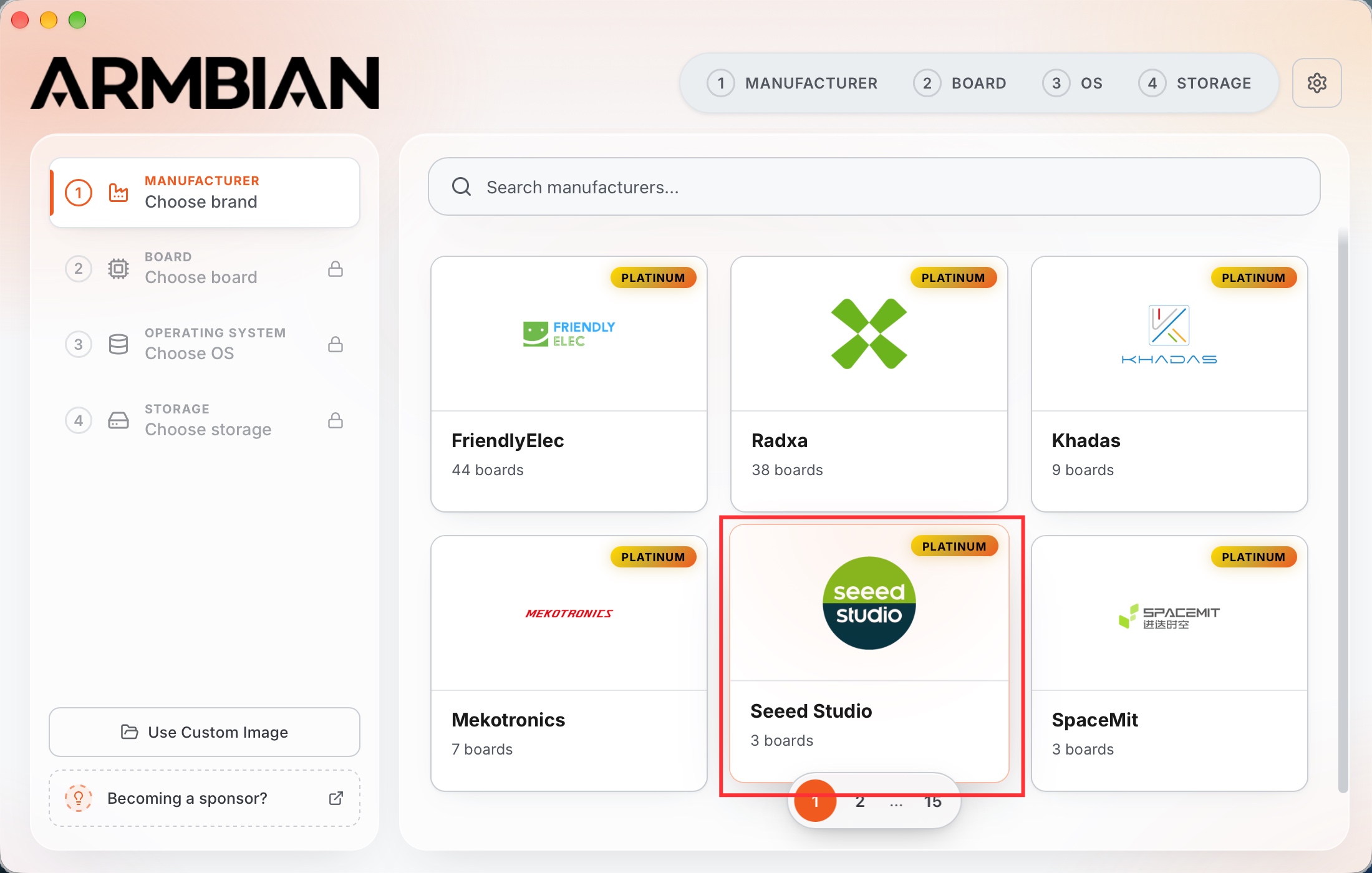
Under Manufacturer, choose Seeed Studio. Use the search field if needed.
-
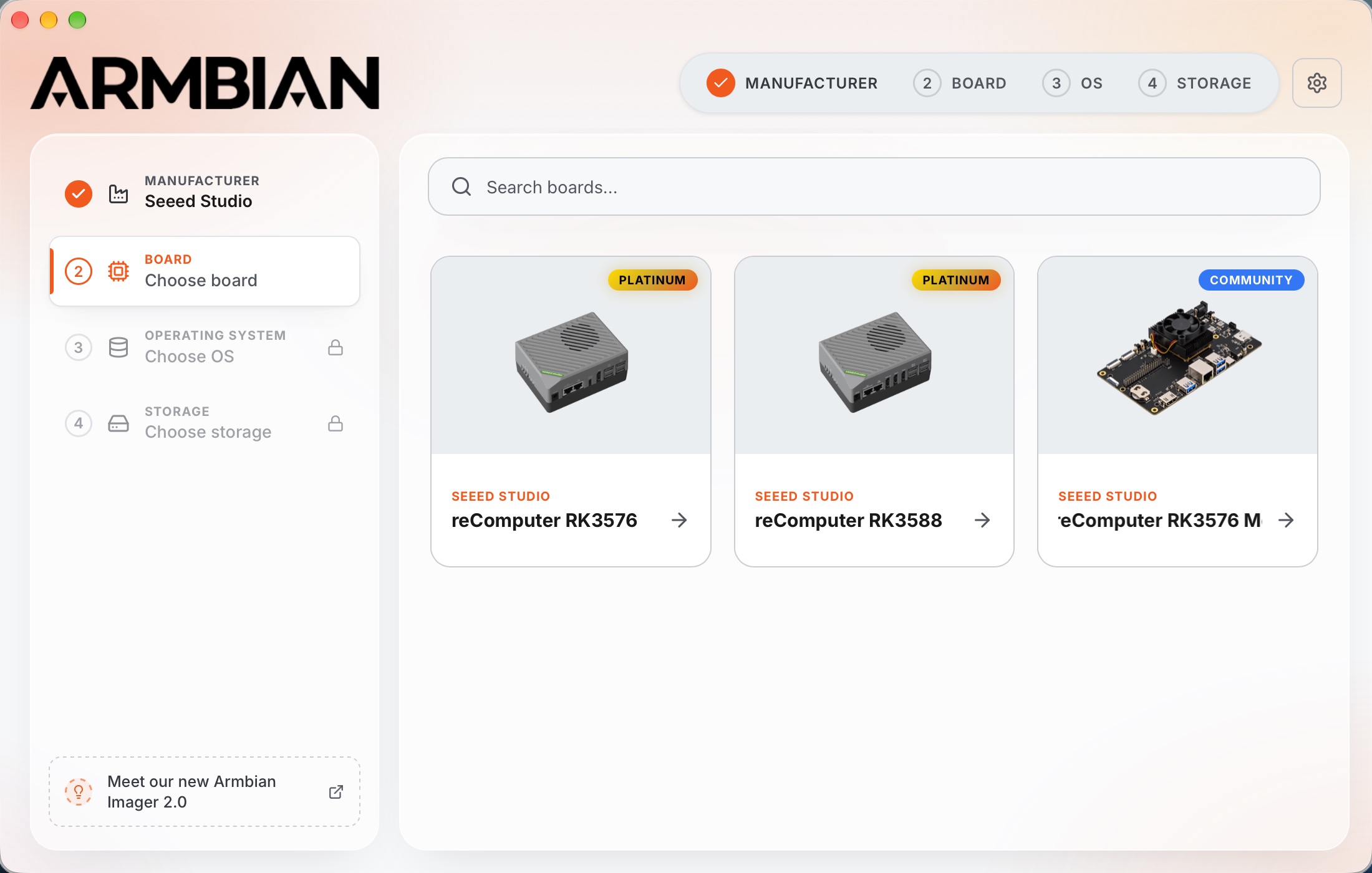
Under Board, choose reComputer RK3576.
-
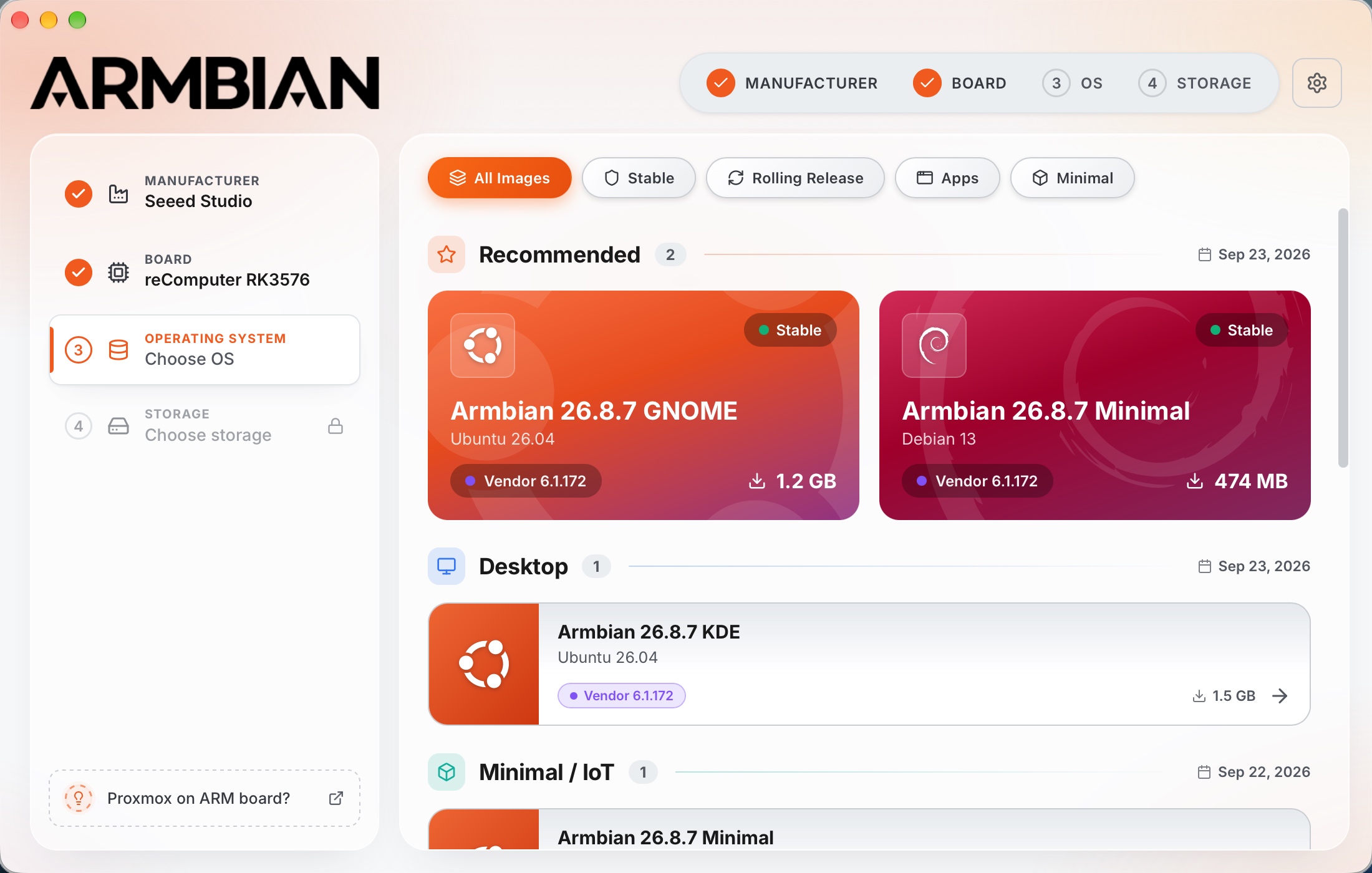
Under Operating System, select the image you want to install. Choose a desktop image if you need a graphical desktop, or a Minimal image for command-line use. The available images are also listed on the official reComputer RK3576 board page.
Use a Custom Image
If you already have an Armbian image for the reComputer RK3576, open it directly in Armbian Imager.
-
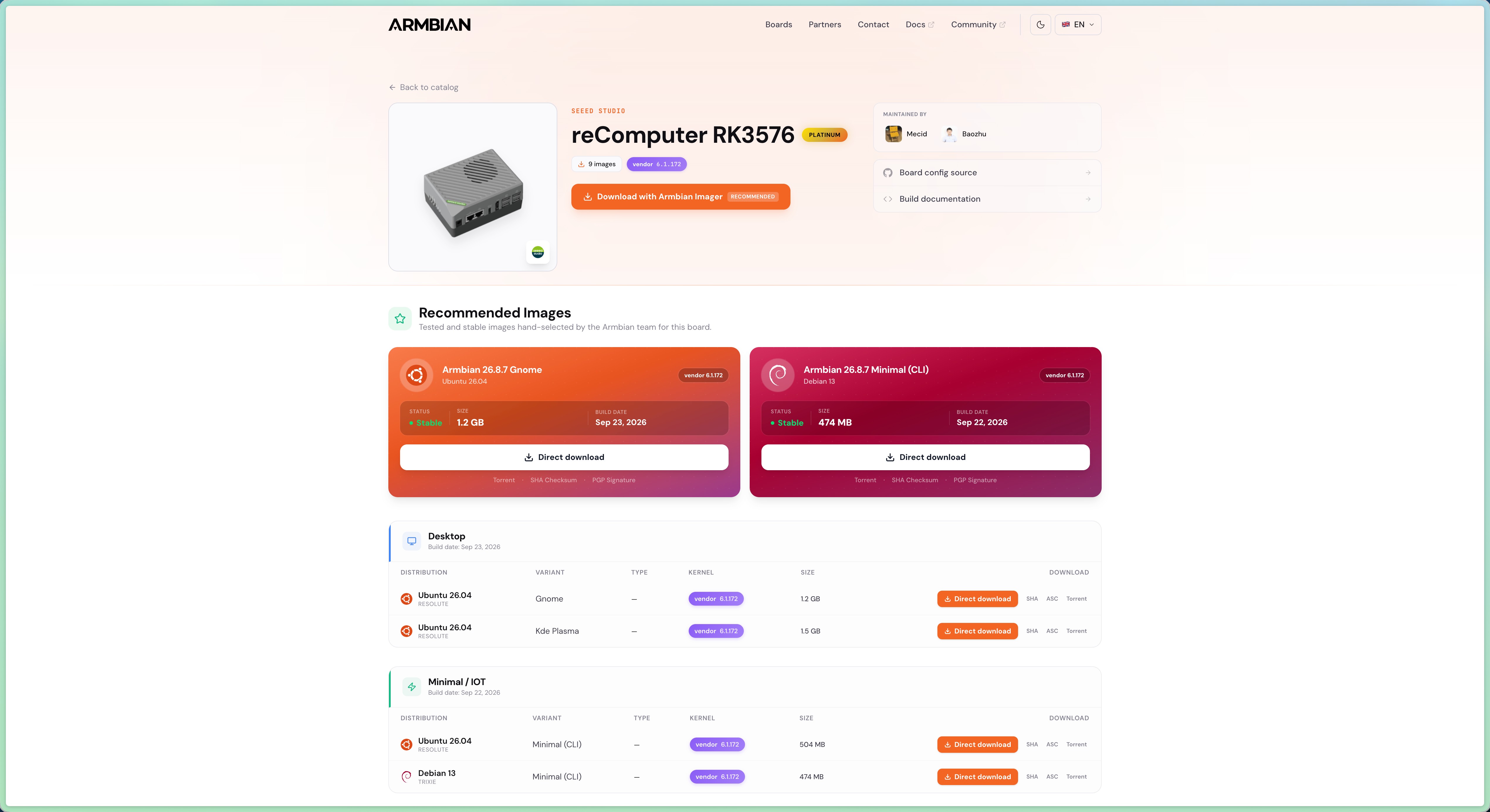
Download the image you want to install. For an official image, open the reComputer RK3576 board page and click Direct download for the desired image. Make sure the image is intended for the reComputer RK3576.
-
Open Armbian Imager, click Start now, then click Use Custom Image at the bottom left of the manufacturer selection screen.

-
In Select Disk Image, choose the downloaded image file and click Open. The screenshot shows an Armbian
.img.xzfile.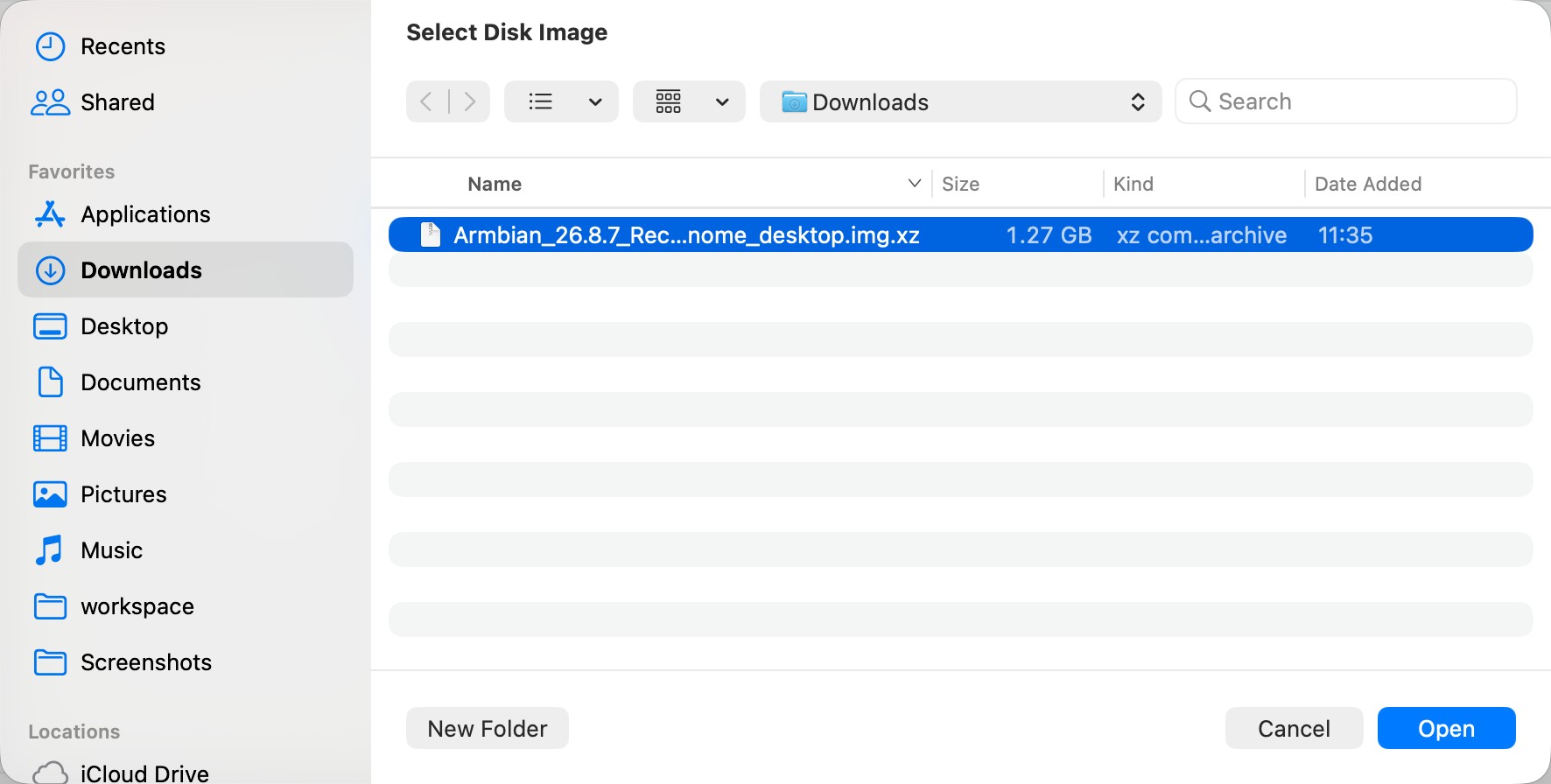
Flash the Image
Select the microSD Card or SSD
Under Storage, select the microSD card reader or the USB-connected NVMe SSD prepared earlier. Check the device name and capacity carefully. The screenshot shows a microSD card; for SSD installation, select your SSD instead.
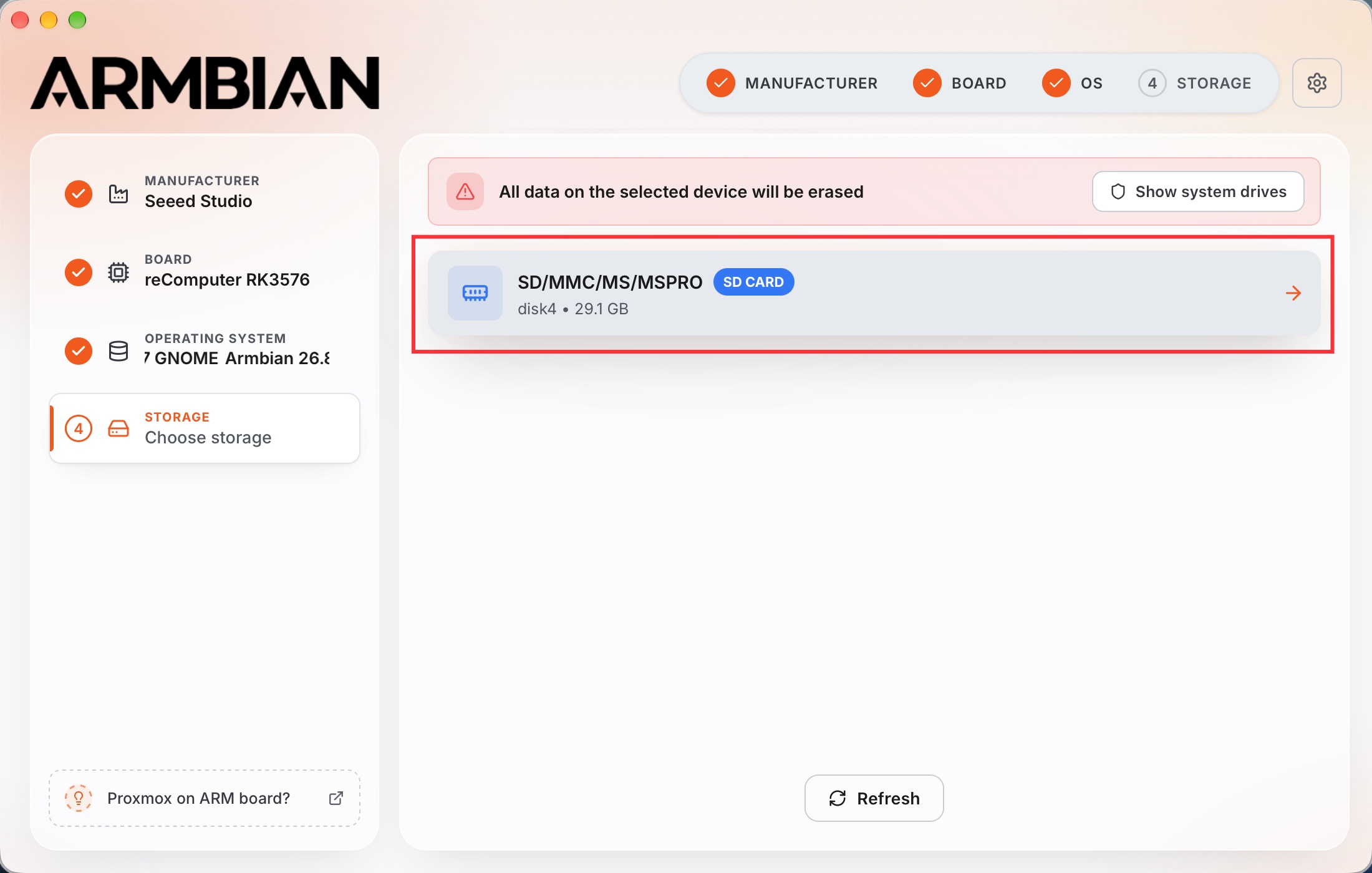
If the target does not appear, check the reader or enclosure connection and click Refresh.
Configure an Optional First-Boot Profile
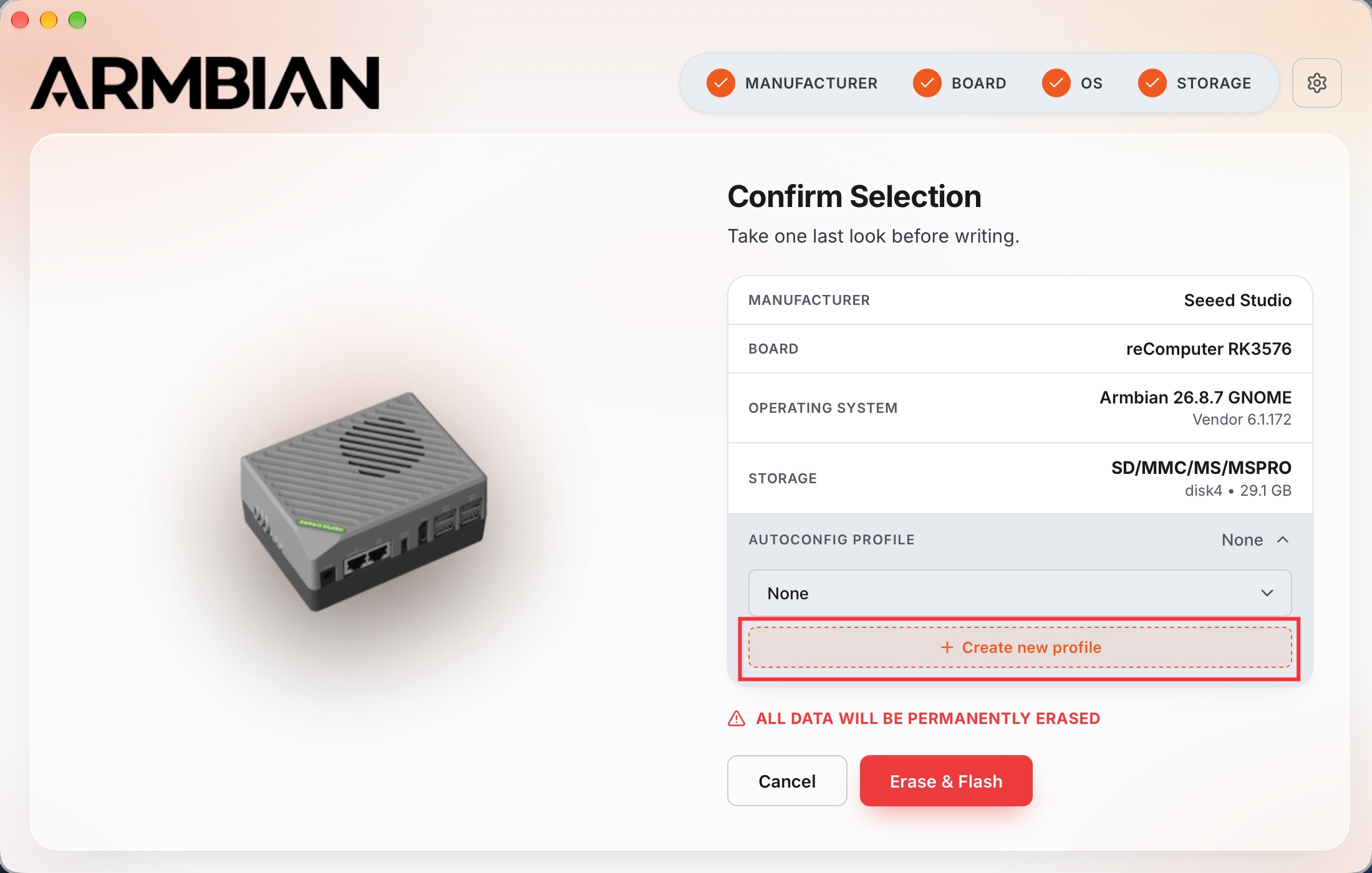
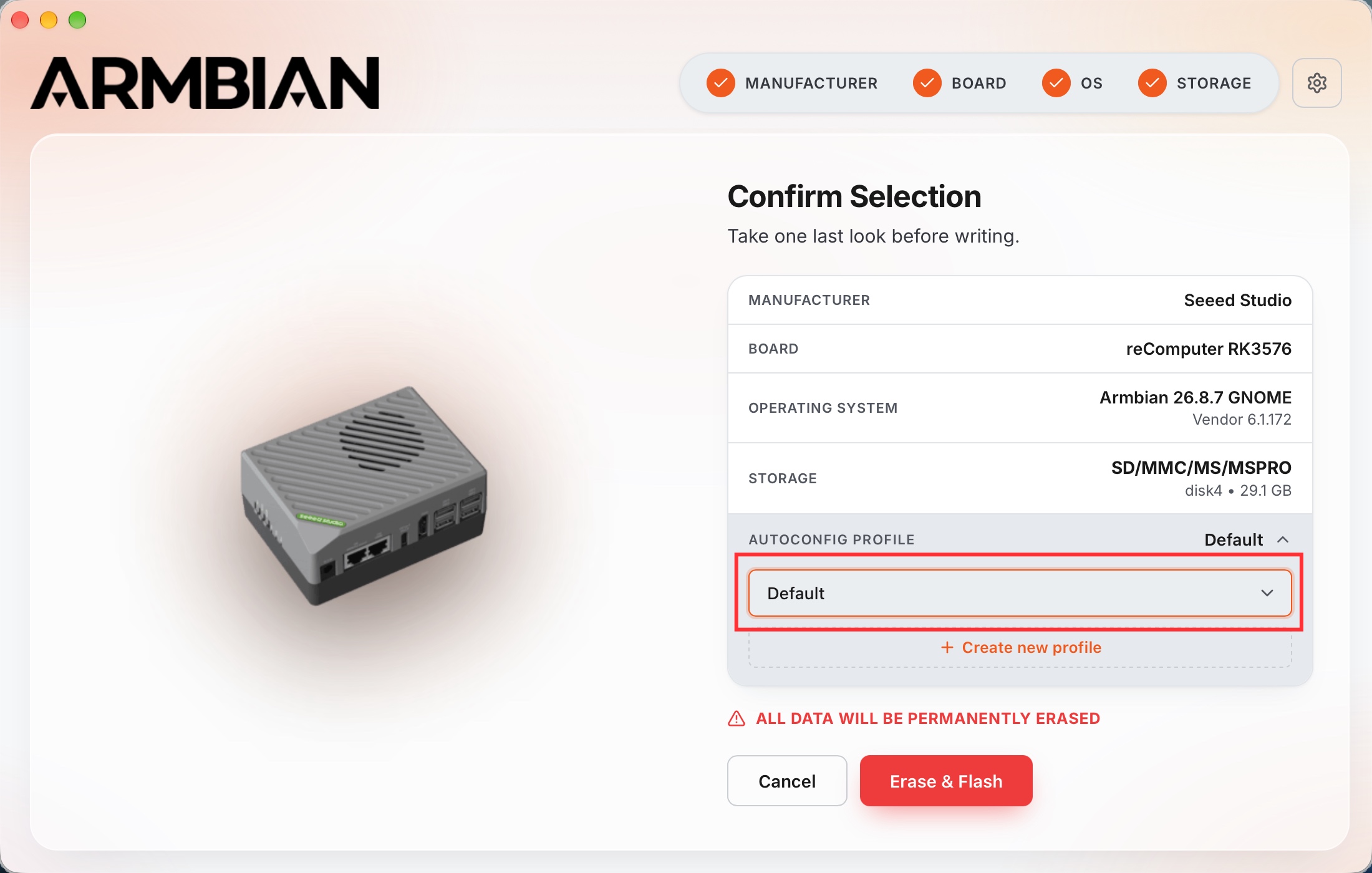
On Confirm Selection, review the manufacturer, board, OS, and storage. You can leave Autoconfig Profile set to None and configure the system on first boot, or create a profile now:
-
Expand Autoconfig Profile and click Create new profile.
-
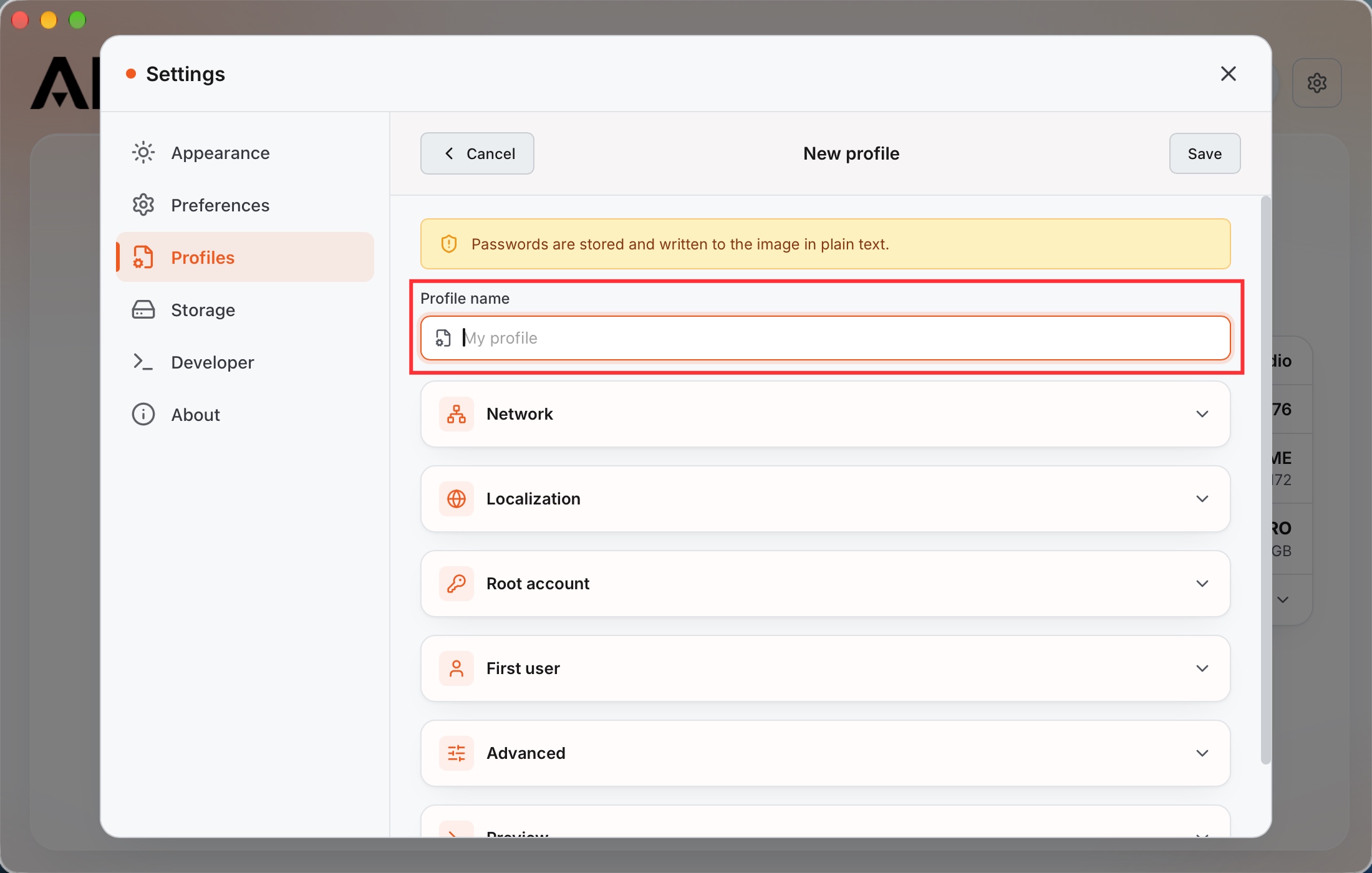
Enter a Profile name. Expand the settings you want to configure, such as Network, Localization, Root account, and First user, then click Save.
-
Select the saved profile in Autoconfig Profile. The screenshot uses a profile named Default; select the name you created.
Write and Verify
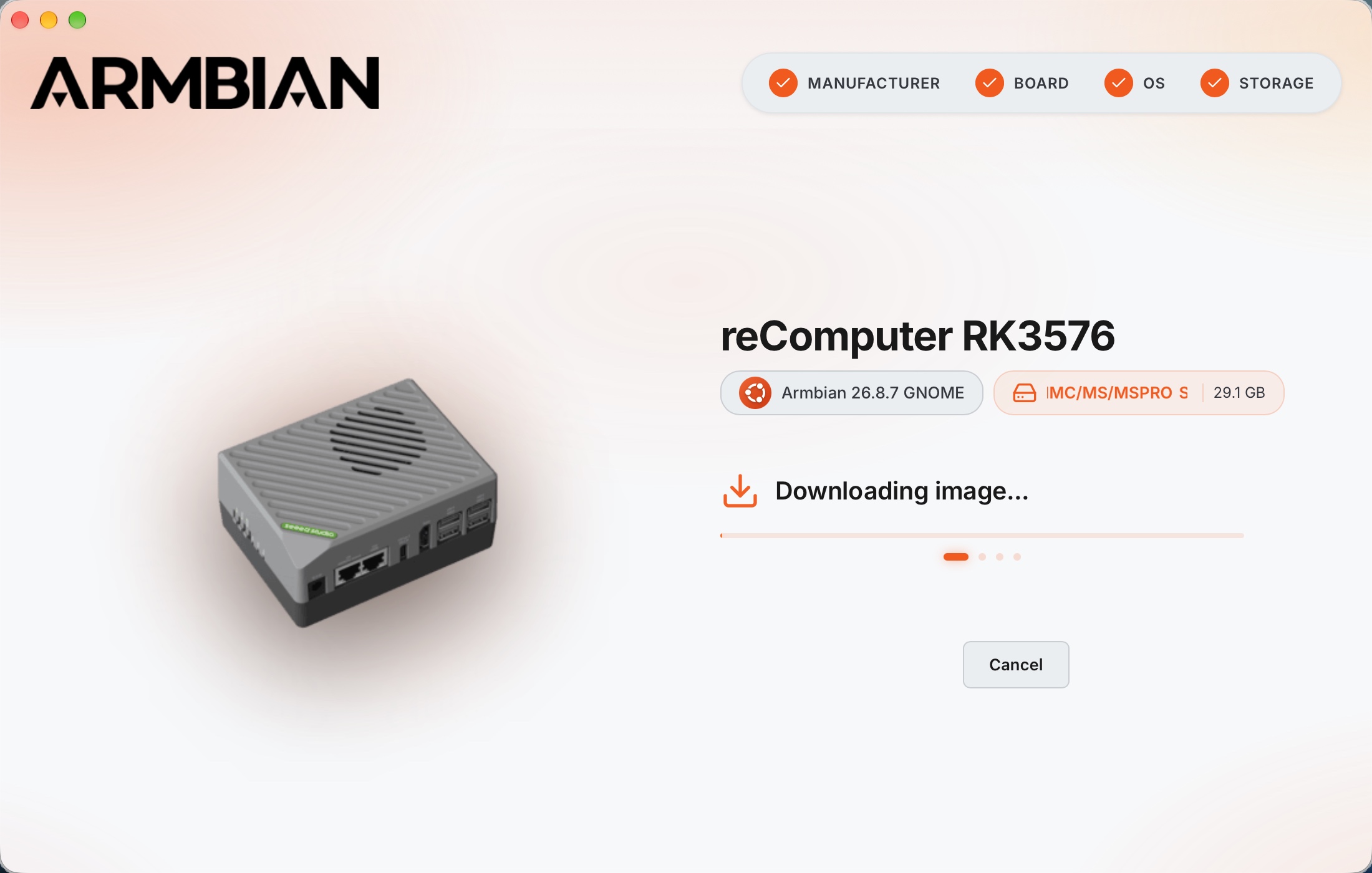
Click Erase & Flash after confirming the correct target. Allow any permission request needed to write to the storage device. Armbian Imager downloads the catalog image or uses your selected local image, writes it, and verifies the result. Keep the storage connected until the application reports completion.
For a catalog image, the download progress appears before writing:
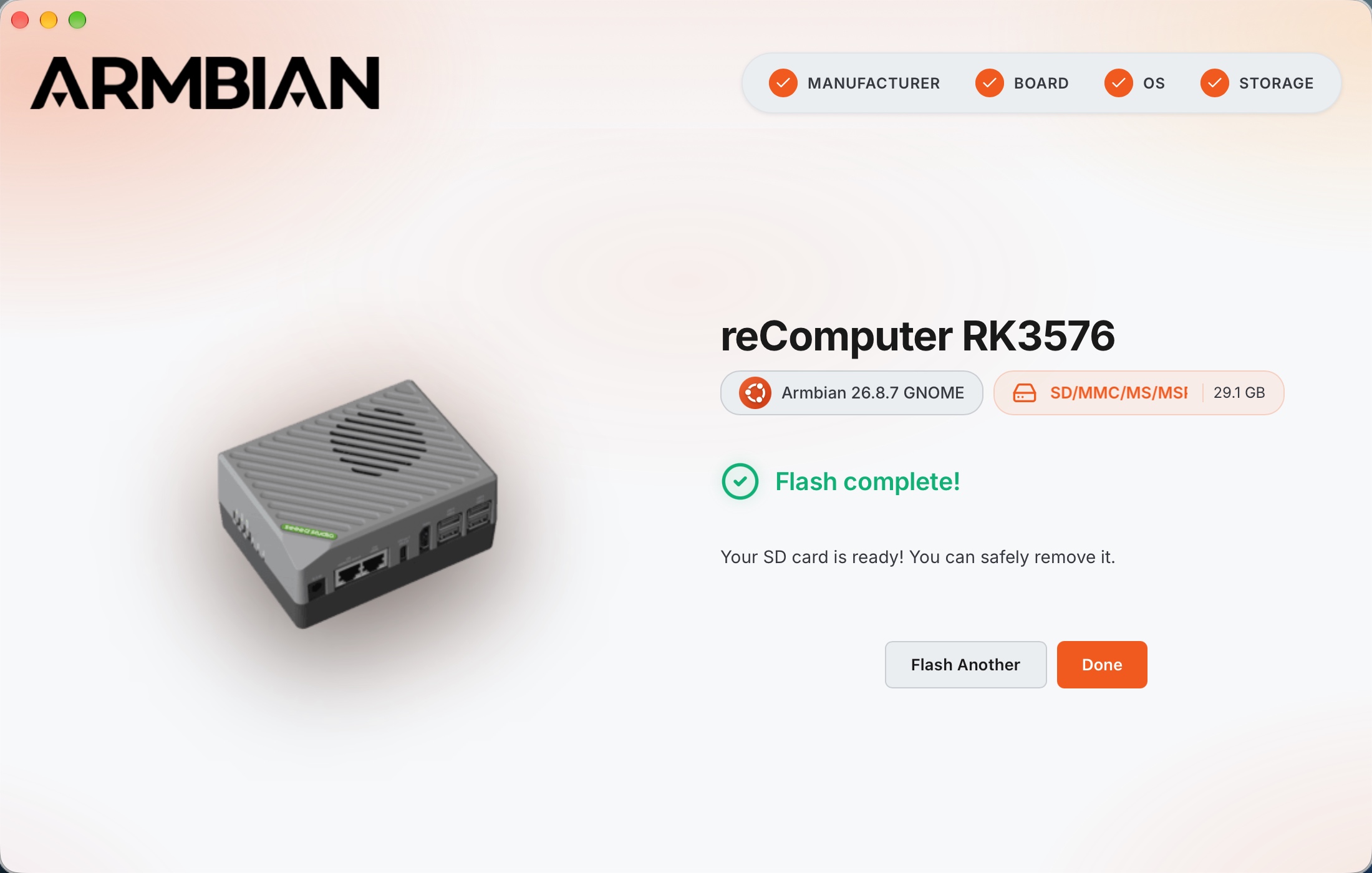
When Flash complete! appears, click Done, then safely eject the microSD card or SSD from your computer.
balenaEtcher
balenaEtcher works on Windows, Linux, and macOS. Use it to write a downloaded image to your microSD card or USB-connected NVMe SSD, then configure the system on first boot.
Install balenaEtcher
Download and install balenaEtcher for your operating system from its official website.
Prepare the Image
Download an image from the reComputer RK3576 board page and extract it to an .img file.
Flash
-
Open balenaEtcher, click Flash from file, select the downloaded
.imgfile, and click Open.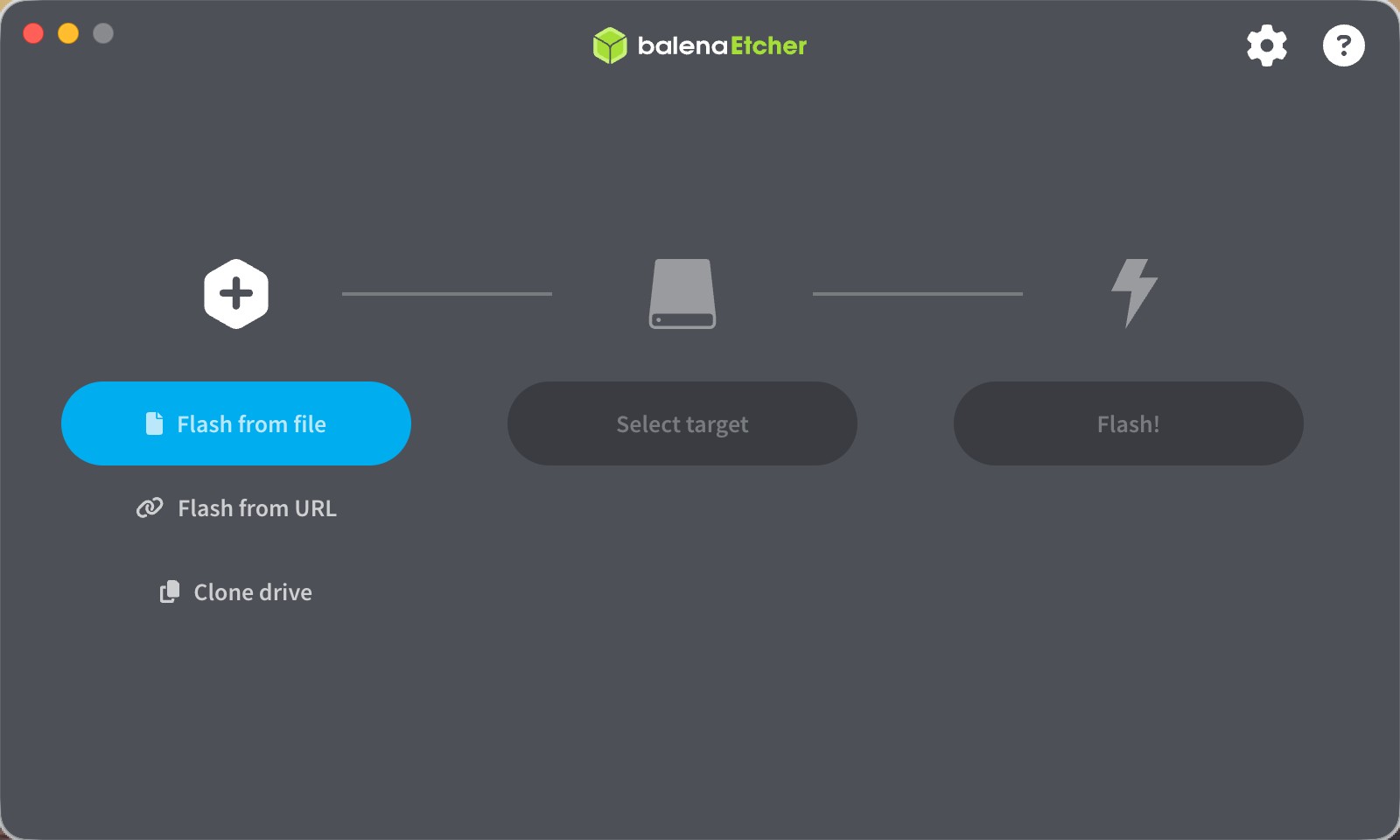
-
Click Select target. Check the target's name, capacity, and location, select your microSD card or SSD, then confirm the selection. The screenshot shows a 31.3 GB microSD card at
/dev/disk4; your target may differ.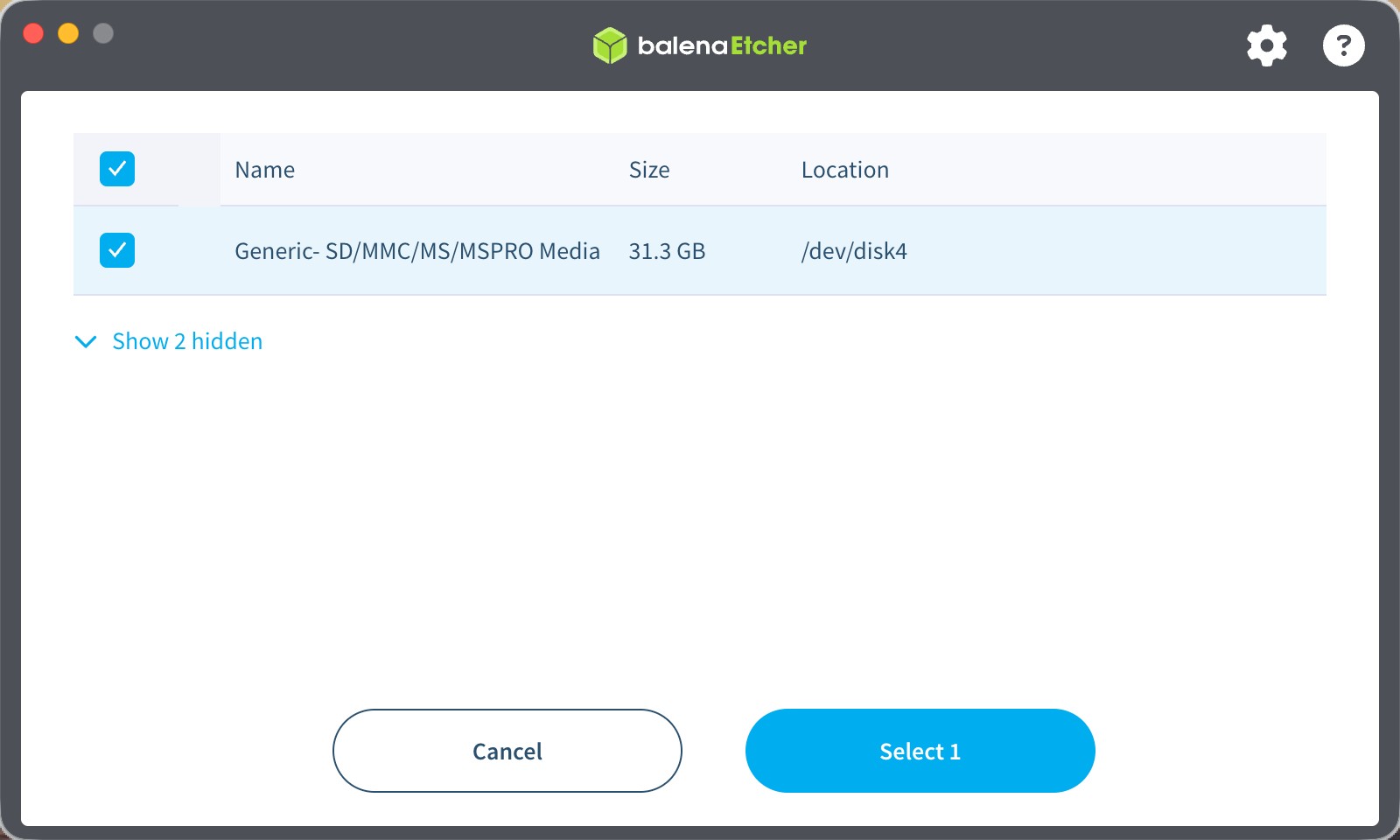
-
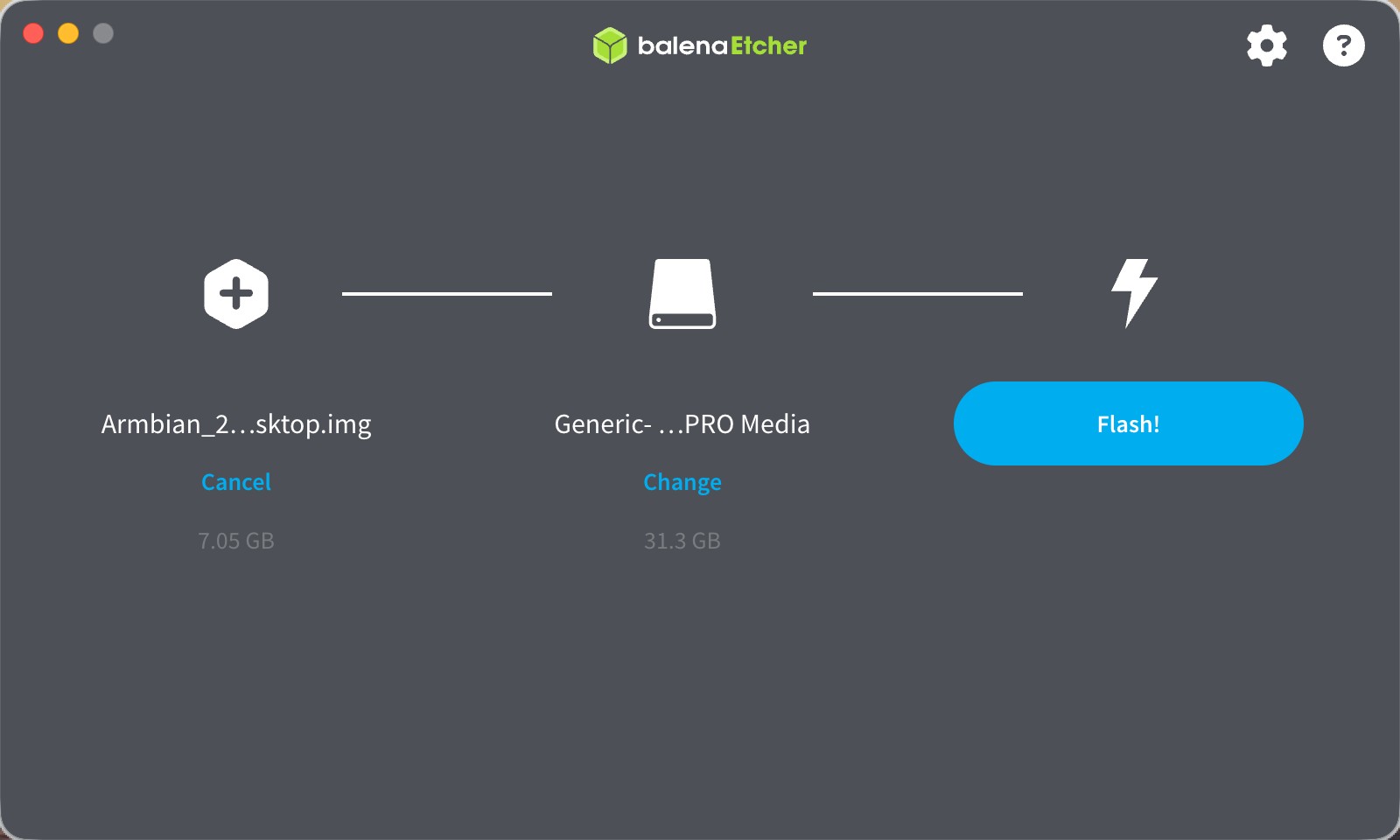
Review the selected image and target, then click Flash!. This erases the selected target. Allow any permission request needed to write to the device.
-
Keep the storage connected until writing and validation finish and Flash Completed! appears.
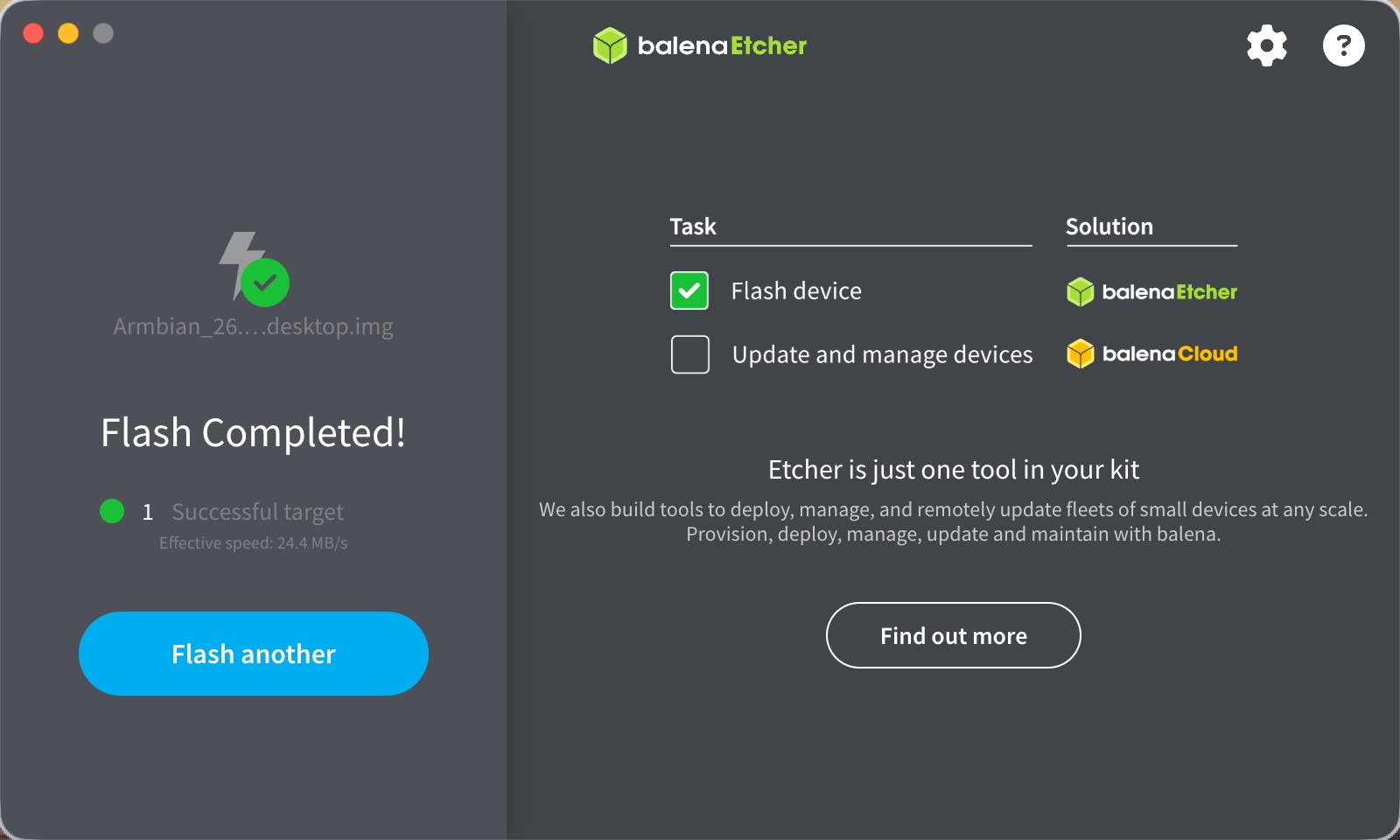
Safely eject the storage from your computer. It is now ready to boot the reComputer RK3576.
dd
On macOS and Linux, you can use dd to write an Armbian image directly to a microSD card or USB-connected NVMe SSD. Unlike Armbian Imager, dd does not configure first-boot profiles or verify the written image. Complete system configuration on first boot.
The examples below use a specific image filename and disk name. Replace them with the image you downloaded and the target disk on your computer.
Prepare the Image
Download an image from the reComputer RK3576 board page. Open a terminal in the directory containing the download and decompress the .img.xz file with unxz from XZ Utils:
unxz Armbian_26.8.7_Recomputer-rk3576-devkit_resolute_vendor_6.1.172_gnome_desktop.img.xzIf unxz is unavailable, install XZ Utils for your operating system before continuing. Keep the resulting .img file in the terminal's current working directory for the commands below.
Flash on macOS
-
Connect the card reader or SSD enclosure, then list the disks:
bashdiskutil listIn this example,
/dev/disk4is the external, physical target with a capacity of 31.3 GB./dev/disk0is the internal system disk and must not be overwritten. Your disk number and capacity may differ.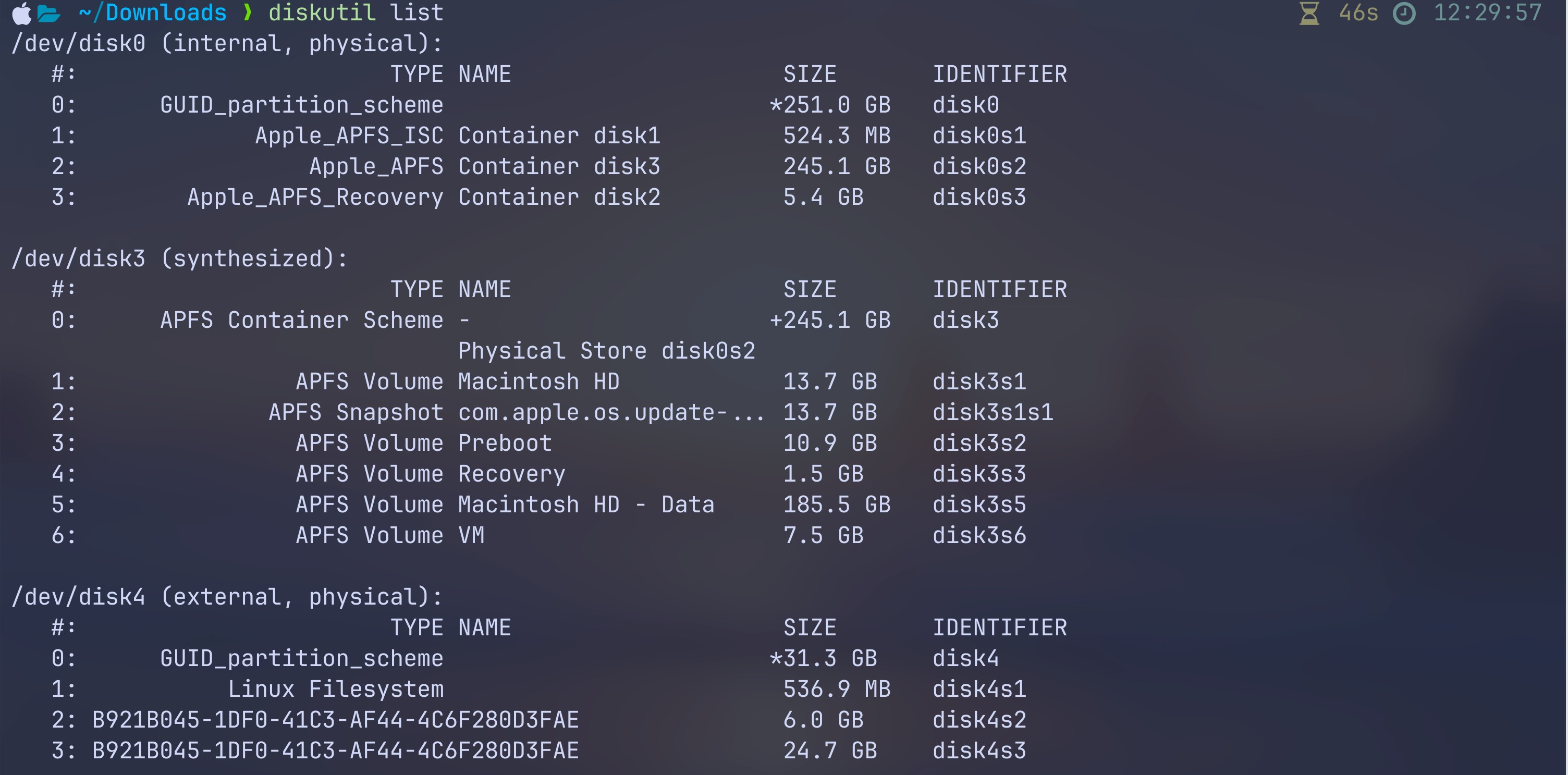
-
Unmount all volumes on the confirmed target while keeping the device connected:
bashdiskutil unmountDisk /dev/disk4Wait for the successful unmount message before continuing.

-
Write the decompressed image to the whole target disk:
bashsudo dd \ if=Armbian_26.8.7_Recomputer-rk3576-devkit_resolute_vendor_6.1.172_gnome_desktop.img \ of=/dev/disk4 \ bs=4M status=progress conv=fsyncEnter your password when prompted. Keep the device connected until
ddprints its final transfer summary and the shell prompt returns without an error.
-
Eject the target before disconnecting it:
bashdiskutil eject /dev/disk4
Flash on Linux
-
Connect the card reader or SSD enclosure, then list the block devices:
bashlsblkIn this example,
/dev/sdbis the 29.1G target./dev/sda2is mounted at/and belongs to the system disk, so do not write to/dev/sda. Your device names and capacities may differ.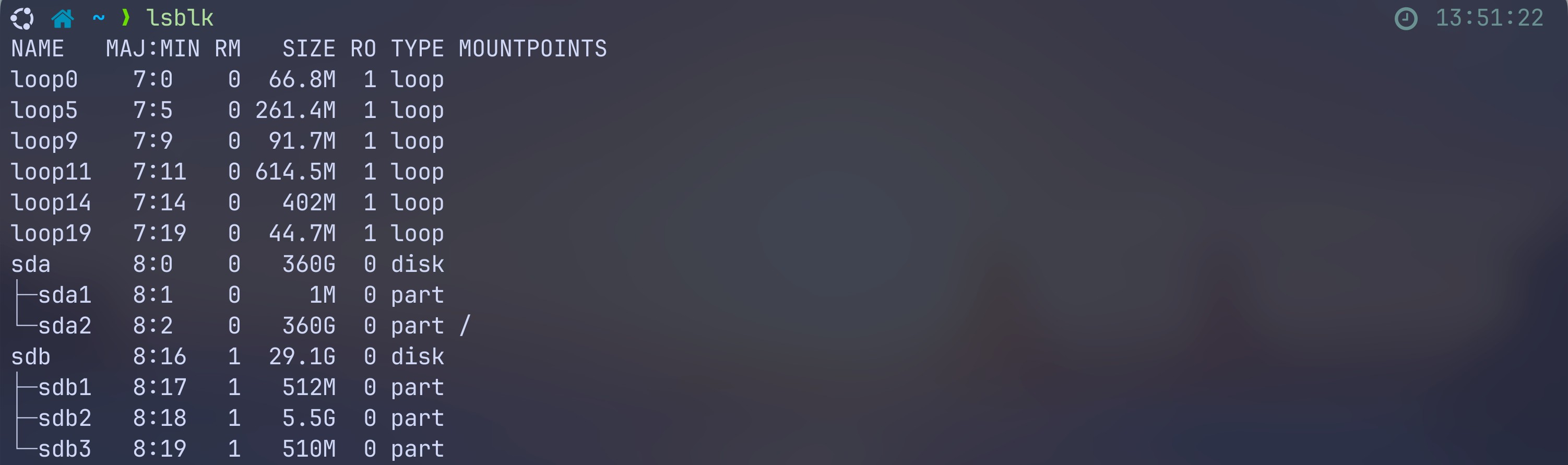
-
Check the target's MOUNTPOINTS column. If any of its partitions are mounted, unmount each one before writing. For example, if
/dev/sdb1is mounted:bashsudo umount /dev/sdb1Repeat for any other mounted partitions on the confirmed target, then run
lsblkagain to confirm their mountpoints are empty. In this example, none of the target partitions are mounted. -
From the directory containing the decompressed
.imgfile, write to the whole target disk:bashsudo dd \ if=Armbian_26.8.7_Recomputer-rk3576-devkit_resolute_vendor_6.1.172_gnome_desktop.img \ of=/dev/sdb \ bs=4M status=progress conv=fsyncWait for the final transfer summary and the shell prompt to return without an error. A progress line alone does not indicate completion; the final flush can take additional time.

-
Safely eject the target using your desktop's removable-device controls before disconnecting it.
Transfer time depends on the image size and storage speed. Once writing is complete, the storage is ready to boot the reComputer RK3576.
Boot
Boot from a microSD Card
With the reComputer RK3576 powered off, insert the flashed microSD card into its card slot. Connect your peripherals and power on the device.
Boot from an NVMe SSD
With the reComputer RK3576 powered off, install the flashed SSD in the device's M.2 NVMe slot. Remove any microSD card before powering on to boot from the SSD.
NVMe boot requires firmware that supports booting from NVMe. If the device does not boot, check its boot firmware and SSD connection before flashing again.
Complete First-Boot Setup
Follow Configure Armbian on First Boot on reComputer RK3576 to complete setup. If you selected an autoconfig profile, its settings are applied on first boot.