reComputer RK3576 Module Dev Kit Flash OS
Last updated:
RK Firmware Flashing and Initialization
Image Flashing
Press and hold the MASKROM button, then power on the device. When the power LED stays on and the heartbeat LED is off, the device has successfully entered MASKROM mode (you can release the button at this point).
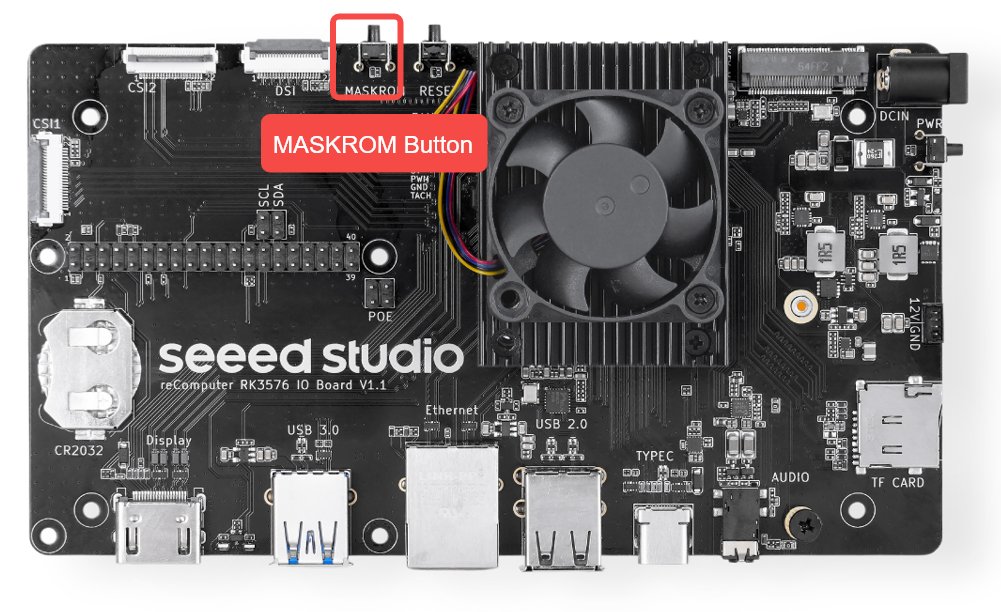
The device supports the following three image flashing and boot methods. Please choose one according to your actual hardware configuration:
-
eMMC Boot: Flash the image directly to the on-board eMMC and boot from it.
-
SSD Boot: Flash the image to an SSD (Solid State Drive), connect it to the Dev Kit, and boot from it.
-
TF Card Boot: Flash the image to a TF card (32GB or larger recommended), insert it into the Dev Kit, and boot from it.
eMMC Image Boot
If your board has on-board eMMC, no installation is needed. The system image is flashed at the factory.
Windows
RKDevTool is a tool developed by Rockchip for USB flashing on the Windows platform.
Install RKDevTool
Download and extract the following file to install RKDevTool:
-
RKDevTool v3.37 (includes Chinese user manual)
Install the DriverAssistant Driver
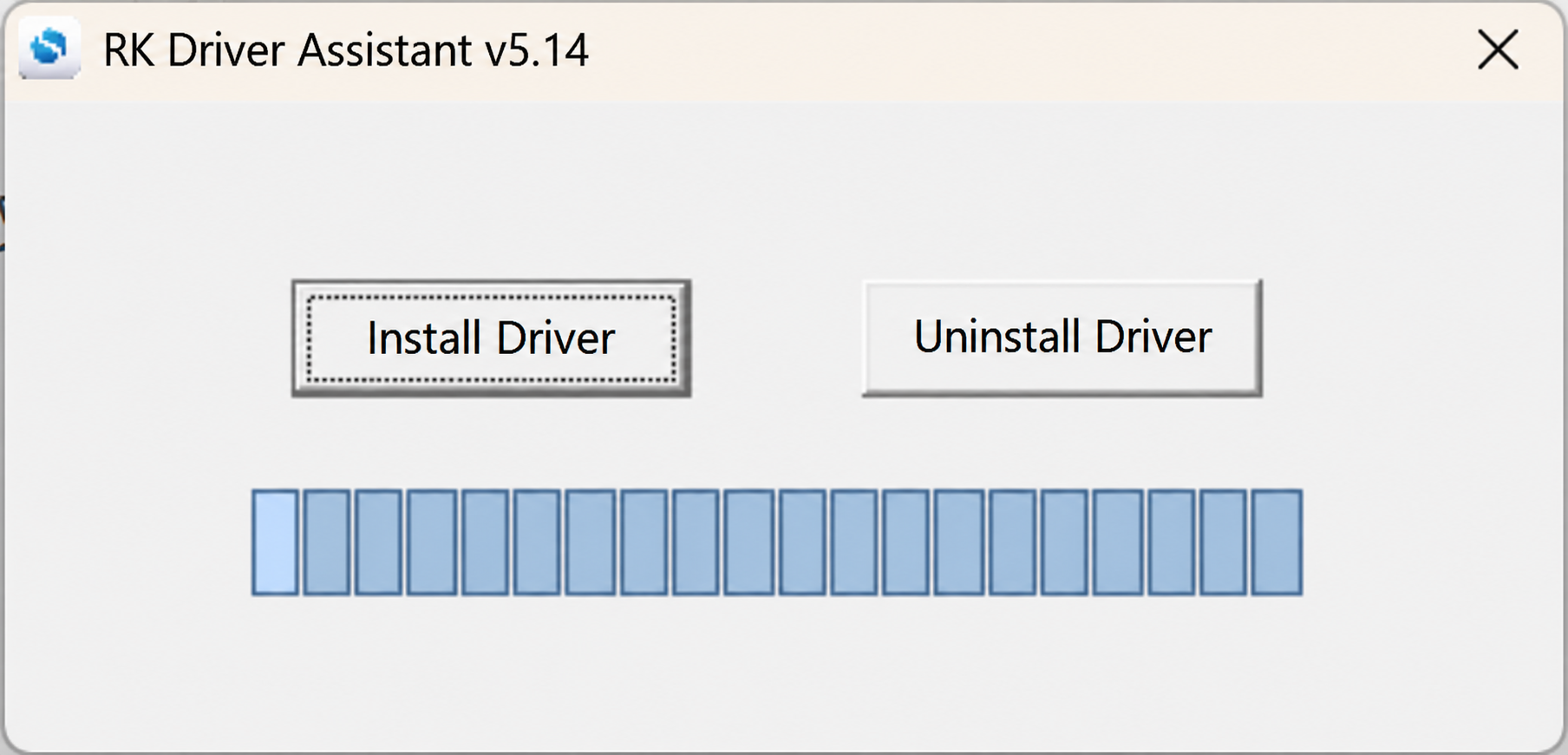
Download and extract DriverAssistant, then run DriverInstall.exe and click the Install Driver button to install the driver. If you have previously installed another version of the driver, first click Uninstall Driver to uninstall the driver, and then reinstall it.
Run RKDevTool
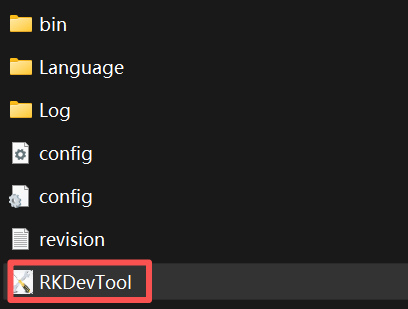
Extract RKDevTool.zip and double-click RKDevTool.exe to run it.
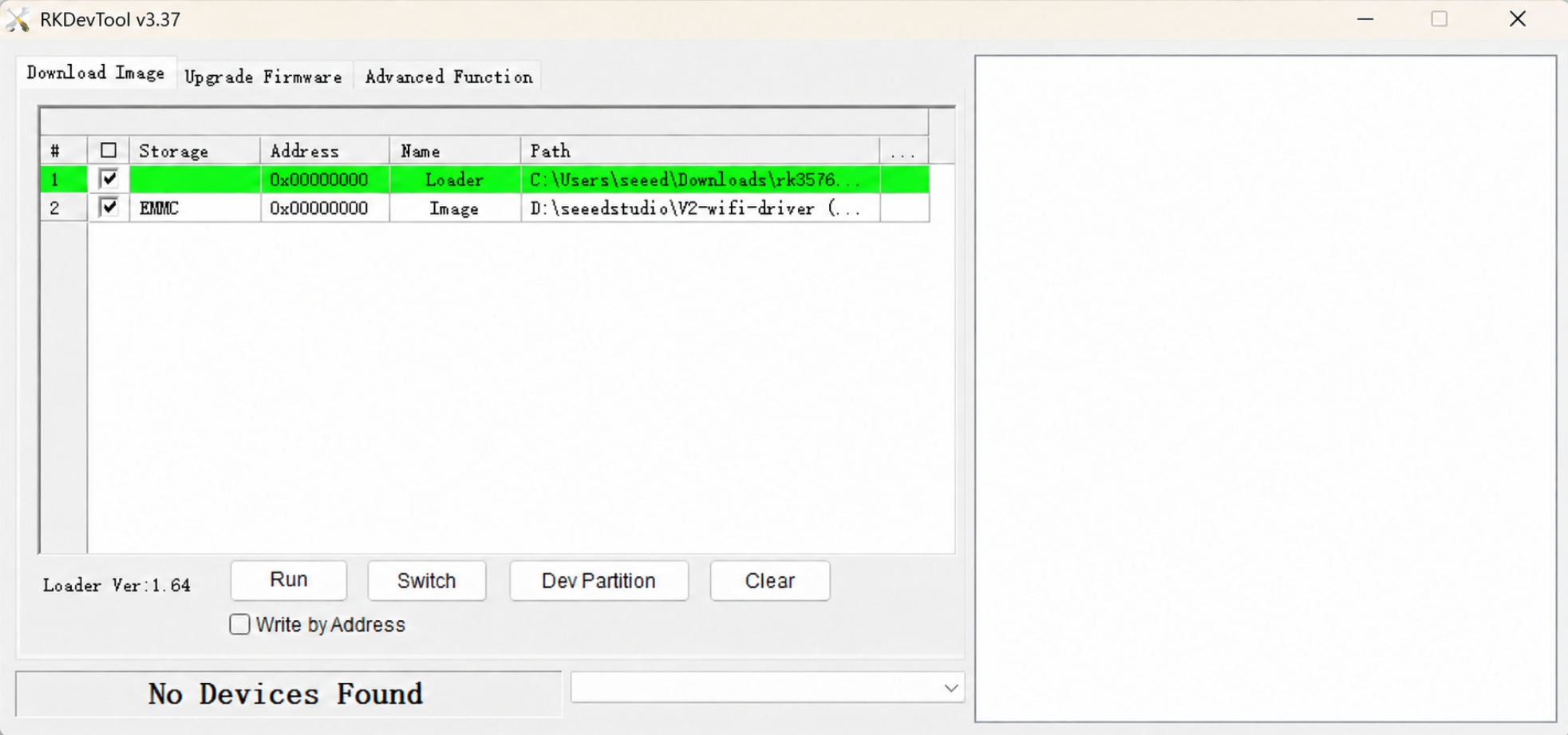
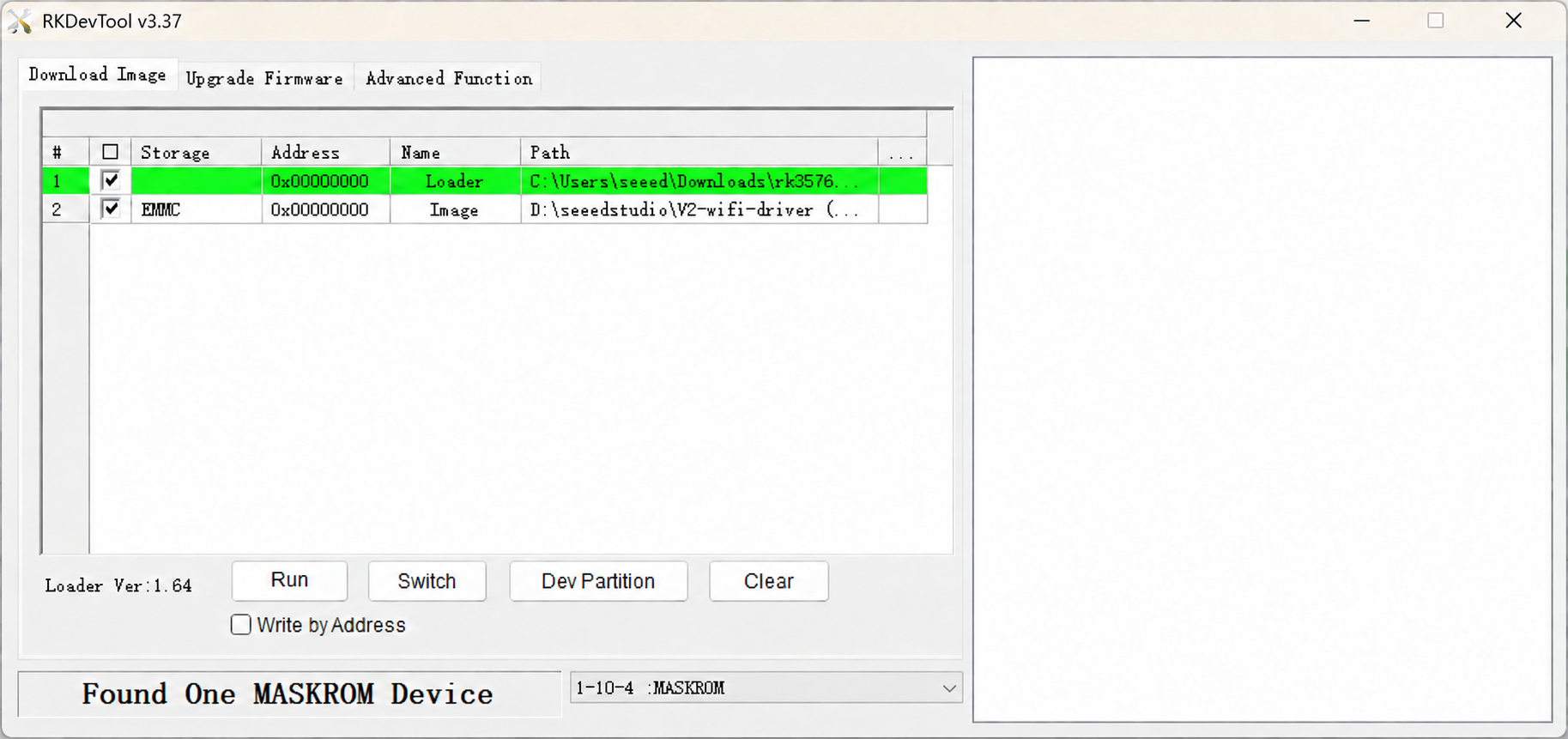
Now connect the USB-C port of the Dev Kit to the PC with the other end of the USB cable. The message "Found One MASKROM Device" will appear, indicating that the eMMC has been recognized.
Configure RKDevTool Write Parameters
Select the Loader and Image corresponding to the numbers. Generally, you can just use the default official firmware.
Note
What are Loader files and Image files?
- Loader File: It is the underlying bootloader of the device, responsible for initializing basic hardware (such as DDR) during the flashing stage and establishing a communication channel with the PC development tool, so that data can be received and written later.
- Image File: It is a system image package that contains the complete OS kernel and root file system. After being flashed to the device storage (such as eMMC), it becomes the actual system running on the device.
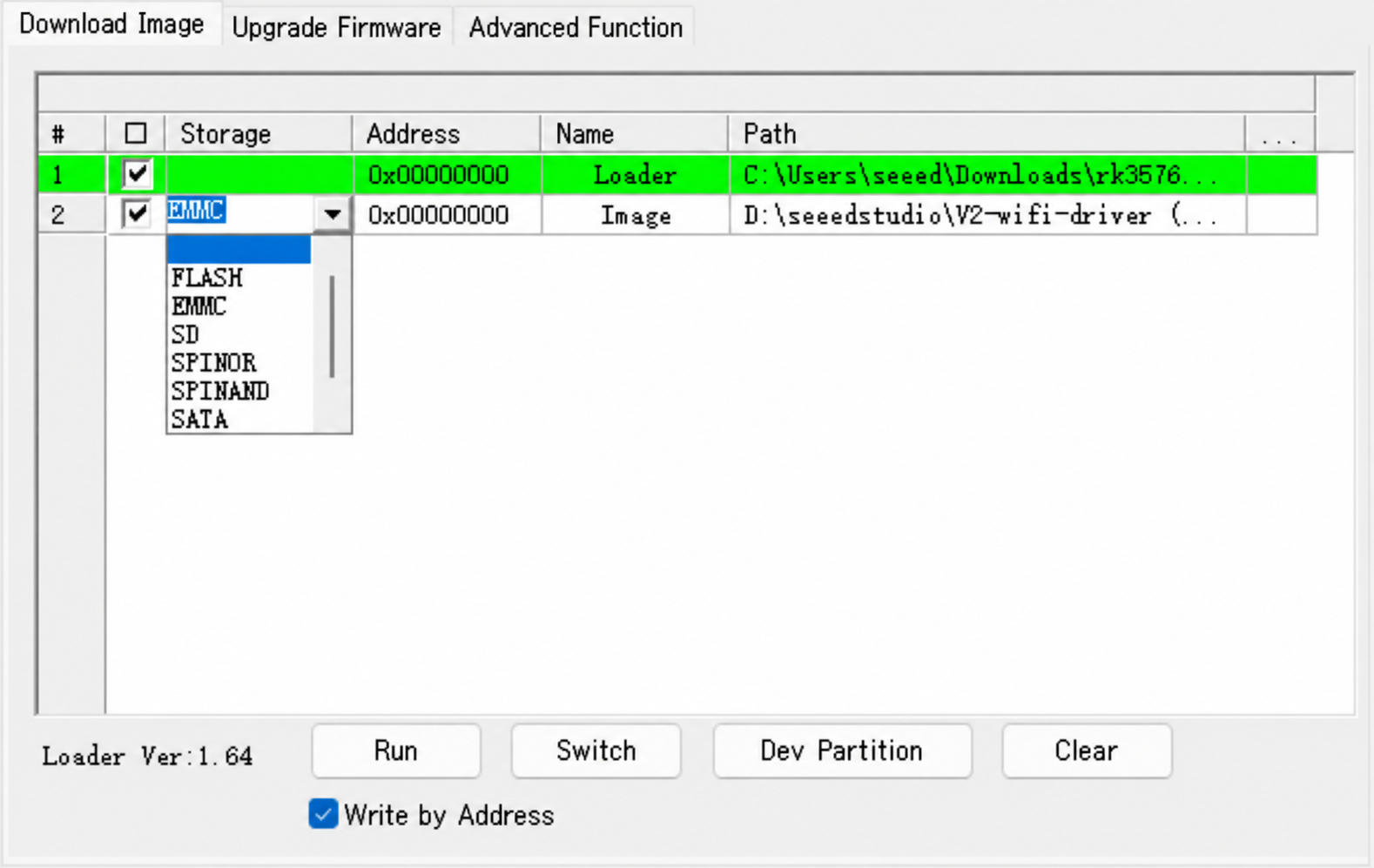
Select the target medium in the Storage option: eMMC
Check "Force write by address", then click Execute;
Wait about 5 minutes. When "Download Complete" appears in the log area on the right, the flashing has succeeded:
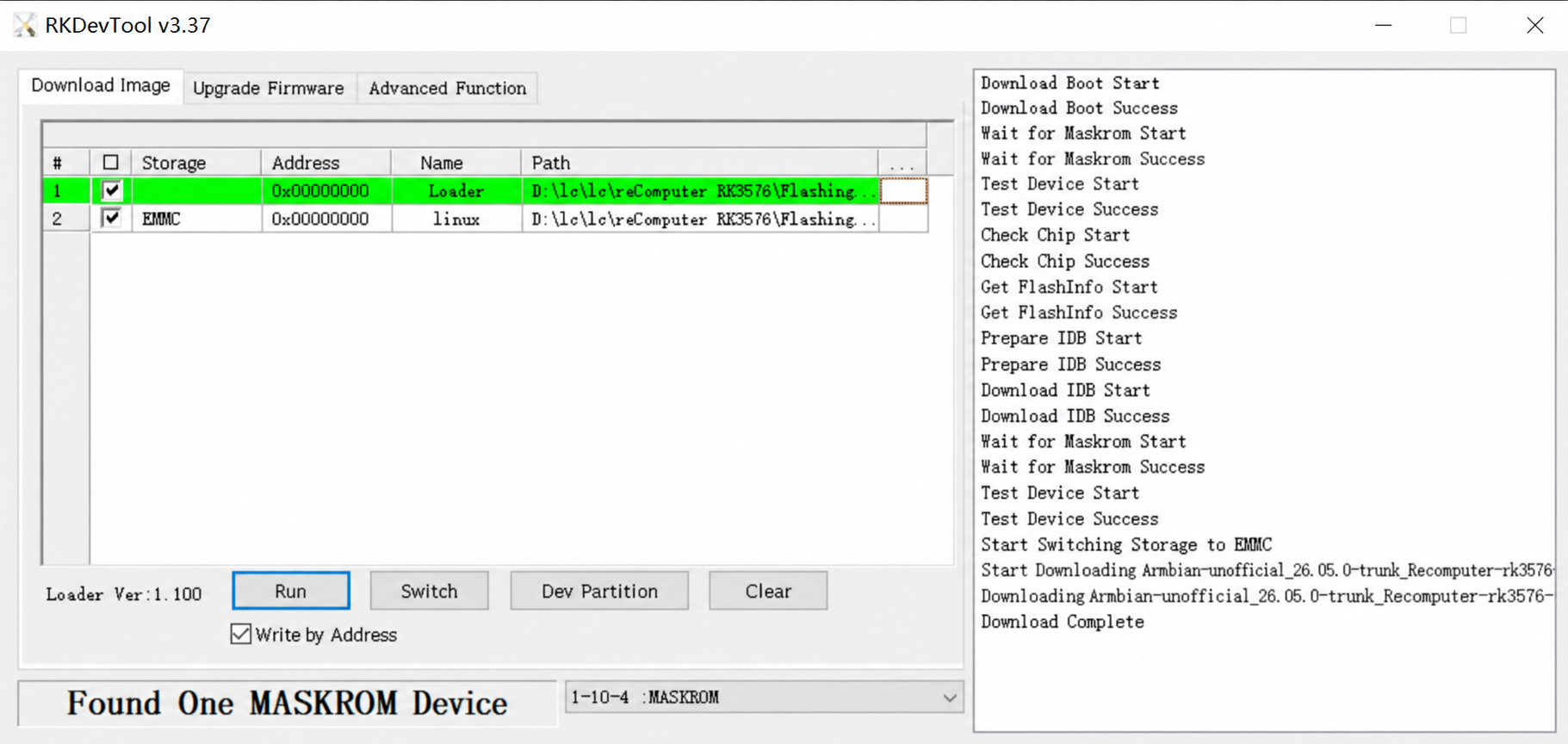
Note: If the first flashing attempt fails, click "Execute" to flash again.
Although RKDevTool supports selecting Maskrom devices, flashing multiple devices at the same time will cause the device being written to fail.
If you need to flash multiple devices at the same time, use upgrade_tool.
TF Card Image Boot
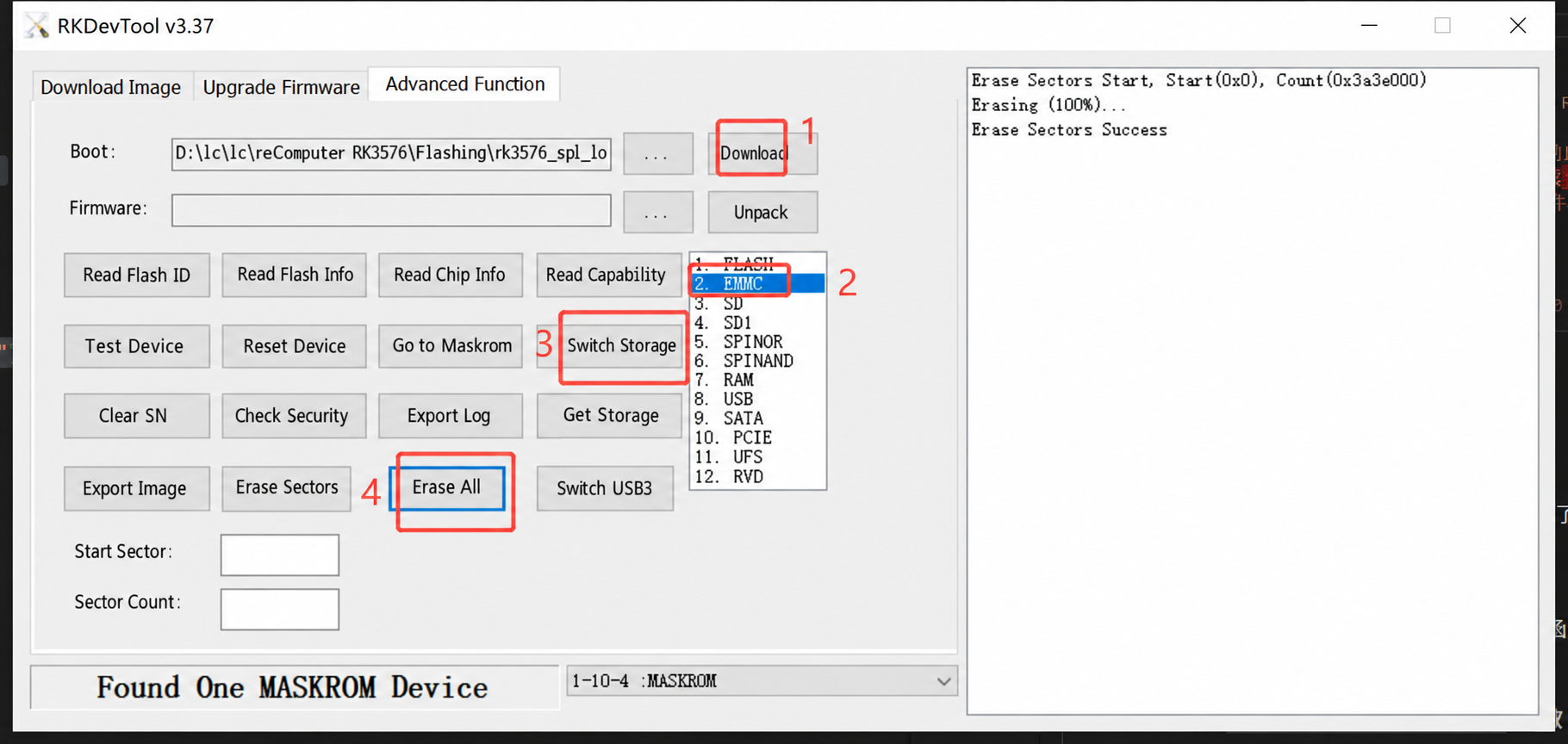
The device boot order is eMMC -> TF card -> SSD. When the eMMC has an image, the device boots from the eMMC by default. To boot from a TF card, you need to erase the eMMC. Follow the steps in the figure: select Advanced Function --> Download --> eMMC --> Switch Storage --> Erase All
When "Erase Sectors Success" appears in the log window on the right, the erasing is complete.
Then use Armbian Imager to flash the image to the SD card. For the procedure, see reComputer RK3576 Flash OS.