Customize the Interface with HACS and Catppuccin
Last updated:
Introduction
Home Assistant is an open-source home automation and IoT platform. HACS (Home Assistant Community Store) lets users install community-maintained custom integrations, dashboard components, and themes to extend functionality and customize the interface.
The preceding tutorials deployed Home Assistant Container on reComputer RK3576 and created a temperature and humidity dashboard with Modbus TCP. This tutorial installs HACS on the same device, customizes the interface with Catppuccin Theme, and checks that the existing monitoring page remains usable.
Home Assistant Container does not include the built-in Apps (formerly Add-ons) management provided by Home Assistant OS / Supervised, but it supports HACS. HACS is not an Apps store and does not add Supervisor to Container. This tutorial manages configuration through SSH and Docker commands.
Getting started
Hardware
- One reComputer RK3576 running ARM64 Linux with a working network connection.
- A Windows, macOS, or Linux computer for SSH and browser access.
- Network access to GitHub and the HACS download site.
Software
| Item | Tested environment |
|---|---|
| Board | reComputer RK3576 |
| Operating system | Armbian (Debian 12 Bookworm, ARM64) |
| Home Assistant installation | Home Assistant Container (Docker) |
| Docker container name | homeassistant |
| Configuration directory | /home/seeed/homeassistant/config/ |
| HACS | 2.0.5 |
| Catppuccin Theme | v2.1.3 |
| Web access | http://<RK3576_IP>:8123 |
First complete the Docker installation and initial setup in Install Home Assistant on reComputer RK3576. To demonstrate the temperature and humidity dashboard, you can also complete Integrate Modbus TCP with Home Assistant on reComputer RK3576. Modbus is not required for this tutorial.
The configuration path /home/seeed/homeassistant/config/ uses the example account seeed. If your username or configuration mount differs, use the actual path.
Check the Home Assistant container from the RK3576 terminal:
sudo docker ps --filter name=homeassistantThe container named homeassistant should have an Up status.
Optional: Back up the current configuration
Before adding custom components, back up the existing configuration and dashboard data. These commands briefly stop Home Assistant to create a consistent file backup:
sudo docker stop homeassistant
sudo tar -czf "$HOME/homeassistant-config-backup.tar.gz" -C "$HOME/homeassistant" config
sudo docker start homeassistant
ls -lh "$HOME/homeassistant-config-backup.tar.gz"
The archive contains the Home Assistant configuration directory, not independent files stored elsewhere, such as the Modbus simulator script. Copy the backup to your computer or external storage rather than keeping it only on RK3576. If you use an encrypted backup from the Home Assistant web interface, keep its encryption key safely as well.
Install HACS in Home Assistant Container
Step 1: Enter the Home Assistant Docker container
Connect to RK3576 over SSH and run:
sudo docker exec -it homeassistant bashCheck the configuration path inside the container:
pwdThe working directory is usually /config.
Step 2: Run the official HACS installation script
Run this inside the container:
set -o pipefail
wget -O - https://get.hacs.xyz | bash -
The script downloads HACS into the Home Assistant custom integrations directory. The command comes from the official HACS Container download instructions. Confirm that you trust the download domain and network before running it.
Check whether the file exists after installation:
ls -l /config/custom_components/hacs/manifest.jsonIf manifest.json exists, the HACS integration files have been written to the configuration directory. The file alone does not confirm web authorization; continue with the HACS integration setup.
Step 3: Restart Home Assistant
Exit the container:
exitRun this in the RK3576 host terminal:
sudo docker restart homeassistantOnce Home Assistant is running again, open:
http://<RK3576_IP>:8123Configure HACS in the web interface
Step 4: Add the HACS integration
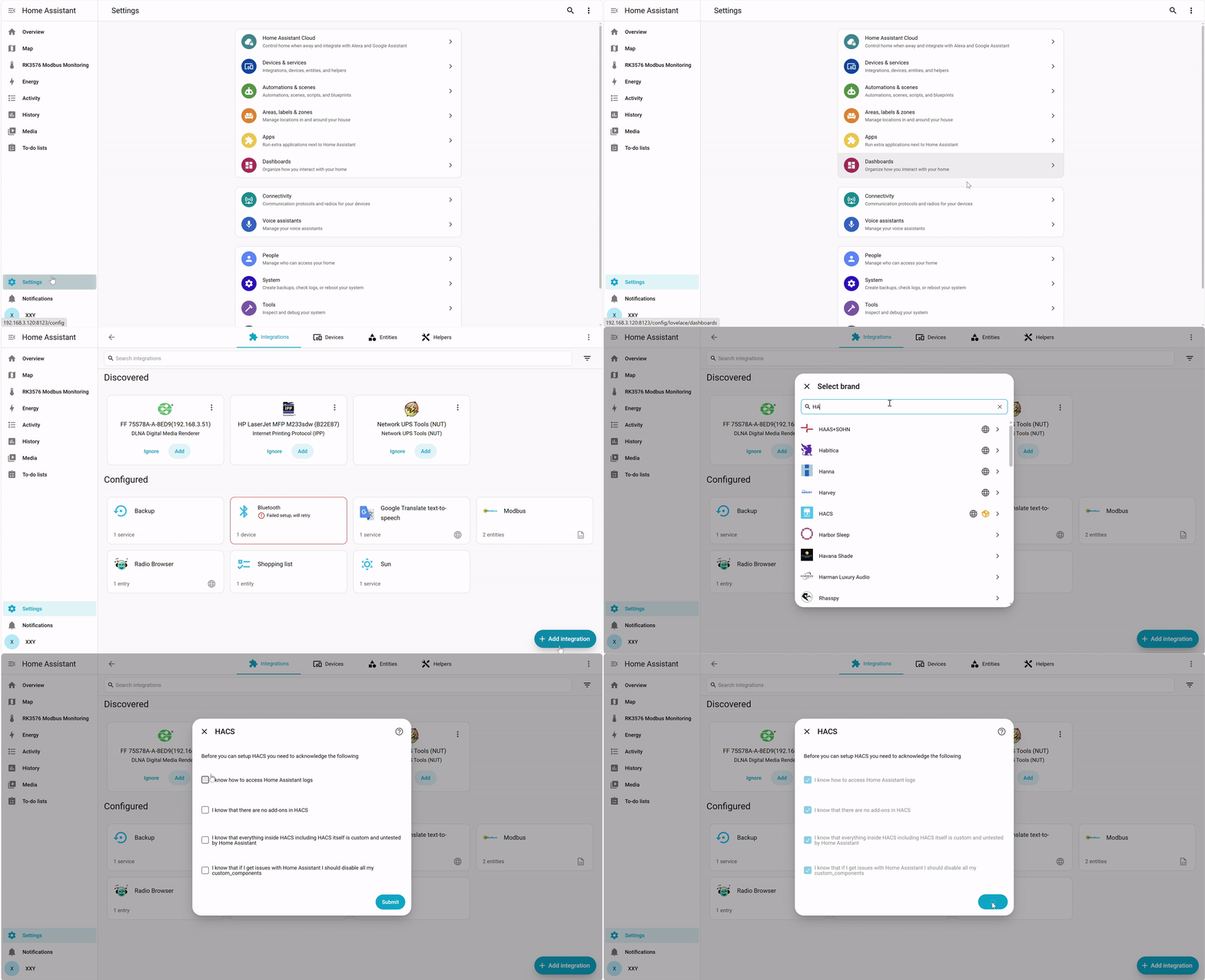
- Open Home Assistant and go to Settings → Devices & services.
- Select Add integration in the lower-right corner.
- Search for
HACSand select the integration. If it is missing, perform a hard refresh and confirm that the container was restarted. - In the initial HACS acknowledgement window, read the four statements about logs, the absence of Add-ons, third-party compatibility, and troubleshooting. Check the acknowledgements after understanding them, then select Submit.
Step 5: Authorize through GitHub
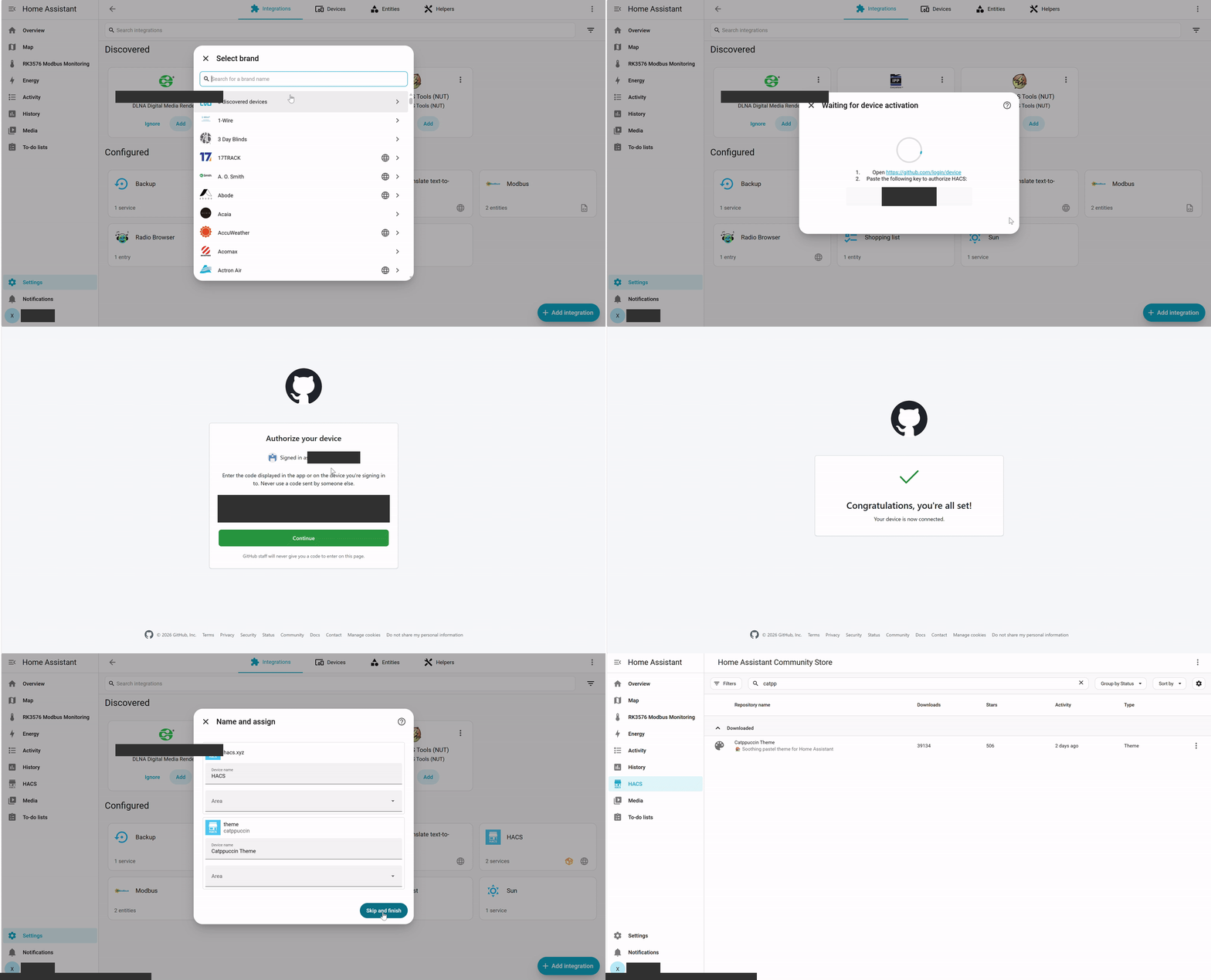
HACS connects to community repositories through GitHub's device authorization flow:
- The Home Assistant dialog displays Waiting for device activation and a device code in the format
XXXX-XXXX. - Keep that dialog open and open https://github.com/login/device in another browser page.
- Sign in to your GitHub account, enter the code from the dialog, and select Continue.
- Follow the GitHub prompts and select Authorize HACS.
- Return to Home Assistant and wait for authorization. Complete any final options, such as region selection, if prompted.
The device code is only for the current authorization. Do not publish device codes, access tokens, or backup keys in wiki screenshots. If the code expires, restart the HACS setup to obtain a new one.
Step 6: Confirm the HACS installation
Open Settings → Devices & services → Integrations → HACS to view the configured integration.
Once configured, the HACS page lets you browse community repositories and downloaded components.
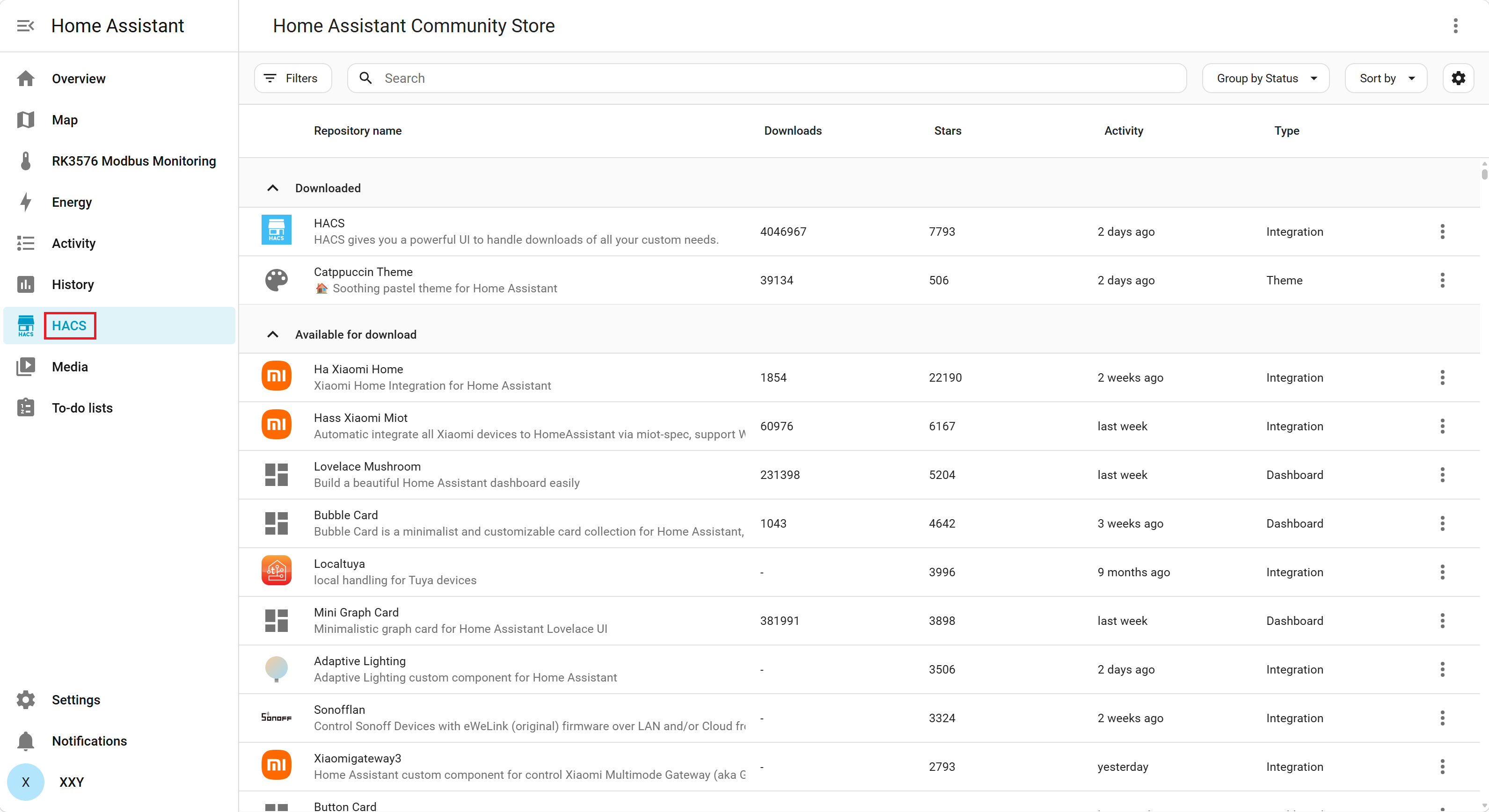
Refresh Home Assistant. A HACS entry normally appears in the sidebar.
Install the Catppuccin theme with HACS
Step 7: Check the theme configuration
Run this over SSH on the RK3576 host:
sudo nano /home/seeed/homeassistant/config/configuration.yamlConfirm that the file contains:
frontend:
  themes: !include_dir_merge_named themes
If frontend: already exists, do not add another frontend: key. Add or retain themes: under the existing key. The configuration created during the Container installation tutorial may already contain these lines.
After saving, run the official configuration check:
sudo docker exec homeassistant python -m homeassistant --script check_config --config /configRestart Home Assistant only when first adding or changing the theme directory configuration in configuration.yaml:
sudo docker restart homeassistantStep 8: Download Catppuccin Theme in HACS
- Select HACS in the Home Assistant sidebar.
- Search for
Catppuccinand select Catppuccin Theme. - Select Download to open the version confirmation dialog.
- Keep the recommended default version (v2.1.3 in the supplied test) and select DOWNLOAD in the lower-right corner.
The tested download interface displayed this theme storage path:
/config/themes/catppuccin/catppuccin.yaml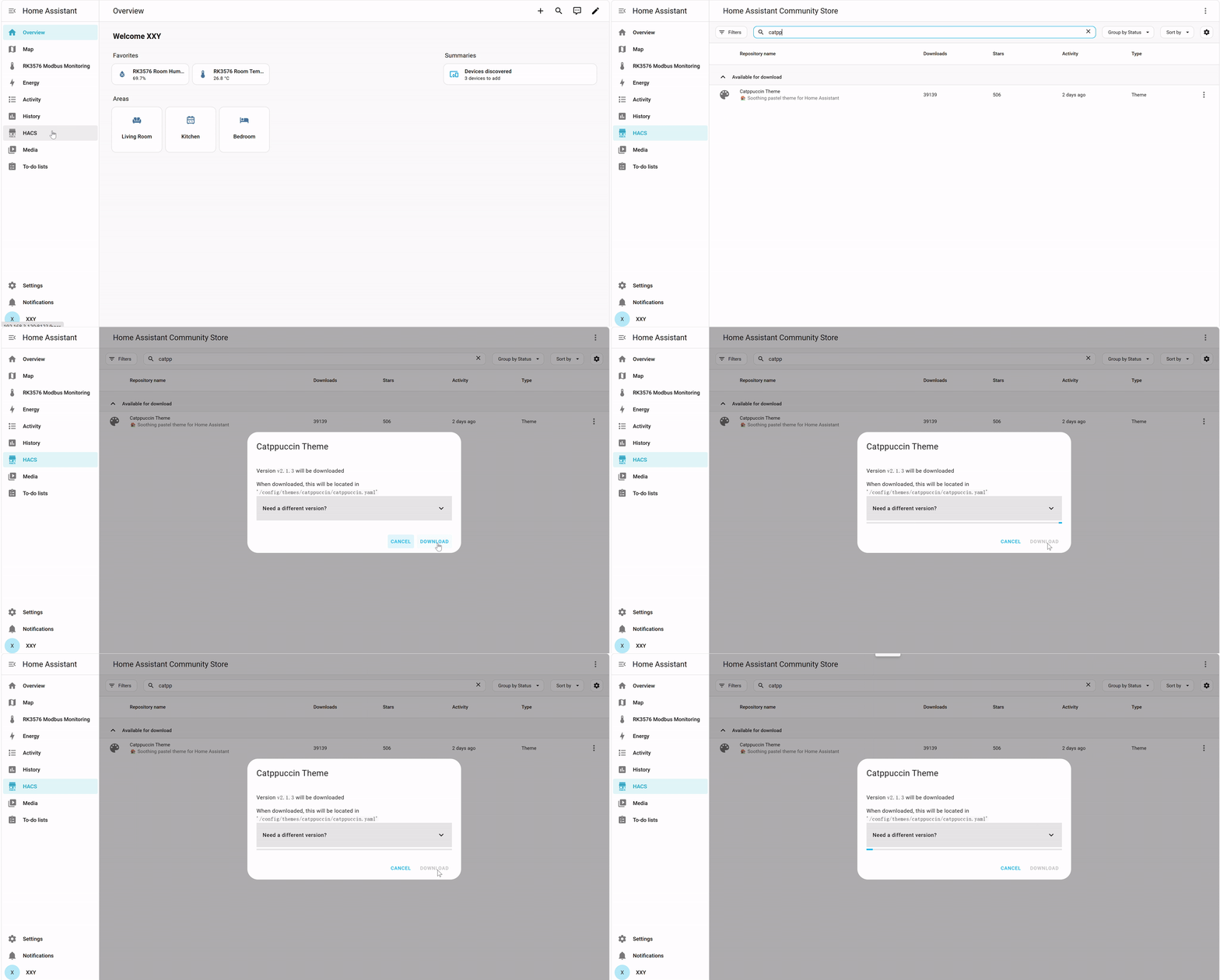
“Need a different version?” selects another version. A first installation normally does not require choosing an older version manually.
Step 9: Reload themes
After downloading, go to:
Settings → Tools → Actions
Find and run this action:
frontend.reload_themesThis reloads the installed themes without restarting the container. If the action is not shown, run sudo docker restart homeassistant, then refresh the browser.
Step 10: Select the Catppuccin Mocha theme
- Select the user avatar at the bottom left to open Profile.
- Find Theme and open its dropdown.
- Select Catppuccin Mocha.
- The interface normally switches immediately to the dark theme.
The theme styles are:
| Theme | Style |
|---|---|
| Catppuccin Latte | Light, suitable for bright environments |
| Catppuccin Frappé | Soft gray-blue dark palette |
| Catppuccin Macchiato | Dark gray-blue palette |
| Catppuccin Mocha | Dark purple-blue palette, suitable for monitoring displays |
| Catppuccin Auto Latte Mocha | Switches the corresponding style with light/dark mode |
Results
After applying Catppuccin Mocha on RK3576, the existing Modbus TCP monitoring dashboard uses a dark palette. The temperature and humidity gauges and history graphs remain visible.
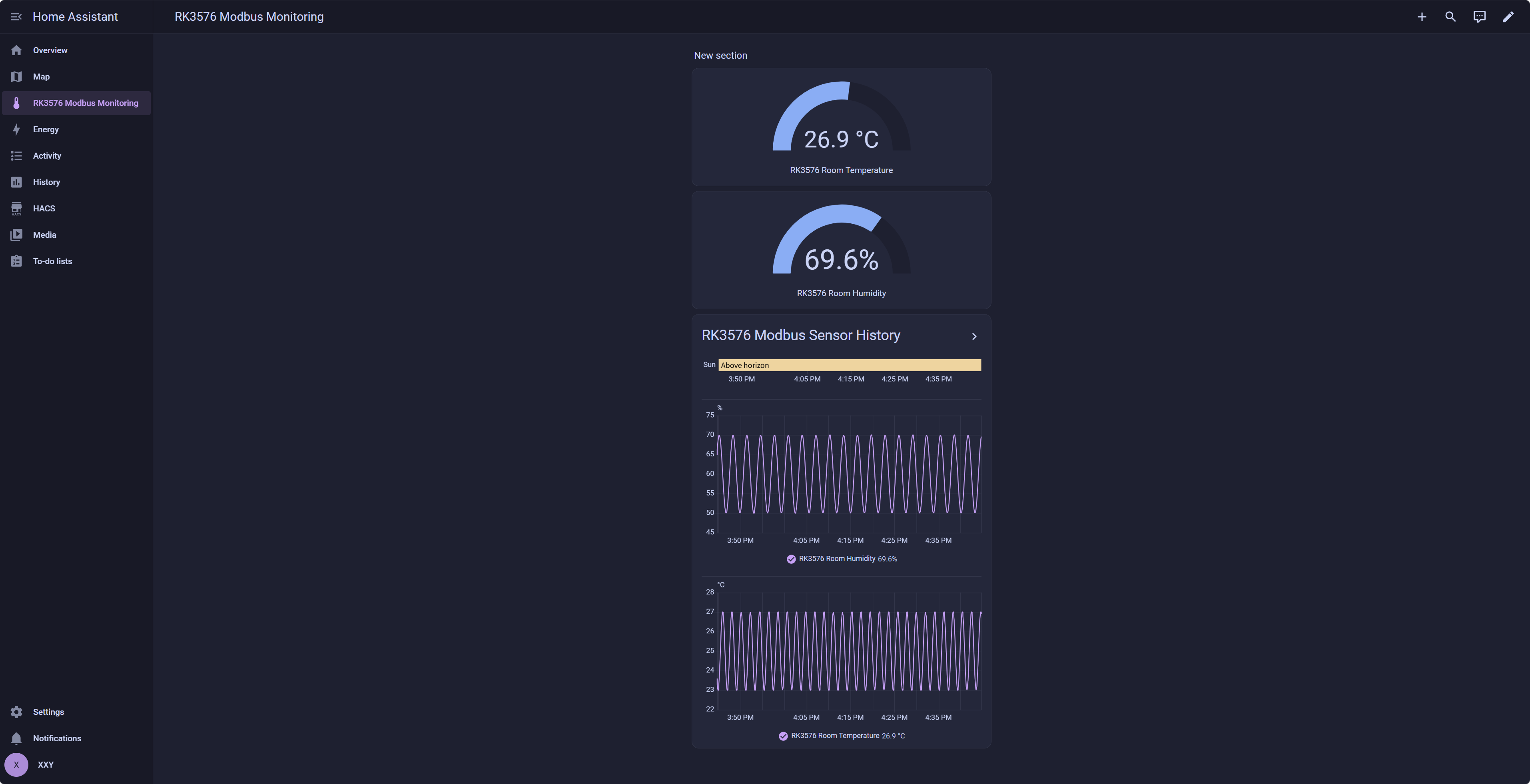
If you completed the Modbus TCP tutorial, open RK3576 Modbus Monitoring from the sidebar to view the temperature and humidity gauges and history graph in the new theme. Changing the theme changes frontend styling, without modifying register addresses or sensor data collection.
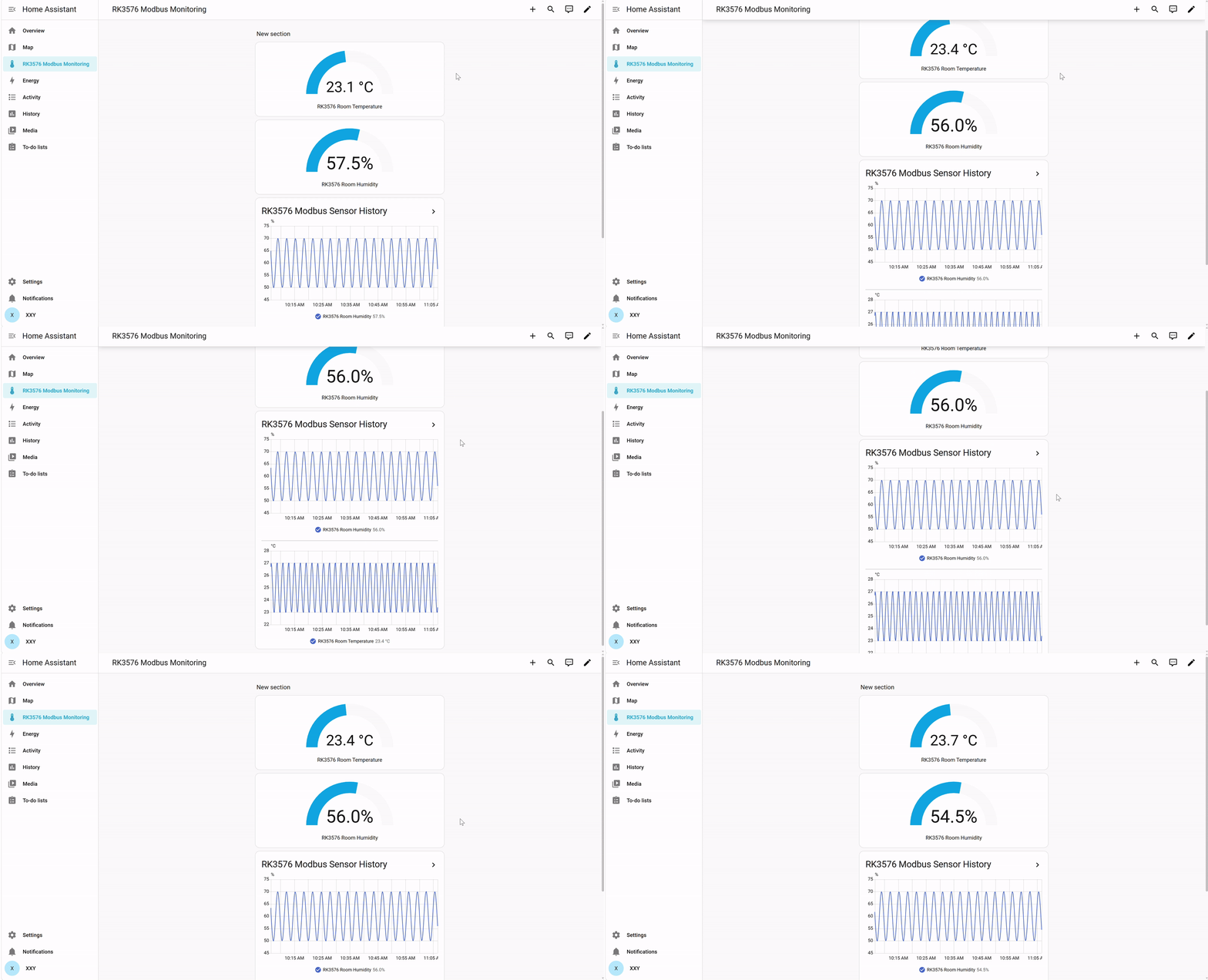
The demo below shows the Modbus TCP dashboard before changing the theme, as a reference for the existing functionality. It does not show the dark theme.
Frequently asked questions
Catppuccin is missing from profile settings after downloading
- Confirm that
configuration.yamlcontainsfrontend: themes: !include_dir_merge_named themeswith correct YAML indentation. - Confirm that
/config/themes/catppuccin/catppuccin.yamlexists; use the actual path shown in HACS. - Run
frontend.reload_themes. Restart the container and refresh the browser if needed.
Summary
This tutorial covers HACS installation, GitHub authorization, community theme download, and dark theme selection in Home Assistant Container on reComputer RK3576. RK3576 can serve as a Modbus TCP monitoring node and a local AIoT management platform with an extensible web interface.
For further customization, use HACS dashboard cards compatible with your Home Assistant version, or native Home Assistant integrations for smart lights, cameras, and other devices. Evaluate third-party maintenance and compatibility.