Modbus TCP Data Collection and Visualization
Last updated:
Introduction
Modbus is a communication protocol commonly used in industrial automation to read data from PLCs, meters, and other industrial devices. The Home Assistant Modbus integration can turn register values into sensor entities and display their current state and history in a web interface.
This tutorial uses reComputer RK3576 and Home Assistant Container to read temperature and humidity over Modbus TCP and create a monitoring dashboard. To make the example reproducible, a Python Modbus TCP simulator runs locally on RK3576, without requiring a PLC or additional sensors.
Architecture
Python Modbus TCP simulator
     127.0.0.1:1502
            ↓
     reComputer RK3576
            ↓
 Home Assistant Container
            ↓
 Live temperature/humidity / history graphs
Getting started
Hardware
- One reComputer RK3576 running ARM64 Linux.
- A Windows, macOS, or Linux computer that can access RK3576 over SSH and in a browser.
- A local network with access to RK3576.
This example uses Modbus TCP and does not depend on the RK3576 RS485 interface.
Software
| Item | Tutorial environment |
|---|---|
| RK3576 operating system | Armbian / Debian 12 Bookworm (ARM64) |
| Python | Python 3.11 |
| Home Assistant | Home Assistant Container, deployed with Docker |
| Modbus simulator | 127.0.0.1:1502 |
| Home Assistant web interface | Port 8123 |
First complete the Docker deployment and initial setup in Install Home Assistant on reComputer RK3576. Check the environment:
python3 --version
sudo docker ps --filter name=homeassistant
sudo docker inspect homeassistant --format '{{.HostConfig.NetworkMode}}'
The network mode should be host. This lets Home Assistant Container reach the simulator at 127.0.0.1:1502 on the RK3576 host.
Create a Modbus TCP data source
Step 1: Write the Python simulator
Connect to RK3576 over SSH. Copy the entire command below into the terminal to create ~/modbus_demo.py in the current user's home directory:
cat > ~/modbus_demo.py <<'PY'
import math
import socketserver
import struct
import time


class ModbusHandler(socketserver.BaseRequestHandler):
    def read_exact(self, size):
        data = b""
        while len(data) < size:
            chunk = self.request.recv(size - len(data))
            if not chunk:
                return None
            data += chunk
        return data

    def handle(self):
        try:
            while True:
                header = self.read_exact(7)
                if not header:
                    break

                tid, pid, length, unit = struct.unpack(">HHHB", header)
                if pid != 0 or not 2 <= length <= 254:
                    break

                request = self.read_exact(length - 1)
                if not request:
                    break

                function = request[0]
                if function == 3 and len(request) == 5:
                    address, count = struct.unpack(">HH", request[1:])

                    if count < 1 or count > 2 or address + count > 2:
                        response = bytes([0x83, 2])
                    else:
                        temperature = round(
                            (25 + 2 * math.sin(time.monotonic() / 20)) * 10
                        )
                        humidity = round(
                            (60 + 10 * math.sin(time.monotonic() / 30)) * 10
                        )
                        registers = [temperature, humidity]
                        response = bytes([3, count * 2]) + b"".join(
                            struct.pack(">H", value)
                            for value in registers[address:address + count]
                        )
                else:
                    response = bytes([function | 0x80, 1])

                reply = struct.pack(">HHHB", tid, 0, len(response) + 1, unit) + response
                self.request.sendall(reply)
        except (OSError, ConnectionError):
            pass


class ModbusServer(socketserver.ThreadingTCPServer):
    allow_reuse_address = True
    daemon_threads = True


with ModbusServer(("127.0.0.1", 1502), ModbusHandler) as server:
    print("Modbus TCP server running at 127.0.0.1:1502", flush=True)
    server.serve_forever()
PY
The simulator supports function code 03 to read holding registers:
| Address (starting from 0) | Value | Raw value | Displayed value |
|---|---|---|---|
0 | Temperature | Approximately 230–270 | Approximately 23–27 °C |
1 | Humidity | Approximately 500–700 | Approximately 50–70% |
Home Assistant uses scale: 0.1 to convert raw register values to degrees Celsius and percentages. The values change over time to demonstrate live monitoring.
Step 2: Run the simulator
Start the simulator:
nohup python3 ~/modbus_demo.py > ~/modbus_demo.log 2>&1 &Confirm that it is listening:
ss -lntp | grep ':1502'
cat ~/modbus_demo.log
You should see the listening address 127.0.0.1:1502 and this log message:
Modbus TCP server running at 127.0.0.1:1502This demo runs in the background with
nohup. After restarting RK3576, run the start command again. Check the port before starting it to avoid running duplicate instances.
Configure Modbus TCP in Home Assistant
Step 3: Edit configuration.yaml
Because this tutorial uses Home Assistant Container, you do not need the File Editor app. Edit the configuration file mounted on RK3576 directly over SSH.
Back up the existing configuration:
sudo cp ~/homeassistant/config/configuration.yaml \
  ~/homeassistant/config/configuration.yaml.bak
Open the file with administrator privileges:
sudo nano ~/homeassistant/config/configuration.yamlKeep the existing configuration, such as default_config: and frontend:, and append the following:
modbus:
  - name: rk3576_demo
    type: tcp
    host: 127.0.0.1
    port: 1502

    sensors:
      - name: RK3576 Room Temperature
        unique_id: rk3576_demo_temperature
        slave: 1
        address: 0
        input_type: holding
        data_type: uint16
        scale: 0.1
        precision: 1
        unit_of_measurement: "°C"
        device_class: temperature
        state_class: measurement
        scan_interval: 5

      - name: RK3576 Room Humidity
        unique_id: rk3576_demo_humidity
        slave: 1
        address: 1
        input_type: holding
        data_type: uint16
        scale: 0.1
        precision: 1
        unit_of_measurement: "%"
        device_class: humidity
        state_class: measurement
        scan_interval: 5
The main parameters are:
| Parameter | Purpose |
|---|---|
type: tcp | Use Modbus TCP |
host: 127.0.0.1 | Local address of the simulator |
port: 1502 | Simulator listening port |
slave: 1 | Modbus unit ID |
address: 0 / 1 | Temperature / humidity register addresses |
input_type: holding | Read holding registers |
scale: 0.1 | Scale raw register values to displayed values |
scan_interval: 5 | Poll every 5 seconds |
If
configuration.yamlalready contains a top-levelmodbus:key, merge the new hub into its existing list instead of declaringmodbus:again.
Press Ctrl + O, then Enter to save. Press Ctrl + X to exit nano.
Step 4: Check the configuration and restart the container
Validate the Home Assistant configuration first:
sudo docker exec homeassistant \
  python -m homeassistant --script check_config --config /config
After the check passes, restart Home Assistant:
sudo docker restart homeassistantOpen this address in your computer's browser:
http://<RK3576_IP>:8123View the Modbus sensors
Step 5: Confirm that data is being read
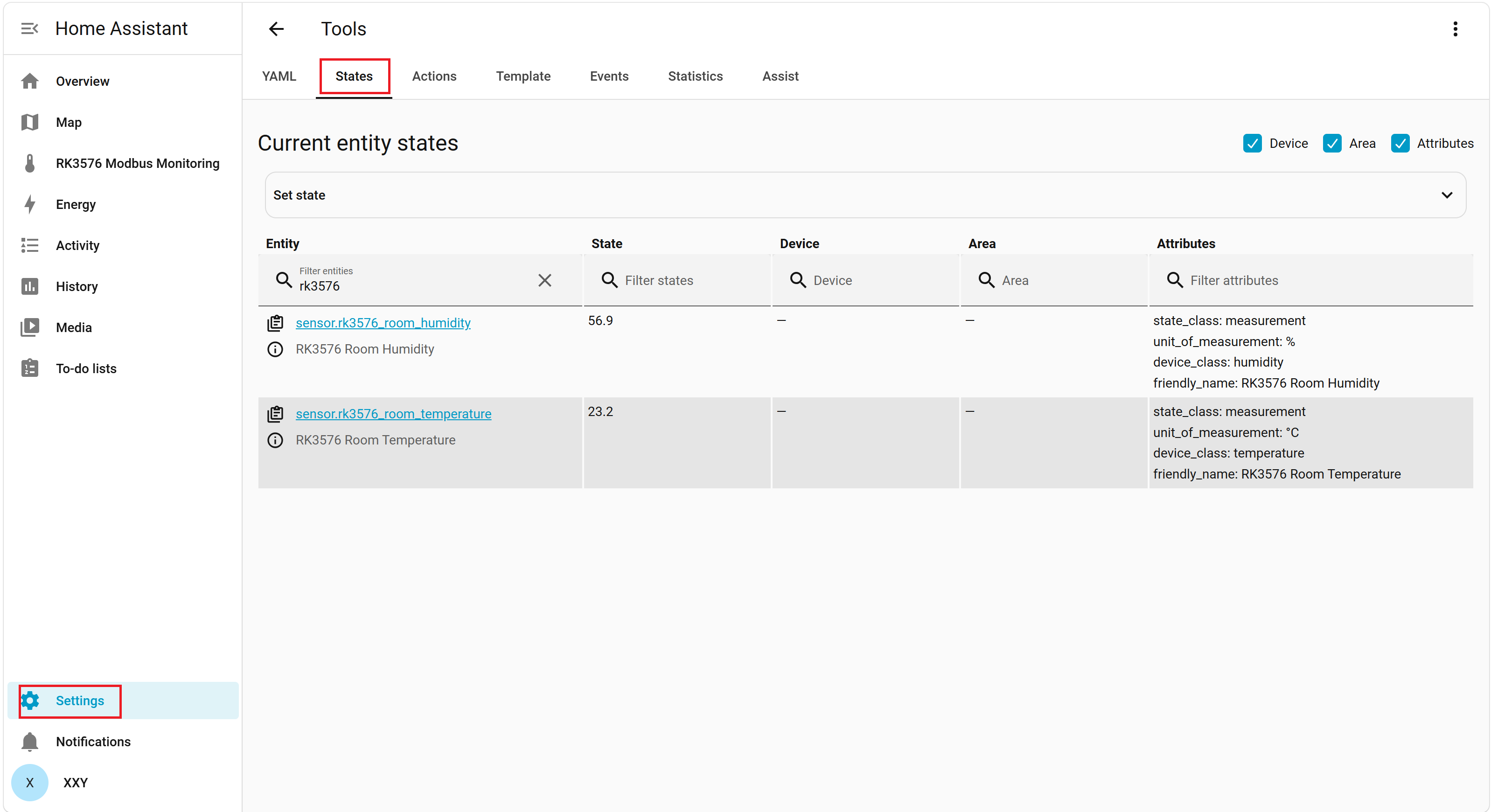
In the tested Home Assistant interface, open Settings → Tools → States and search for rk3576. Confirm that these sensors exist and show numeric values:
RK3576 Room TemperatureRK3576 Room Humidity
You can also add both sensors to the overview through Overview → Edit overview → Favorite entities → Add favorite.
Create a Modbus monitoring dashboard
Step 6: Create the dashboard
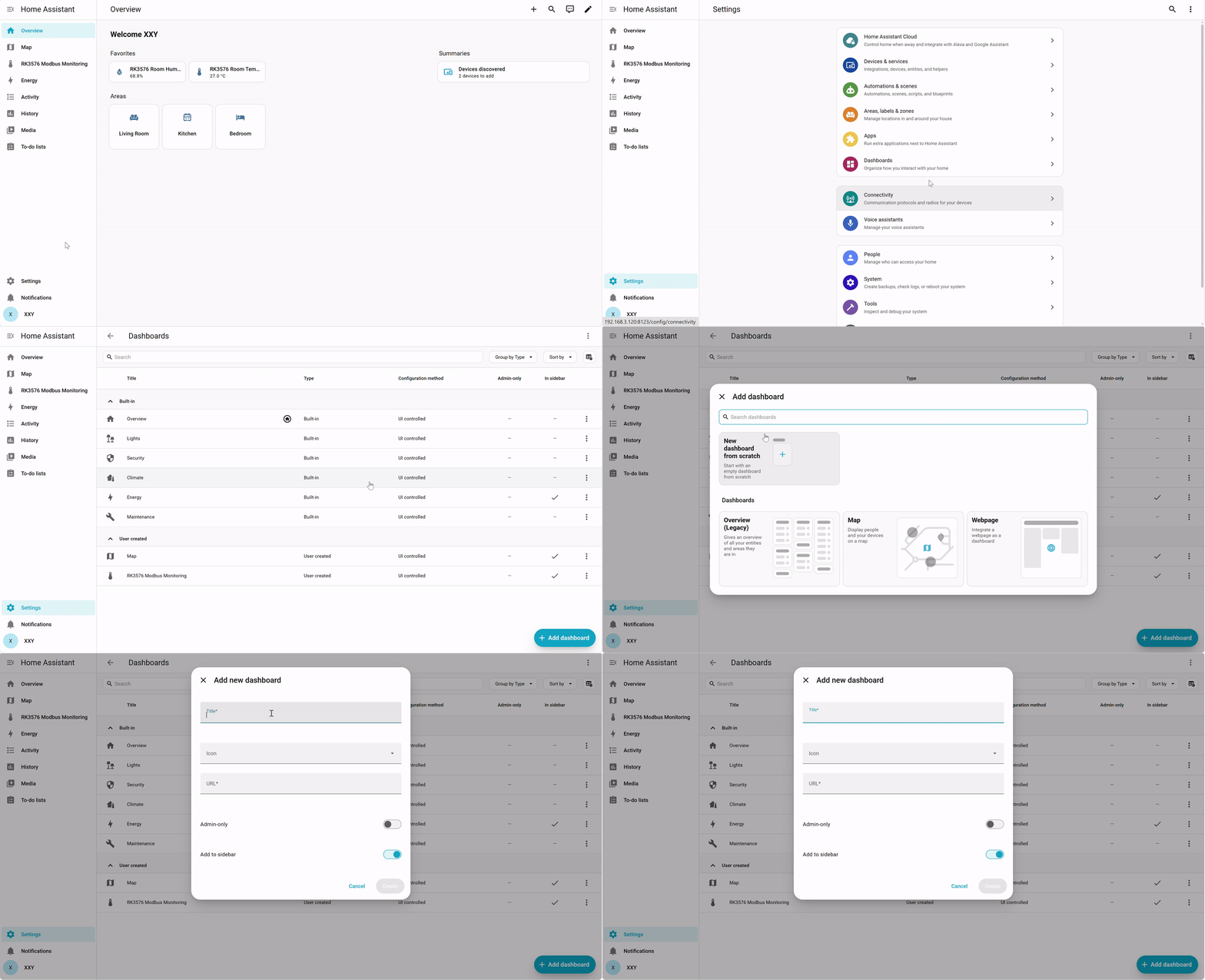
Open Settings → Dashboards and select Add dashboard in the lower-right corner.
In the Add new dashboard interface, enter:
| Field | Value |
|---|---|
| Title | RK3576 Modbus Monitoring |
| Icon | Optionally select a thermometer icon |
| URL | rk3576-modbus |
| Admin-only | Off |
| Add to sidebar | On |
Select Create, then open the new dashboard from the sidebar.
Step 7: Add temperature and humidity gauge cards
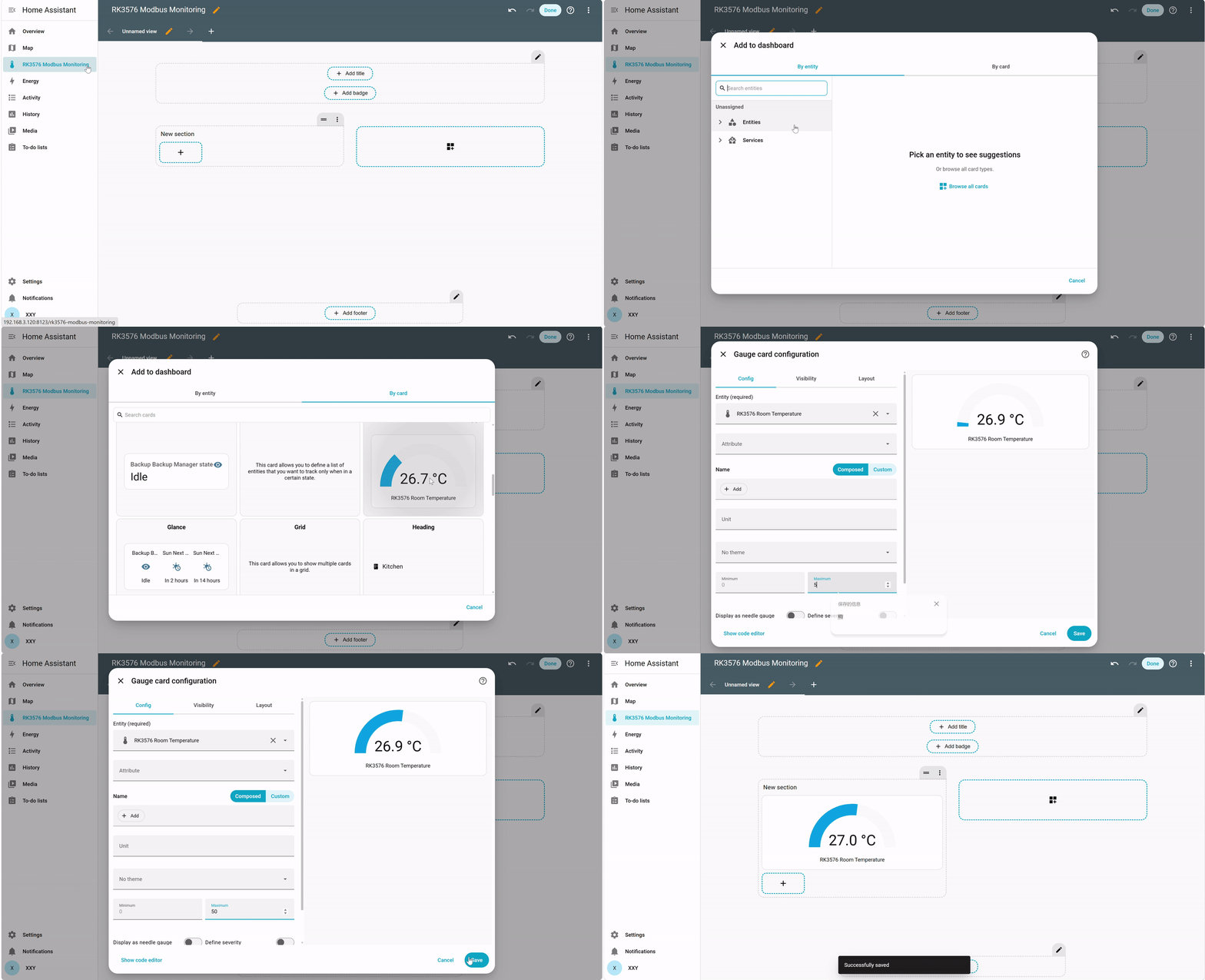
In the dashboard editor, select + in New section, then choose Add to dashboard → By card → Gauge.
Configure two gauge cards:
| Setting | Temperature gauge | Humidity gauge |
|---|---|---|
| Entity | RK3576 Room Temperature | RK3576 Room Humidity |
| Minimum | 0 | 0 |
| Maximum | 50 | 100 |
Select Save for each card.
Step 8: Add a history graph
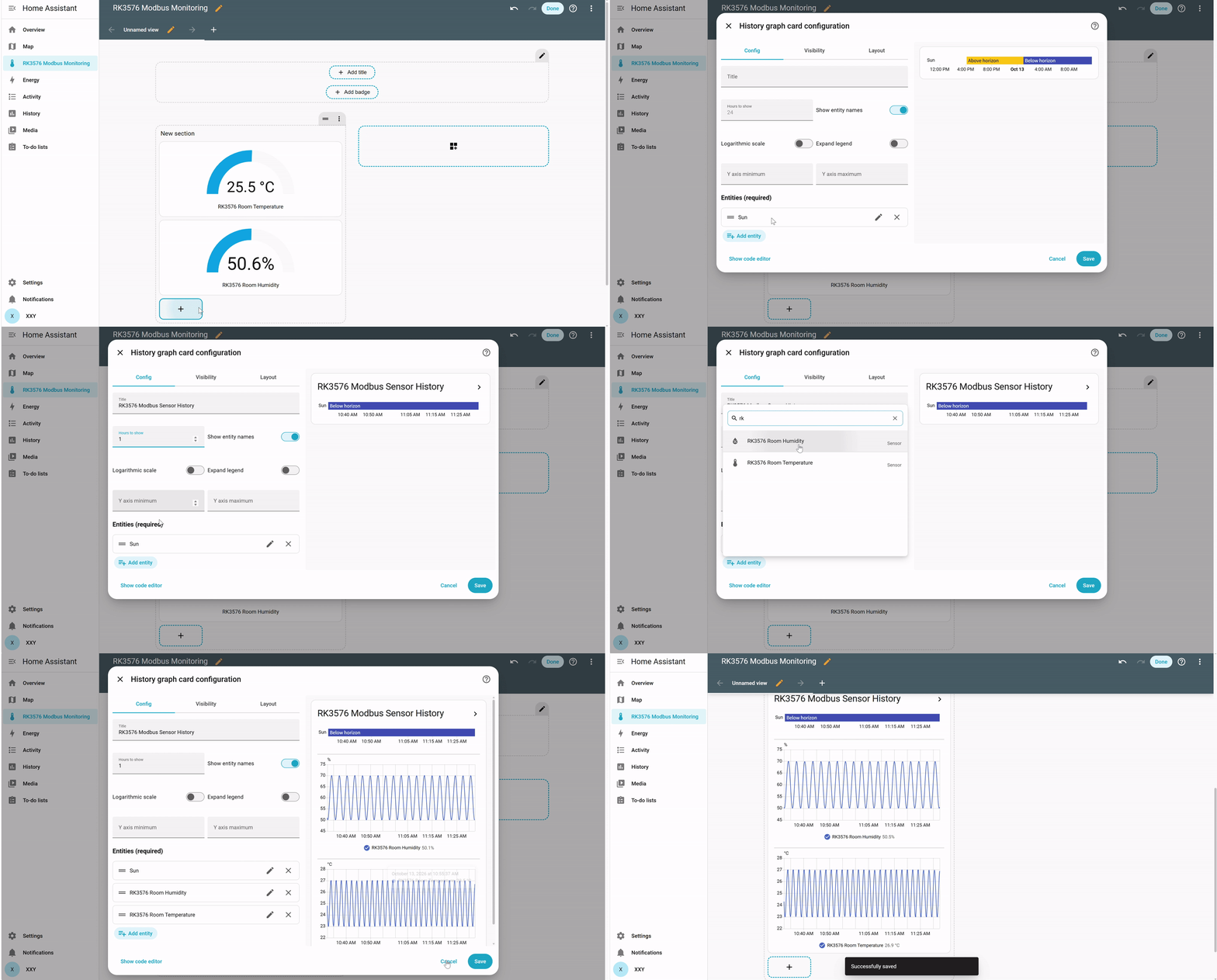
Select + in New section again and choose By card → History graph.
In History graph card configuration:
- Set
TitletoRK3576 Modbus Sensor History. - Set
Hours to showto1. - Remove the default
Sunentity from Entities (required). - Select Add entity and add
RK3576 Room Temperature. - Select Add entity again and add
RK3576 Room Humidity. - Select Save, then Done in the dashboard editor.
Temperature and humidity use different units, so Home Assistant may display separate graphs. You can also create an individual graph card for each sensor.
Results
The dashboard in the supplied RK3576 test record includes temperature and humidity gauges, plus a humidity history graph showing changes over time.
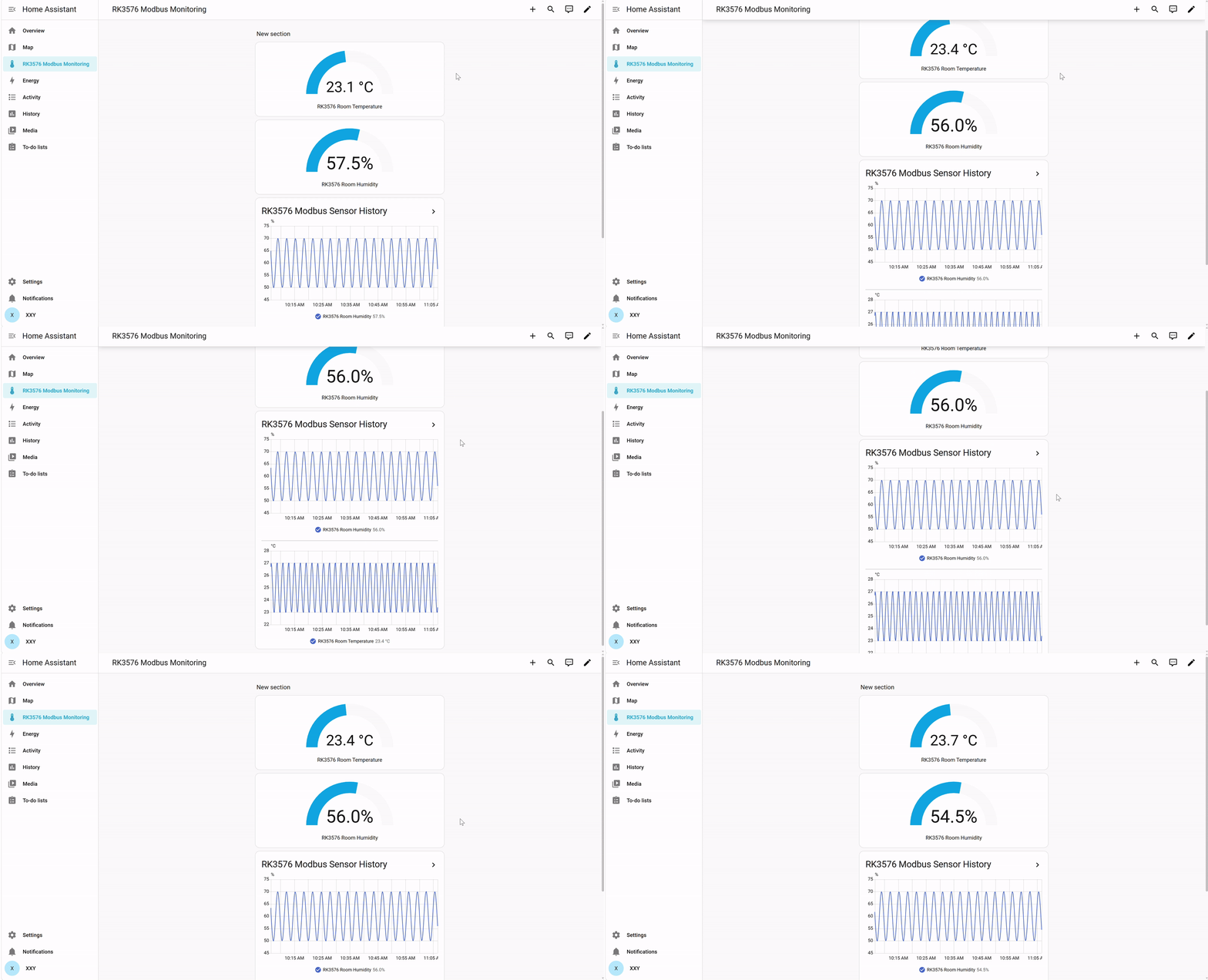
The following chain has been verified in that test:
Python Modbus TCP simulator → RK3576 → Home Assistant Container → Web dashboard.
The temperature and humidity values are simulated. To connect a real PLC, smart meter, or Modbus TCP sensor, adjust host, port, slave, register addresses, and data types to match the device.
Summary
These steps implement Modbus TCP data collection, live state display, and history visualization on reComputer RK3576. The example provides a reproducible foundation for home automation, local IoT monitoring, and industrial gateway applications.
References
- Seeed Wiki: reComputer R1000 and Modbus with Home Assistant
- Home Assistant Modbus integration
- Home Assistant Linux / Container installation
Technical support and product discussion
For questions, visit the Seeed Studio Forum.