Install Home Assistant
Last updated:
Introduction
Home Assistant is an open-source home automation platform for managing devices, viewing their status, and creating automation rules on a local network. Alongside edge AI applications, reComputer RK3576 can run Home Assistant as a local management node for a home or small IoT system.
This tutorial deploys Home Assistant Container with Docker on reComputer RK3576 and explains how to access it in a browser and create an account.
Tested scope: Home Assistant Container was started on reComputer RK3576 (Armbian / Debian 12 Bookworm, ARM64), and the initial Create User page was successfully opened.
Getting started
Hardware
- One reComputer RK3576 running a bootable 64-bit Linux system.
- One Windows / macOS / Linux computer to access Home Assistant in a browser.
- A network connection between RK3576 and the computer. Internet access is needed to download the Docker image during deployment.
Software
The tested environment is:
| Item | Configuration |
|---|---|
| Hardware | reComputer RK3576 |
| Operating system | Armbian (based on Debian 12 Bookworm) |
| Architecture | ARM64 / aarch64 |
| Container engine | Docker Engine (already installed on the test device) |
| Home Assistant | Home Assistant Container, stable image |
| Web port | 8123 |
Connect to RK3576 over SSH and check the system information:
cat /etc/os-release
uname -m
Confirm that the system uses ARM64, for example aarch64.
Install Home Assistant
Step 1: Check Docker
Check whether Docker is installed and running:
sudo docker --version
sudo systemctl status docker --no-pager
If Docker is installed and its service is running, skip to step 2.
Otherwise, follow the official Docker Engine installation guide for Debian to configure the repository and install Docker Engine. Use a repository matching your Armbian / Debian version, and avoid installing an unverified older version.
After installation, check again:
sudo docker --version
sudo docker info
Home Assistant requires Docker Engine 23.0.0 or later (not Docker Desktop). This tutorial uses Docker Engine to deploy Home Assistant Container.
Step 2: Create the configuration directory
Create a directory for persistent Home Assistant data:
mkdir -p "$HOME/homeassistant/config"Home Assistant configuration and runtime data will be stored here rather than only inside the container.
Step 3: Download the Home Assistant image
Pull the stable image from the official Home Assistant container registry:
sudo docker pull ghcr.io/home-assistant/home-assistant:stableCheck the downloaded image:
sudo docker images | grep home-assistantStep 4: Run the Home Assistant container
Run this command on RK3576:
sudo docker run -d \
  --name homeassistant \
  --restart=unless-stopped \
  --privileged \
  --network=host \
  -e TZ=Asia/Shanghai \
  -v "$HOME/homeassistant/config:/config" \
  -v /etc/localtime:/etc/localtime:ro \
  ghcr.io/home-assistant/home-assistant:stable
This command matches the deployment used in the RK3576 test:
--name homeassistant: assigns the container name.--restart=unless-stopped: restarts the container after Docker or the device restarts, unless you explicitly stopped it.--network=host: uses the RK3576 host network; Home Assistant is accessible on port8123.-e TZ=Asia/Shanghai: sets the container time zone. Adjust it for your region.-v "$HOME/homeassistant/config:/config": stores configuration on RK3576 so that removing the container does not remove the configuration.--privileged: follows the official Home Assistant Docker example and grants elevated container privileges. Evaluate this setting against your production security requirements.
Check the container status:
sudo docker ps --filter name=homeassistant
sudo docker logs --tail 50 homeassistant
The homeassistant container should appear with an Up status in docker ps.
Step 5: Access the Home Assistant web interface
Find the device IP address on RK3576:
hostname -IOpen this address in a browser on a computer on the same network:
http://<RK3576_IP>:8123For example, if RK3576 has the IP address 192.168.1.100, open:
http://192.168.1.100:8123Home Assistant may need some time to initialize on its first start. Once the page loads, it displays the Create User onboarding page.
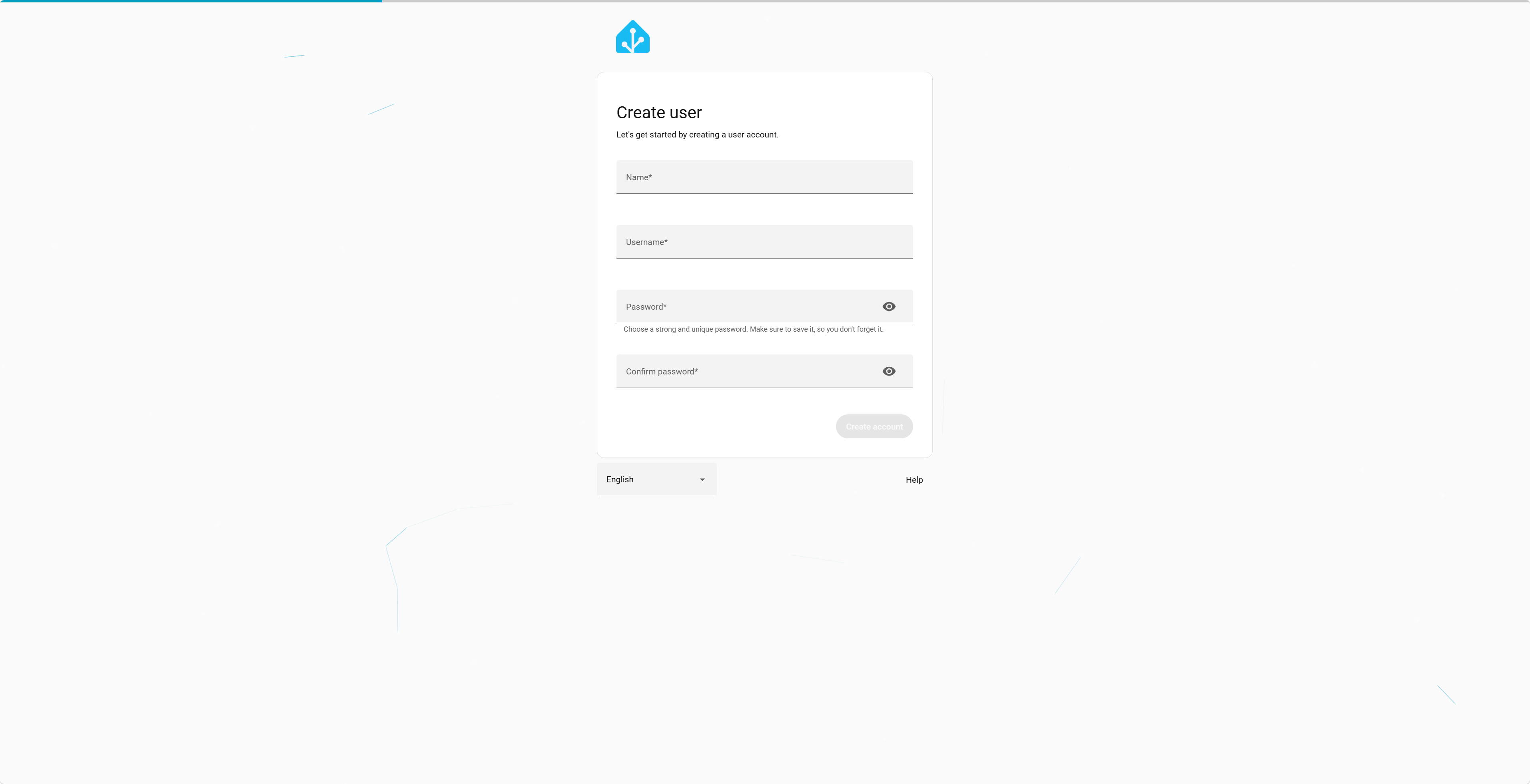
Step 6: Create an administrator account
On the initial Create User page:
- Enter your name and username.
- Set and confirm an administrator password.
- Select Create account.
- Follow the prompts to complete the location, time zone, and other initial settings.
After onboarding, you can use the Home Assistant web interface in your browser.
Frequently asked questions
How do I check whether Home Assistant is running?
If the page is unavailable, check the container, logs, and device IP address:
sudo docker ps --filter name=homeassistant
sudo docker logs --tail 100 homeassistant
hostname -I
How do I restart Home Assistant?
sudo docker restart homeassistantNote: Home Assistant Container does not include the Supervisor / Apps management features of Home Assistant OS. Deploy and manage separate containers when you need additional services.
This tutorial's run command does not mount D-Bus. To use the Bluetooth integration, consult the optional D-Bus mount requirements in the official Container installation guide.
Summary
These steps let developers run Home Assistant on reComputer RK3576 and configure it through a web interface. Home Assistant provides a local IoT management platform and a foundation for connecting sensors, smart home devices, and automation services.
This tutorial focuses on installation and basic setup. Device integrations and automation examples can be covered in separate tutorials.
References
- Home Assistant Linux / Container installation
- Home Assistant installation types
- Docker Engine on Debian
- Seeed Wiki: reComputer R1000 Home Automation
Technical support and product discussion
For deployment questions, visit the Seeed Studio Forum.