reComputer RK3576 First Boot Configuration
Last updated:
Complete the initial Armbian setup on your reComputer RK3576: set account passwords, create a user for daily work, and choose your language and time zone. The screenshots show the interactive setup; prompts can vary with the image you installed.
Before you begin
- Connect a display, keyboard, and network cable, then connect power.
- If you are installing a new system, flash the image for your device first.
- If you created an Autoconfig Profile in Armbian Imager, some settings may already be applied. Use the account details from that profile.
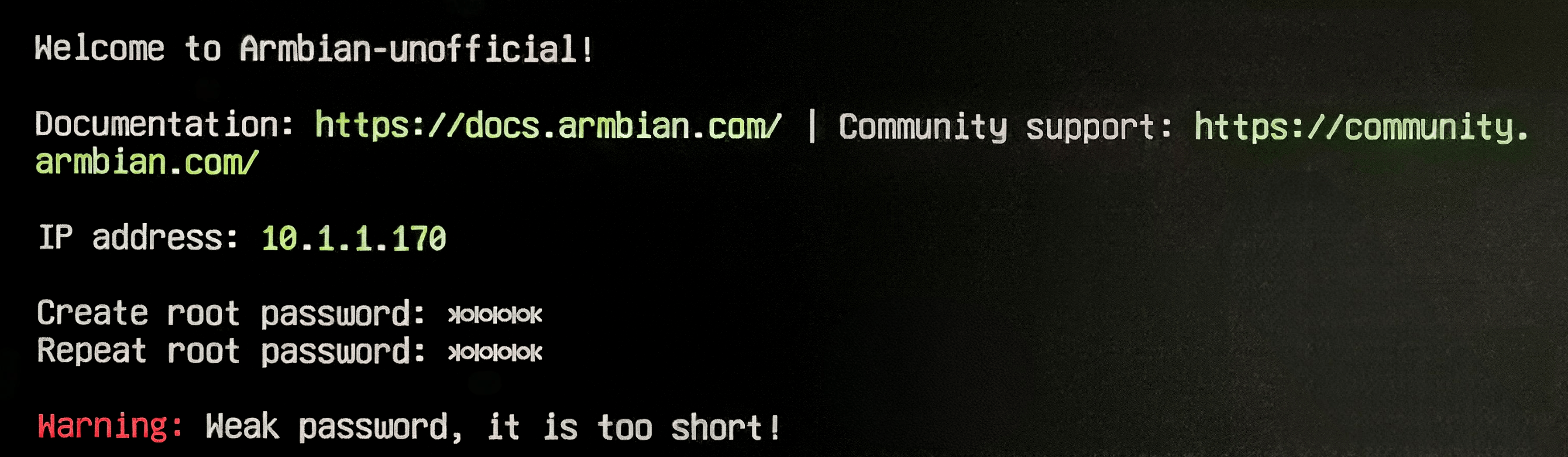
1. Set the root password
When prompted, enter a new root password and enter it again to confirm. Password characters do not appear while you type. If the installer reports a weak password, choose a stronger one.
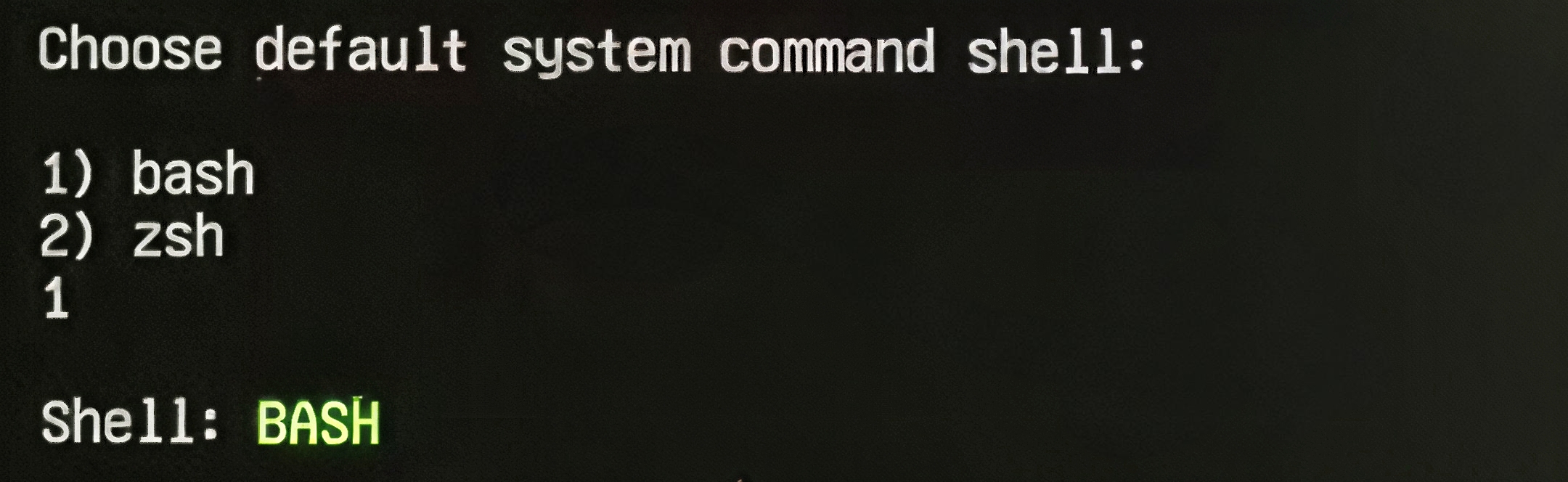
2. Choose a shell
If the installer offers bash and zsh, choose the shell you prefer. The screenshots use 1) bash: type 1 and press Enter. Follow the labels on your screen if the options differ.
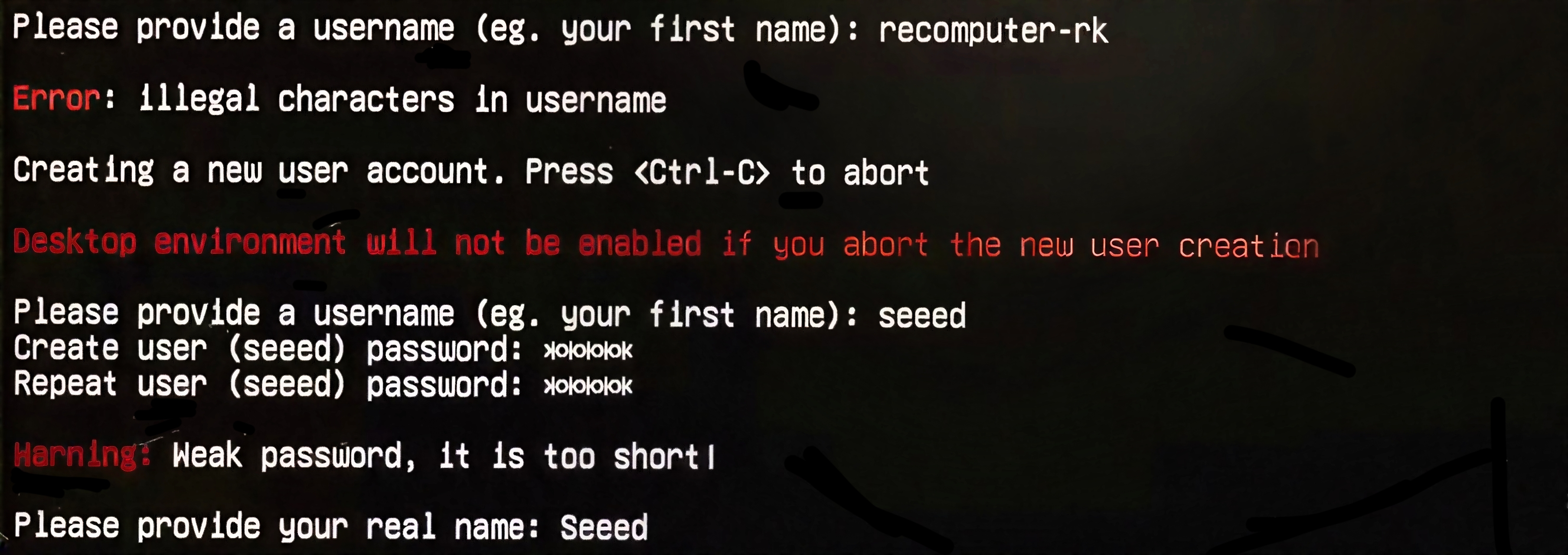
3. Create your user account
- Enter a username for daily use, such as
seeed. Follow the username rules shown by the installer. - Set and confirm this user's password.
- Enter your full name if requested, or skip the optional field.
Use this account for normal work and sudo when a command needs administrator privileges. Keep the username and password for desktop and SSH login; the example name seeed does not specify a default password.
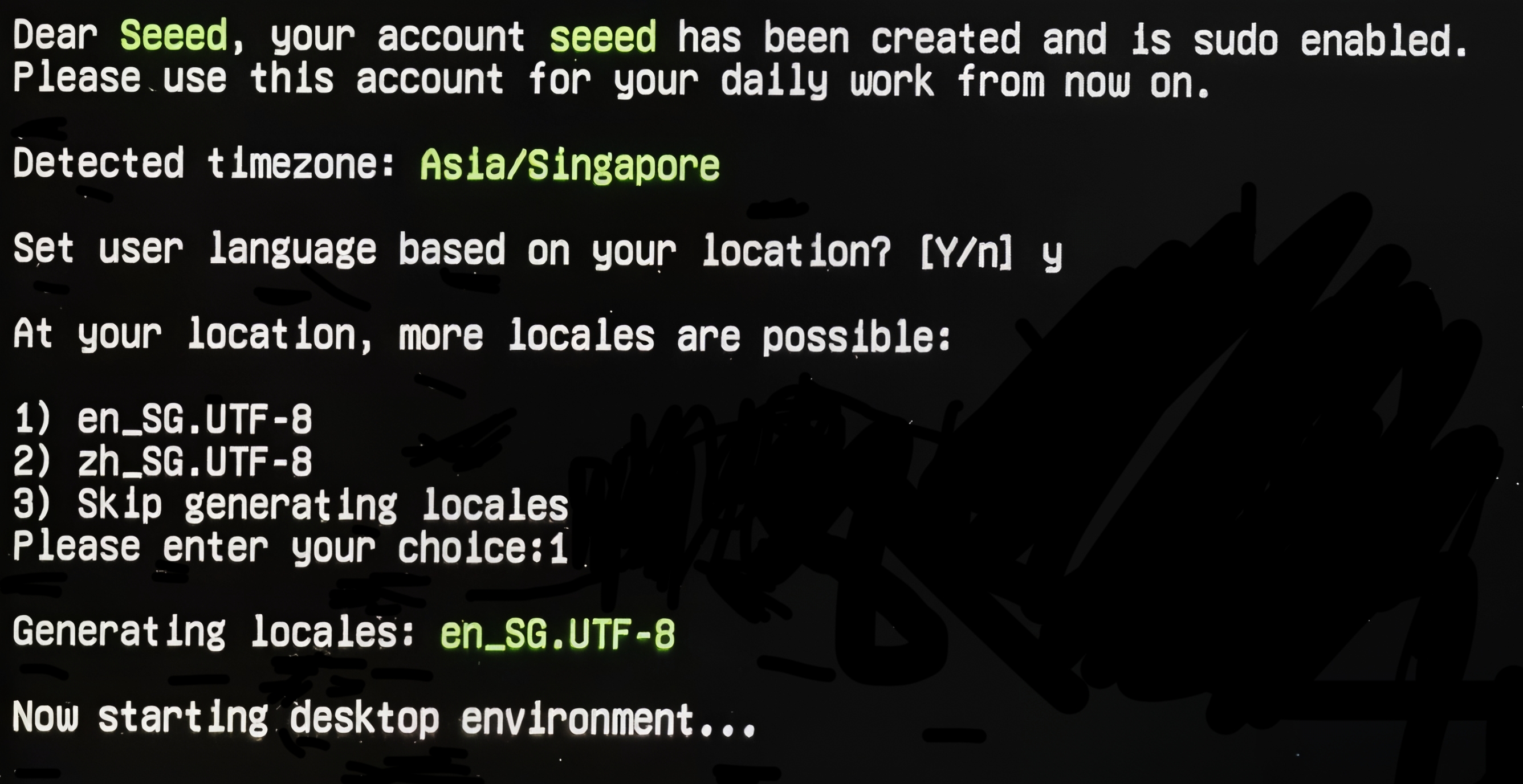
4. Choose your time zone and language
Check the detected location before accepting it. Choose your own time zone and language from the available options. The Asia/Singapore and en_SG.UTF-8 values in the screenshot are examples.
If asked Set user language based on your location? [Y/n], choose y to use that location or n to select another language.
5. Sign in
When setup finishes, sign in with the user account you created. A desktop image opens a graphical session; a Minimal image provides a command-line login.
You can now continue with networking, SSH, and file transfers.
Troubleshooting
| Symptom | What to check |
|---|---|
| Some setup prompts are missing | An Imager profile or a previously configured image may already supply those settings. |
| Login fails | Use the user account and password created during setup or configured in your Imager profile. Check the keyboard layout. |
| No desktop appears | Confirm you installed a desktop image. Minimal images use a terminal. |
| The device does not boot | Check power, display connections, and boot storage. If the image is damaged, follow the flashing guide for this device to reinstall it. Reflashing erases the selected storage. |