HelloWorld Implementation Overview
ROS programming primarily uses C++ and Python. Most programs can be implemented in both languages. Each tutorial will demonstrate examples in both C++ and Python, allowing users to choose the implementation that suits them best.
The general implementation process in ROS is similar across different languages. Taking the HelloWorld program as an example, the steps are:
- Create a workspace.
- Create a package.
- Edit source files.
- Edit configuration files.
- Compile and execute.
The main difference between C++ and Python lies in steps 3 and 4. The following sections detail the common steps for both implementations, with specific sections for C++ and Python.
#HelloWorld (C++ Version)
-
Create and Initialize Workspace
bashmkdir -p <workspace_name>/src cd <workspace_name> catkin_makeFor example:
bashmkdir -p seeed_ws/src cd seeed_ws catkin_make -
Create ROS Package and Add Dependencies
bashcd src catkin_create_pkg <package_name> roscpp rospy std_msgsFor example:
bashcd src catkin_create_pkg hello_world roscpp rospy std_msgs -
Edit Source File
Navigate to your package's
srcdirectory and create a new C++ source file (e.g.,hello.cpp):bashcd ~/<workspace_name>/src/<package_name>/src touch hello.cppfor example:
bashcd ~/seeed_ws/src/hello_world/src touch hello.cppcopy flowing code into
hello.cpp:cpp#include "ros/ros.h" int main(int argc, char *argv[]) { ros::init(argc, argv, "hello"); ros::NodeHandle n; ROS_INFO("Hello World!"); return 0; }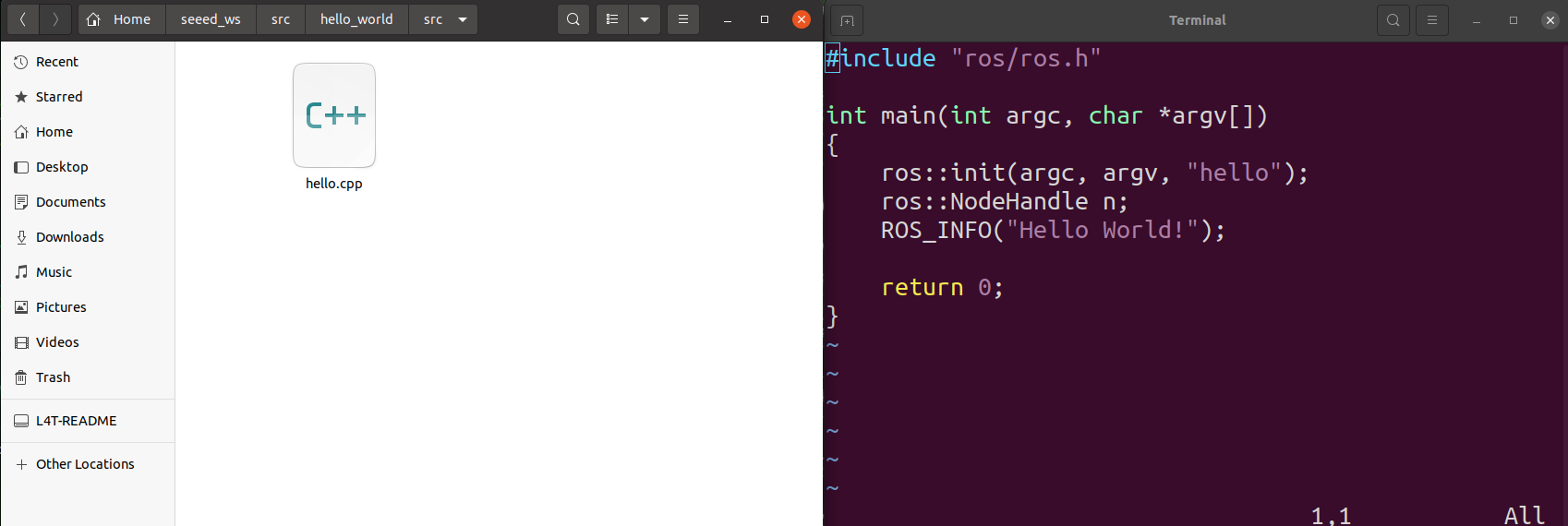
-
Edit
CMakeLists.txtAdd the following in the end of your package's
CMakeLists.txt:cmakeadd_executable(<node_name> src/hello.cpp) target_link_libraries(<node_name> ${catkin_LIBRARIES})for example:
cmakeadd_executable(hello src/hello.cpp) target_link_libraries(hello ${catkin_LIBRARIES})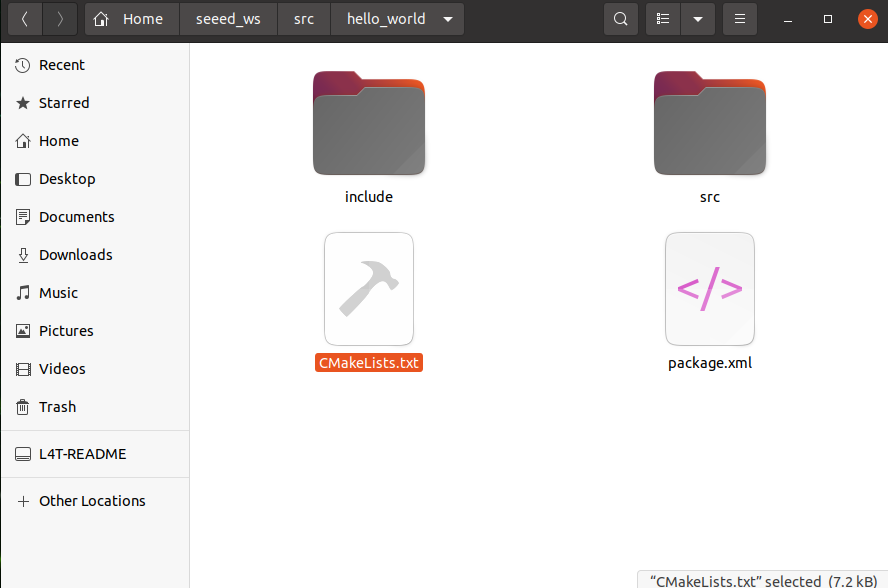
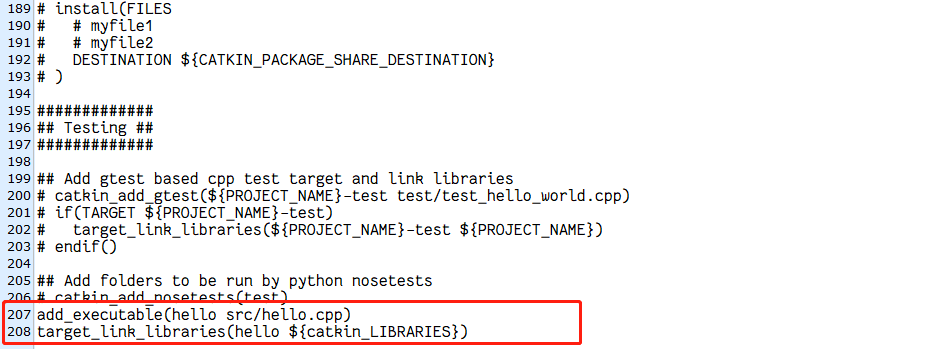
Note:The
CMakeLists.txtfile mentioned here is located in the created package directory, not in the workspace directory. -
Compile the Workspace
bashcd <workspace_name> catkin_makefor example:
bashcd ~/seeed_ws catkin_make -
Run the Program
Open one terminal and start ROS core:
bashroscoreOpen another terminal, source the workspace, and run the node:
bashcd <workspace_name> source devel/setup.bash rosrun <package_name> hellofor example:
bashcd ~/seeed_ws source devel/setup.bash rosrun hello_world hello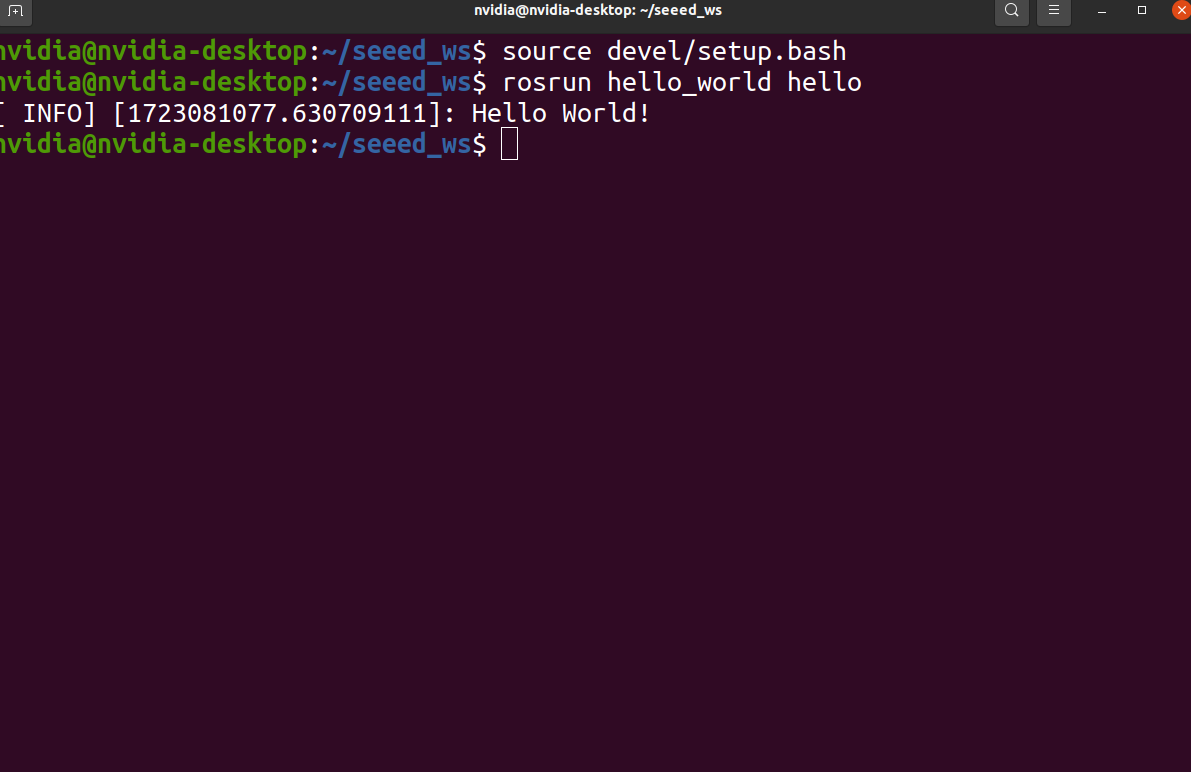
You should see the output: Hello World!
#HelloWorld (Python Version)
-
Create and Initialize Workspace
bashmkdir -p <workspace_name>/src cd <workspace_name> catkin_makeFor example:
bashmkdir -p seeed_ws/src cd seeed_ws catkin_make -
Create ROS Package and Add Dependencies
bashcd src catkin_create_pkg <package_name> roscpp rospy std_msgsFor example:
bashcd src catkin_create_pkg hello_world roscpp rospy std_msgs -
Add
scriptsDirectory and Create Python FileNavigate to your package directory, create a
scriptsdirectory, and a new Python file (e.g.,hello.py):for example:
bashmkdir ~/seeed_ws/src/hello_world/scripts cd ~/seeed_ws/src/hello_world/scripts touch hello.pypython#!/usr/bin/env python import rospy if __name__ == "__main__": rospy.init_node("hello") rospy.loginfo("Hello World!") -
Add Executable Permissions
bashsudo chmod +x hello.py -
Edit
CMakeLists.txtAdd the following in the end of your package's
CMakeLists.txt:cmakecatkin_install_python(PROGRAMS scripts/hello.py DESTINATION ${CATKIN_PACKAGE_BIN_DESTINATION} )
-
Compile the Workspace
bashcd <workspace_name> catkin_makefor example:
bashcd ~/seeed_ws catkin_make -
Run the Program Open one terminal and start ROS core:
bashroscoreOpen another terminal, source the workspace, and run the node:
bashcd <workspace_name> source devel/setup.bash rosrun <package_name> hello.pyFor example:
bashcd ~/seeed_ws source devel/setup.bash rosrun hello_world hello.pyYou should see the output:
Hello World!
#Note
To make sourcing the workspace setup file more convenient, add it to your .bashrc:
echo "source ~/<workspace_name>/devel/setup.bash" >> ~/.bashrcThis ensures that the workspace is sourced automatically whenever a new terminal is opened.