Use NoMachine to remotely connect to the Jetson desktop
Back to Module 3 | Back to Table of Contents
#Introduction
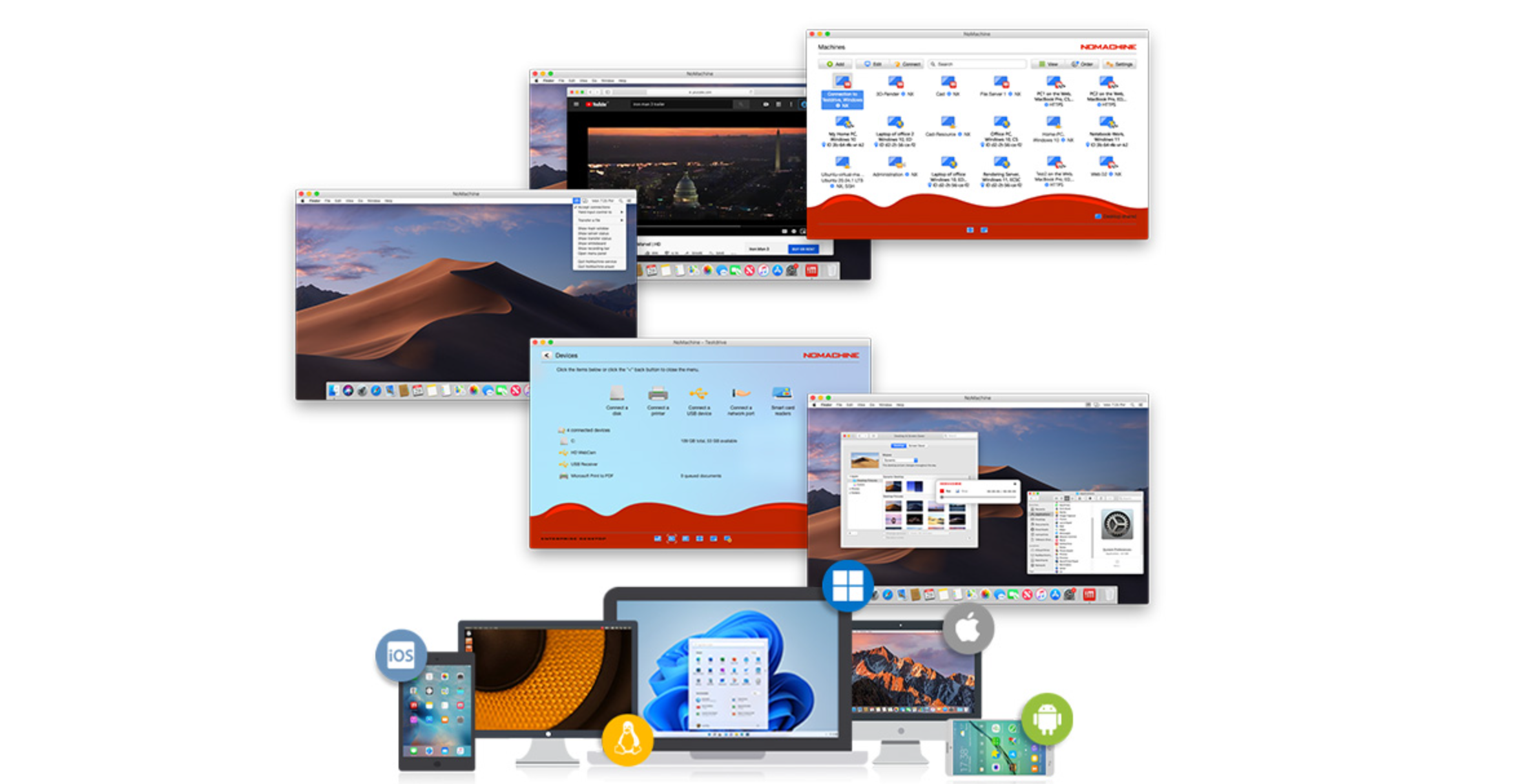
NoMachine is a remote desktop software that allows users to securely access and control computers from anywhere. It provides fast and smooth performance by using the NX protocol, enabling tasks such as working on files, running applications, watching videos, or playing games on a remote machine as if sitting in front of it. NoMachine supports multiple platforms including Windows, macOS, Linux, and mobile devices, and is often used for remote work, technical support, and collaboration.
#Installation on PC
Step 1. Installation Match the version of your PC system.
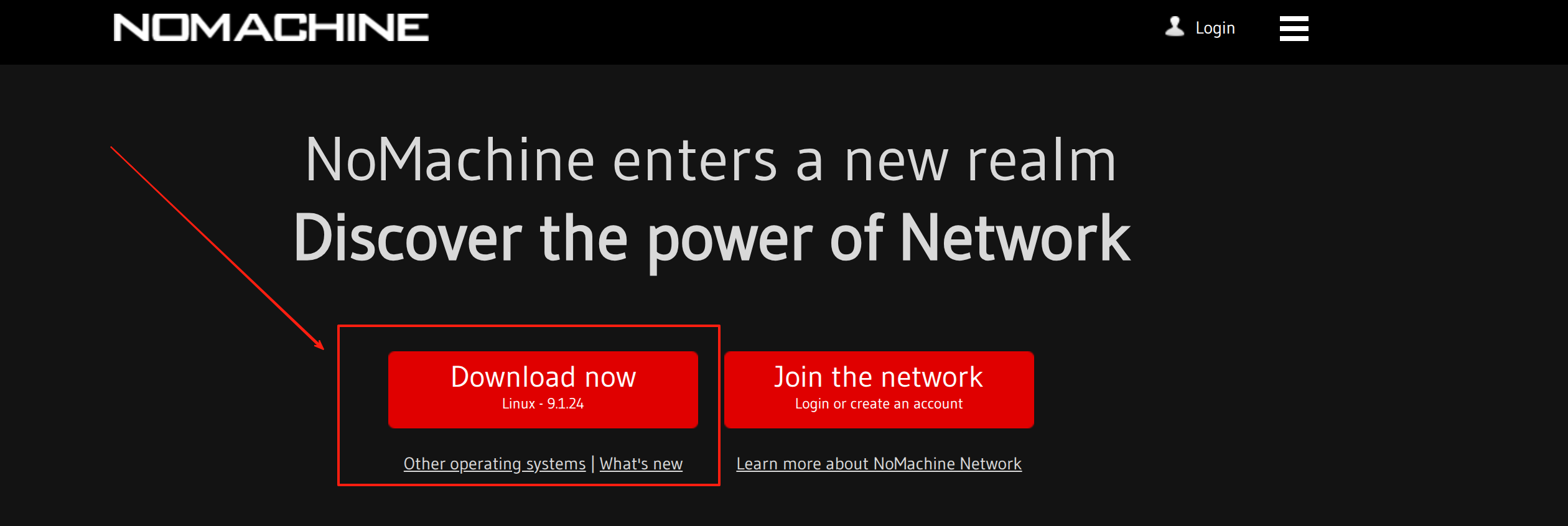
Note:Here we will use the ubantu pc host for the demonstration.
https://download.nomachine.com/download/?id=1&platform=linux
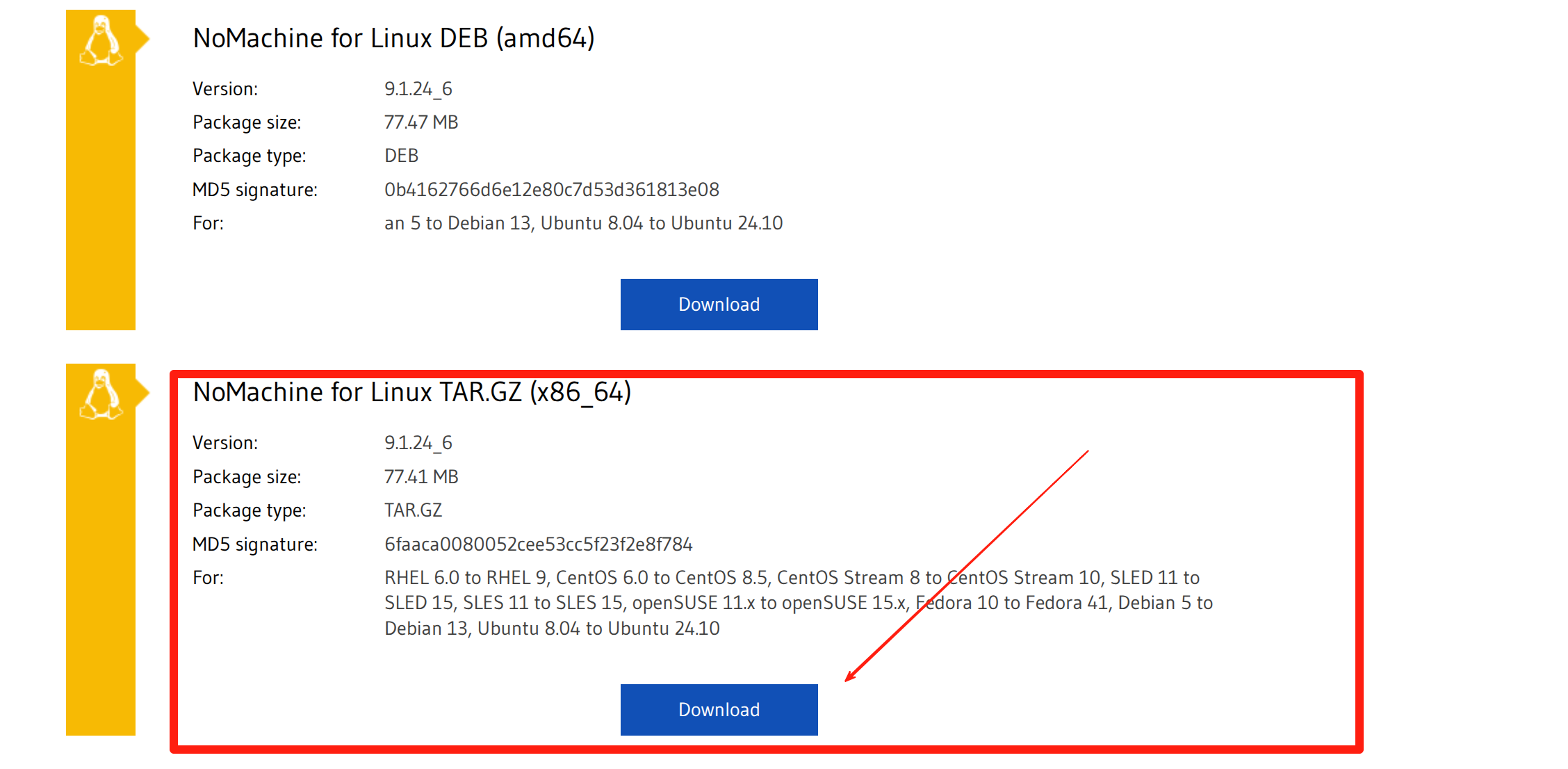
Step 2. Install the client.
#INSTALL
cd /usr
wget https://web9001.nomachine.com/download/9.1/Linux/nomachine_9.1.24_6_x86_64.tar.gz
sudo tar xvzf  nomachine_9.1.24_6_x86_64.tar.gz
rm nomachine_9.1.24_6_x86_64.tar.gz
sudo /usr/NX/nxserver --install
Other operations(optianal)
#UPDATE
cd /usr
sudo tar xvzf  <pkgName>_<pkgVersion>_<arch>.tar.gz
sudo /usr/NX/nxserver --update
#UNINSTALL
sudo /usr/NX/scripts/setup/nxserver --uninstall
sudo rm -rf /usr/NX#Installation on Jetson
Step 1. Download and install
wget https://web9001.nomachine.com/download/9.1/Arm/nomachine_9.1.24_6_arm64.deb
sudo dpkg -i nomachine_9.1.24_6_arm64.deb
After installation is completed, the following key information will be displayed:
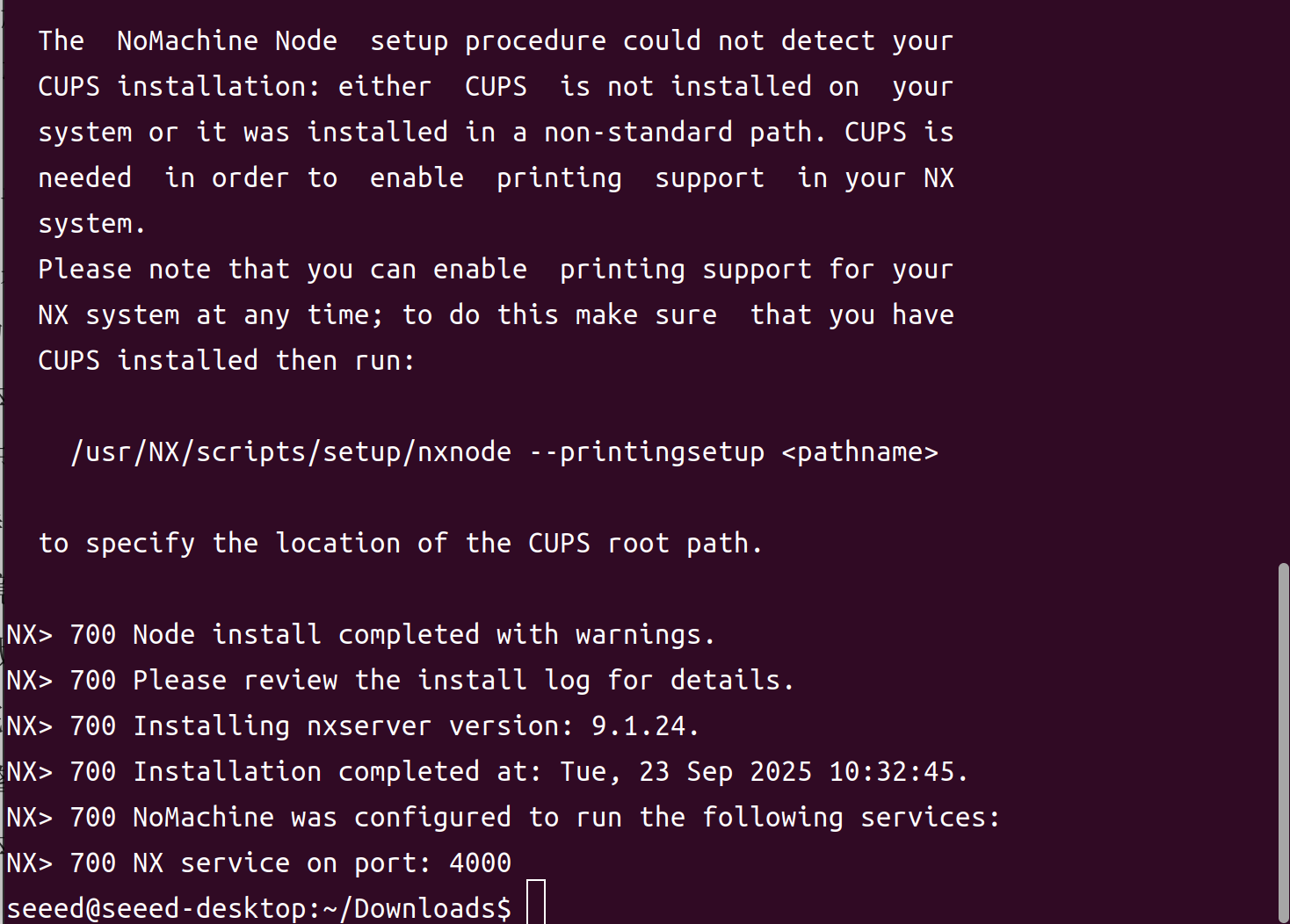
If your Jetson is not connected to a display, additional configuration is required to use Remote Desktop properly.
Step 2. Check jetson's ip address
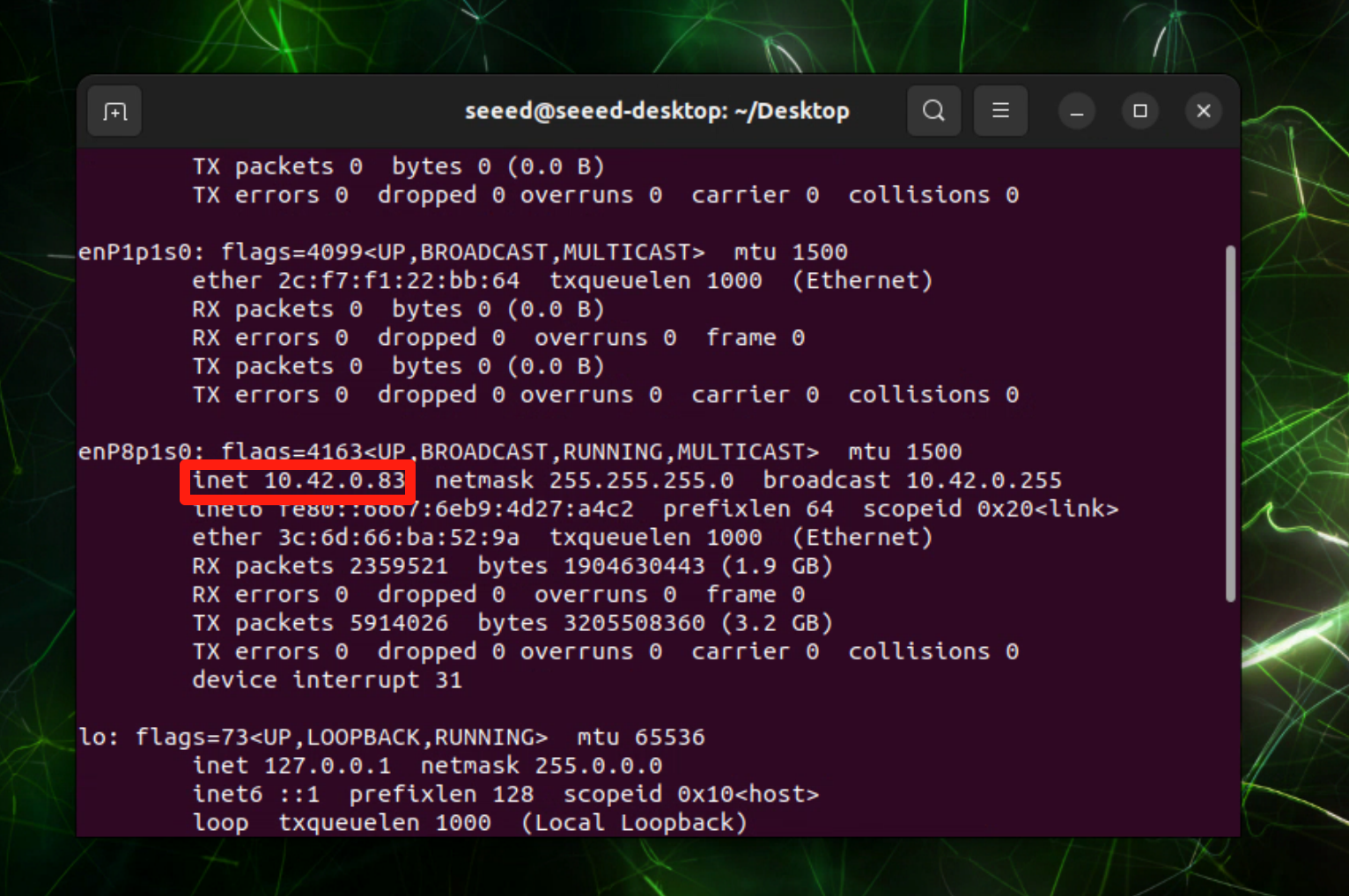
Step 3. We need to stop the system's graphics display manager and let NoMachine use the built-in virtual display service:
# 1. Stop the graphical display manager of the system
sudo systemctl disable gdm3 --now

# 2. Restart the NoMachine service
sudo /etc/NX/nxserver --restart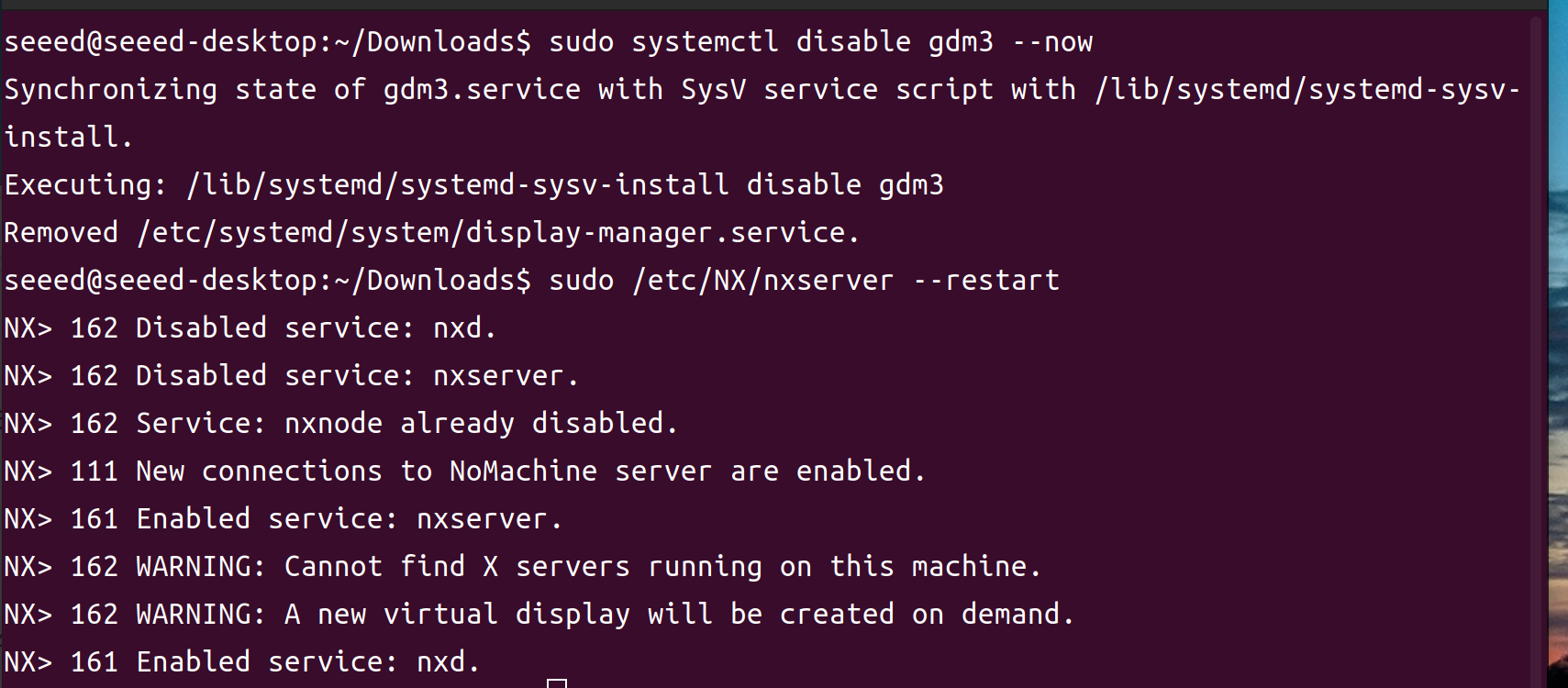
Jetson is not connected to a monitor. The PC can still display the Jetson graphical interface through NoMachine.
Note:If you want to connect a Jetson to a monitor to display images, you need to re-enable the gdm3 service.Run the following command:
# Re-enable the gdm3 service to start automatically at boot
sudo systemctl enable gdm3
# Start the gdm3 service immediately
sudo systemctl start gdm3#Connection
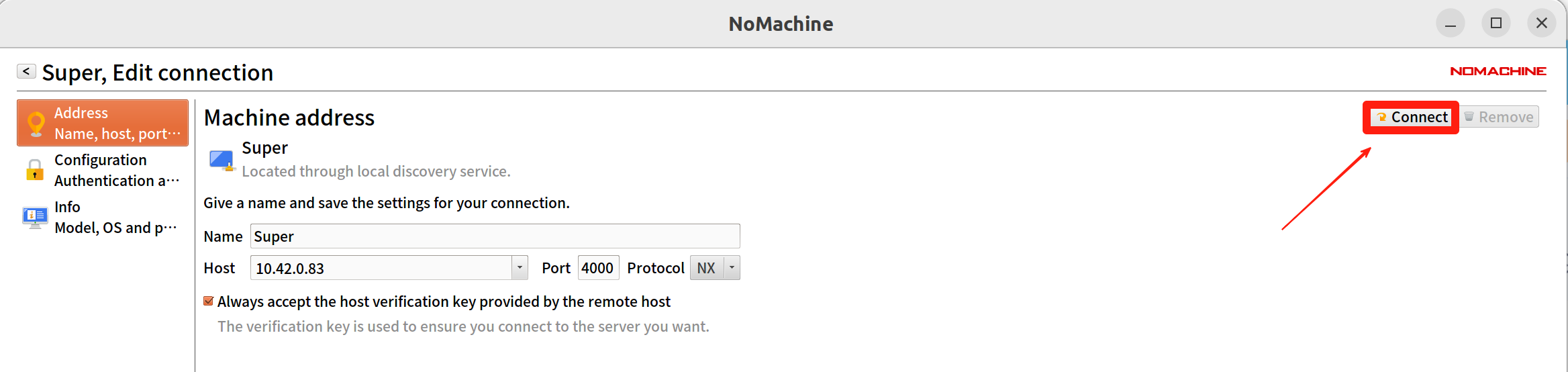
Add->Add connection

Enter the name and the ip address of jetson

Connection
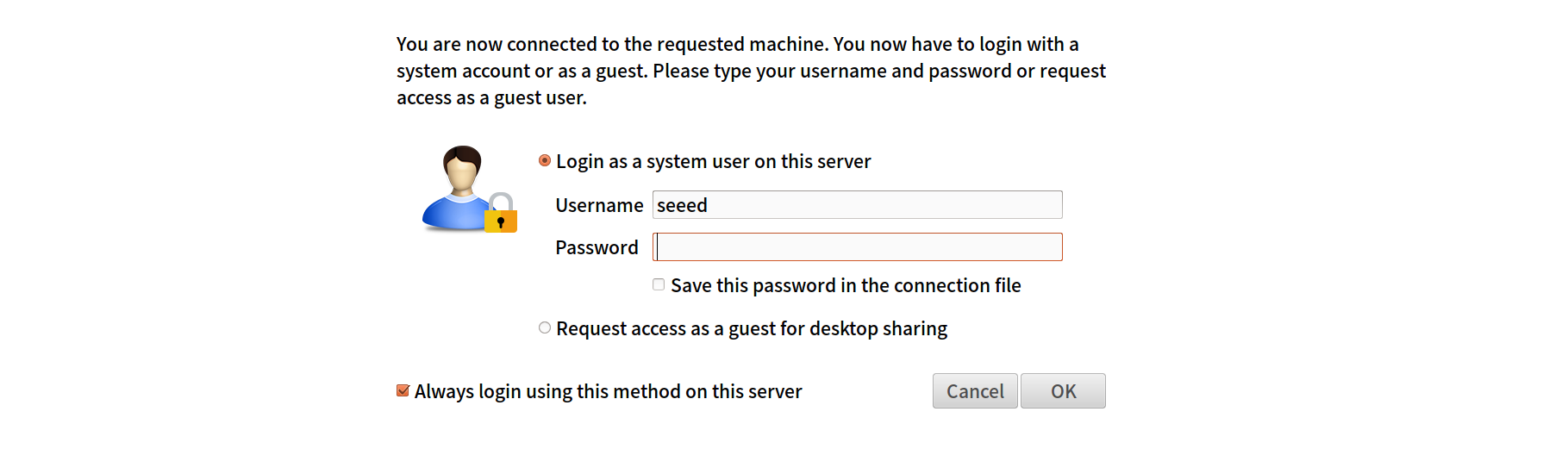
Enter your jetson username and password
You have successfully connected jetson. Now you can operate your jetson on your pc.
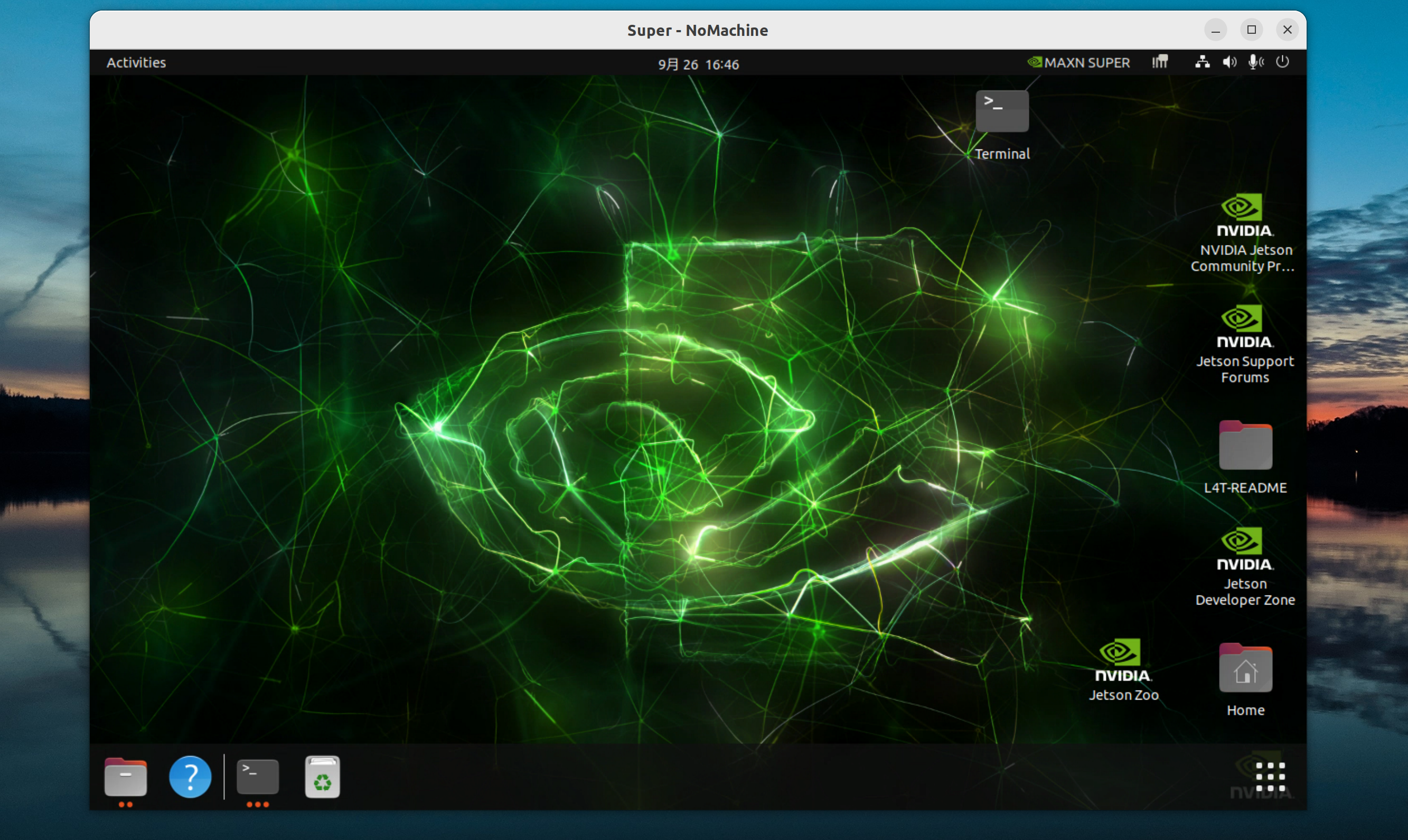
Note: The above connection needs to be within a local area network. If the PC and jetson are not in the same local area network, the connection will fail!