RK3576 Frigate: RKNN Object Detection
Last updated:
Introduction
In the previous tutorial, we installed Frigate NVR on the reComputer RK3576 and accessed its web interface. This guide takes the next step: connecting a video source and enabling RKNN NPU object detection to recognize people, bicycles, and cars.
You can use either an external RTSP IP camera or an existing local video file. No particular sample video is required. Once object detection is working, users with a compatible RTSP camera can also test RKMPP hardware video decoding.
RKNN vs. RKMPP: RKNN accelerates AI model inference on the RK3576 NPU. RKMPP accelerates video decoding through the Rockchip multimedia hardware. These are separate acceleration paths.
The examples below follow Frigate's official configuration. Verify detection on your device.
Before You Begin
Complete Getting Started with Frigate NVR on reComputer RK3576 first, then confirm you can log in to Frigate at https://<RK3576_IP>:8971.
Use Linux with a compatible Rockchip BSP kernel and the RKNPU driver for RKNN inference. RKMPP decoding also requires the Rockchip video-decoder driver, including rkvdec2.
This guide assumes the project directory from Part 1 is ~/frigate-rk, with ./config mapped to /config and ./storage mapped to /media/frigate in Docker Compose. It does not repeat the hardware requirements, Docker installation, or initial administrator setup.
Step 1: Back Up the Existing Frigate Configuration
Connect to the RK3576 over SSH and make a backup before editing the existing configuration:
cd ~/frigate-rk
sudo docker compose ps
FRIGATE_CONFIG_DIR="$HOME/frigate-rk/config"
sudo ls -lah "$FRIGATE_CONFIG_DIR"
Frigate accepts config.yml and config.yaml. If both exist, config.yml takes priority. After listing the directory, run the following block to select and back up the existing file; the same file path is used in later steps.
FRIGATE_CONFIG_FILE=
if sudo test -f "$FRIGATE_CONFIG_DIR/config.yml"; then
  FRIGATE_CONFIG_FILE="$FRIGATE_CONFIG_DIR/config.yml"
elif sudo test -f "$FRIGATE_CONFIG_DIR/config.yaml"; then
  FRIGATE_CONFIG_FILE="$FRIGATE_CONFIG_DIR/config.yaml"
fi

if [ -n "$FRIGATE_CONFIG_FILE" ]; then
  sudo cp -- "$FRIGATE_CONFIG_FILE" "${FRIGATE_CONFIG_FILE}.before-rknn.bak"
  printf 'Using configuration: %s\n' "$FRIGATE_CONFIG_FILE"
else
  printf '%s\n' 'No config.yml or config.yaml found. Check the /config mount before continuing.' >&2
fi
If neither file is found, inspect the container mounts:
sudo docker inspect frigate --format '{{range .Mounts}}{{println .Source "->" .Destination}}{{end}}'Find the host path mapped to /config, set FRIGATE_CONFIG_DIR to that directory, then repeat the listing and selection above. If your deployment overrides the configuration-file path, locate that file before continuing.
If your installation uses a different directory, adjust the commands accordingly. Keep existing authentication and custom camera settings when merging the examples below. Do not create duplicate top-level YAML keys such as cameras:, detectors:, or model:.
Step 2: Select a Video Source
Choose Option A or Option B, not both. Both options use the same RKNN object detector configured in Step 3.
Option A — Connect an External RTSP IP Camera
This option is recommended for a practical NVR deployment and later RKMPP decoding tests.
-
Connect an IP camera to the same reachable network as the RK3576.
-
Enable RTSP in the camera's settings and note its RTSP URL and login credentials. For example:
textrtsp://USERNAME:PASSWORD@CAMERA_IP:554/STREAM_PATHReplace all placeholders with the URL provided by your camera manufacturer.
-
Optionally check the RTSP stream on the RK3576 with
ffprobe(from theffmpegpackage):bashffprobe -v error -rtsp_transport tcp \ -show_entries stream=codec_name,width,height \ -of default=noprint_wrappers=1 \ 'rtsp://USERNAME:PASSWORD@CAMERA_IP:554/STREAM_PATH'A working stream returns video codec and resolution information. Do not publish real credentials.
Use the camera's 720p substream for detection if available. A 4K main stream only adds decode load; the model input is 320×320.
USB cameras: A USB webcam is not an RTSP IP camera. First make its video accessible to Frigate through a compatible input method or an RTSP bridge; do not substitute
/dev/video0into the example RTSP URL.
Option B — Use an Existing Local Video File
This option is convenient for users who do not have an IP camera. Prepare your own video file, such as an MP4 containing people or vehicles. There is no requirement to download an example video.
Use a 1280×720, 15 fps, H.264 MP4 with people or vehicles large enough to see clearly. If your clip is larger, convert it first:
ffmpeg -i input.mp4 -vf "fps=15,scale=1280:720" \
  -c:v libx264 -pix_fmt yuv420p -crf 23 -an test.mp4
Then copy the converted test.mp4 to storage/test.mp4 (replace the path in the command below).
Copy the file to the folder mounted into Frigate:
cd ~/frigate-rk
# Replace /path/to/your-video.mp4 with your existing file path.
cp /path/to/your-video.mp4 storage/test.mp4
If the file is on your computer, transfer it to ~/frigate-rk/storage/test.mp4 using SCP or SFTP instead. Verify that the container can see it:
sudo docker exec frigate ls -lh /media/frigate/test.mp4We will use Frigate's Manual Dummy Camera method, which reads and loops a local file with FFmpeg.
Step 3: Configure the RKNN Detector and Camera
Use the same SSH terminal as Step 1, then open the detected configuration file. If you reconnect or the variable is empty, repeat Step 1 first:
if [ -n "${FRIGATE_CONFIG_FILE:-}" ] && sudo test -f "$FRIGATE_CONFIG_FILE"; then
  sudo nano "$FRIGATE_CONFIG_FILE"
else
  printf '%s\n' 'Repeat Step 1 to locate the existing configuration before editing.' >&2
fi
The RKNN detector configuration used by both options is:
detectors:
  rknn_0:
    type: rknn
    num_cores: 0

model:
  path: frigate-fp16-yolov9-t
  model_type: yolo-generic
  width: 320
  height: 320
  input_tensor: nhwc
  labelmap_path: /labelmap/coco-80.txt
This example uses the frigate-fp16-yolov9-t RKNN detection model. The 320 × 320 size is the model input size, not the camera video resolution. The model is downloaded automatically on first use and cached for subsequent runs; the initial download requires network access.
For a single-source demonstration, use one of the complete examples below. If your current configuration contains settings that must be preserved, merge the relevant sections instead of replacing the entire file.
Complete Configuration — Option A: RTSP Camera
mqtt:
  enabled: false

detectors:
  rknn_0:
    type: rknn
    num_cores: 0

model:
  path: frigate-fp16-yolov9-t
  model_type: yolo-generic
  width: 320
  height: 320
  input_tensor: nhwc
  labelmap_path: /labelmap/coco-80.txt

cameras:
  front_door:
    enabled: true
    ffmpeg:
      inputs:
        - path: rtsp://USERNAME:PASSWORD@CAMERA_IP:554/STREAM_PATH
          roles:
            - detect
    detect:
      enabled: true
      fps: 5
    objects:
      track:
        - person
        - bicycle
        - car
    record:
      enabled: false
    snapshots:
      enabled: false
Important: Replace the RTSP URL before restarting. Recording and snapshots are disabled initially to keep the test focused on object detection.
Complete Configuration — Option B: Local MP4
mqtt:
  enabled: false

detectors:
  rknn_0:
    type: rknn
    num_cores: 0

model:
  path: frigate-fp16-yolov9-t
  model_type: yolo-generic
  width: 320
  height: 320
  input_tensor: nhwc
  labelmap_path: /labelmap/coco-80.txt

cameras:
  demo_video:
    enabled: true
    ffmpeg:
      # Local clips may require software decoding.
      hwaccel_args: ""
      inputs:
        - path: /media/frigate/test.mp4
          input_args: -re -stream_loop -1 -fflags +genpts
          roles:
            - detect
    detect:
      enabled: true
      fps: 5
    objects:
      track:
        - person
        - bicycle
        - car
    record:
      enabled: false
    snapshots:
      enabled: false
Here, -re reads the file at its native rate, -stream_loop -1 repeats playback, and -fflags +genpts generates timestamps when necessary. hwaccel_args: "" disables video hardware acceleration for this dummy camera if the local file cannot work with the hardware decoder. RKNN object detection can still run on the NPU.
Step 4: Restart Frigate and Check RKNN Initialization
Save the configuration file selected in Step 1 (config.yml or config.yaml) and restart the existing Frigate container:
cd ~/frigate-rk
sudo docker compose restart frigate
sudo docker compose ps
Inspect relevant logs without dumping the entire log history:
sudo docker logs --since 5m frigate 2>&1 | \
  grep -iE 'rknn|model|detector|ffmpeg|error|failed' | tail -n 100
On first use, allow time for the supported model to download and initialize. Its cache should be created beneath:
~/frigate-rk/config/model_cache/rknn_cache/You can inspect the cache with:
sudo ls -lh ~/frigate-rk/config/model_cache/rknn_cache/Continue with the live verification in Step 5.
Step 5: Verify Detection Results and NPU Usage
-
Open
https://<RK3576_IP>:8971and sign in. -
Find the configured camera:
front_door(Option A) ordemo_video(Option B). -
Open Debug view and enable Debugging Bounding Boxes. Bounding boxes labeled
person,bicycle, orcarappear around detected objects.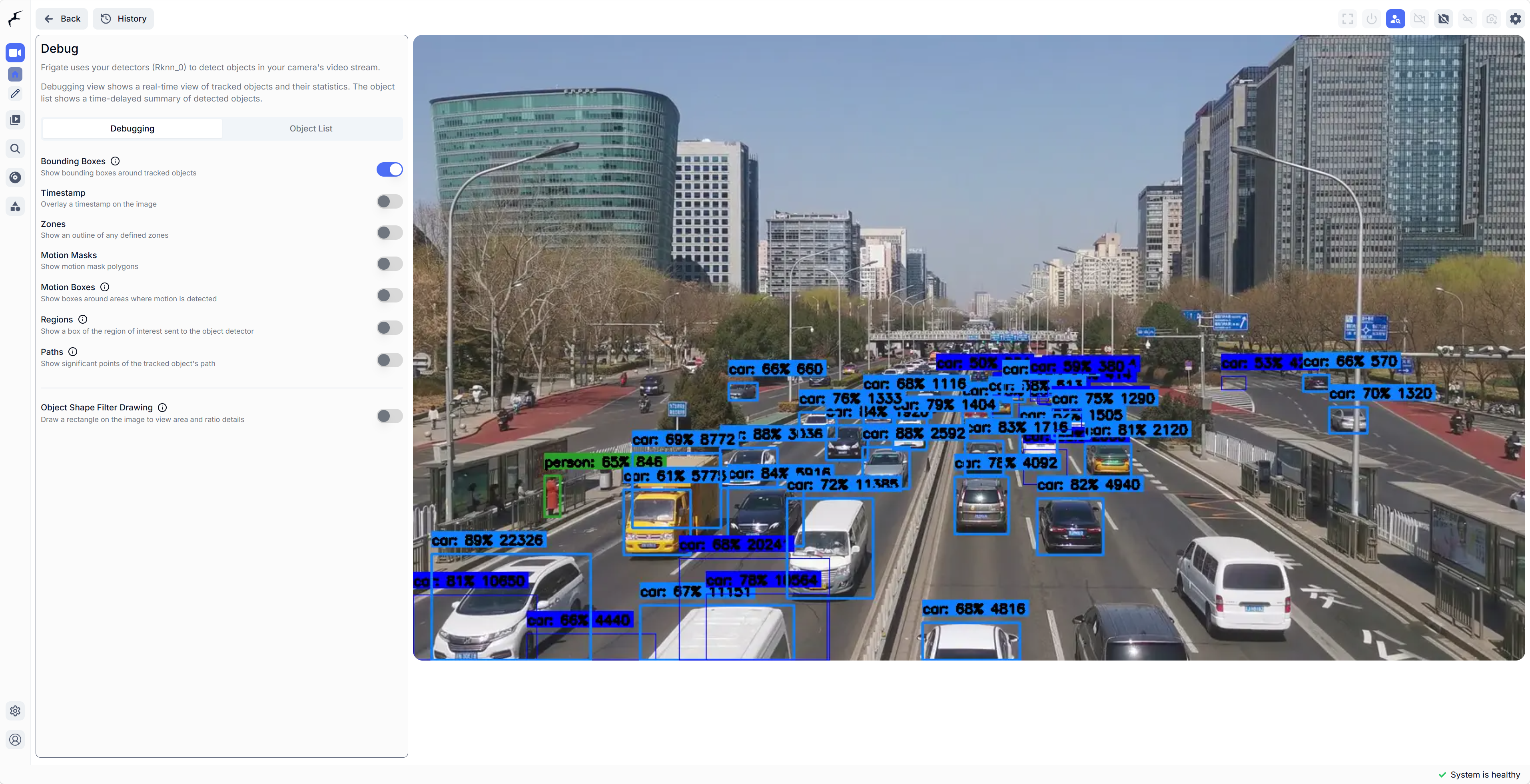
If no boxes appear, confirm the clip contains a tracked object, Debugging Bounding Boxes is enabled, and the logs show
Successfully loaded RKNN model. -
Open Frigate's System page and note the detector inference time and detection FPS, if shown in the installed version.
-
On the RK3576, check NPU load while the video contains relevant motion:
bashsudo cat /sys/kernel/debug/rknpu/loadYou can monitor it repeatedly during detection:
bashwatch -n 1 'sudo cat /sys/kernel/debug/rknpu/load'
NPU utilization fluctuates with motion. Confirm detections in the overlay and Frigate metrics.
Step 6 (Optional): Enable RKMPP Hardware Video Decoding
Use this step primarily with Option A (RTSP camera) and only after RKNN detection works. RKMPP accelerates compatible video decoding; it is not the object detector.
In the existing front_door camera configuration, add hwaccel_args: preset-rkmpp inside ffmpeg::
cameras:
  front_door:
    ffmpeg:
      hwaccel_args: preset-rkmpp
      inputs:
        - path: rtsp://USERNAME:PASSWORD@CAMERA_IP:554/STREAM_PATH
          roles:
            - detect
This is a partial example: preserve the other camera, RKNN model, and detector settings from Step 3.
Restart Frigate and inspect the FFmpeg-related logs:
sudo docker compose restart frigate
sudo docker logs --since 5m frigate 2>&1 | \
  grep -iE 'ffmpeg|rkmpp|rkvdec|error|failed' | tail -n 100
Check that the camera stream and AI detections still work, that FFmpeg does not repeatedly crash with hardware-context errors, and—where host tools are available—that the video decoder is active. Compare CPU use with the same stream/resolution before and after enabling RKMPP.
For the local MP4 dummy-camera option, keep hardware decoding disabled during initial RKNN verification.