Collect OPC UA Data with N3uron
Last updated:
Introduction
This tutorial continues Install N3uron. Use the OpcUaClient module on a reComputer RK Series device to connect to N3uron's public DataSim server, import simulated photovoltaic-site variables as Tags, and view their values in WebUI. No additional PLC or sensor is required.
N3uron DataSim OPC UA Server
opc.tcp://datasim.n3uron.com:4840
             |
             | OPC UA over TCP
             v
reComputer RK Series (N3uron)
     OpcUaClient / DataSim
             |
             v
       N3uron Tags
             |
             v
     Data -> Realtime
Prerequisites
| Item | Requirement |
|---|---|
| Hardware | A reComputer RK Series device |
| Operating system | A compatible ARM64 Debian-based Linux system; Debian/Armbian was used in the test |
| Software | N3uron installed, with the OpcUaClient module available |
| Network | Outbound TCP port 4840 to the public DataSim server; browser access to the RK device's WebUI |
| Client PC | A computer with a modern browser on a network that can reach the RK device |
For another RK model, confirm its Linux architecture and N3uron requirements using the installation tutorial before proceeding.
Step 1: Check the device and N3uron service
Run the following commands in a terminal or SSH session on the RK device:
cat /etc/os-release
uname -m
hostname -I
sudo systemctl status n3uron --no-pager
For ARM64 Linux, uname -m typically prints aarch64. Note the device's LAN IP address. The N3uron service should report active (running).
If the service is installed but stopped, start it:
sudo systemctl start n3uronIf N3uron is not installed, complete Install N3uron first.
Step 2: Open N3uron WebUI
Open the following address in the client computer's browser:
http://<RK_DEVICE_IP>:8003Replace <RK_DEVICE_IP> with the RK device's IP address. The default HTTPS port is 8443 when HTTPS is configured.
Log in with the administrator account configured during installation. The navigation panel includes Data, System, and User.
Step 3: Create the OPC UA Client module
- Go to System → Config → Modules.
- Open the Modules menu and select New Module.
- Set the name to
OpcUaClient. - Set Module type to
OpcUaClient, then click Save.
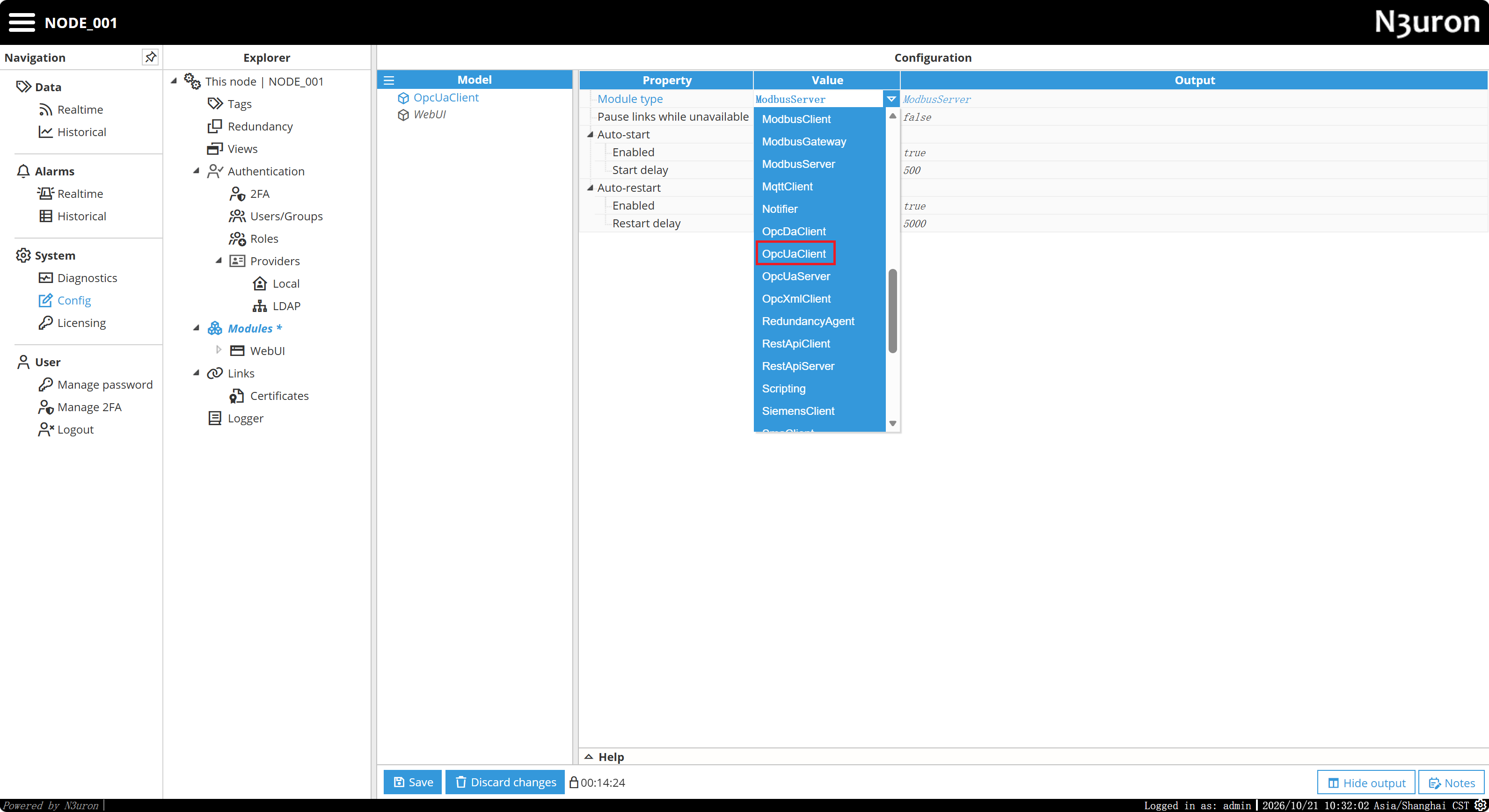
The screenshot shows the type menu before the selection is applied. Select the highlighted OpcUaClient entry instead of retaining ModbusServer. The module name alone does not determine its type.
Expand the saved module in Explorer. It should contain Certificates, OPC Browser, and Logger.
Step 4: Configure the DataSim client
Select OpcUaClient, open the Model panel menu, and choose New Client. Name the client DataSim.
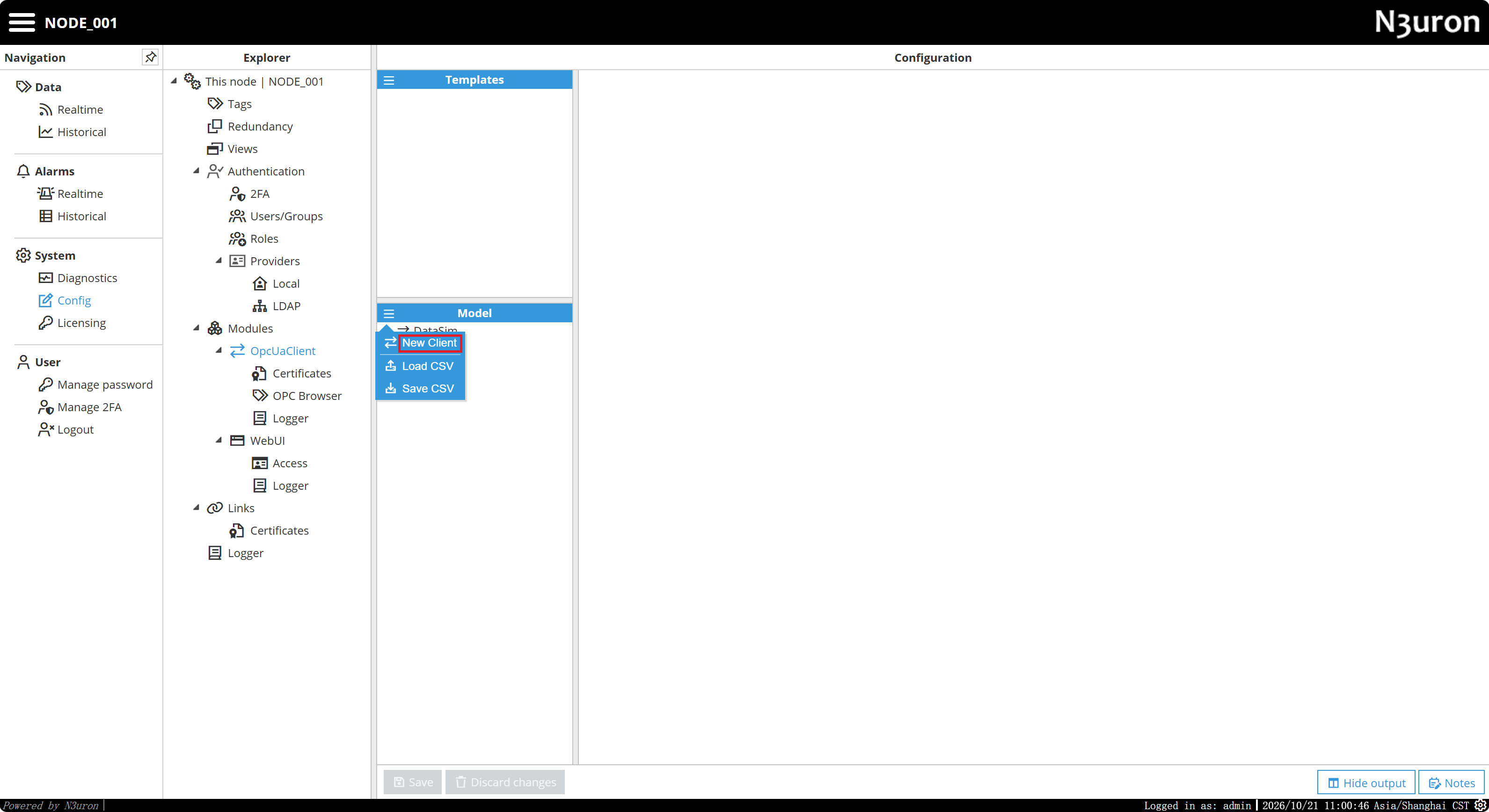
Configure the following connection settings. The public endpoint and demo account are also documented in the Seeed N3uron example.
| Setting | Value |
|---|---|
| Client name | DataSim |
| Enable data collection | Yes |
| Endpoint URL | opc.tcp://datasim.n3uron.com:4840 |
| Discovery URL, if configured | opc.tcp://datasim.n3uron.com:4840 |
| Security mode | None |
| Security policy | None / None (Insecure) |
| Authentication → Enabled | Yes |
| Authentication → User | sunn3rgy |
| Authentication → Password | n3uron |
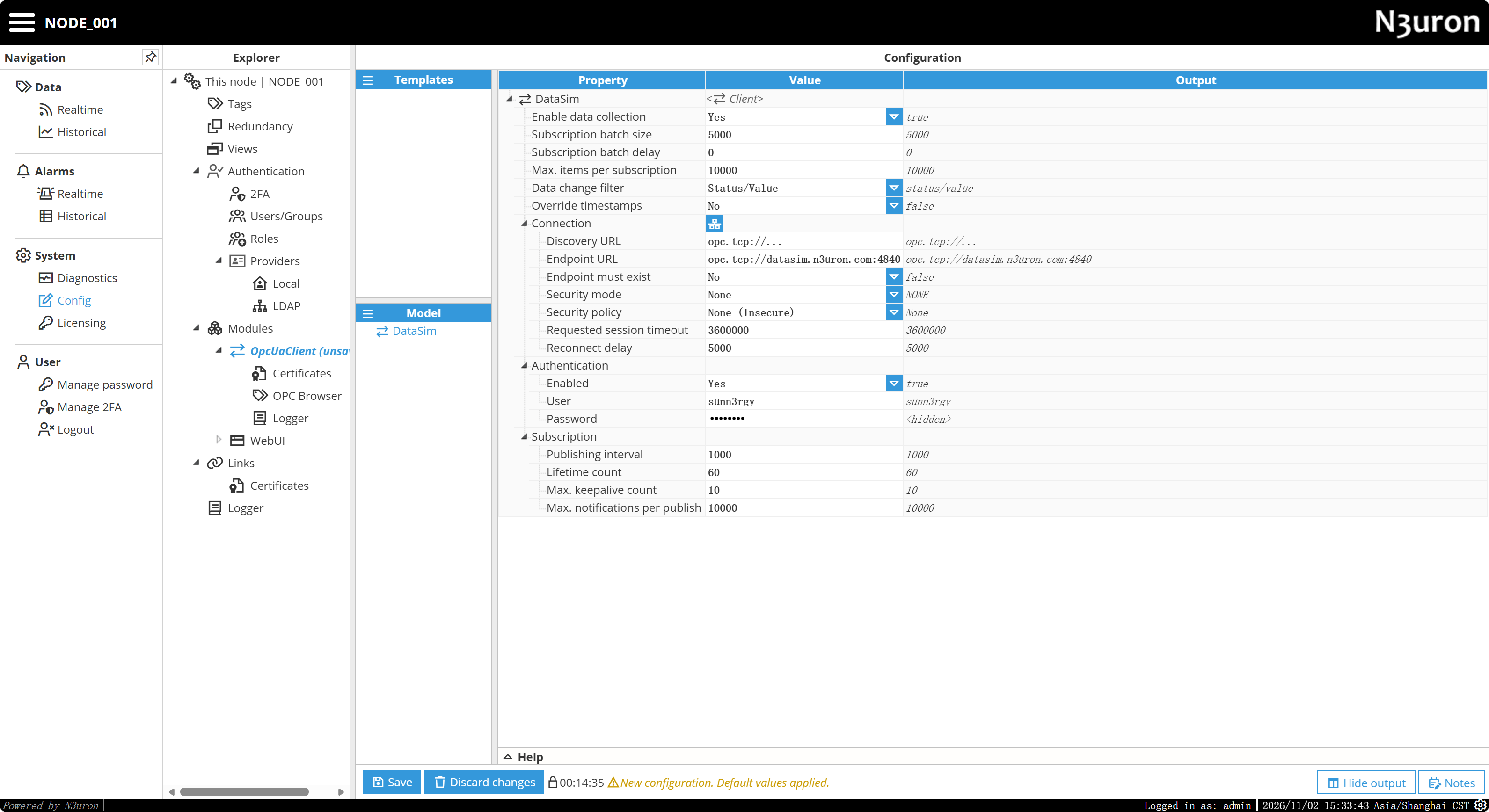
Click Save and allow the module to connect. If the server uses the same discovery and endpoint URL, use the endpoint address in both fields; see N3uron's client configuration documentation.
Step 5: Browse OPC UA nodes
Expand System → Config → Modules → OpcUaClient and select OPC Browser. Choose DataSim from the Client drop-down list.
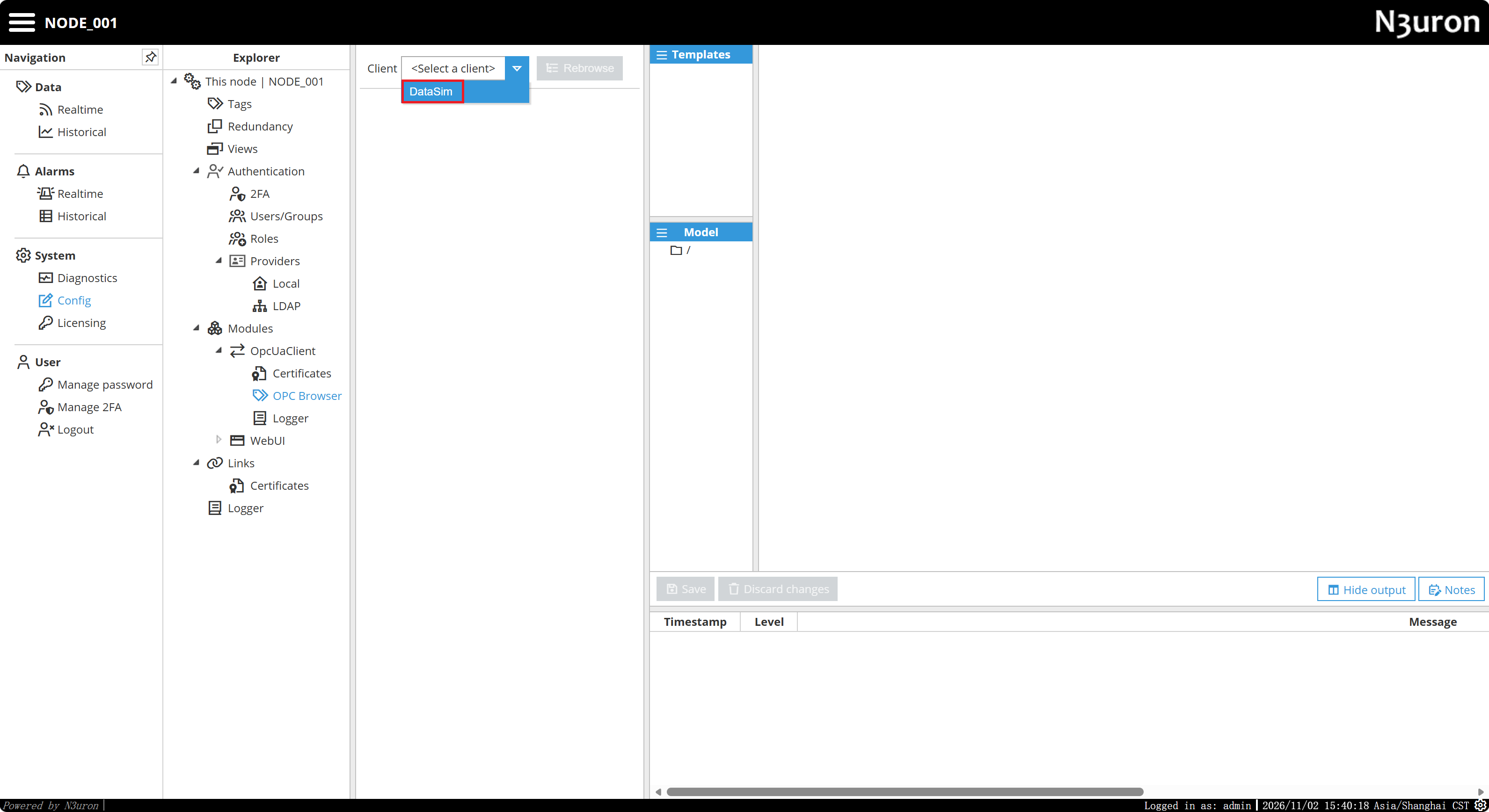
Click Rebrowse if needed. Once browsing succeeds, the server's top-level nodes appear.
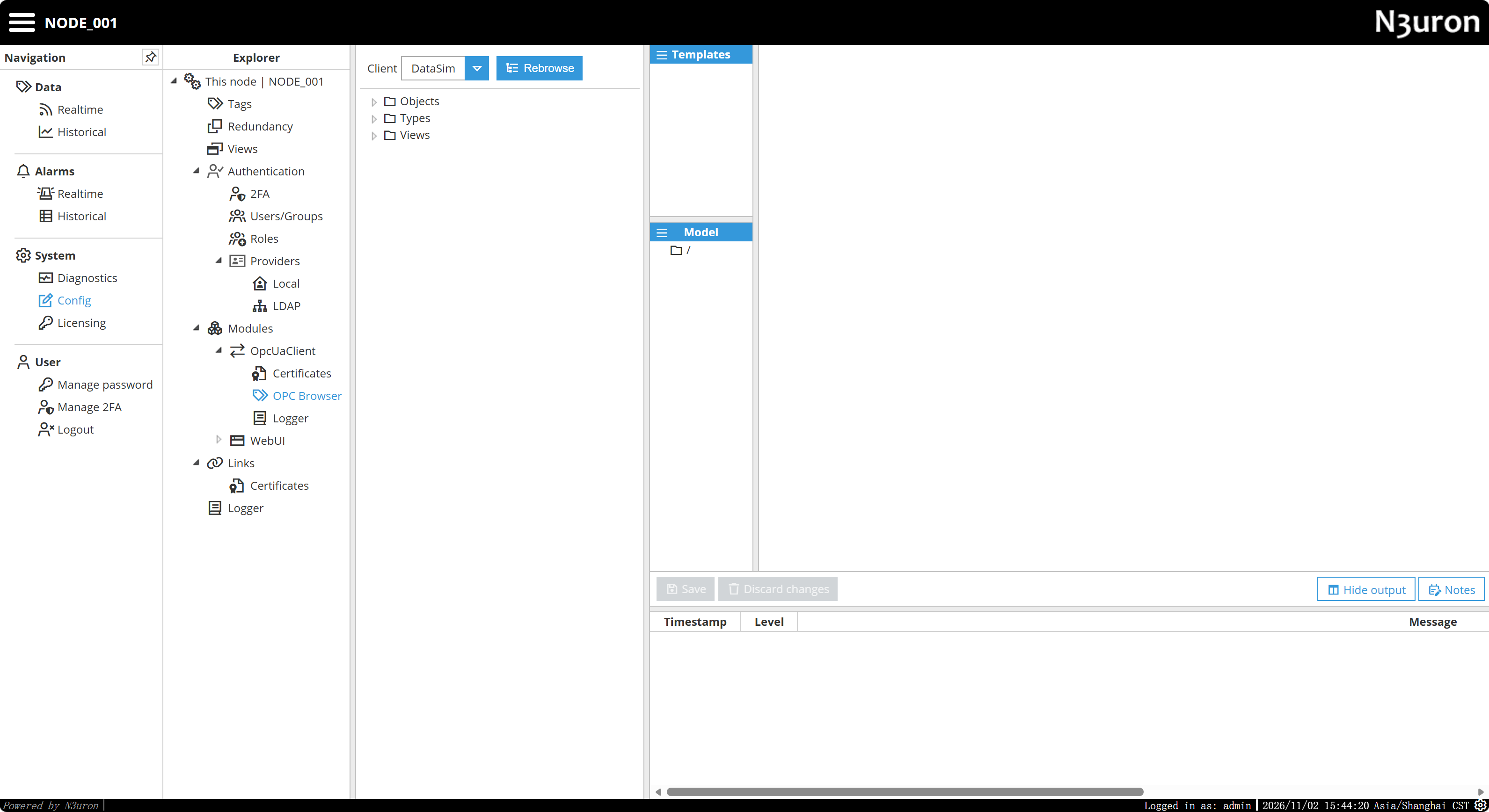
Expand the following path:
Objects
└── PVSIM
    └── BLUELAKE
        └── PVG001
            └── WST
                ├── HEIGHT_SUN
                ├── HUMIDITY
                ├── POA_IRRADIANCE
                ├── PRESSURE
                ├── TEMPERATURE_2M
                └── WIND_SPEED_10M
The server can also expose forecast variables and other branches. The account name sunn3rgy is not necessarily a folder name; follow the current node tree.
Step 6: Import variables as Tags
Use four variables from the WST branch:
| OPC UA node | Description |
|---|---|
HUMIDITY | Relative humidity |
POA_IRRADIANCE | Plane-of-array solar irradiance |
TEMPERATURE_2M | Ambient temperature at 2 m |
WIND_SPEED_10M | Wind speed at 10 m |
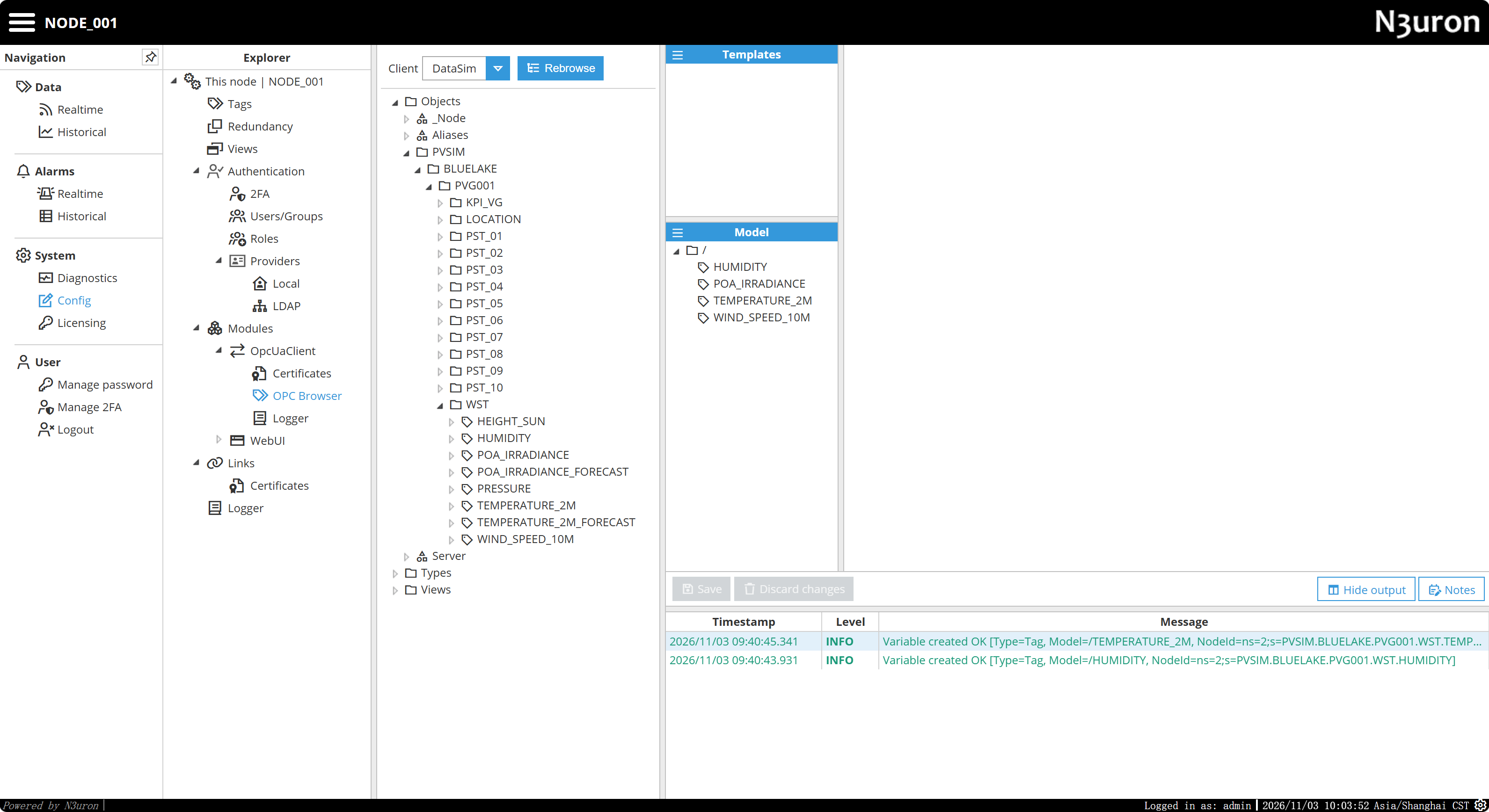
- In OPC Browser, expand
Objects → PVSIM → BLUELAKE → PVG001 → WST. - Drag
HUMIDITYinto the Model panel's root folder/. - Repeat for
POA_IRRADIANCE,TEMPERATURE_2M, andWIND_SPEED_10M. - Confirm that all four Tags appear in the Model tree. Save any pending changes.
- If you inspect a Tag's source settings, Source → Enabled should be
Yes, with its source module referencingOpcUaClient.
Step 7: Check real-time values
Go to Data → Realtime in the navigation panel. Some versions label this page Real Time. Select / in Tag groups to view the four Tags, including their Value, Quality, and Timestamp.
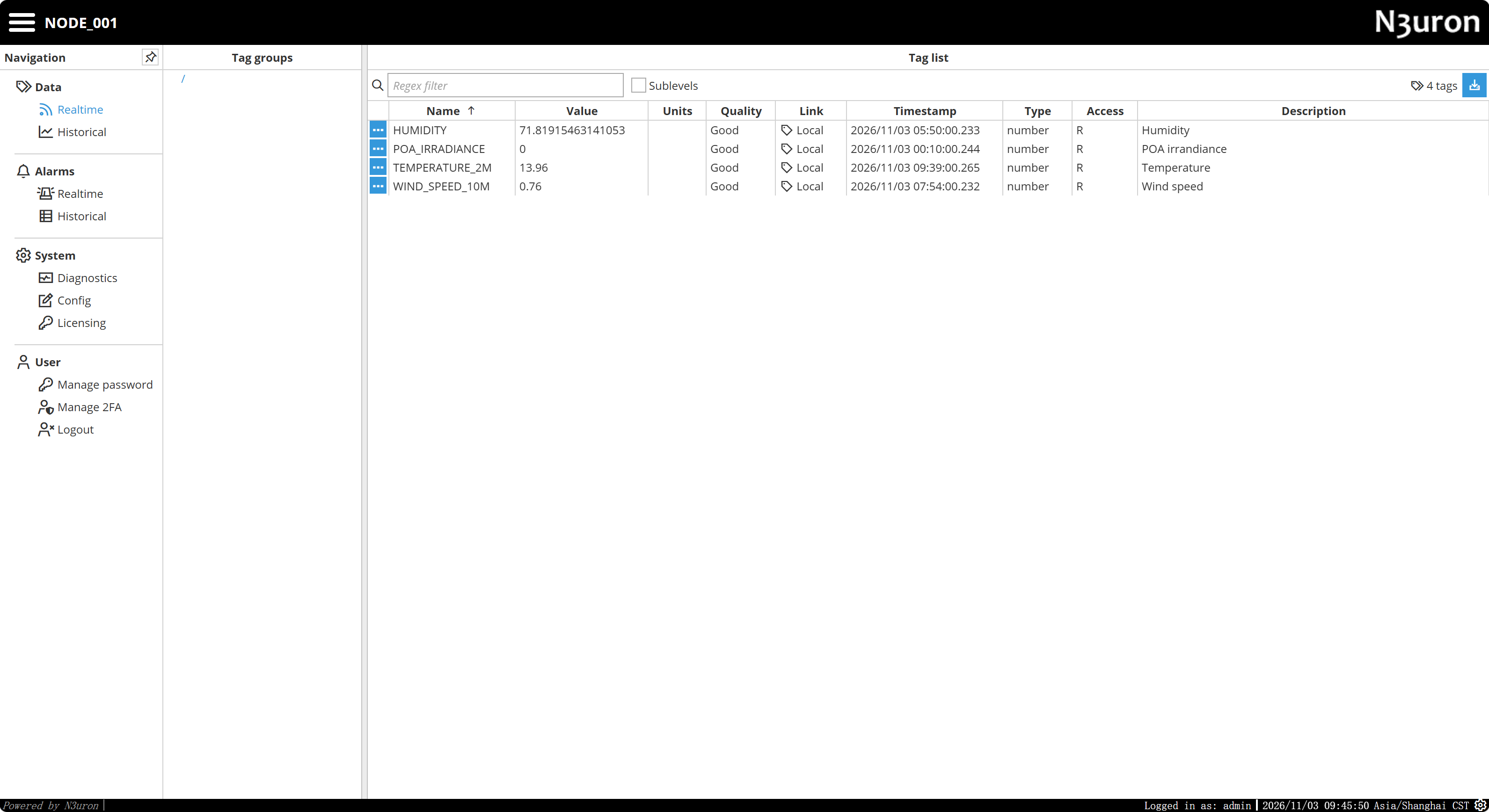
The RK3576 example shows the following sample readings:
| Tag | Sample value | Quality |
|---|---|---|
HUMIDITY | Approximately 71.82 | Good |
POA_IRRADIANCE | 0 | Good |
TEMPERATURE_2M | 13.96 | Good |
WIND_SPEED_10M | 0.76 | Good |
These are sample readings, not fixed expected values. Good indicates a usable reading at the displayed time. Watch the value and timestamp of a changing variable across several refresh cycles to confirm updates. A value of 0 alone does not indicate a connection problem.
The four Tags are now available in N3uron for further processing, MQTT publishing, or WebVision dashboards.
Troubleshooting
| Symptom | What to check |
|---|---|
OPC Browser is missing | Expand OpcUaClient in Explorer and confirm that Module type is OpcUaClient. |
Settings show Channel, Modbus TCP, or port 502 | The module type may be wrong. Create an OpcUaClient module instead of ModbusServer. |
| DataSim does not connect | Check the endpoint, demo credentials, DNS, Internet access, and outbound TCP port 4840. |
There is no SUNN3RGY folder | Browse PVSIM → BLUELAKE → PVG001 → WST; the node tree may differ from older examples. |
| Tags show no data | Check Source Enabled, the OPC UA Node ID, client diagnostics, and Quality. |
| Values do not change | Check Timestamp and the simulator's update behavior. |
| Collection stops after a while | Check the module's license status; unlicensed modules can be limited to a two-hour demo session. |
Check service status and recent logs:
sudo systemctl status n3uron --no-pager
sudo journalctl -u n3uron -n 80 --no-pager
For a TCP connectivity check:
python3 - <<'PY'
import socket
host, port = 'datasim.n3uron.com', 4840
try:
    with socket.create_connection((host, port), timeout=8):
        print('TCP 4840 reachable')
except Exception as exc:
    print('Connection failed:', exc)
PY
A successful TCP connection alone does not verify OPC UA authentication. Check client diagnostics and values in Data → Realtime as well.