Install VS Code on Jetson
Back to Module 3 | Back to Table of Contents
#11 Install VSCode
#Introduction
VS Code is a lightweight, cross-platform code editor that supports Windows, MacOS and Linux. It activates fast, eco-rich plugins, incorporates smart completion, Git integration, debuggers, terminals, etc., and almost meets the needs of the front-to-back end, from script to embedded development. This paper will describe how VSCode will be installed in the Jetson device.
#Install VSCode
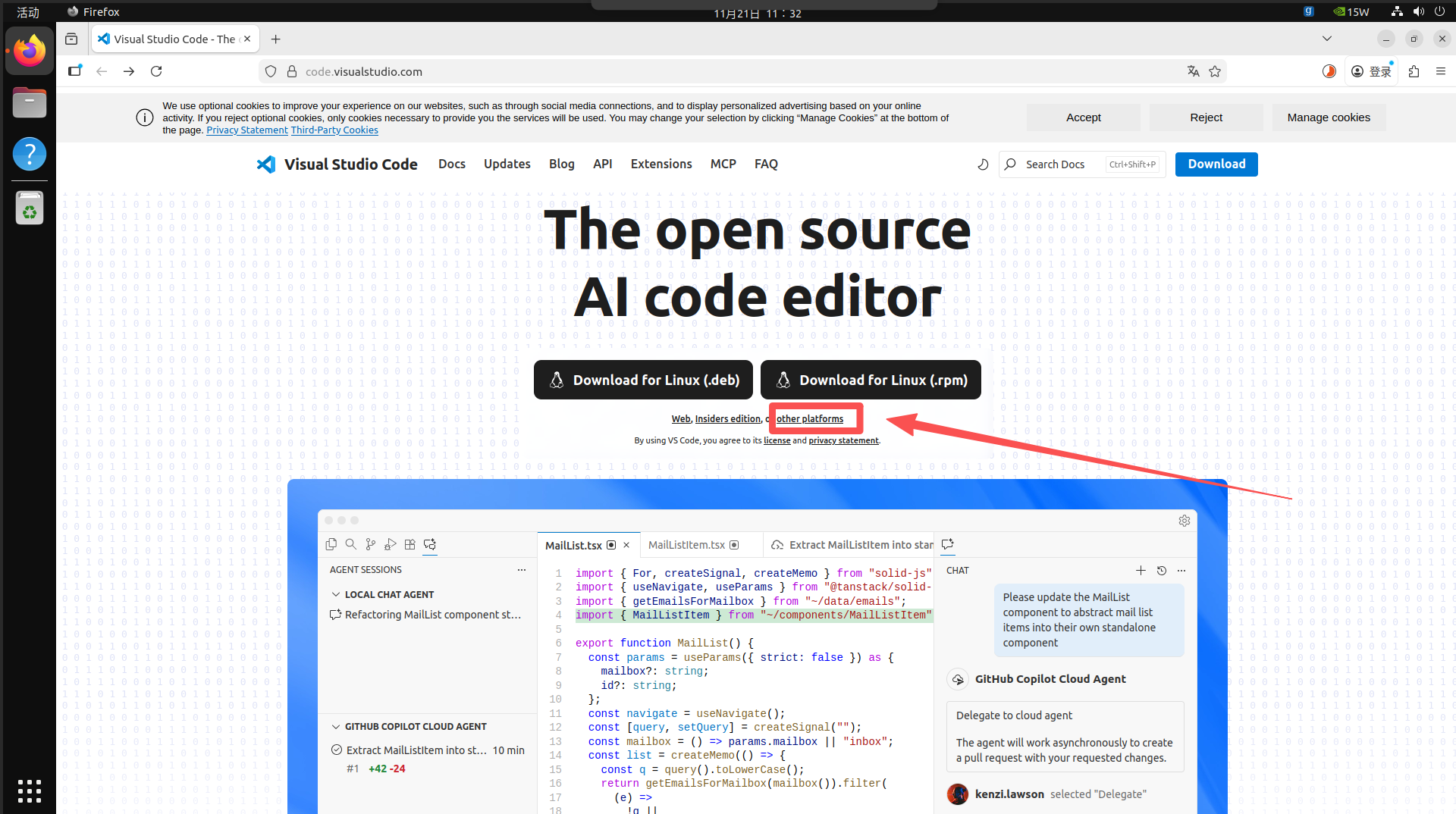
Opens the VSCode official network in the browser.
Select the version of Arm64 in the other platform and download the corresponding Deb installation package.
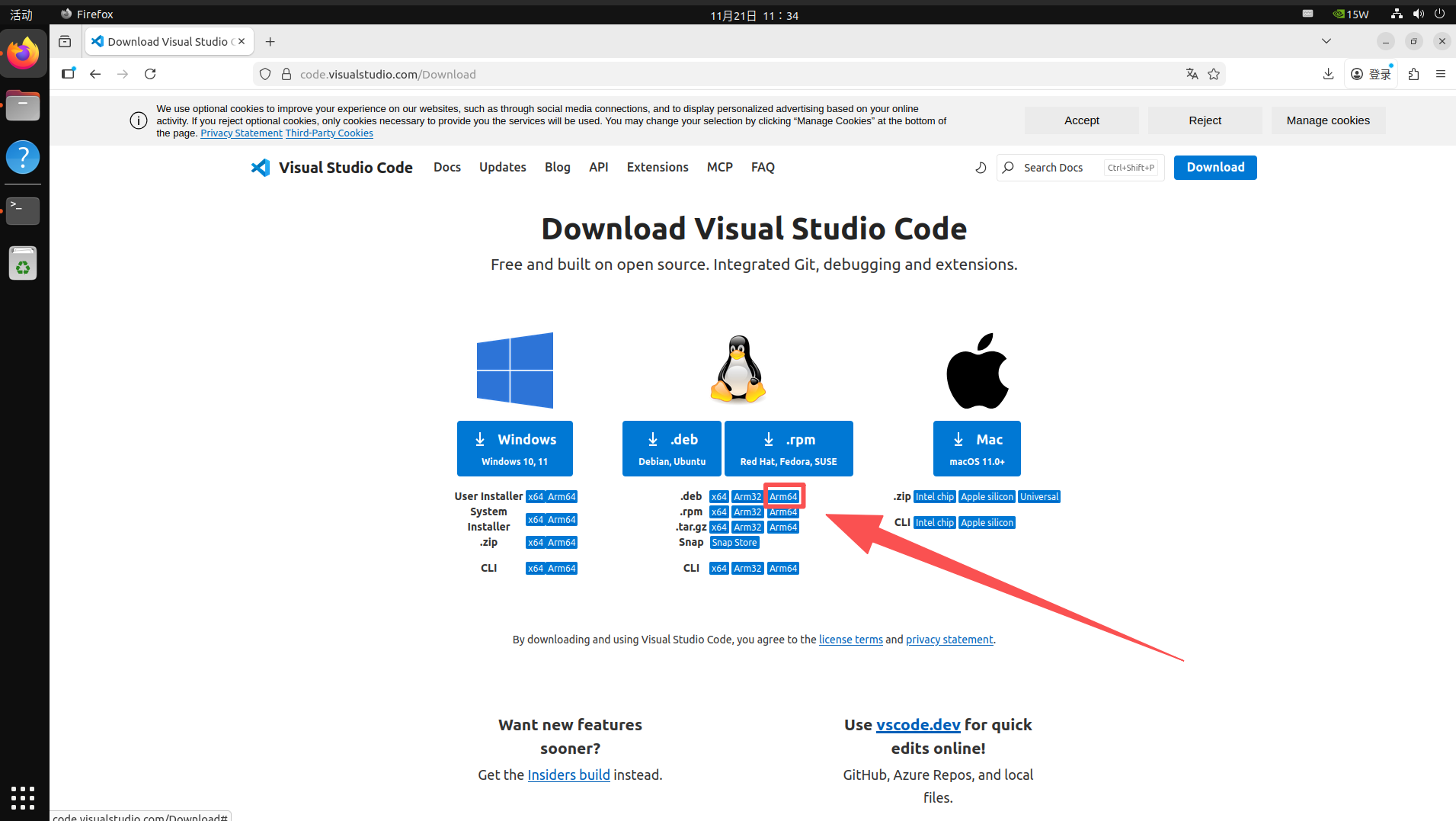
Terminal enters download directory, runs installation commands
# Enter the `Download` directory
cd ~/Downloads
# Run the install command; type `code` and press Tab to auto-complete the package name
sudo dpkg -i code_xxxxxxxxxxxx
Open application after installation is complete
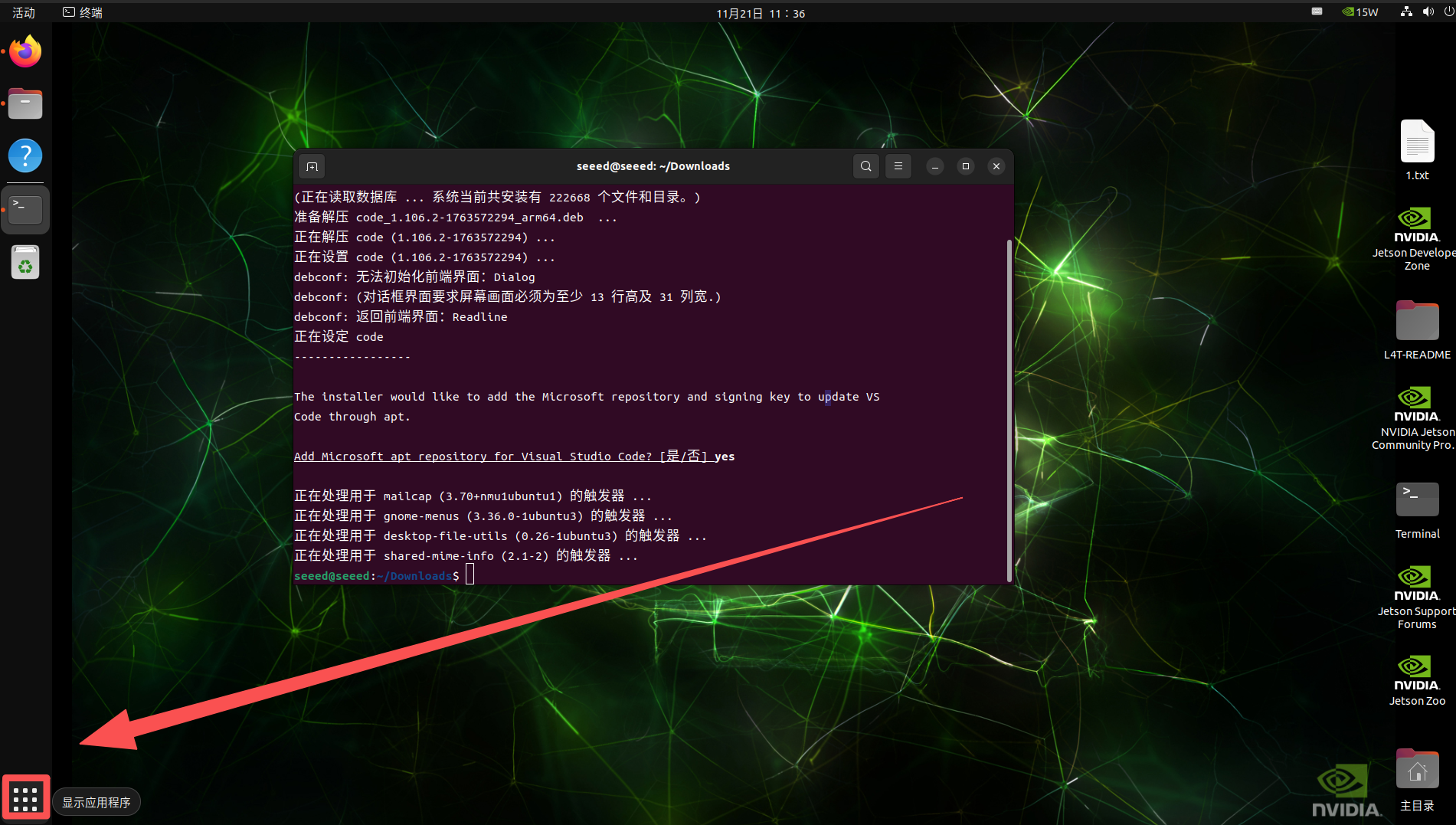
Found VSCode to add it to the desktop menu bar
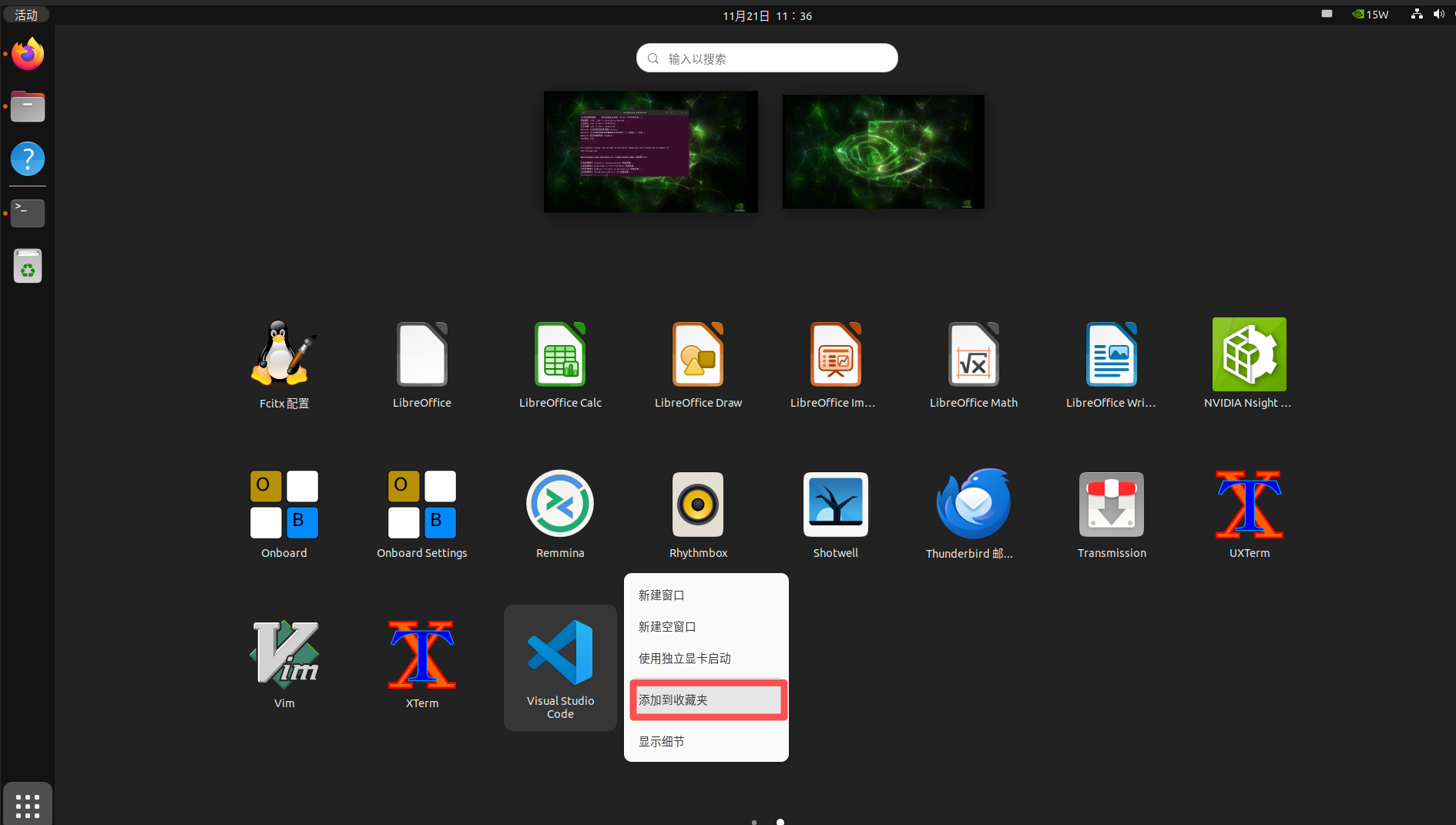
#Installation basic extension
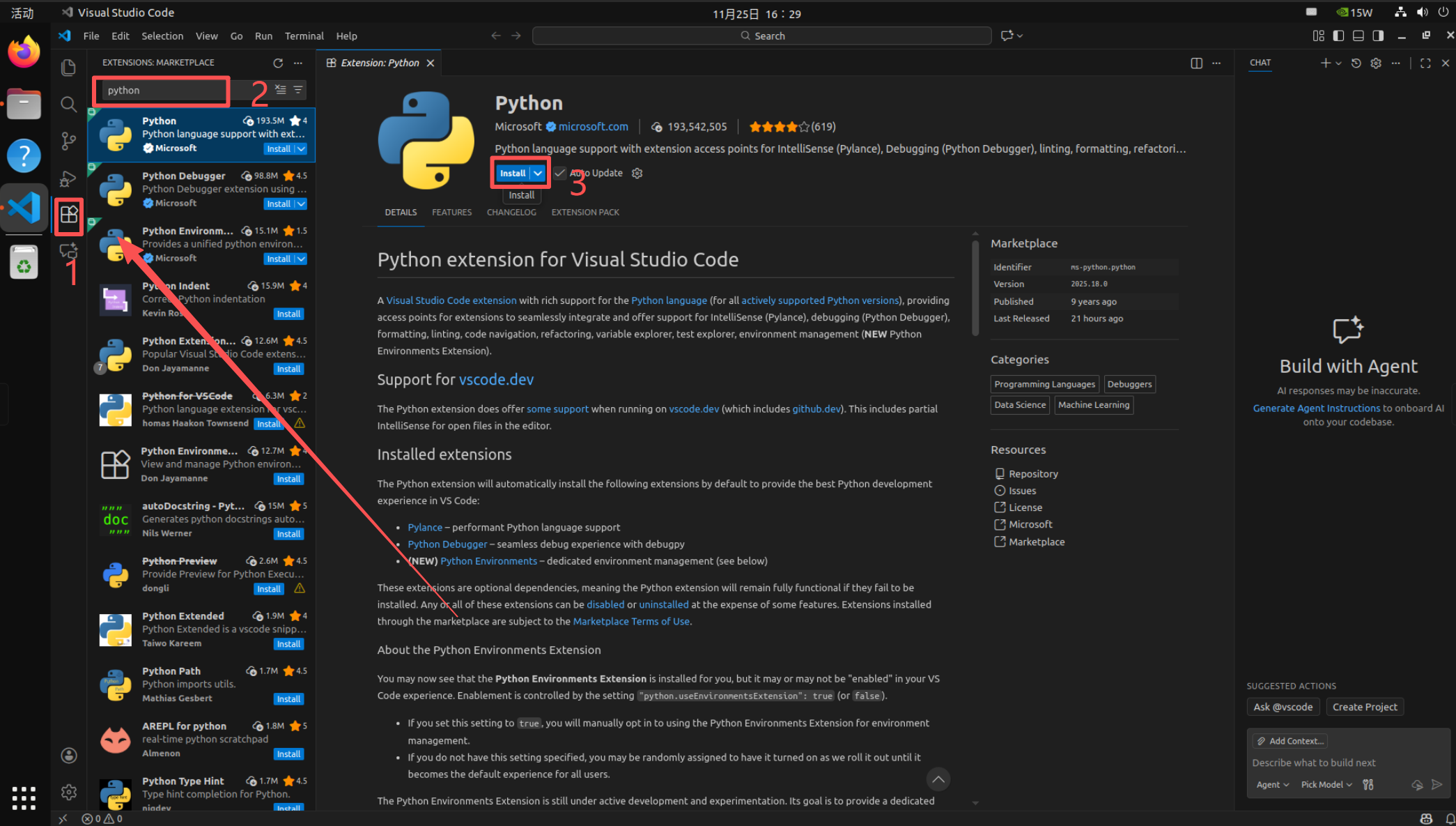
Extension of installation base
Expand the search box to search for python and select Python for installation:
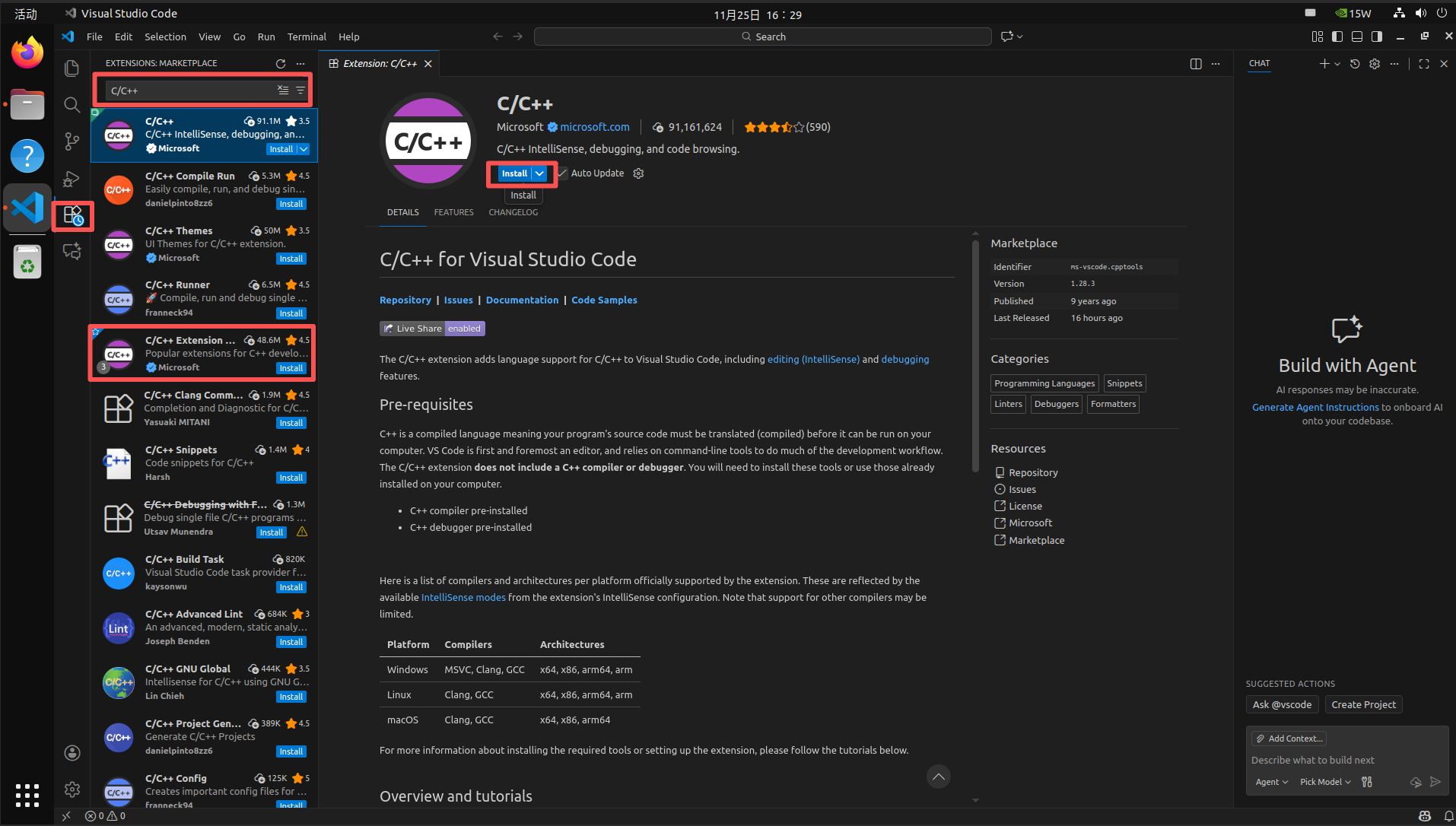
C/C+
Installation of C and C++ outreach
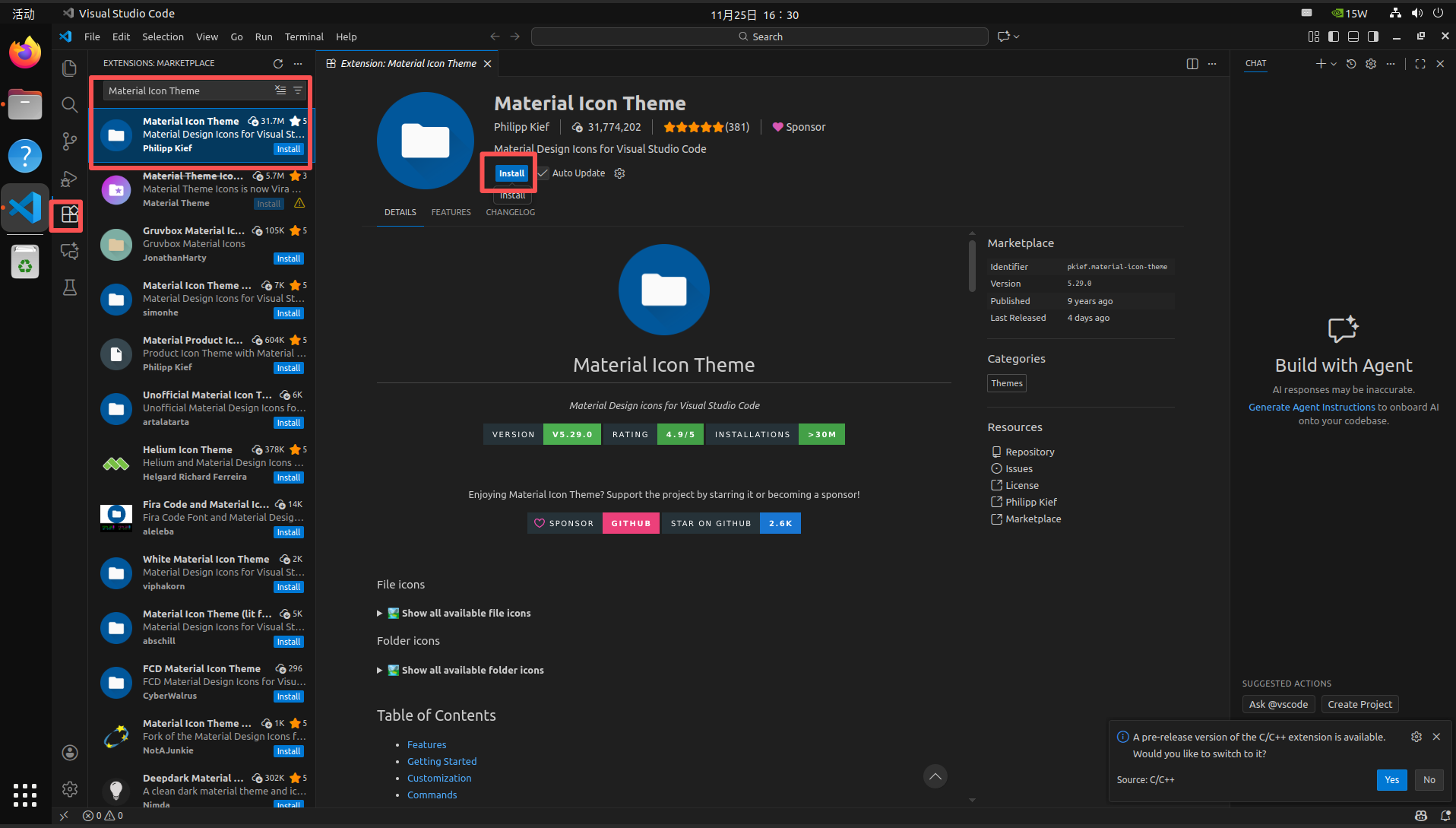
Material Icon Theme
Select Materal Icon Theme for installation
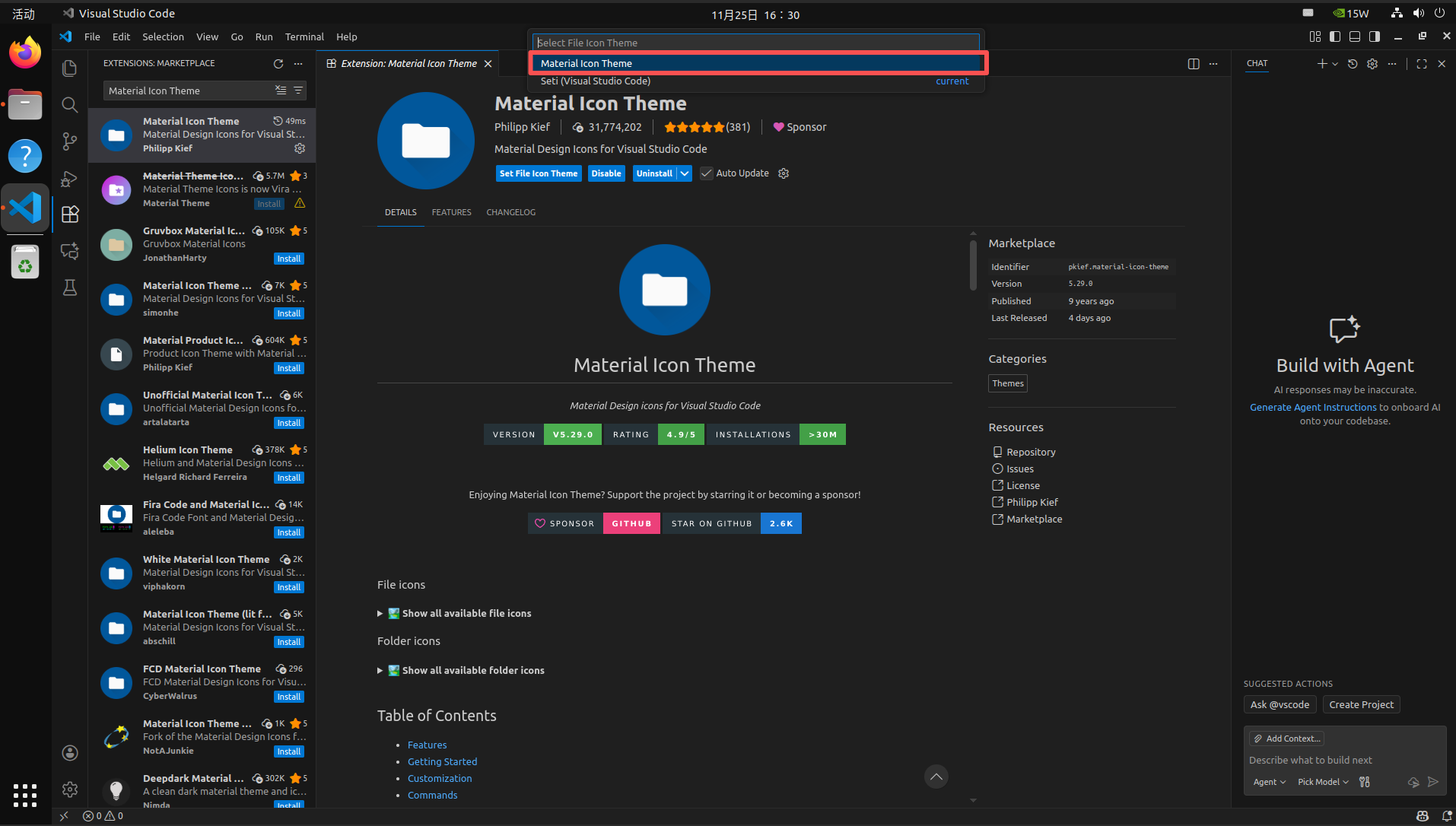
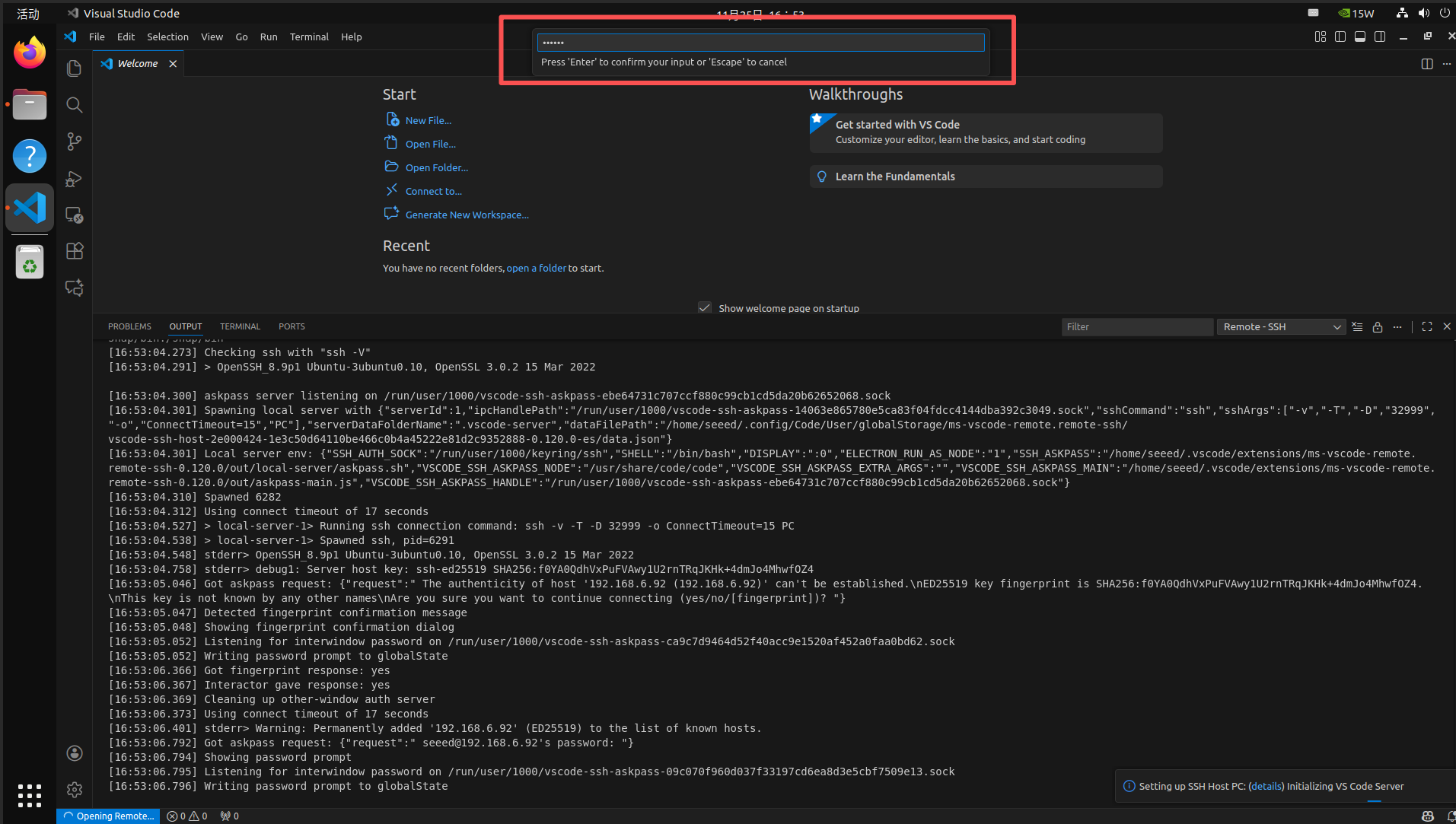
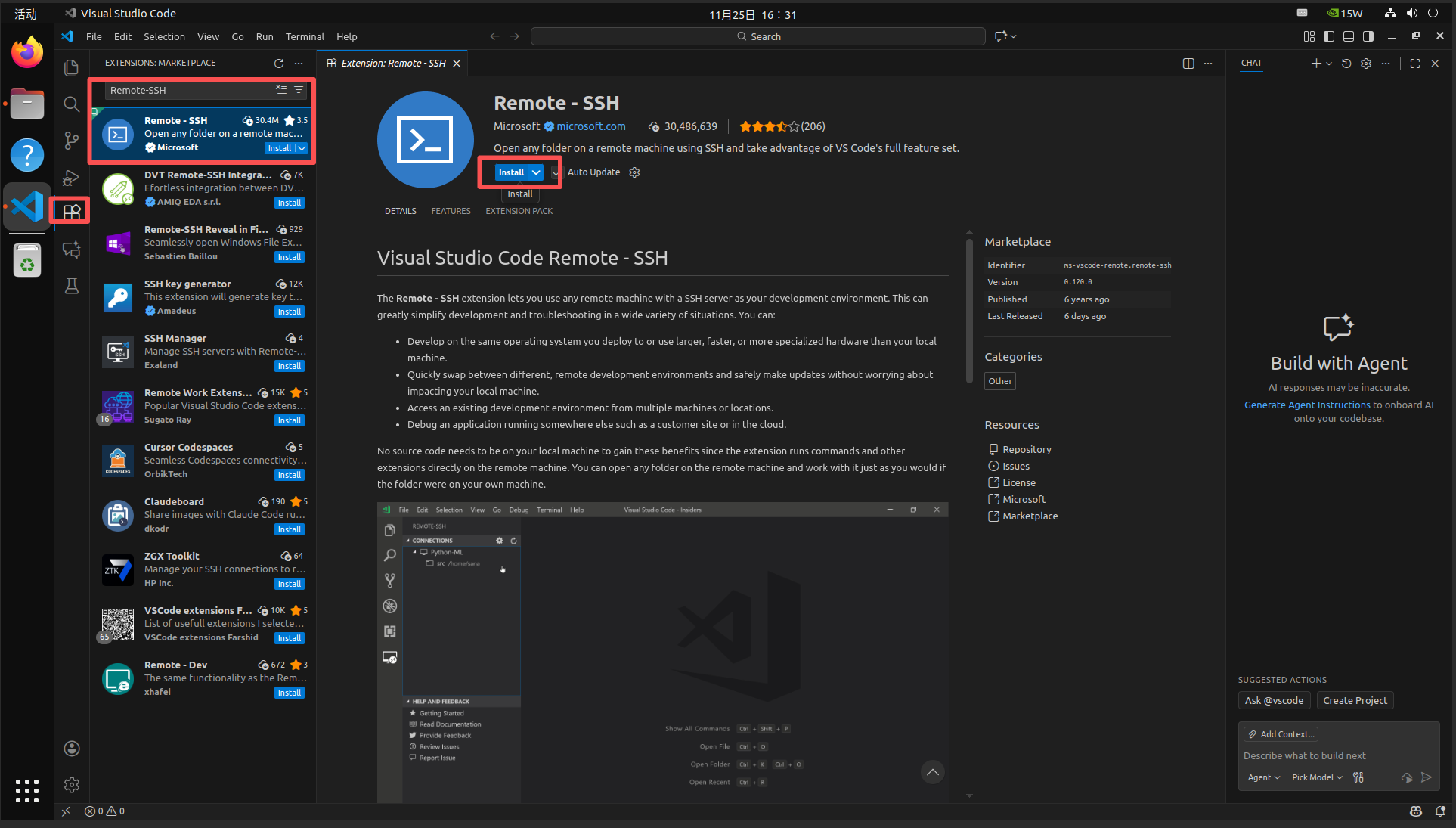
Remote-SSH
Select Remote-SSH for installation
Basic use of SSH outreach
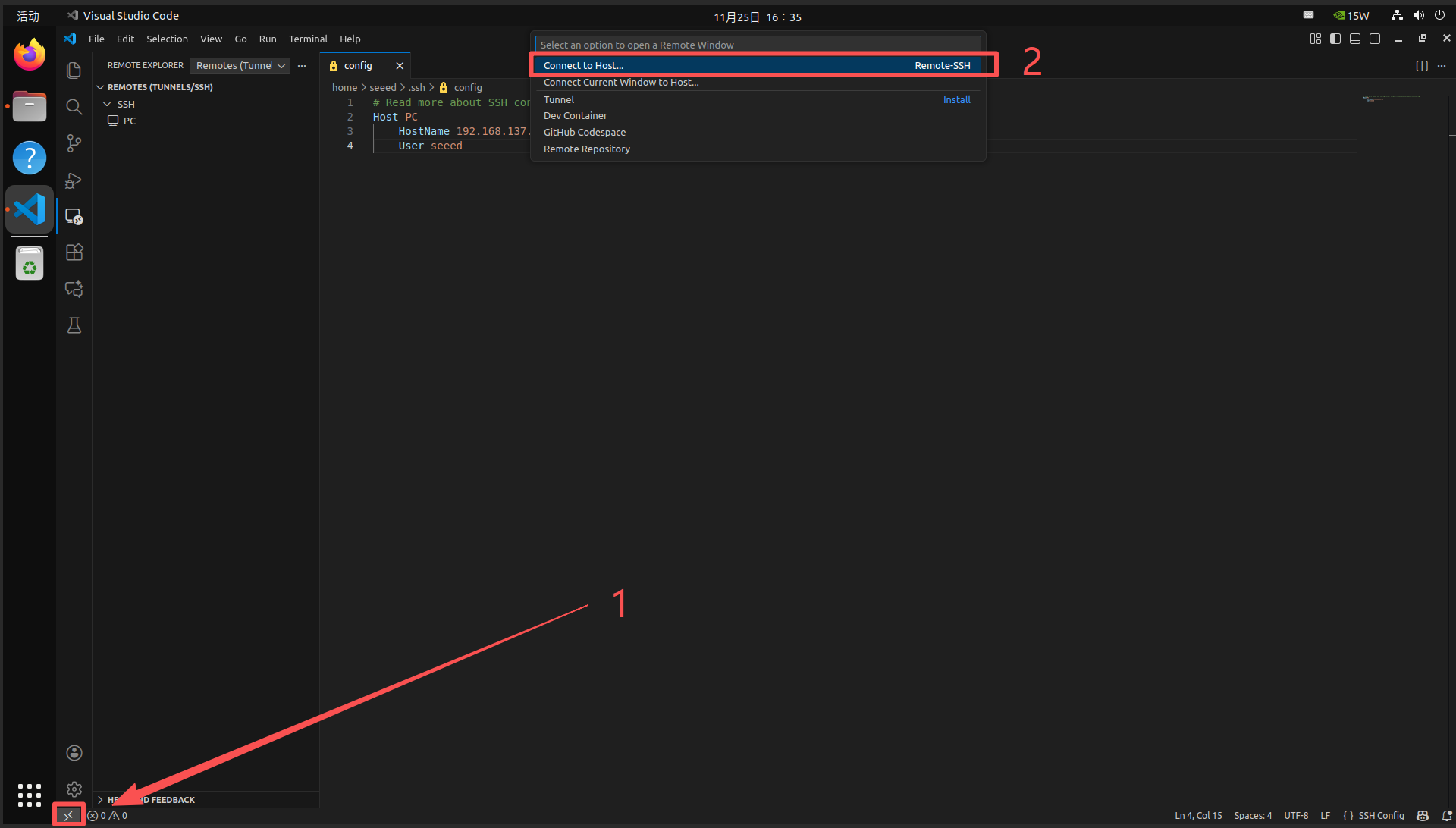
Configure remote device information
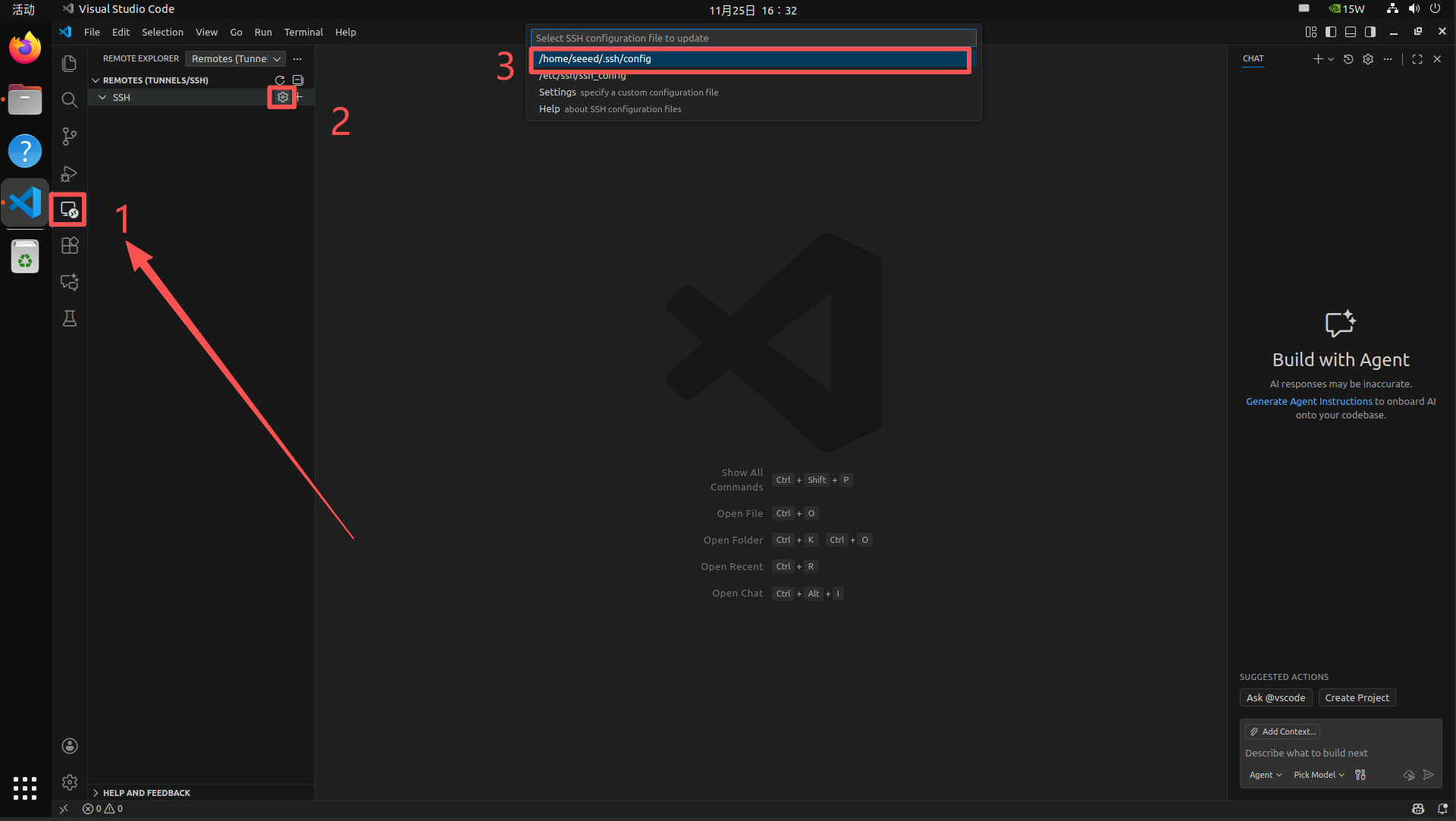
Configure remote device information
Host PC  # Remote device alias
  HostName 192.168.137.1 # Remote device IP
  User seeeed  # Remote device username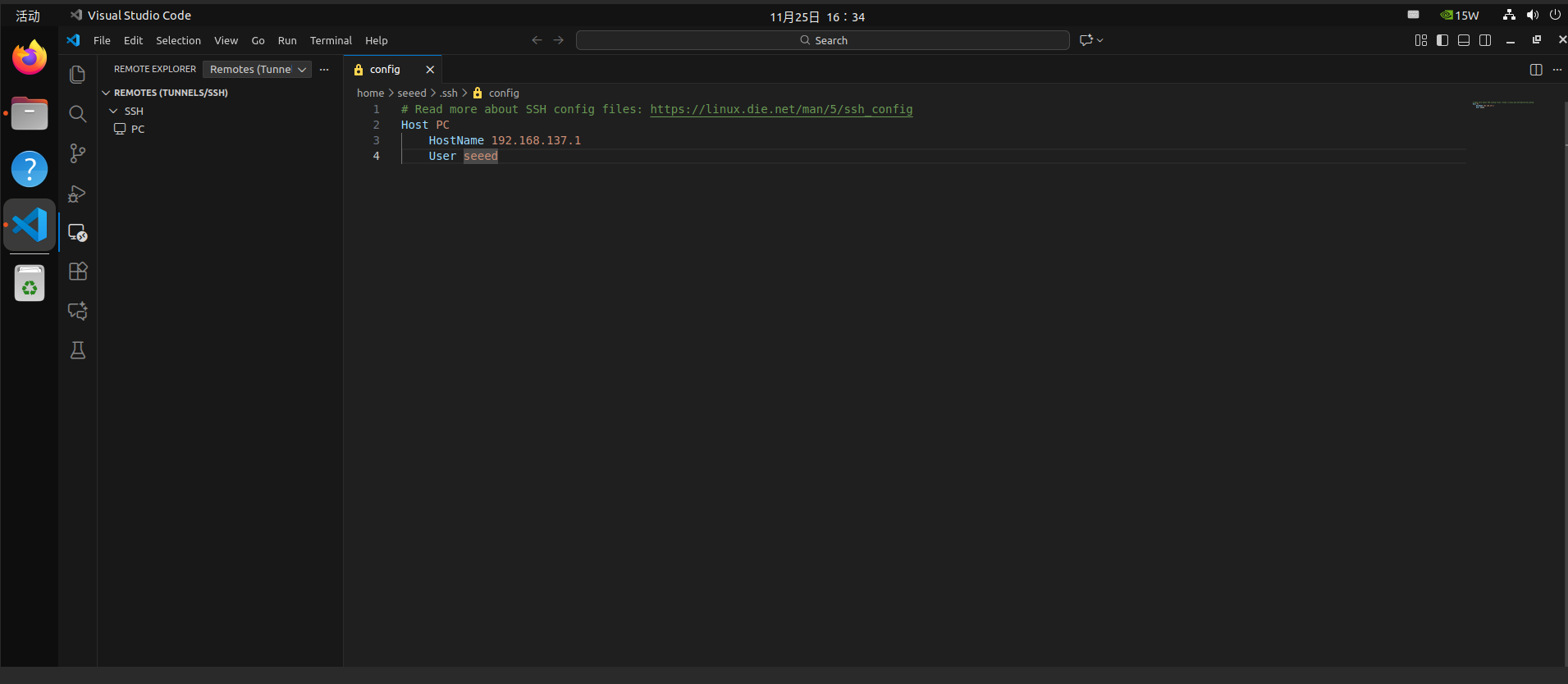
Select remote device to connect
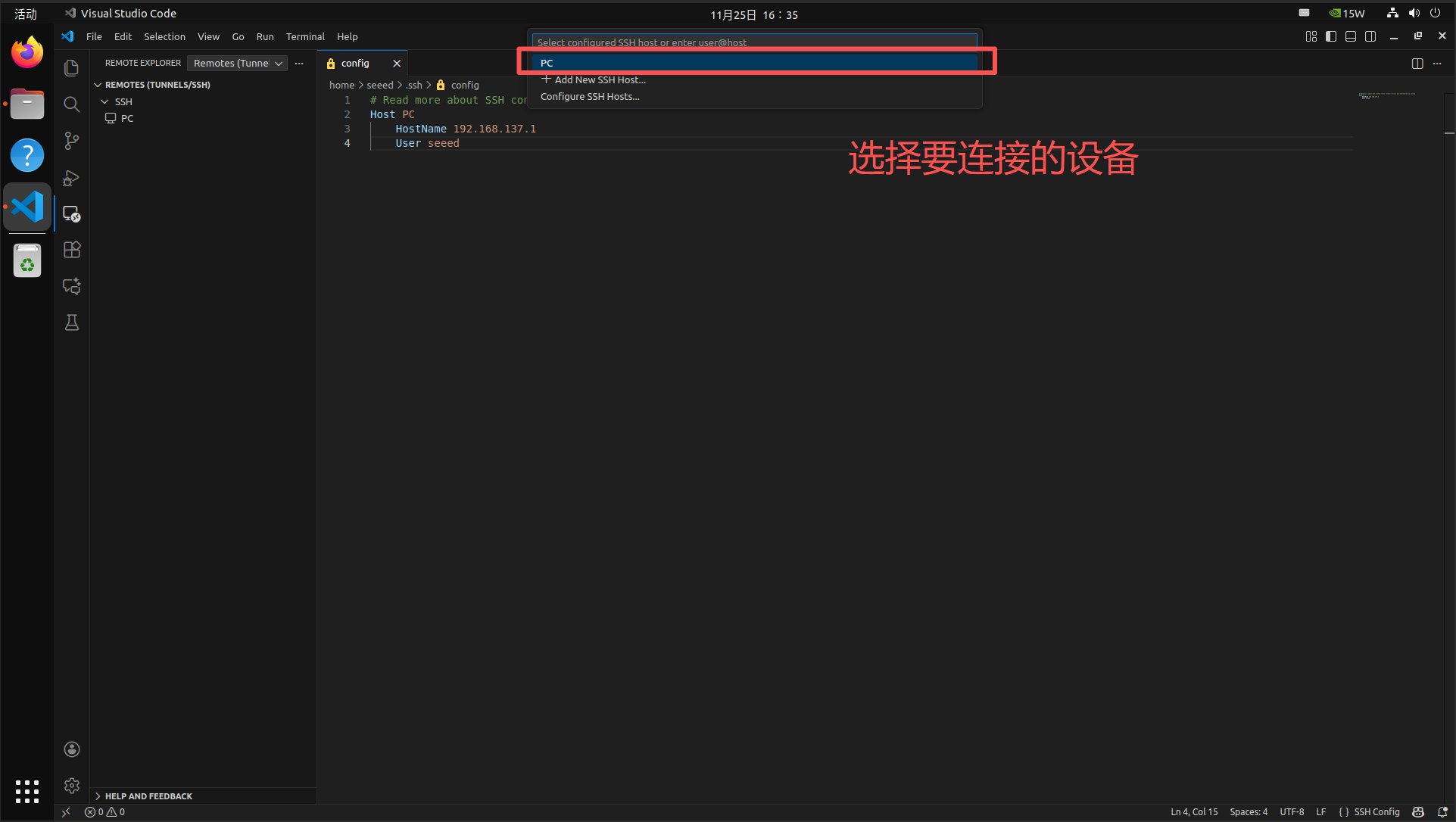
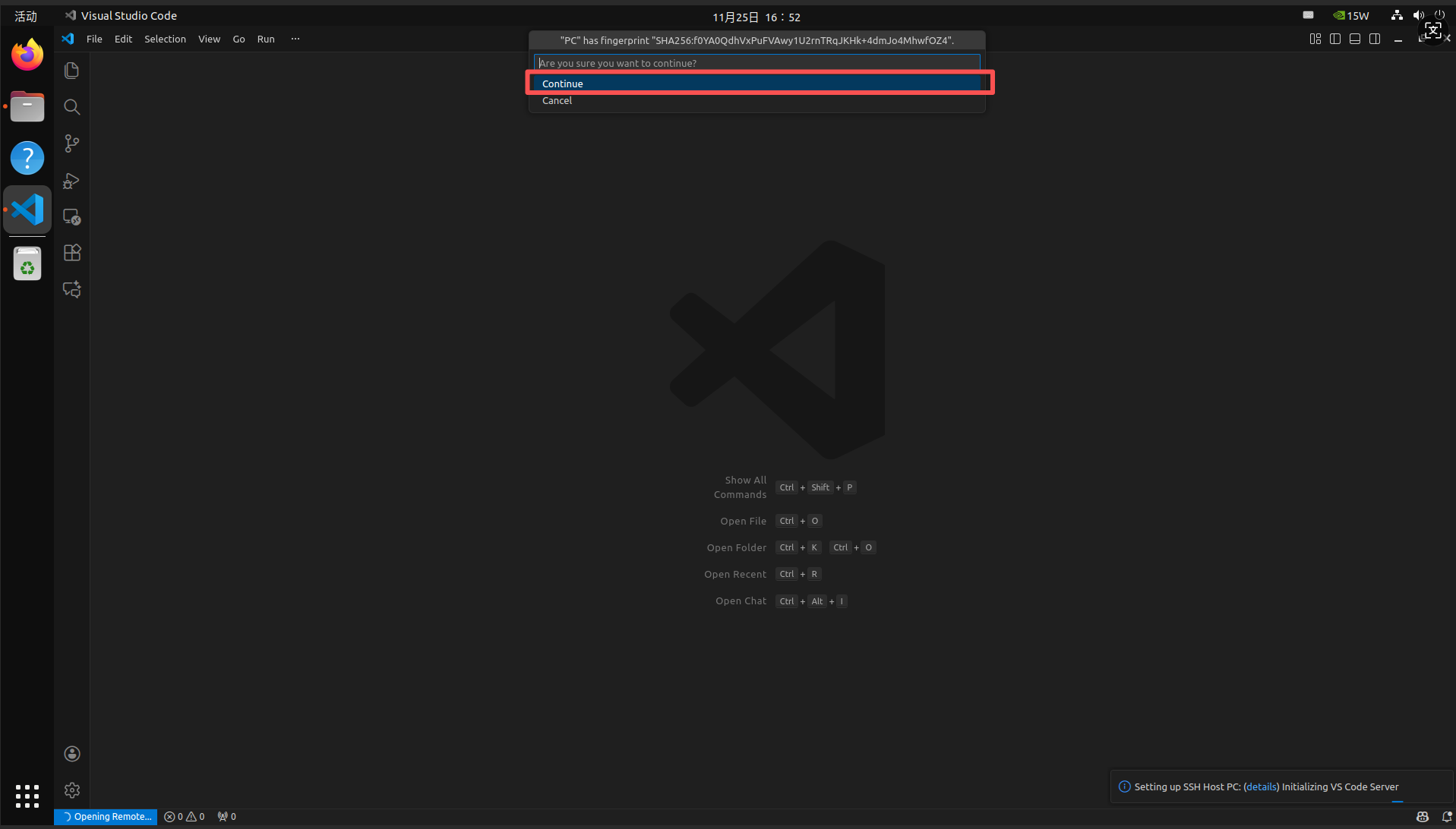
Just enter the password and get back to the car.