3.29 GPIO Output
[!IMPORTANT] This page is intended for the Seeed
reComputer J401carrier-board family, such asreComputer J4012. GPIO output capability on JetPack 6.2 depends on the board pinmux configuration, so do not assume the same behavior on other Jetson devices.
Introduction
On JetPack 6.2, many pins that previously supported both input and output may behave as input-only until the pinmux is adjusted. This page introduces two practical ways to restore output behavior on supported pins:
- A temporary
busybox devmemmethod - A more persistent device-tree overlay method
Method 1: Temporary Output with busybox
Step 1: Query the Pinmux Register
Use jetson-gpio-pinmux-lookup to find the register address for a header pin:
jetson-gpio-pinmux-lookup 31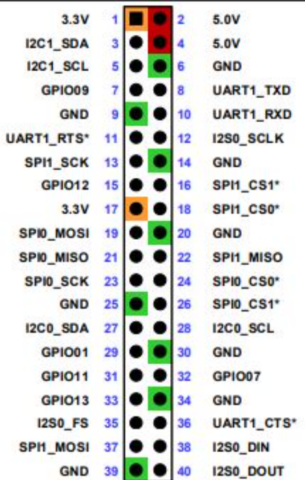
The example below shows the returned register value for pin 31.
Step 2: Configure Output Mode
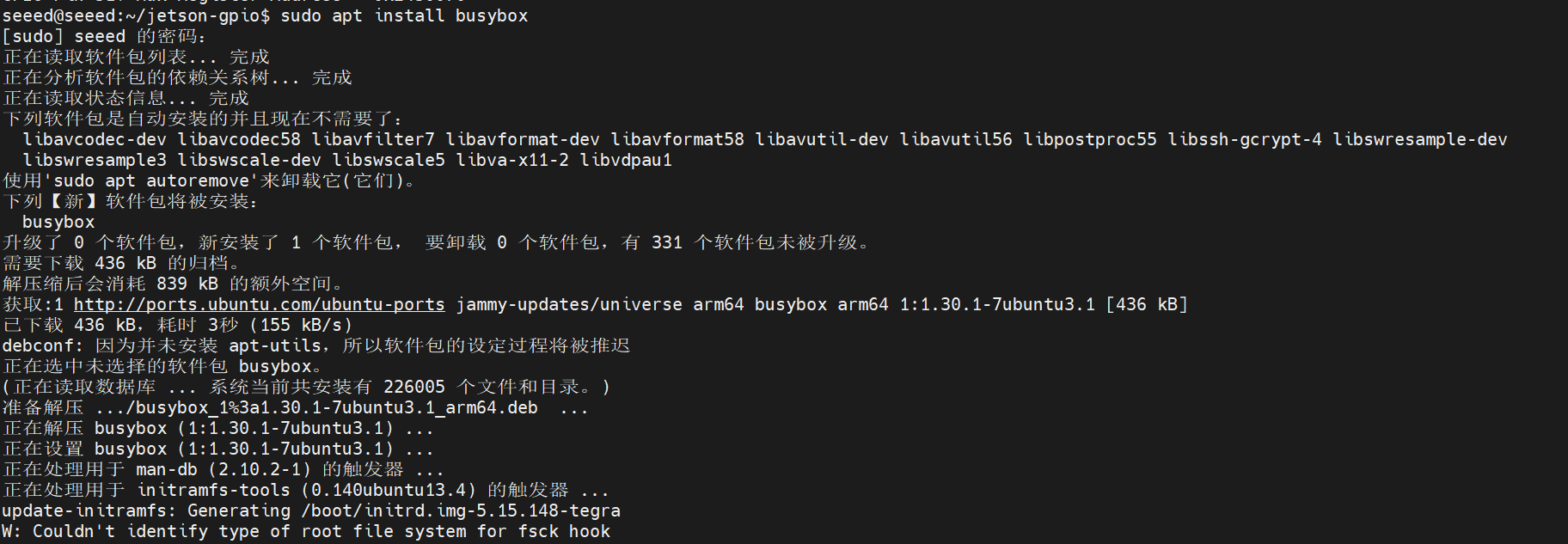
Install busybox if needed:
sudo apt install busyboxThen write the pinmux register value:
sudo busybox devmem 0x02430070 w 0x004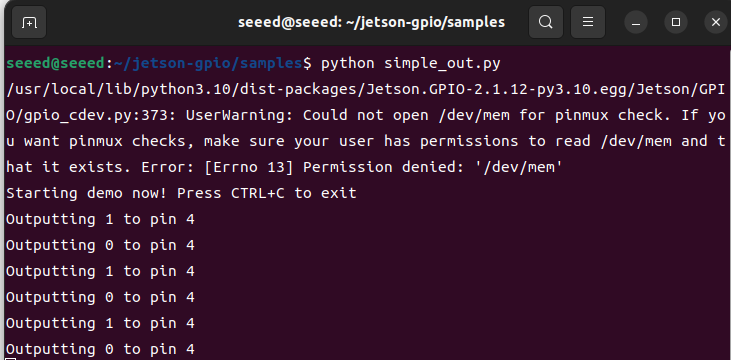
Step 3: Run the Output Test
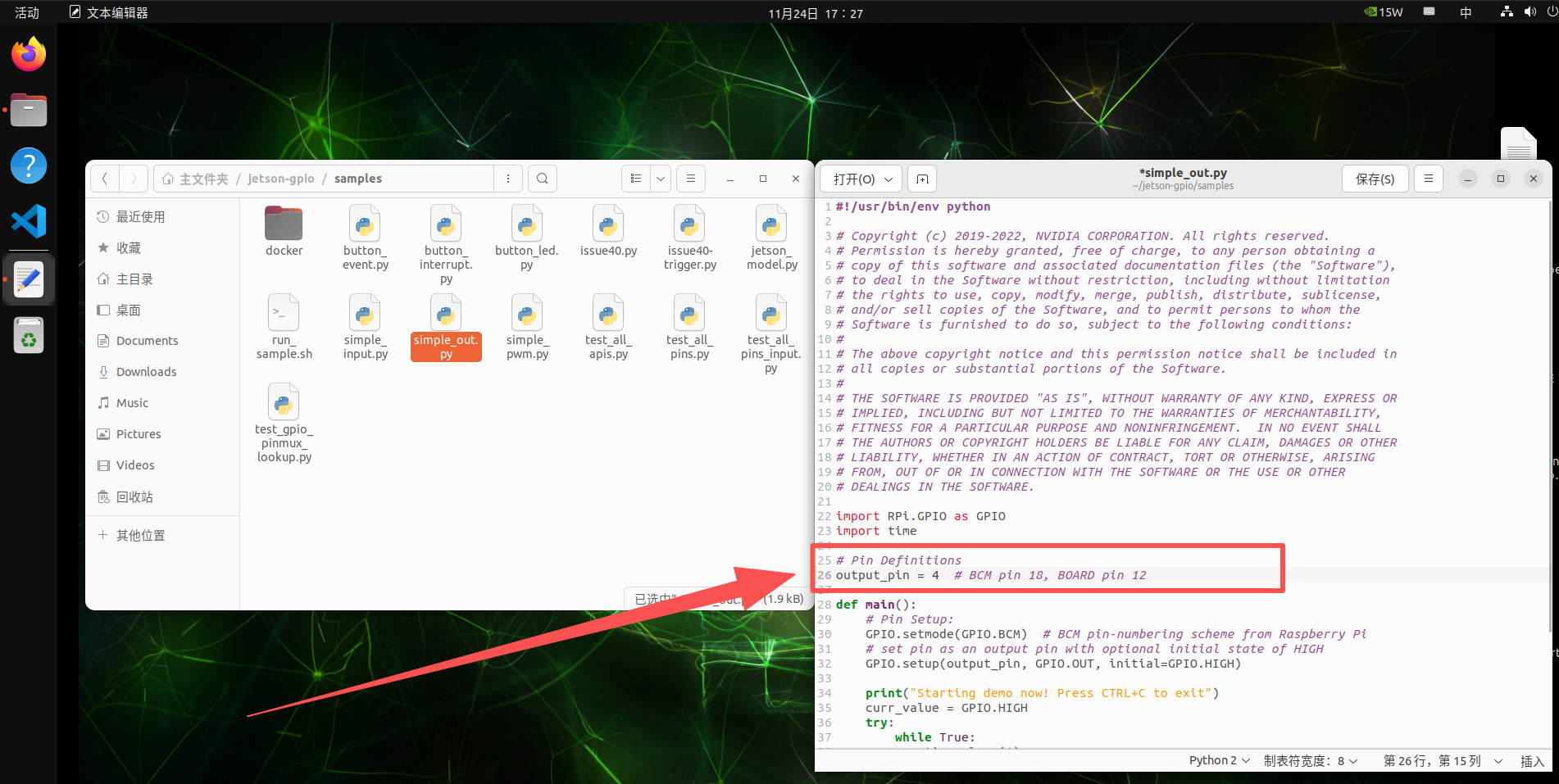
Update the sample script to use the correct BCM pin for your test case, then run it:

cd /opt/seeed/development_guide/05_gpio/jetson-gpio/samples
export JETSON_MODEL_NAME=JETSON_ORIN_NANO
python3 simple_out.py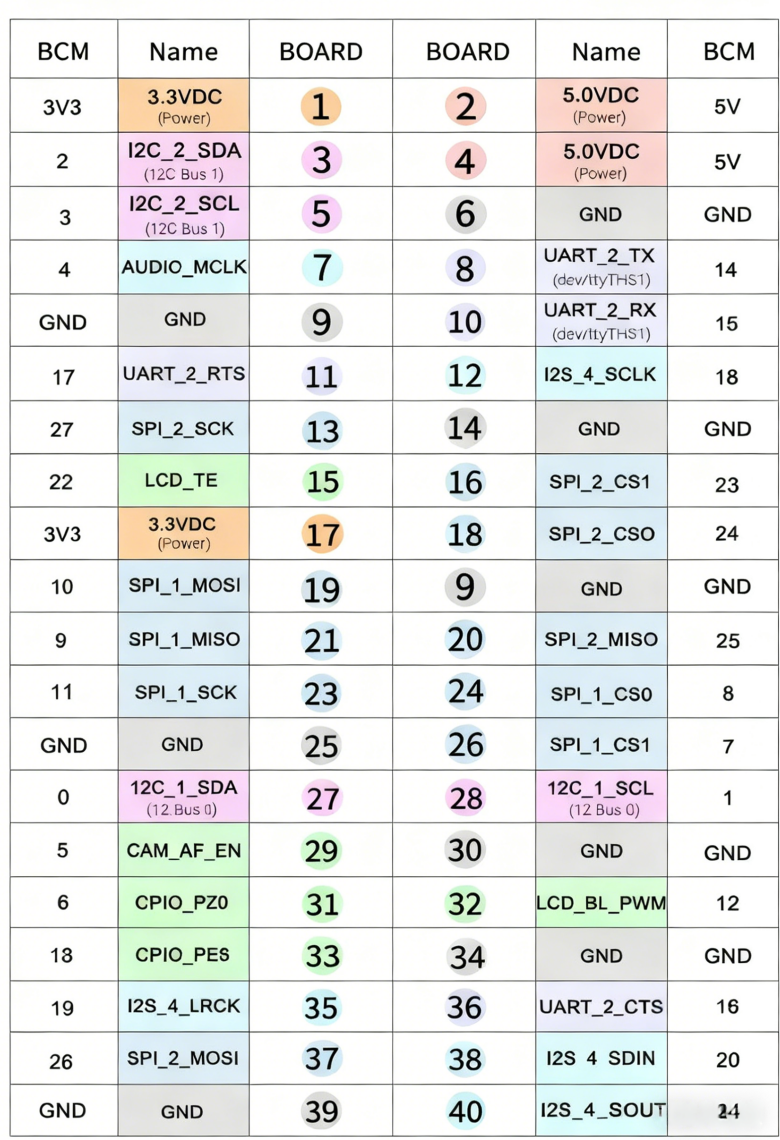
You can verify the output level change with a multimeter or oscilloscope.
Method 2: Device-Tree Overlay
This method is better if you want the pin configuration to persist.
Clone the helper project and edit the DTS file:
cd /opt/seeed/development_guide/05_gpio/jetson-gpio
git clone https://github.com/jetsonhacks/jetson-orin-gpio-patch.git
cd jetson-orin-gpio-patch
vim pin7_as_gpio.dts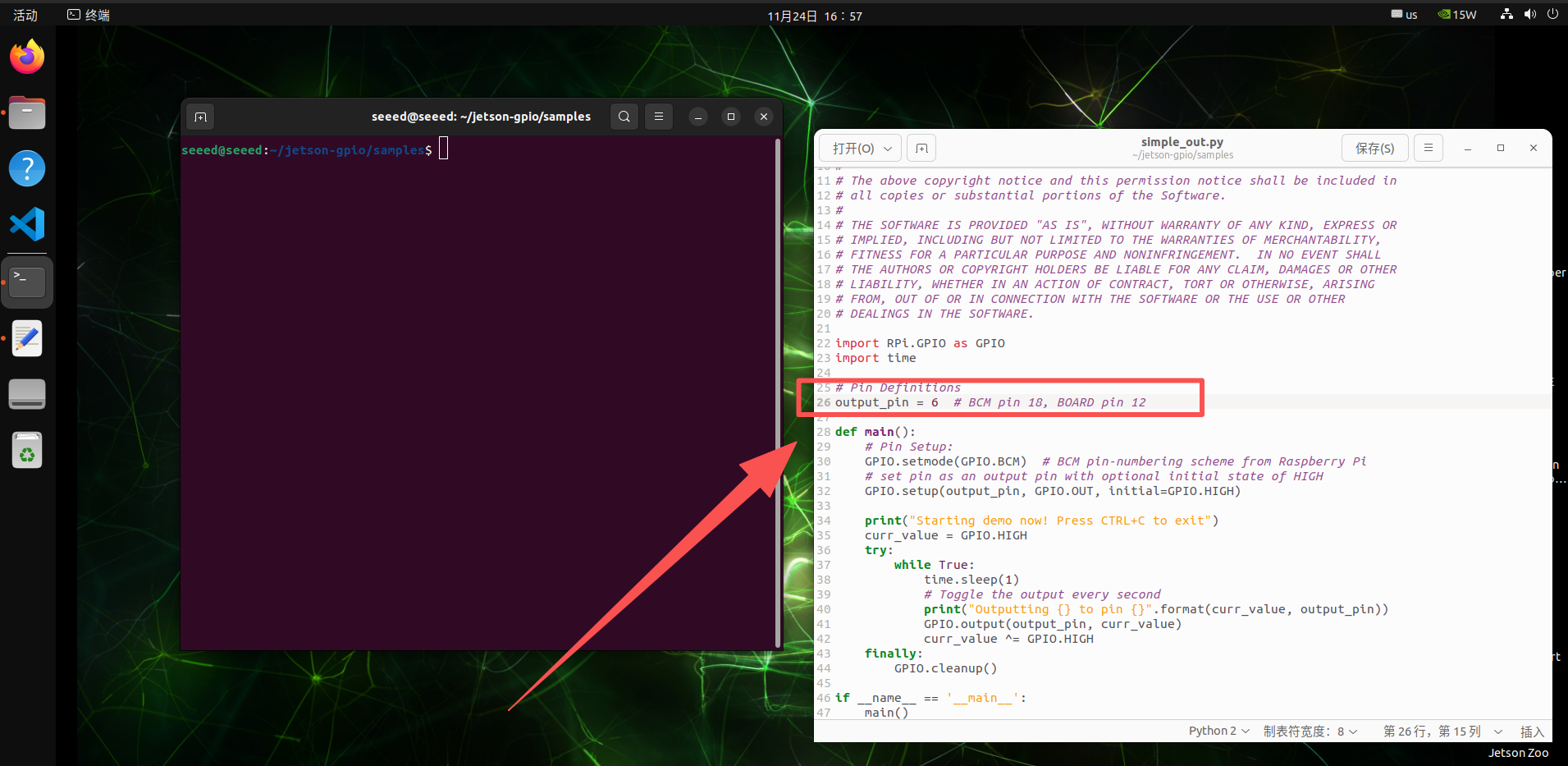
Adjust the pin definition for the GPIO you want to change, then build the overlay:
dtc -O dtb -o pin7_as_gpio.dtbo pin7_as_gpio.dts
sudo cp pin7_as_gpio.dtbo /boot
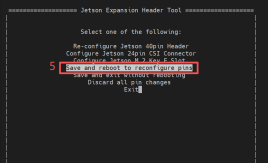
sudo /opt/nvidia/jetson-io/jetson-io.py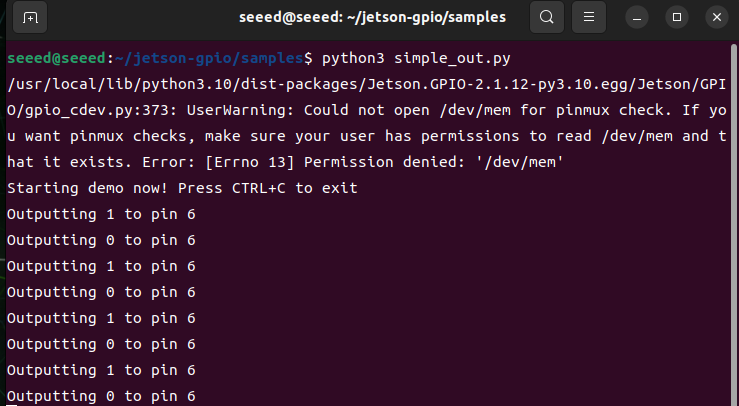
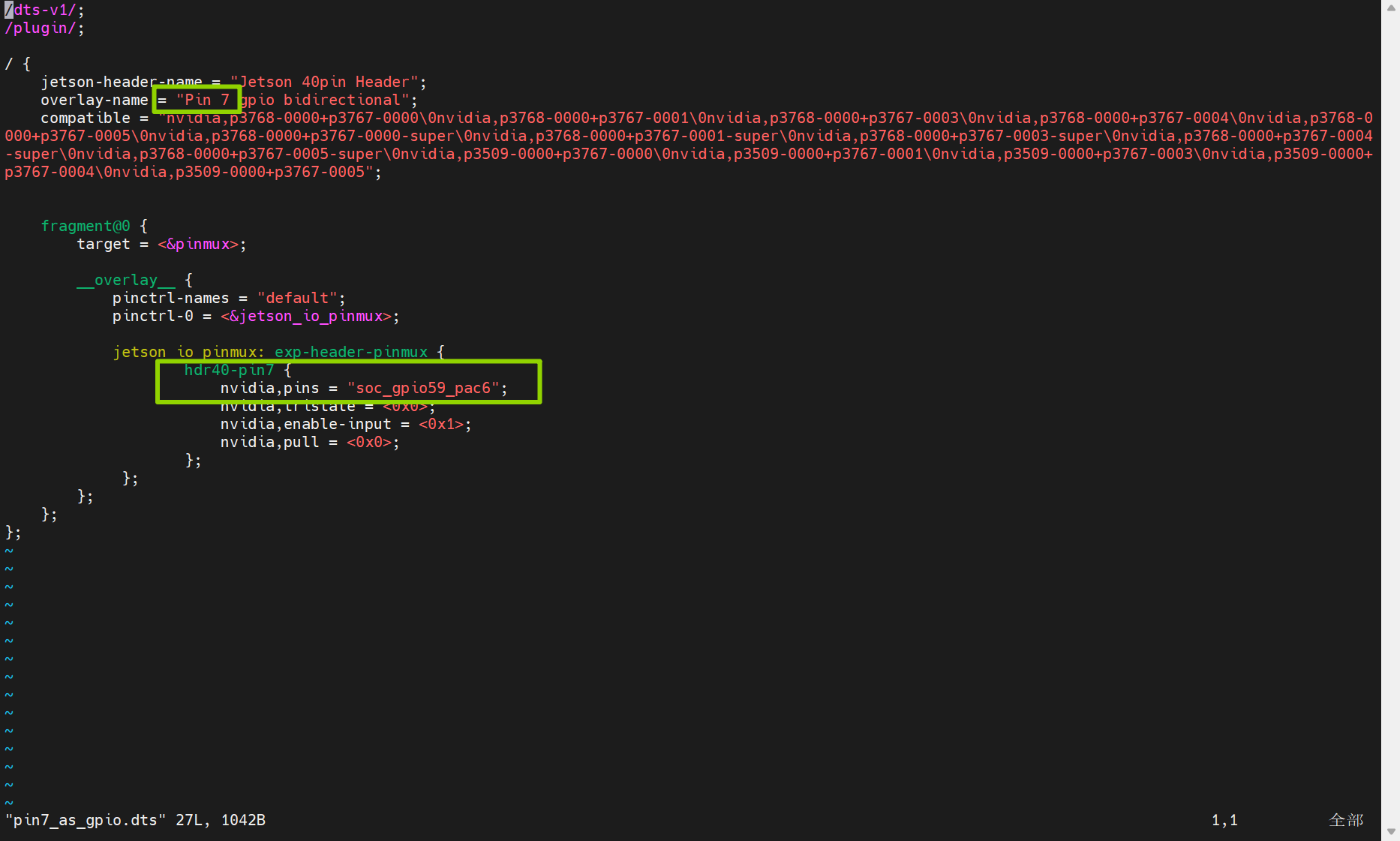
After the overlay is enabled, use the known BCM pin number in the test script.
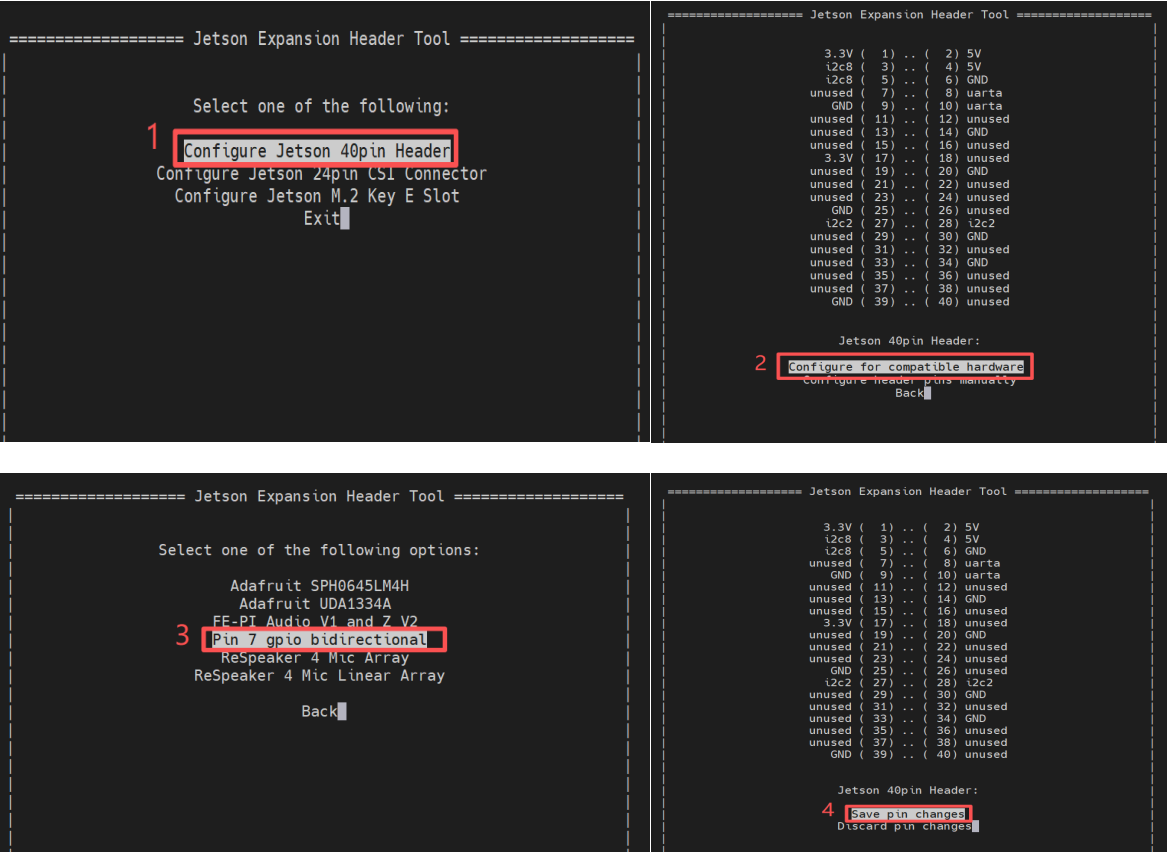
Run the output test again:
cd /opt/seeed/development_guide/05_gpio/jetson-gpio/samples
python3 simple_out.py