3.30 Super Dual Ethernet
[!IMPORTANT] This page is intended for the Seeed
reComputer Supercarrier-board family, such asreComputer Super J4011. The dual Ethernet configuration is specific to the Super family.
#Introduction
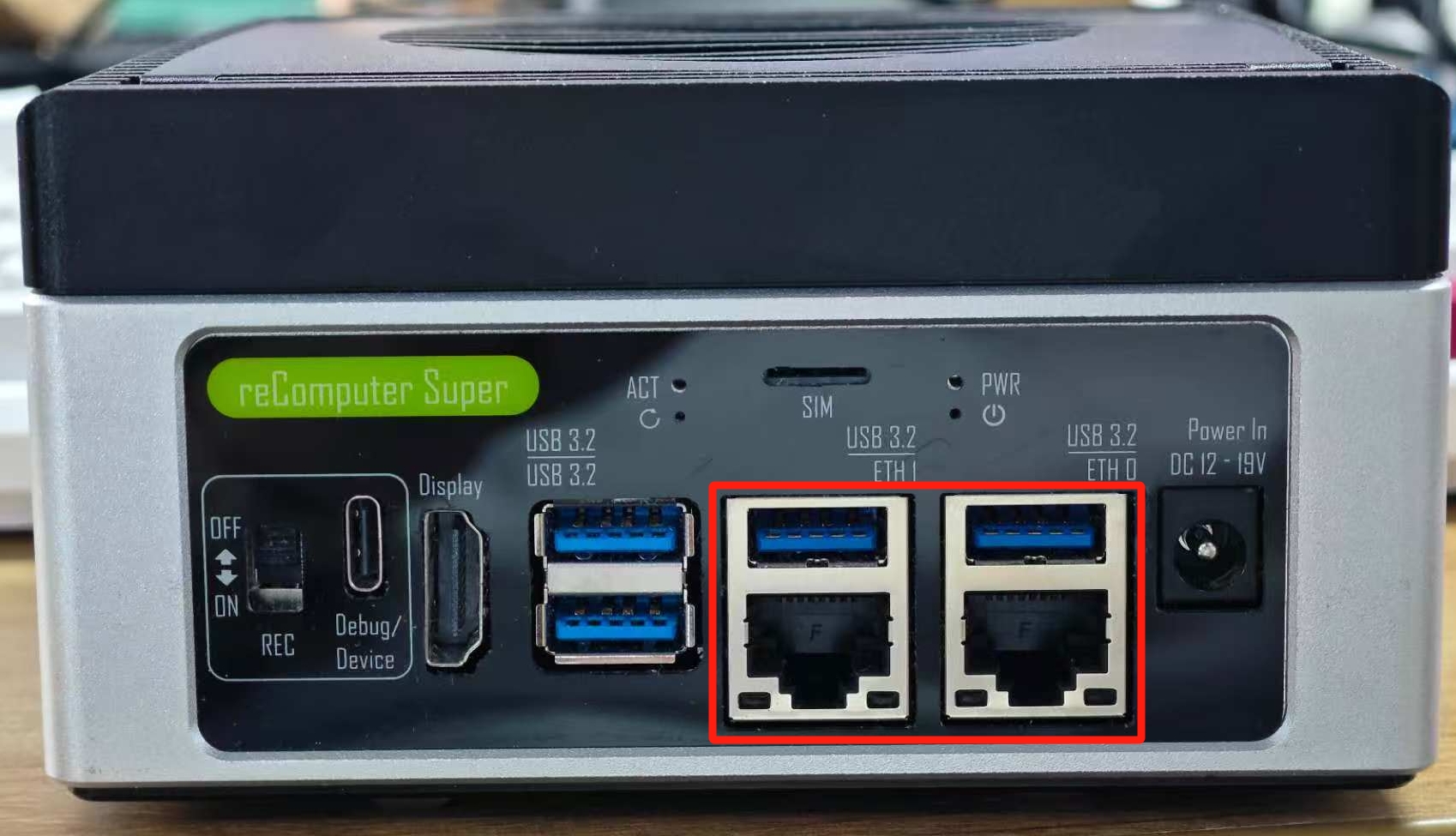
The reComputer Super features dual RJ45 Gigabit Ethernet ports, providing high-speed networking capabilities. This dual Ethernet configuration enables a variety of advanced networking scenarios, such as network redundancy, load balancing, and segmentation.
#Hardware Overview
The reComputer Super is equipped with two Gigabit Ethernet ports, allowing for flexible network configurations:
- Port 1: Primary Ethernet port
- Port 2: Secondary Ethernet port
There are 2 LEDs (green and yellow) on each Ethernet port:
- Green LED: ON only when connected to 1000M/10G network.
- Yellow LED: Shows the network activity status.
#Basic Network Configuration
#Check Network Interfaces
To view the available network interfaces, open a terminal and run:
ifconfigYou should see two Ethernet interfaces, typically named eth0 and eth1.
#Configure Network Settings
You can configure network settings through the Ubuntu desktop interface or via the command line.
Via Desktop Interface
- Click on the network icon in the top-right corner
- Select "Wired Settings"
- Click on the gear icon next to each Ethernet connection to configure settings
Via Command Line
To configure network settings via the command line, you can edit the netplan configuration file:
sudo nano /etc/netplan/01-network-manager-all.yaml#Advanced Network Scenarios
#Network Redundancy
Configure both Ethernet ports to connect to the same network for redundancy. If one port fails, the other will continue to provide network connectivity.
#Network Segmentation
Use the dual Ethernet ports to connect to different networks:
- Port 1: Connect to the internal network for management
- Port 2: Connect to an external network for data transfer
#Load Balancing
Configure both Ethernet ports to work together for increased bandwidth and load balancing.
#Network Address Translation (NAT)
Use one Ethernet port as the WAN interface and the other as the LAN interface to create a NAT gateway.
#Network Performance Testing
#Test Network Speed
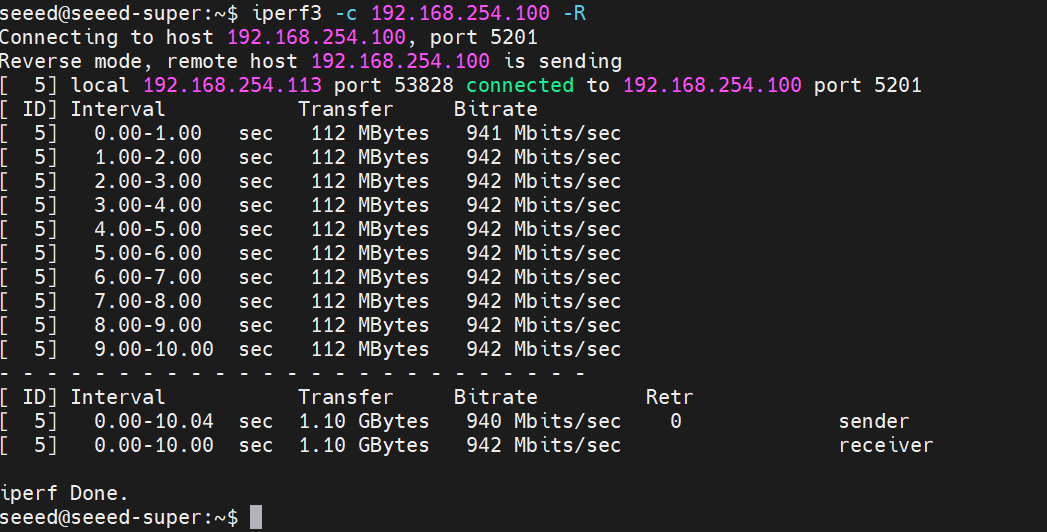
Use iperf3 to test network performance:
- Install iperf3:
sudo apt install iperf3- On the server side:
iperf3 -s- On the client side:
iperf3 -c <server-ip>#Troubleshooting
#Ethernet Port Not Detected
- Ensure the Ethernet cable is properly connected
- Check that the network cable is functional
- Verify that the network driver is installed
#Slow Network Speed
- Check for network congestion
- Verify that you're using Cat5e or Cat6 cables for Gigabit speeds
- Ensure the network switch supports Gigabit Ethernet