Publishing with an AI Agent
CodeCraft Hub supports both manual publishing (filling in info yourself) and AI-powered publishing (using sensecraft-cli with an AI Agent to generate and organize content automatically). This guide covers the AI publishing workflow.
01 · Finalize Your Project
Section titled “01 · Finalize Your Project”Before publishing, confirm the project is fully developed and in its final version. Publishing must be done in the same AI Agent conversation used for development — a new conversation won’t have the project context. If development isn’t complete, see Creating Projects with an AI Agent first.
02 · Authorize and Upload via AI Agent
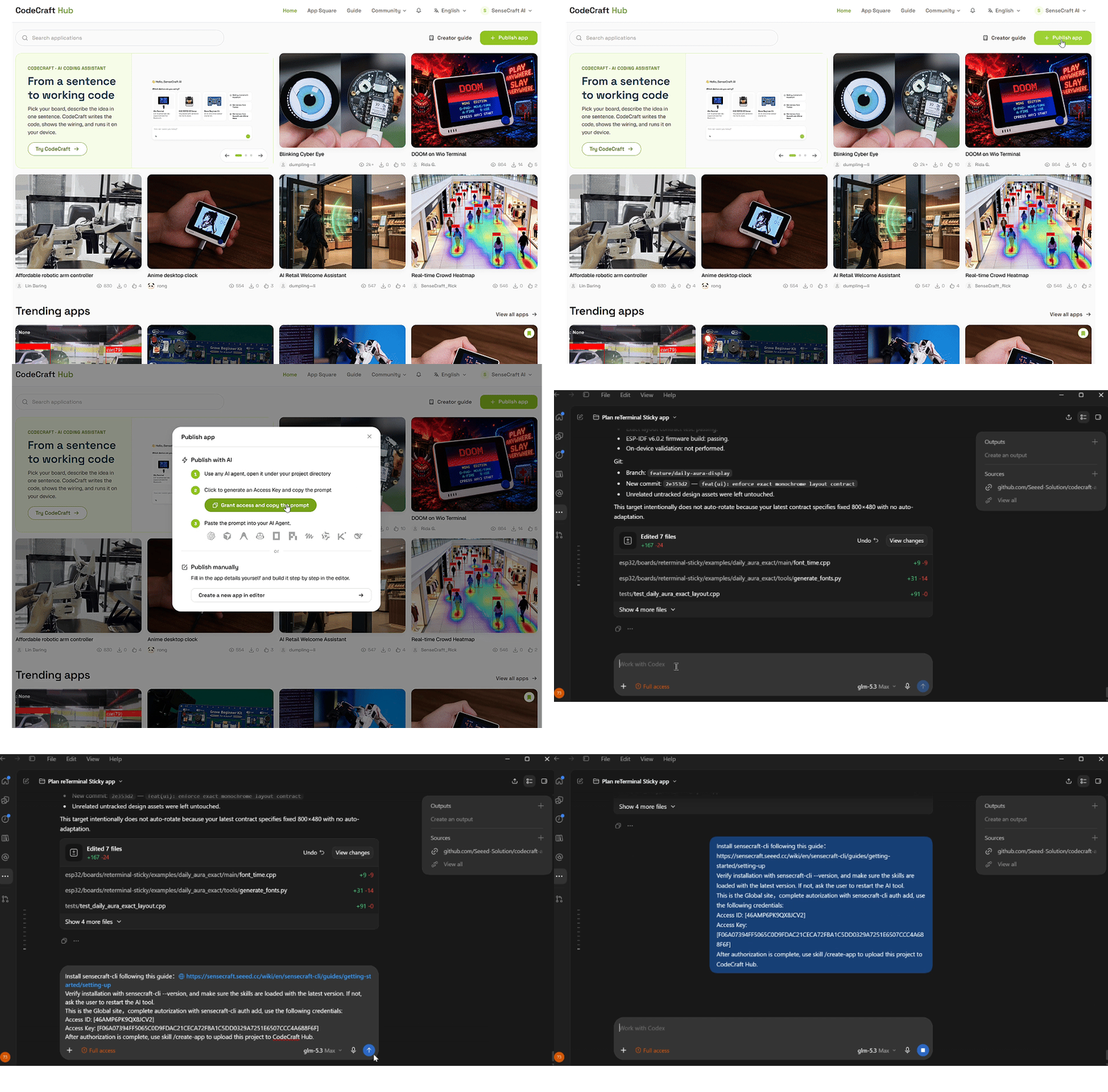
Section titled “02 · Authorize and Upload via AI Agent”Go to CodeCraft Hub, find “Publish app”, and select “Authorize and copy prompt.” Then send the prompt below to your AI Agent in the project directory. The prompt contains <Access ID> and <Access Key> — never write the Access Key into docs, code, or Git commits.
03 · Review and Adjust in the Creator Center
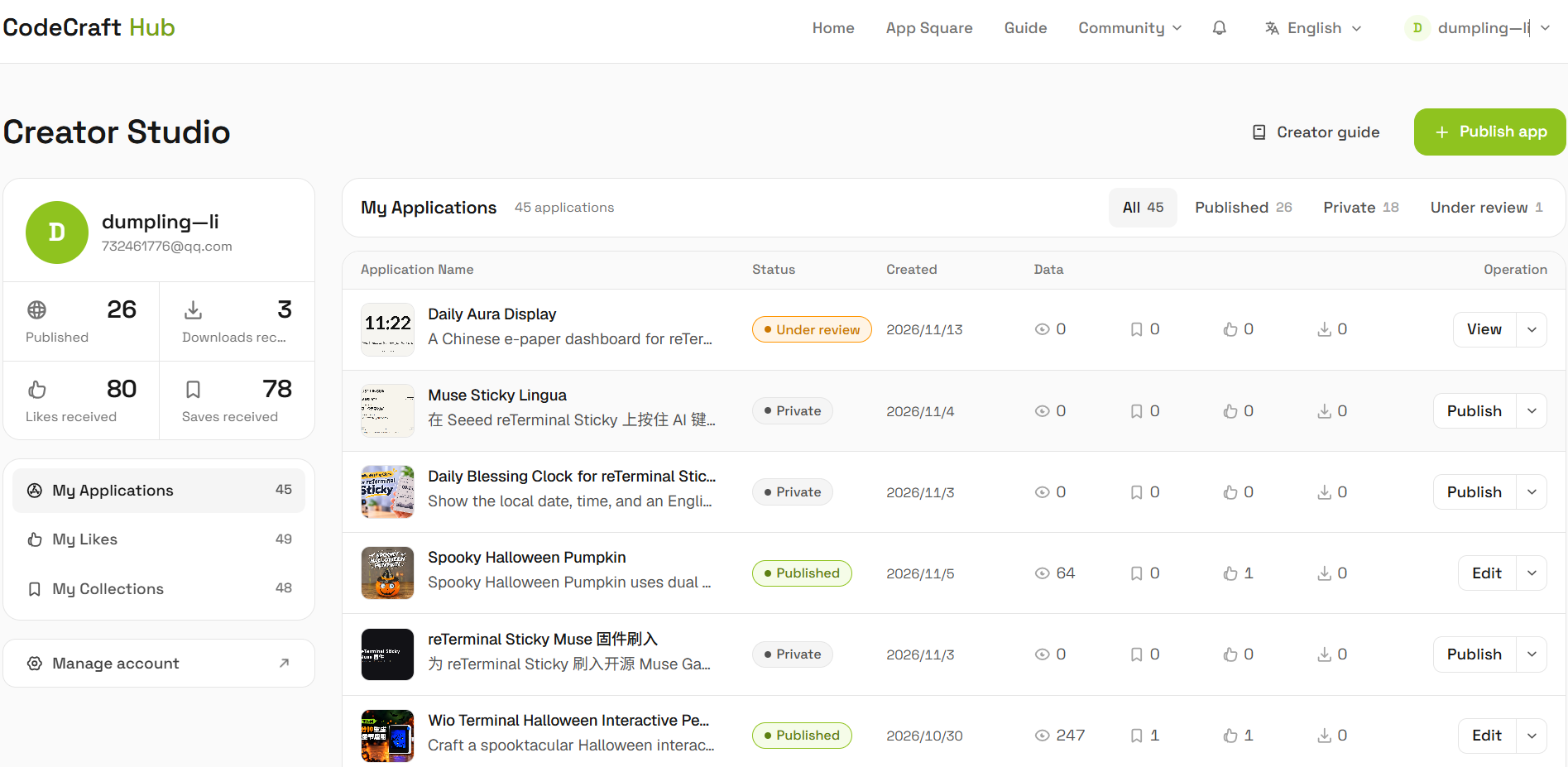
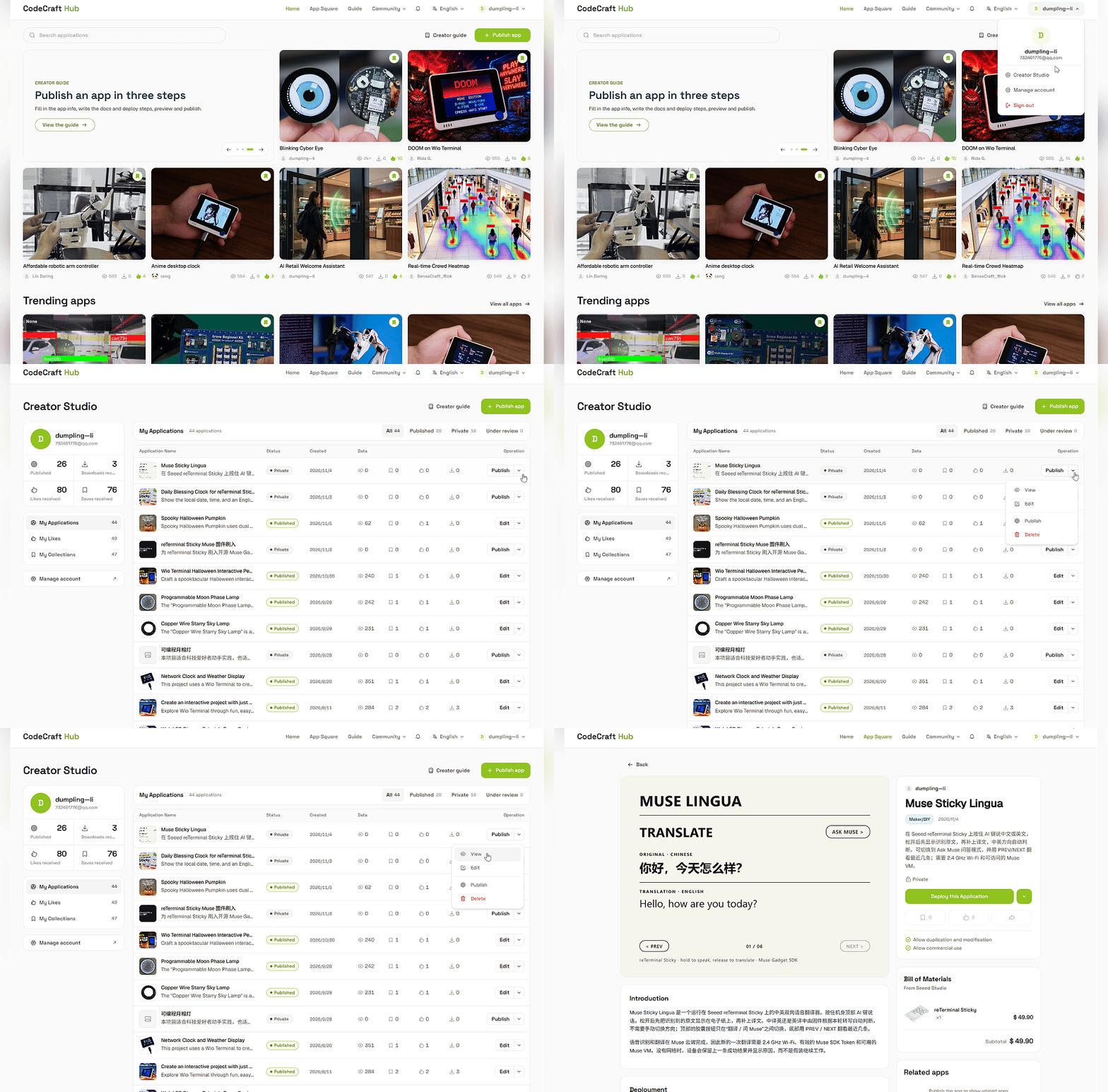
Section titled “03 · Review and Adjust in the Creator Center”Open CodeCraft Hub, click the account icon in the top right, and select Creator Center. Uploaded projects default to private drafts and won’t appear in the public square immediately.
Enter the editor and review the app info, description, and bill of materials. To adjust, describe the changes to your AI Agent, or edit manually (see Manually Publishing an App).
04 · Flash and Publish
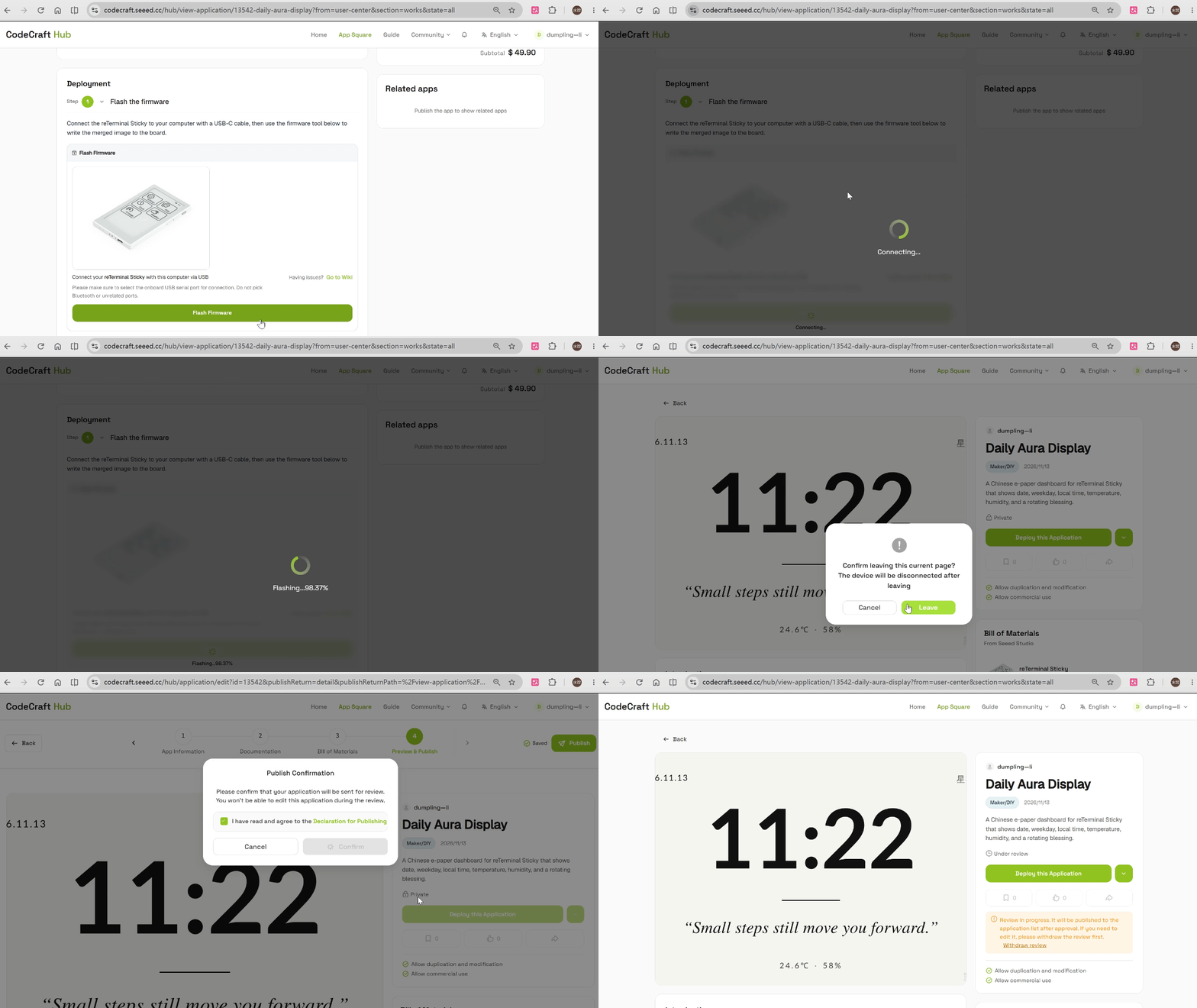
Section titled “04 · Flash and Publish”After confirming the app info, documentation, and bill of materials are complete and contain no sensitive information, exit edit mode. On the preview page, flash the firmware to a local device first for real testing (this prevents others from getting a non-working app). Then click “Publish” in the top right and agree to the terms.
05 · Manage and Share
Section titled “05 · Manage and Share”After publishing, track the review status in the Creator Center (revise and resubmit if rejected). Once approved, the app automatically appears on CodeCraft Hub. You can view engagement metrics, edit, and update at any time. Share your project link to showcase your work!