Massive Apps, One-Click Tryout
This tutorial shows how to flash firmware to open-source hardware boards like the Wio Terminal and ESP32 using the CodeCraft Hub app square. Simply select a project in your browser, connect your device, and the platform handles the download and flashing automatically. Most projects work with default settings; a few may prompt you for API keys, SDK codes, or Wi-Fi credentials.
01 · Preparation
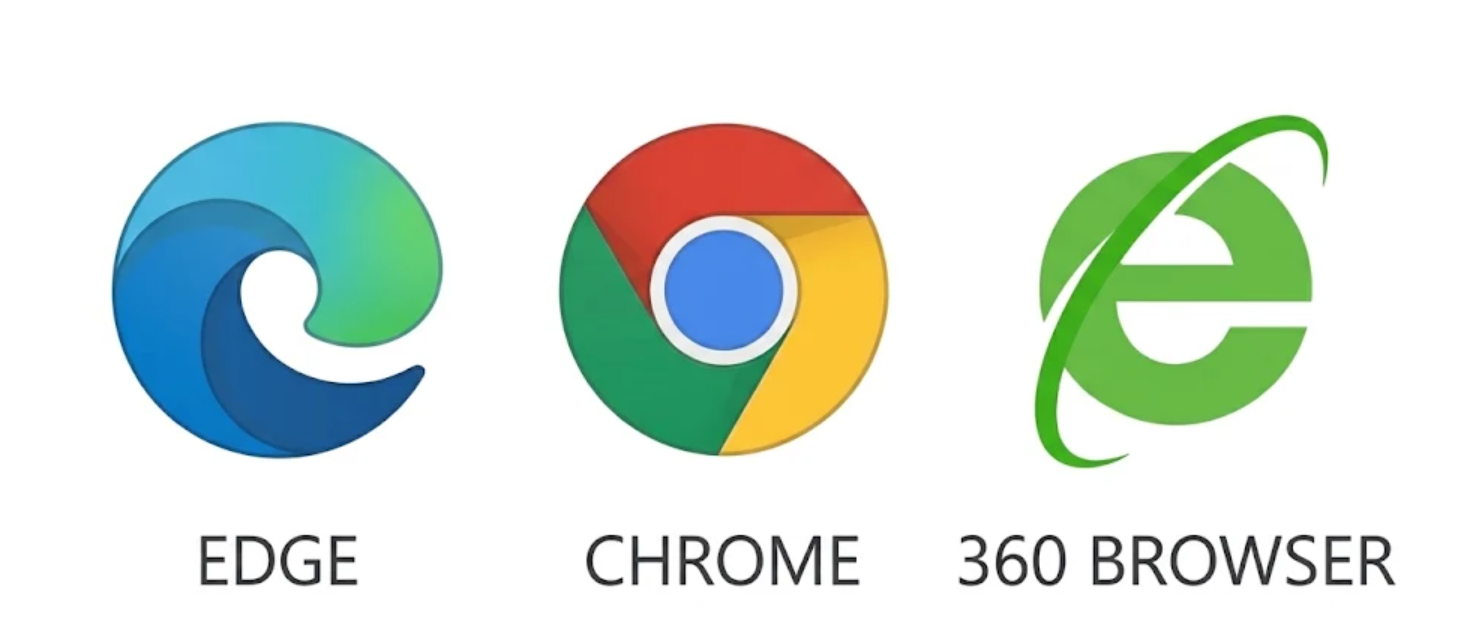
Section titled “01 · Preparation”Use Edge, Chrome, or 360 Browser to open CodeCraft Hub, and check the Supported Devices page to confirm your device is supported.
02 · Open the App Square and Find a Project
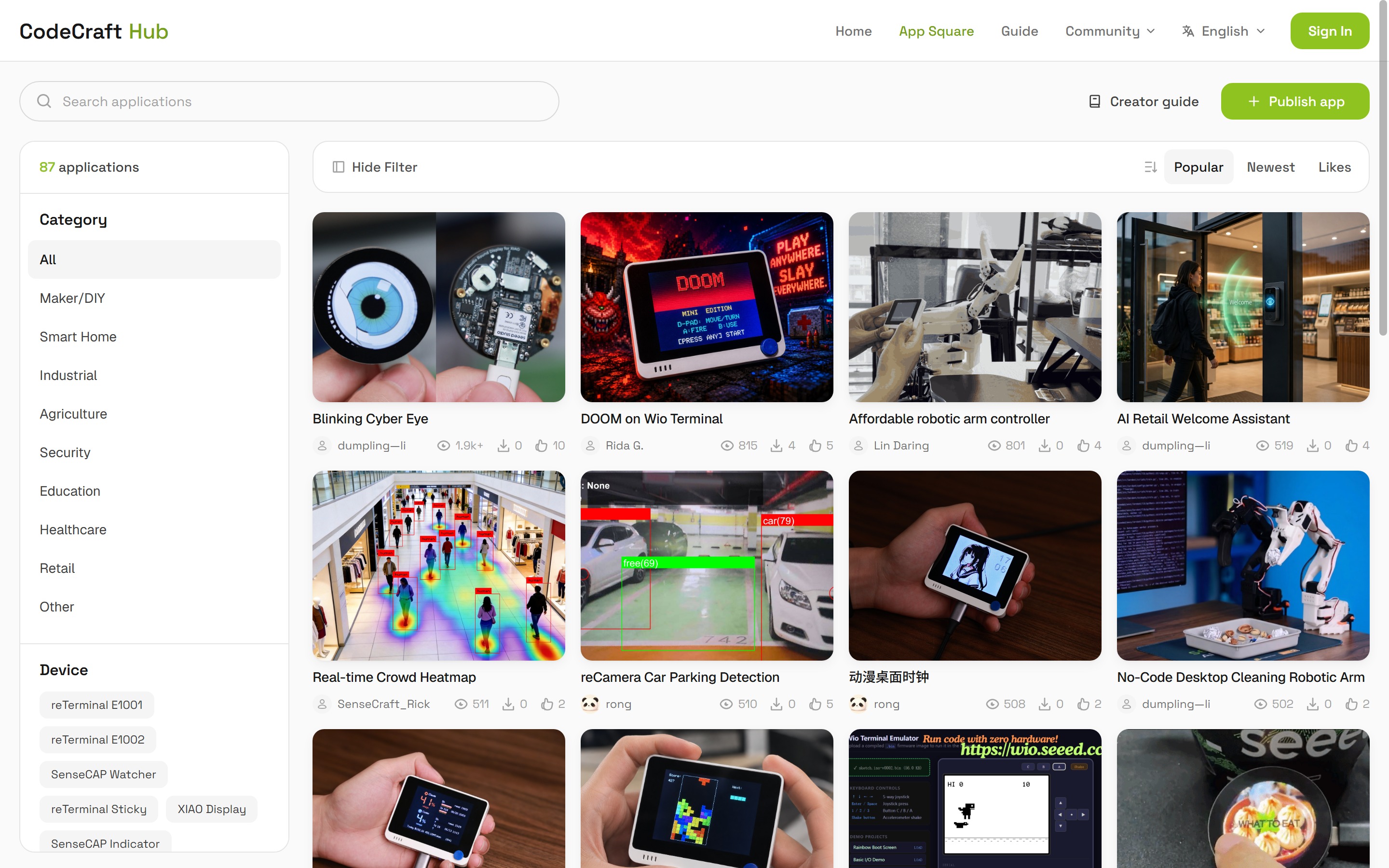
Section titled “02 · Open the App Square and Find a Project”From the homepage, click App Square, then browse by category or device to find a project. Open its detail page.
03 · Connect Your Device
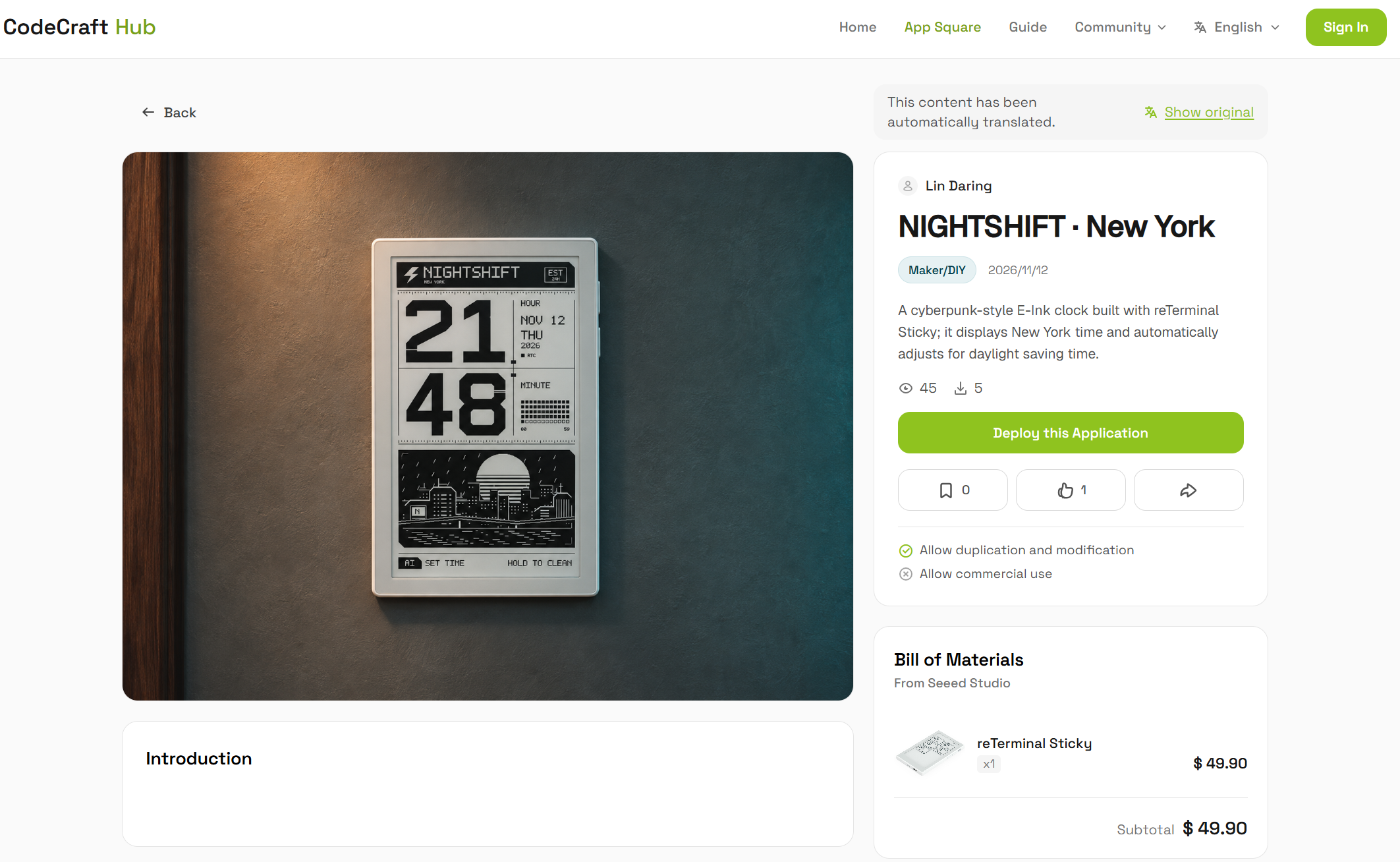
Section titled “03 · Connect Your Device”Use a USB data cable (not charge-only) to connect your device. Select it in the popup and click “Connect.”
- Wio Terminal: double-press the Reset button to enter flash mode.
- Windows usually shows the device as
COM3,COM4, etc.; macOS shows/dev/cu.usbserial...or/dev/cu.usbmodem.... If unsure, unplug and replug to identify the new entry.
04 · Flash Firmware
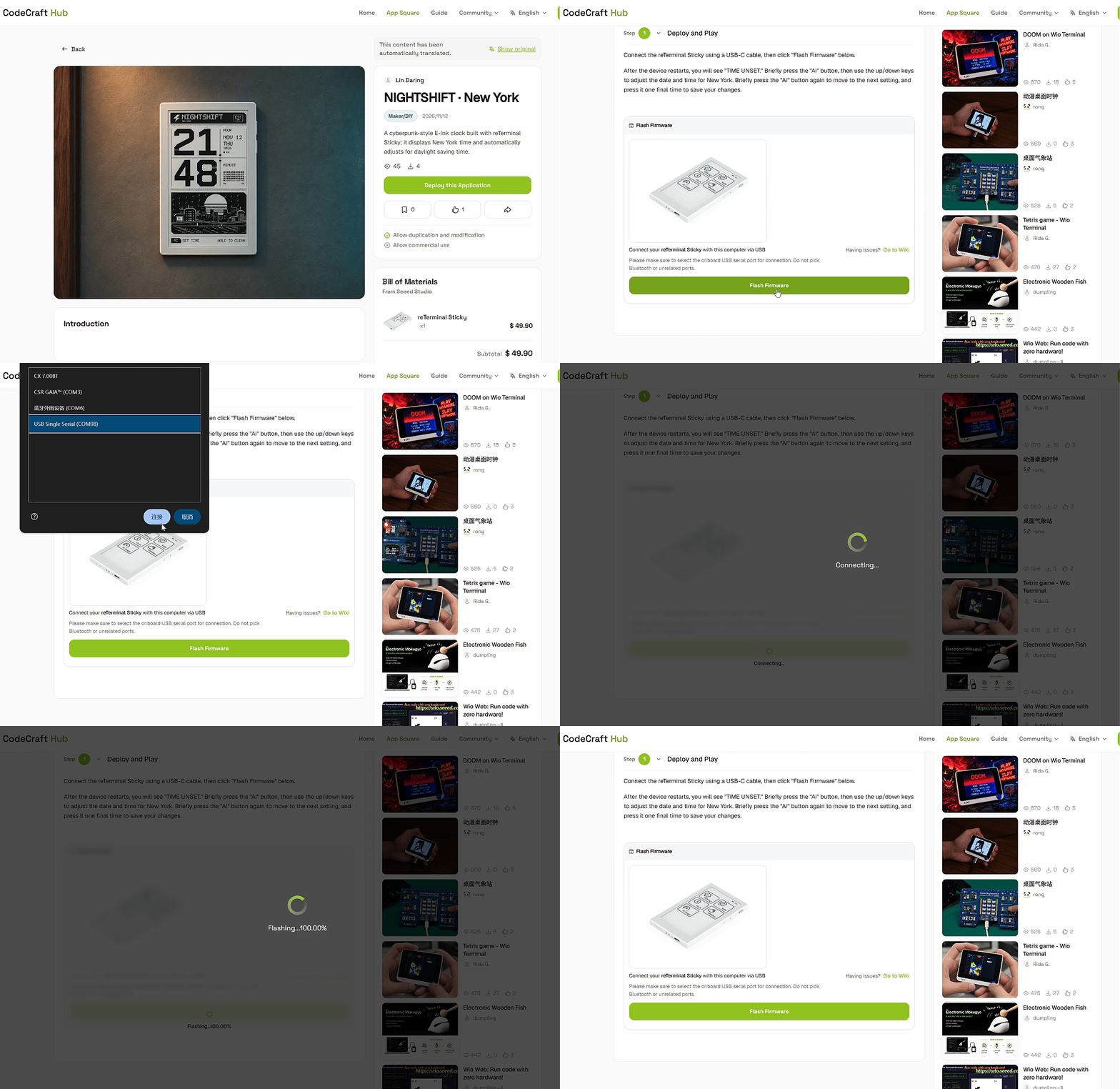
Section titled “04 · Flash Firmware”Open the project, click “Deploy this app” on the right side of the preview area. Connect the device’s serial port, then click “Flash Firmware.” A success message confirms the flash is complete.
Troubleshooting:
- Confirm you are using Edge, Chrome, or 360 Browser, and that your USB cable supports data transfer. Try replugging, changing ports, or using a different cable.
- Wio Terminal: double-press Reset to enter flash mode.
- Some projects may require SDK codes, Wi-Fi, or other configuration. Follow the on-page prompts.