Creating Projects with an AI Agent
Projects on CodeCraft Hub can be built with CodeCraft, AI Agents, or other tools. This guide covers the AI Agent workflow:
Describe what you want in natural language. The AI Agent reads the hardware project’s documentation, code, and build scripts, understands the hardware capabilities, then modifies code, installs dependencies, and compiles firmware. After flashing to the device, it runs the generated code.
We’ve prepared all the resources AI Agents need to develop on Seeed Studio hardware on GitHub. The workflow below starts from the creation guide.
01 · Get the Creation Prompt
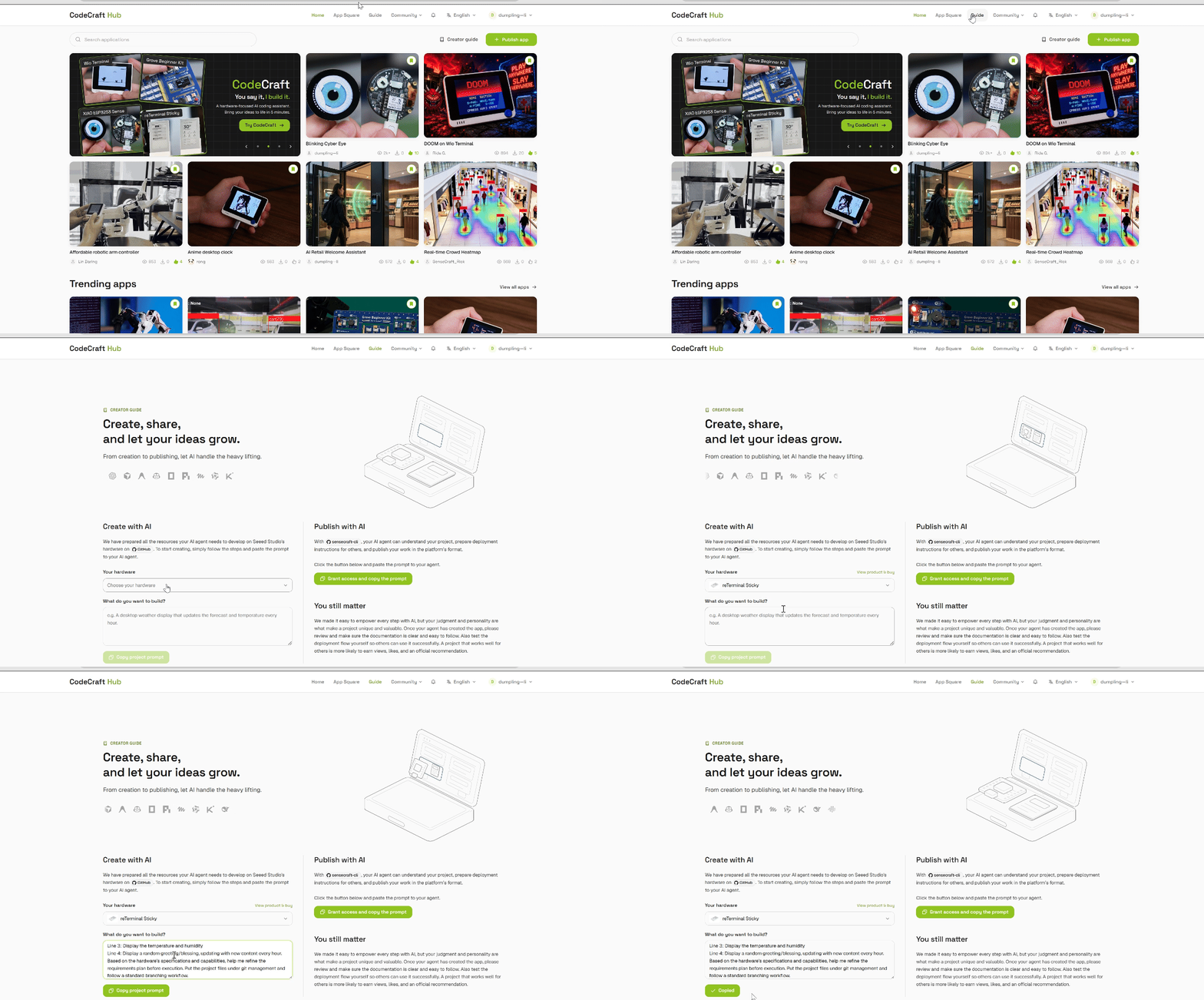
Section titled “01 · Get the Creation Prompt”Go to the CodeCraft Hub creation guide, select your hardware, describe the project requirements, then click Copy Creation Prompt.
02 · Create a New Project with an AI Agent
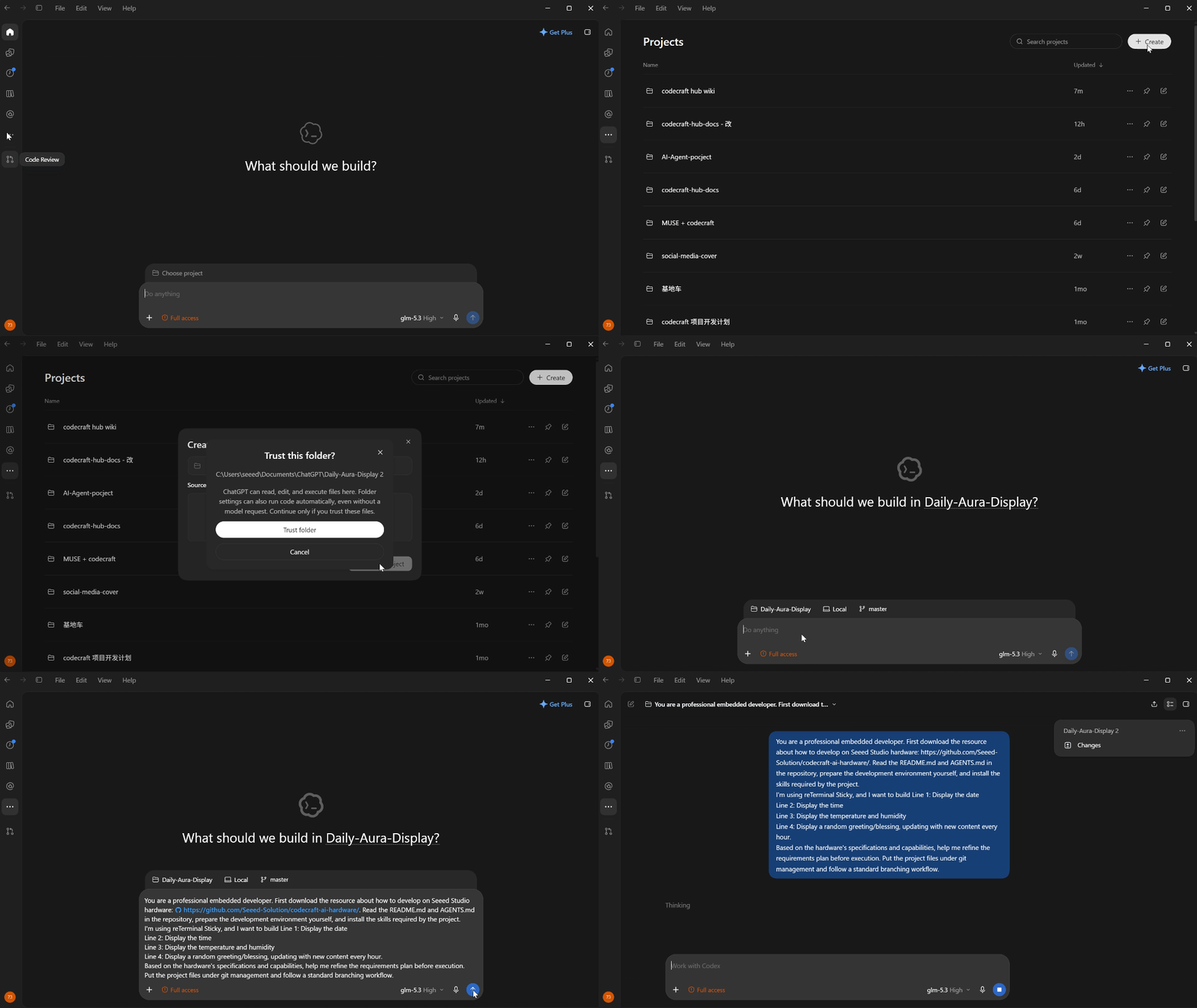
Section titled “02 · Create a New Project with an AI Agent”Open an AI Agent that supports serial flashing — Codex, Workbuddy, Claude Code, Cursor, TRAE, etc. Create a new project and paste the prompt.
03 · Confirm the Plan and Refine the UI
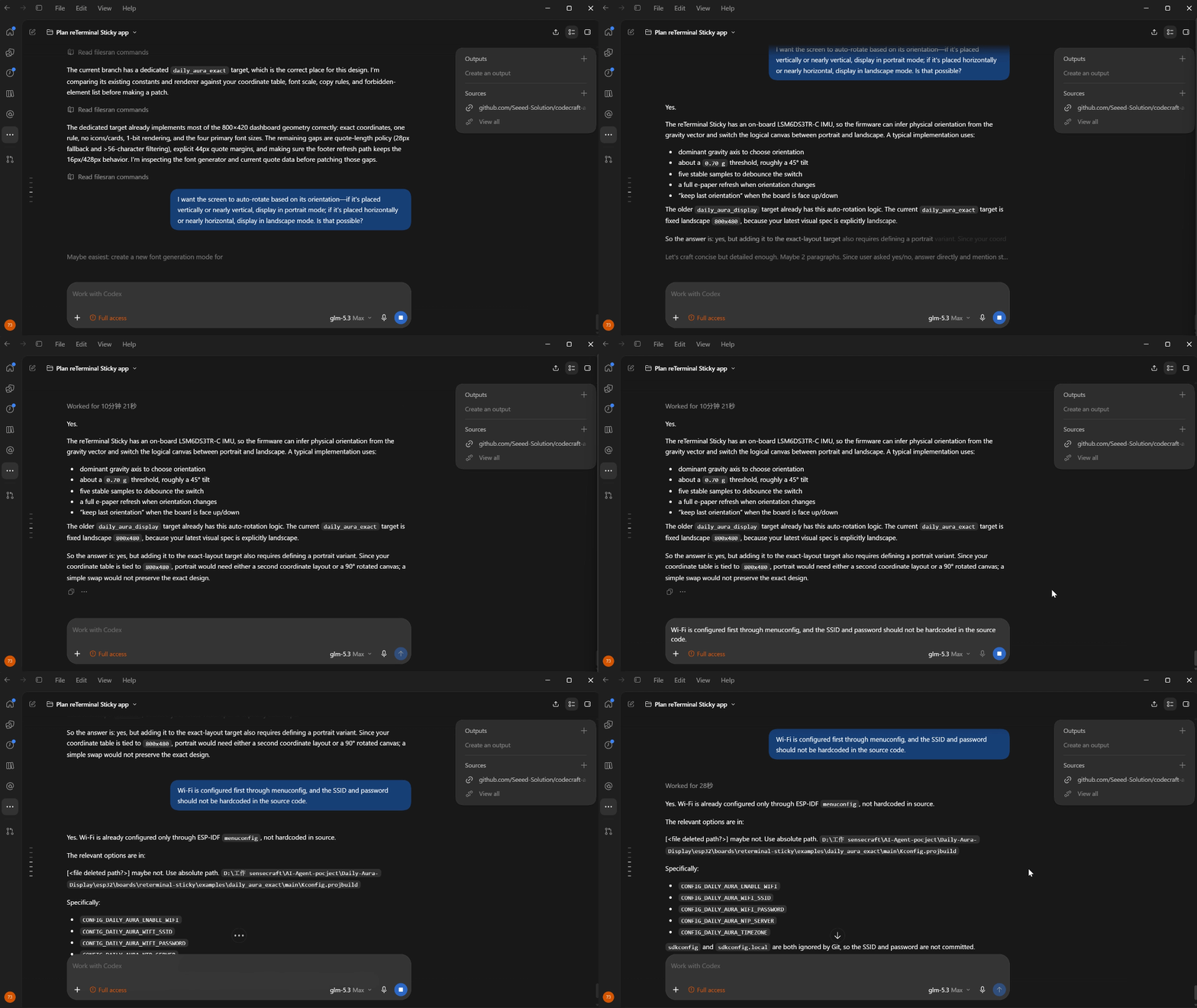
Section titled “03 · Confirm the Plan and Refine the UI”Send the prompt and functional requirements to the AI, asking it to output a development plan before writing code. Once confirmed, the AI automatically matches hardware capabilities and starts coding.
After the basic functionality works, describe layout changes or send ASCII sketches to have the AI refine the UI and re-flash. For black screens, errors, or abnormal behavior, ask the AI to analyze logs and fix issues automatically.
04 · Flash and Validate on Real Hardware
Section titled “04 · Flash and Validate on Real Hardware”Connect the device with a USB cable, provide configuration info (such as Wi-Fi credentials) as needed, and authorize the AI to compile and flash the firmware. The AI reads runtime logs, fixes bugs, and completes on-device validation.
Finally, place the device in its real usage environment and check that the display is clear, interactions are responsive, and network and data sync are stable.
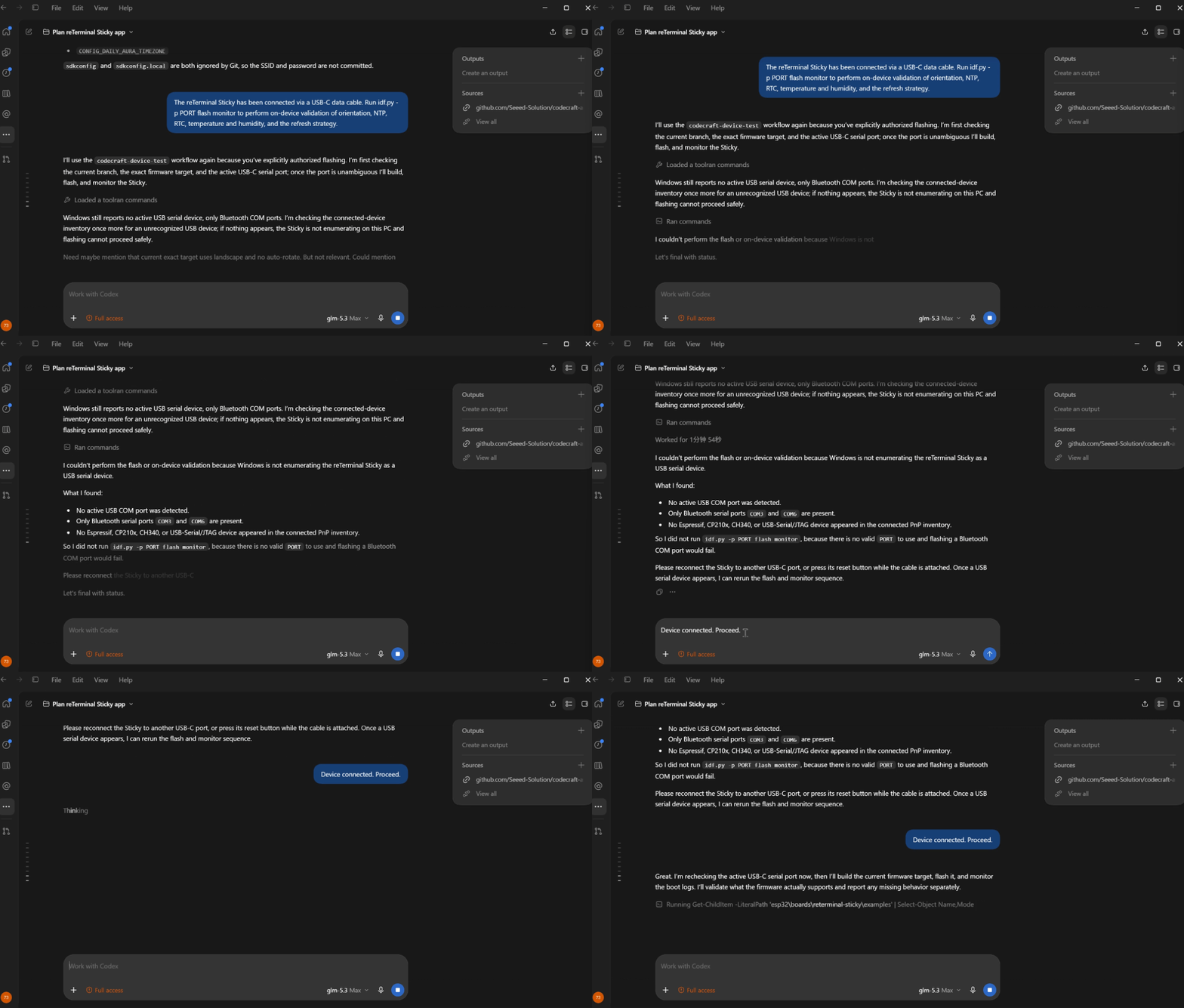
If black screens, errors, or abnormal behavior occur during daily use, describe the symptoms to the AI Agent. It will automatically analyze the cause, fix the code, and re-flash — no manual debugging required.
Next Steps
Section titled “Next Steps”Once the project is complete and validated, you can share it to CodeCraft Hub with one command. See Publishing with an AI Agent for details.