How to Redeem a Code
This guide runs you through the process of code redemption on CodeCraft. A redemption code grants either a plan membership or Usage Credits.
Access the settings panel
Section titled “Access the settings panel”These steps are the same for both plan and Usage Credits redemption.
1. Sign in to CodeCraft
Section titled “1. Sign in to CodeCraft”Open CodeCraft and sign in with your account; you’ll land in your workspace. You can always return to your workspace from the header.

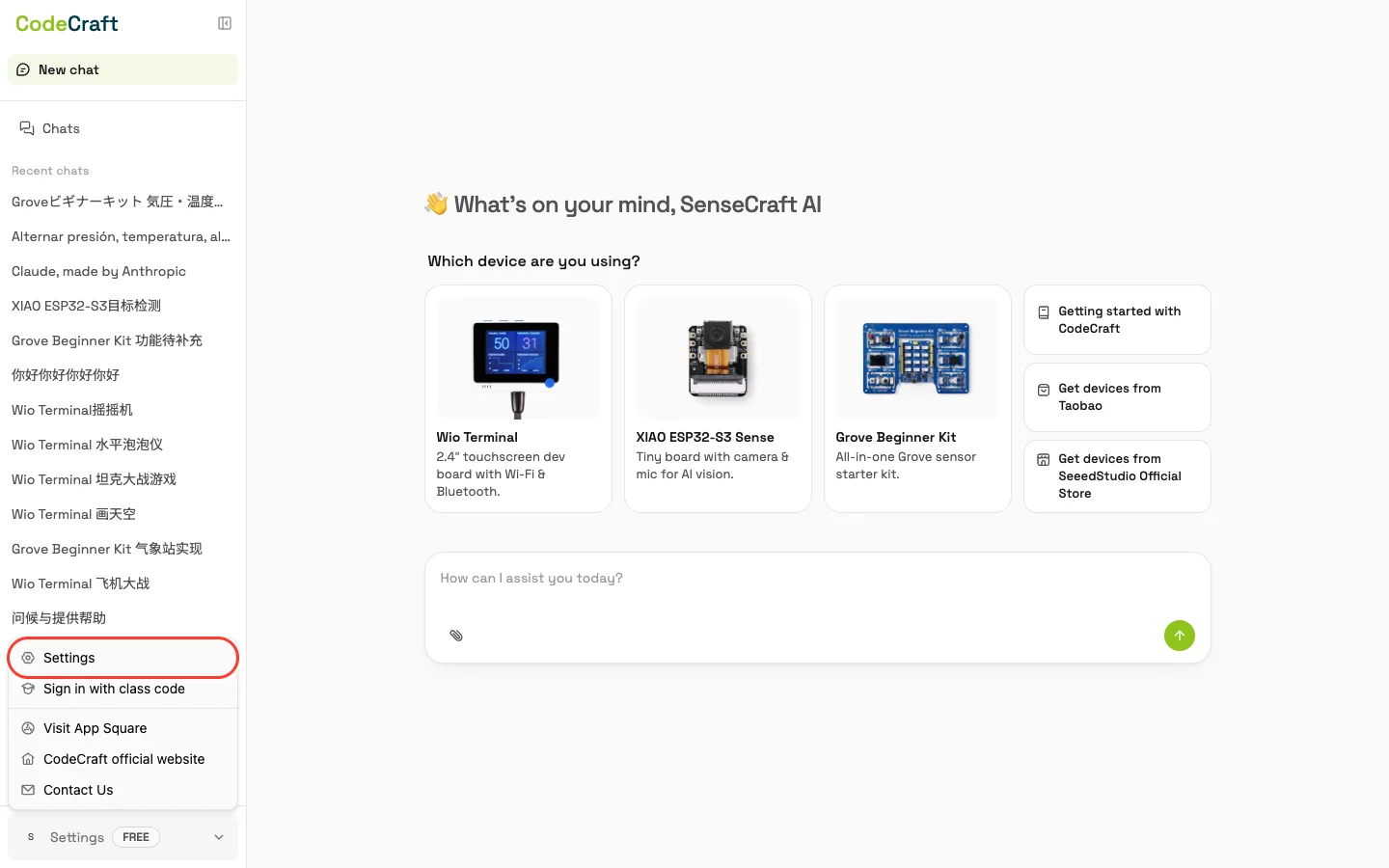
2. Open Settings
Section titled “2. Open Settings”In the bottom-left of the workspace, click your avatar (or the menu button) and choose Settings.
Choose which type of code you are redeeming
Section titled “Choose which type of code you are redeeming”The two code types look identical, but each one only works in its own tab. Pick the one that matches the code you bought.
A plan is a membership that unlocks more features and higher limits for a fixed period of time.
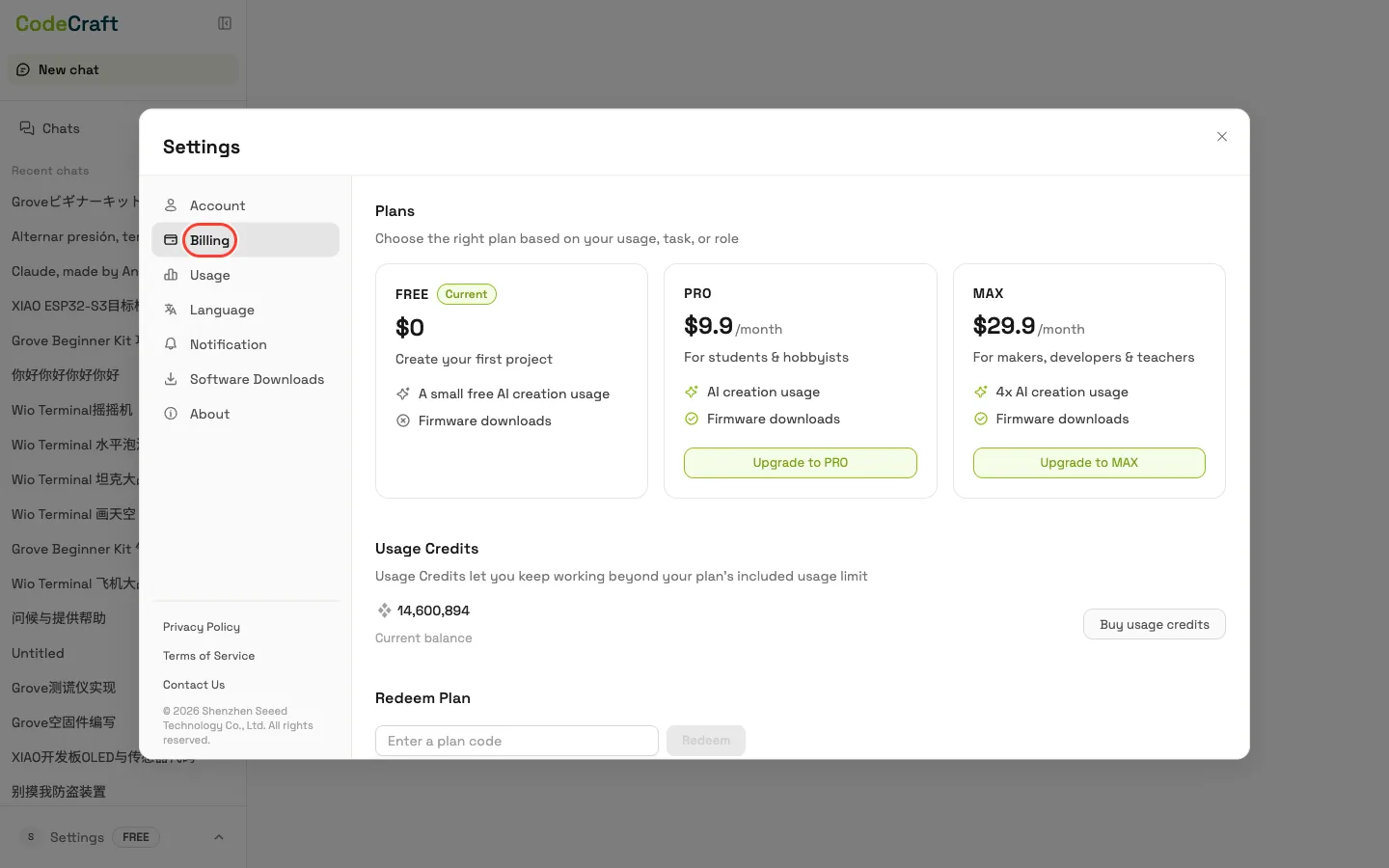
3. Open the Billing tab
Section titled “3. Open the Billing tab”In the Settings panel, open the Billing tab. You’ll see your plans, your balance, and the Redeem Plan section.
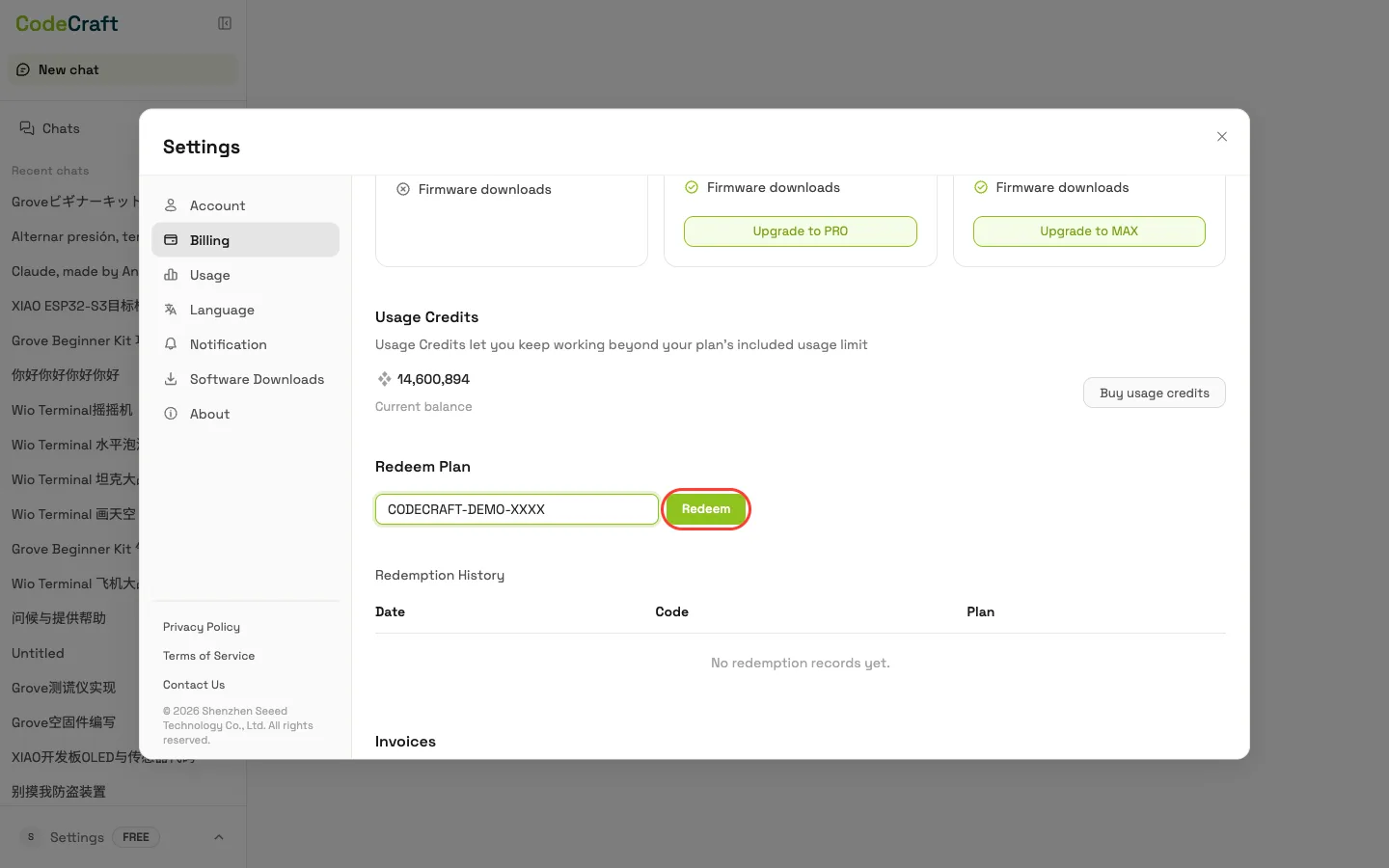
4. Enter your code and click Redeem
Section titled “4. Enter your code and click Redeem”In the Redeem Plan field (placeholder “Enter a plan code”), enter your code, then click Redeem.
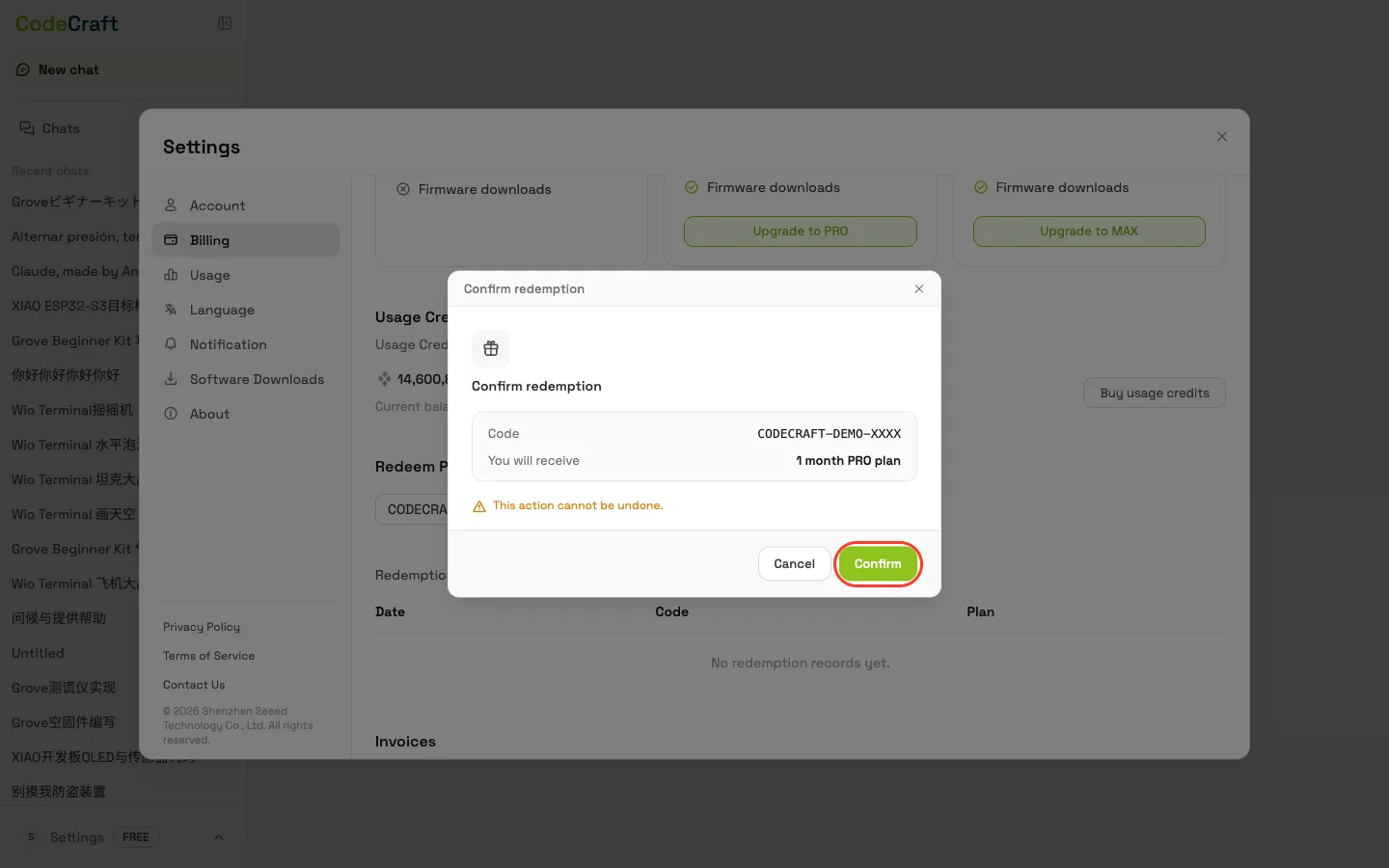
5. Confirm
Section titled “5. Confirm”A confirmation dialog shows what the code grants — review it and confirm to complete the redemption.
6. Plan activated
Section titled “6. Plan activated”On success, your plan updates immediately, and the redemption appears in the Redemption History below.
Usage Credits let you keep working beyond your plan’s usage limit.
3. Open the Usage tab
Section titled “3. Open the Usage tab”In the Settings panel, open the Usage tab. You’ll see your Usage Credits balance and the Redeem Usage Credits section.
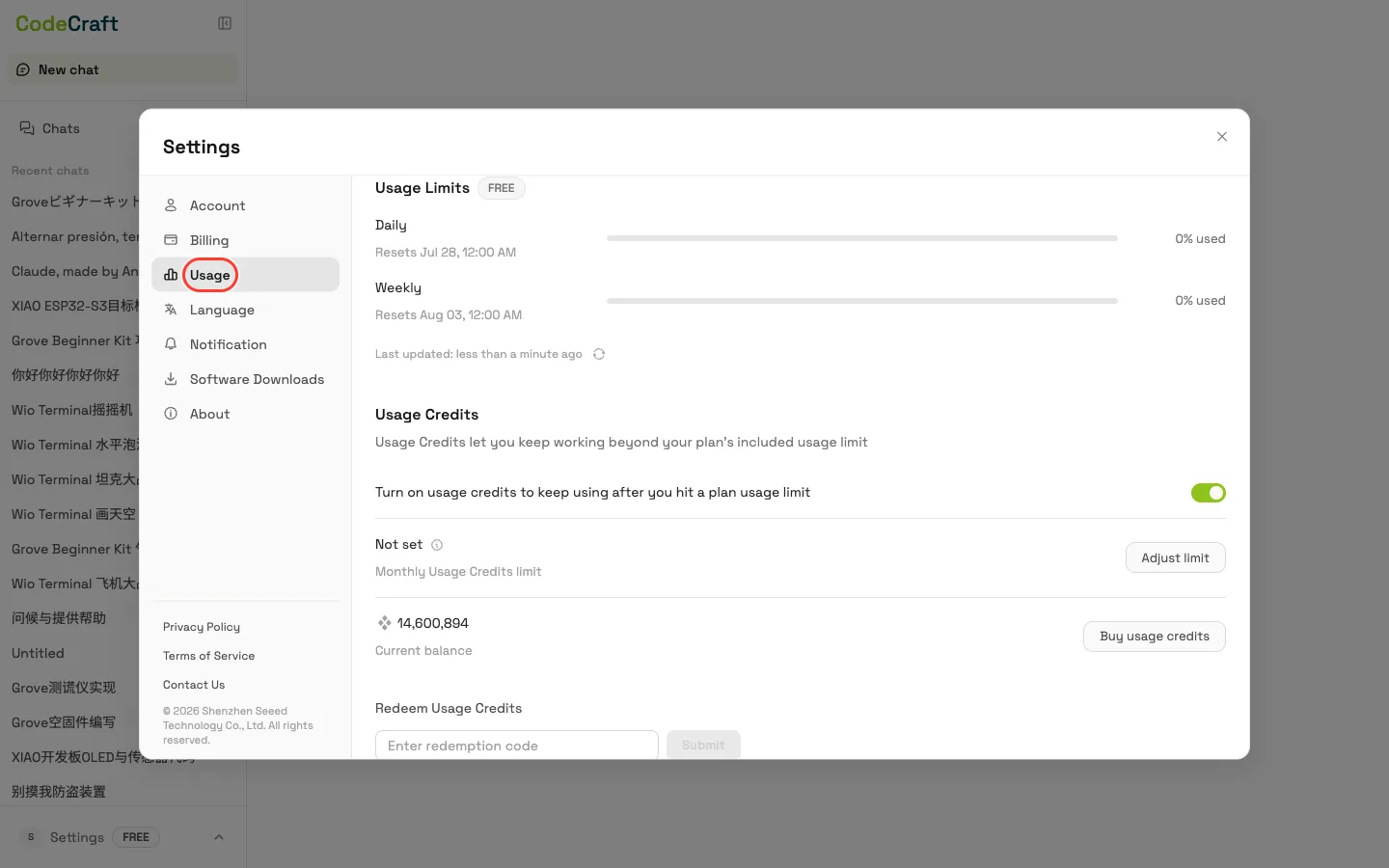
4. Enter your code and click Submit
Section titled “4. Enter your code and click Submit”In the Redeem Usage Credits field (placeholder “Enter redemption code”), type or paste your code, then click Submit.
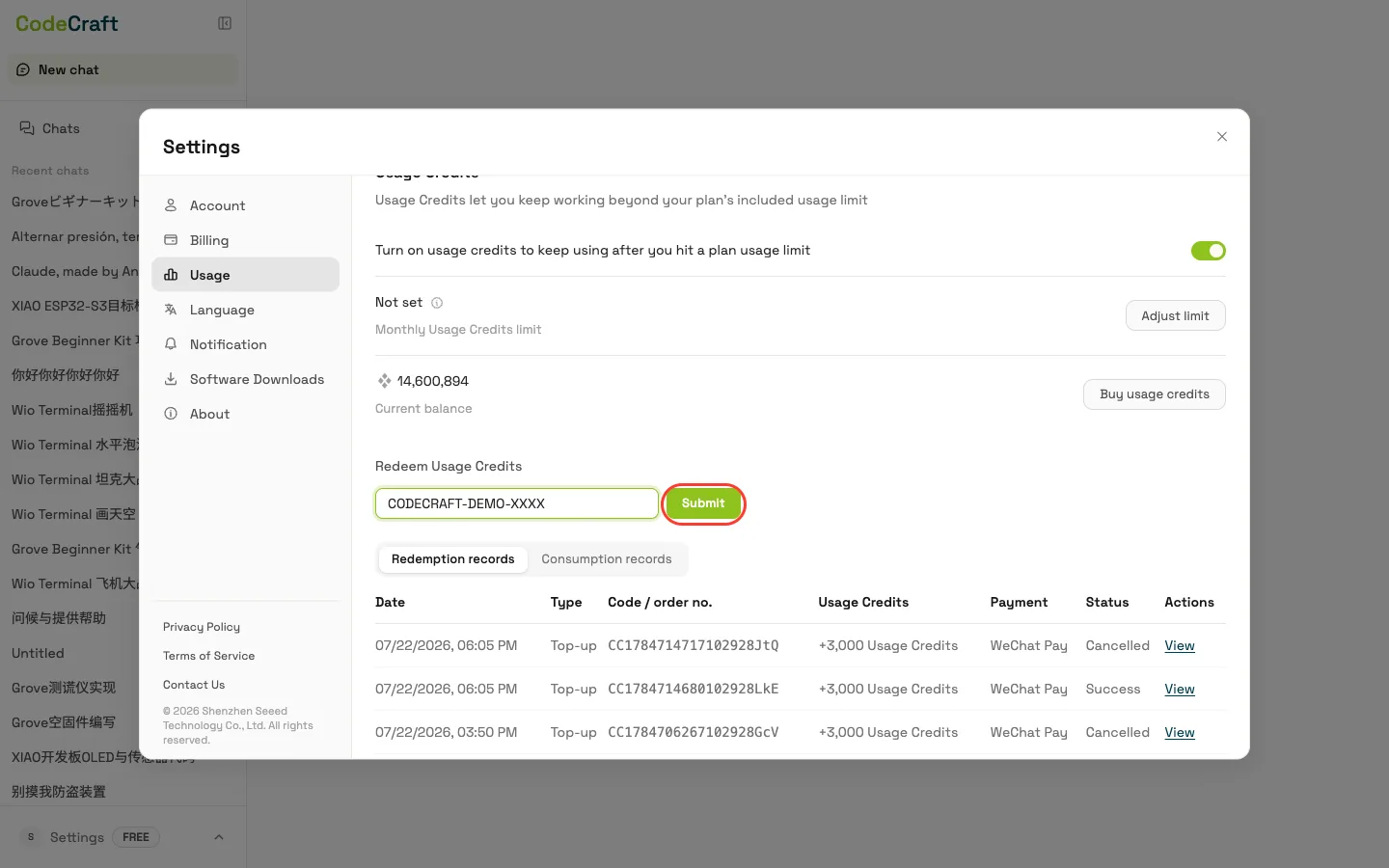
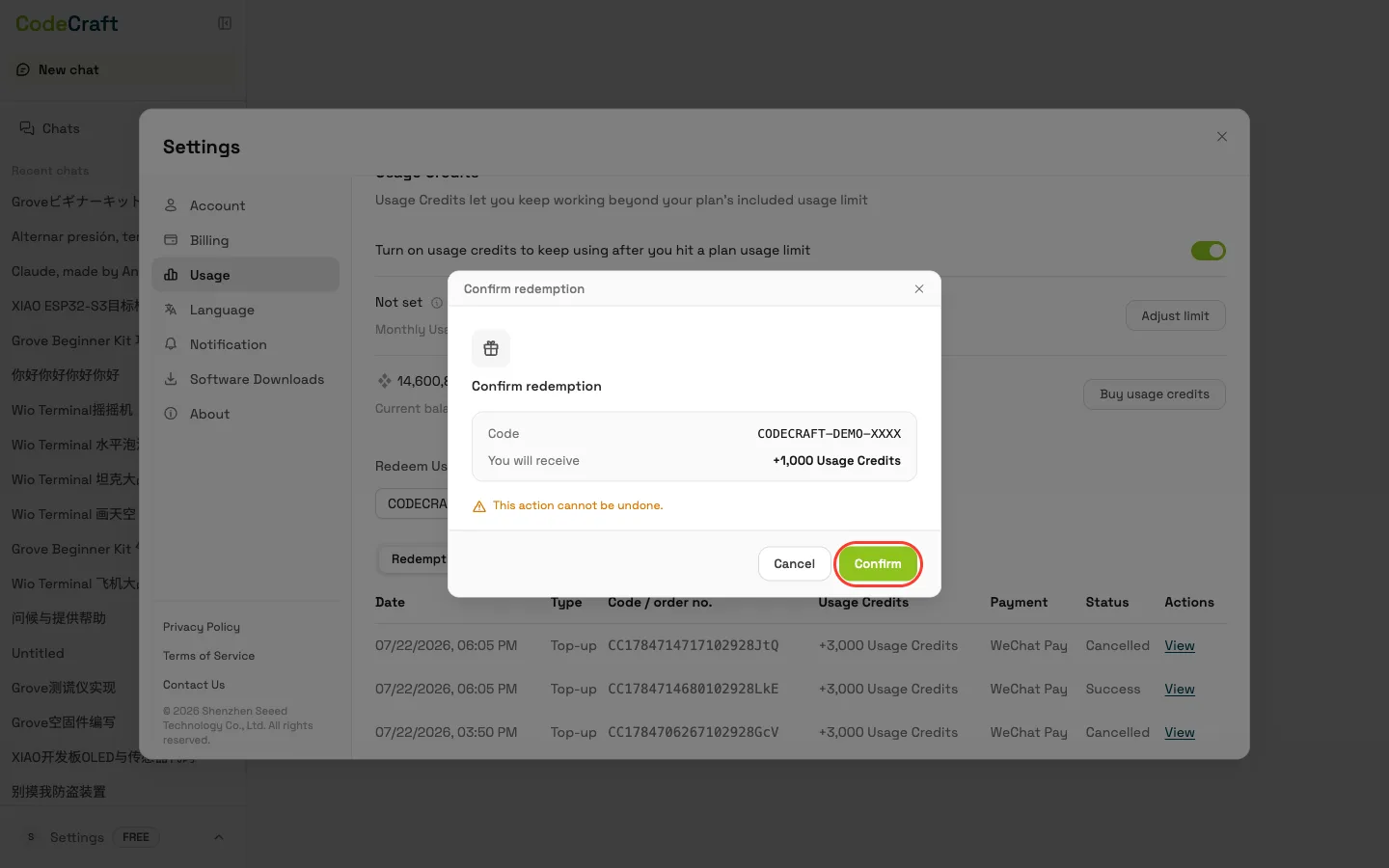
5. Confirm
Section titled “5. Confirm”A confirmation dialog appears — review it and confirm to redeem.
6. Credits added
Section titled “6. Credits added”On success you’ll see “Redeemed successfully”, and your Usage Credits balance updates with the added amount.
-
Where do I get a redemption code?
Codes can be purchased from the Seeed Official Store or Taobao, and may also come from CodeCraft promotions or partners.
-
My code doesn’t work — what should I check?
Enter the code exactly as shown, with no extra spaces, and check it hasn’t already been used. Then check you’re redeeming it in the right tab — see Choose which type of code you are redeeming, since a valid code submitted in the wrong place still fails. If it still doesn’t work, email us at iot@seeed.cc.
-
Can I redeem more than one code?
Each code can be redeemed only once. Plan durations can’t be stacked, so redeem a new plan only after your current one expires; Usage Credits codes simply add to your balance and can be redeemed anytime.