SenseCraft Robotics Common Issues
Device Connection and Detection
Section titled “Device Connection and Detection”What should I do if serial ports cannot be found?
Section titled “What should I do if serial ports cannot be found?”Check the following:
- Make sure the USB cable supports data transfer.
- Make sure the robotic arm is powered on.
- Make sure the leader arm is connected before the follower arm.
- On macOS / Linux, make sure the system allows serial port access.
- Make sure no other program is occupying the serial port.
Try the following:
- Unplug and reconnect the device.
- Click “Scan Serial Ports”.
- If the page reports a permission issue, complete the permission flow.
- If it still fails, restart the software or the computer.
What should I do if B601 RS cannot find CAN?
Section titled “What should I do if B601 RS cannot find CAN?”Check the following:
- Make sure the CAN adapter and driver are installed.
- On Linux / Jetson, check that the SocketCAN interface exists, for example
can0. - On macOS / Windows, check that the PCAN runtime is available.
- Make sure the CAN channel name is correct.
What should I do if the camera has no image or the frame rate is low?
Section titled “What should I do if the camera has no image or the frame rate is low?”Suggestions:
- Lower the resolution or image quality.
- Lower the sampling speed.
- Close unnecessary previews.
- Avoid using the camera in multiple programs at the same time.
- Rescan and bind the camera again.
Calibration and Teleoperation
Section titled “Calibration and Teleoperation”What should I do if calibration fails?
Section titled “What should I do if calibration fails?”Suggestions:
- Check that the leader arm and follower arm models are selected correctly.
- Check whether the port bindings are reversed.
- Place the robotic arms again in the recommended posture.
- Stop calibration and start again.
- Check the diagnostic logs to determine whether the issue is related to serial ports, servos, CAN, or the posture stage.
What should I do if teleoperation direction is reversed or movement is laggy?
Section titled “What should I do if teleoperation direction is reversed or movement is laggy?”Suggestions:
- Calibrate again.
- Check that the leader arm and follower arm roles are connected correctly.
- Move gently and avoid sudden pulls.
- For B601 RS, reduce the maximum motion step.
- Check the teleoperation diagnostic logs.
Data Collection and Training
Section titled “Data Collection and Training”What should I do if the recorded data quality is poor?
Section titled “What should I do if the recorded data quality is poor?”Suggestions:
- Record low-quality episodes again.
- Keep each demonstration complete, stable, and consistent in pace.
- Keep the camera position and lighting stable.
- Use the Dataset page to inspect videos, sample frames, and joint curves.
- When merging datasets, only merge data with the same task description.
What should I do if training cannot start?
Section titled “What should I do if training cannot start?”Check the following:
- Make sure a trainable dataset is selected.
- Make sure you are signed in to your SenseCraft account for cloud training.
- Make sure the local training runtime is complete.
- For GR00T, make sure the HF token, gated access, runtime, and model cache checks pass.
What should I do if no model appears on the Run page?
Section titled “What should I do if no model appears on the Run page?”Common causes:
- Training has not completed successfully.
- Cloud training results have not been pulled to the local computer.
- Local model registration failed.
Try the following:
- Go back to Training and check the task status.
- Wait for training to complete.
- Make sure the model has been downloaded / registered.
- Refresh the Run page.
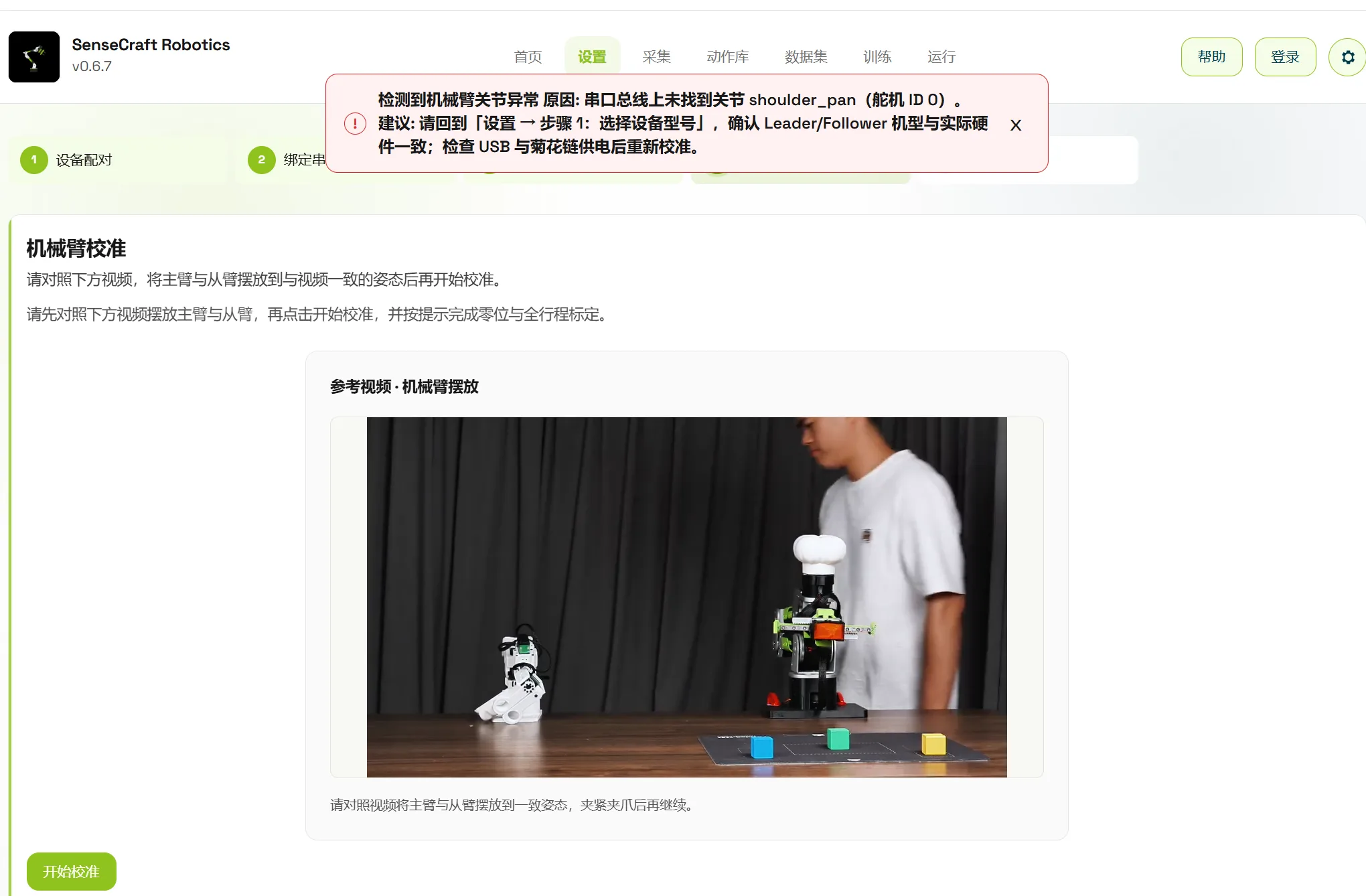
What should I do if calibration reports “robotic arm joint abnormality detected”?
Section titled “What should I do if calibration reports “robotic arm joint abnormality detected”?”If this error appears after clicking “Start Calibration”, check the leader arm first.
Check in this order:
- Make sure the robotic arm power supply is on and the voltage meets the device requirements.
- Return to “Device Pairing” and confirm that the selected device model matches the actual robotic arm.
- Check the “Bind Serial Port” step and confirm that the leader and follower serial ports are not reversed.
- Check the leader arm wiring, daisy-chain connection, and USB connection.
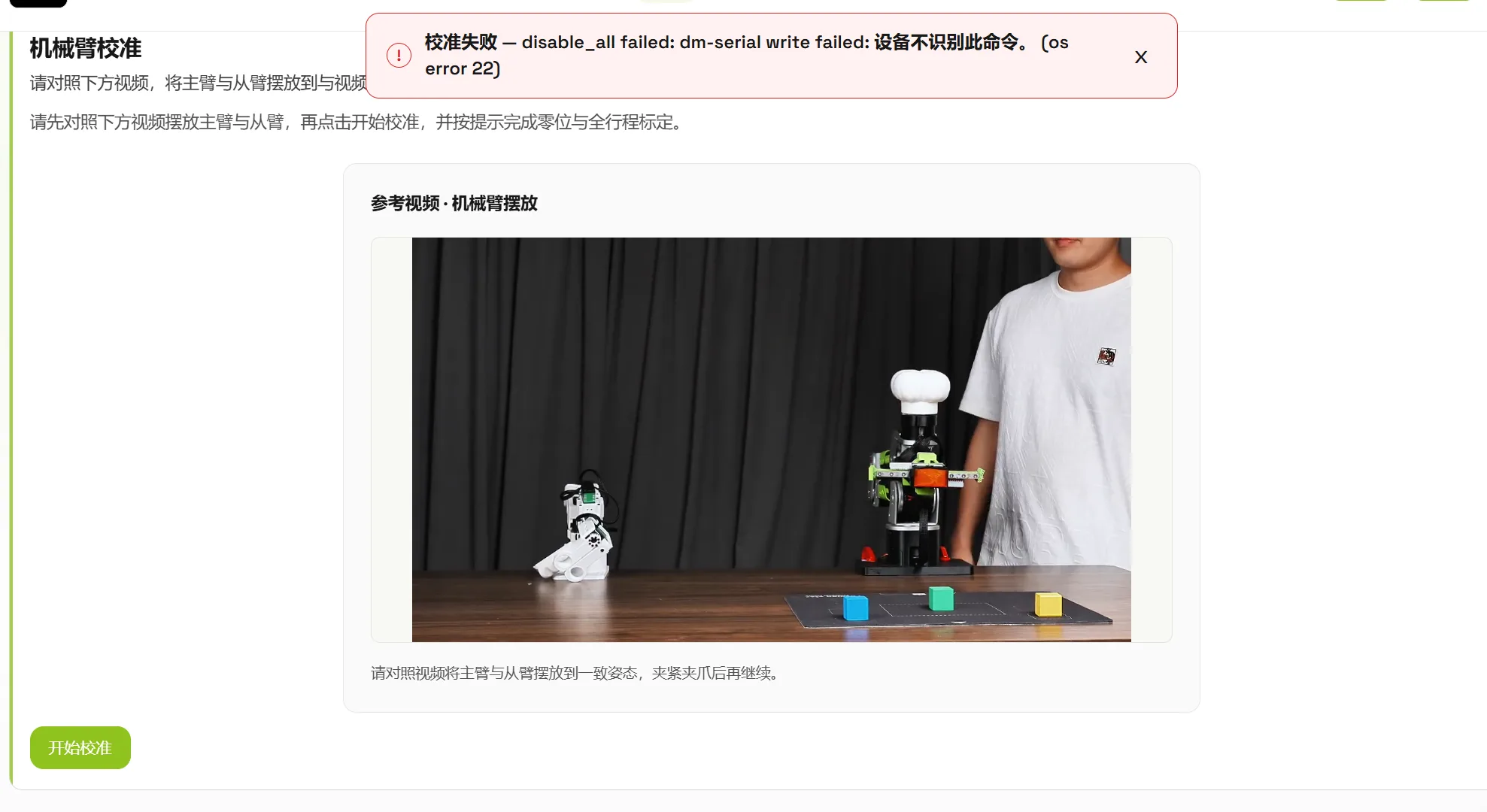
What should I do if calibration reports that the serial port is disconnected or write failed?
Section titled “What should I do if calibration reports that the serial port is disconnected or write failed?”If an error such as “dm-serial write failed” or serial write failure appears during calibration, the serial link is usually not connected correctly, the device is not recognized, or the serial roles are bound incorrectly.
Stop calibration first, then check the leader and follower power supplies, USB cable, serial port bindings, and device model. After the connection is restored, click “Scan Serial Ports” again and recalibrate.
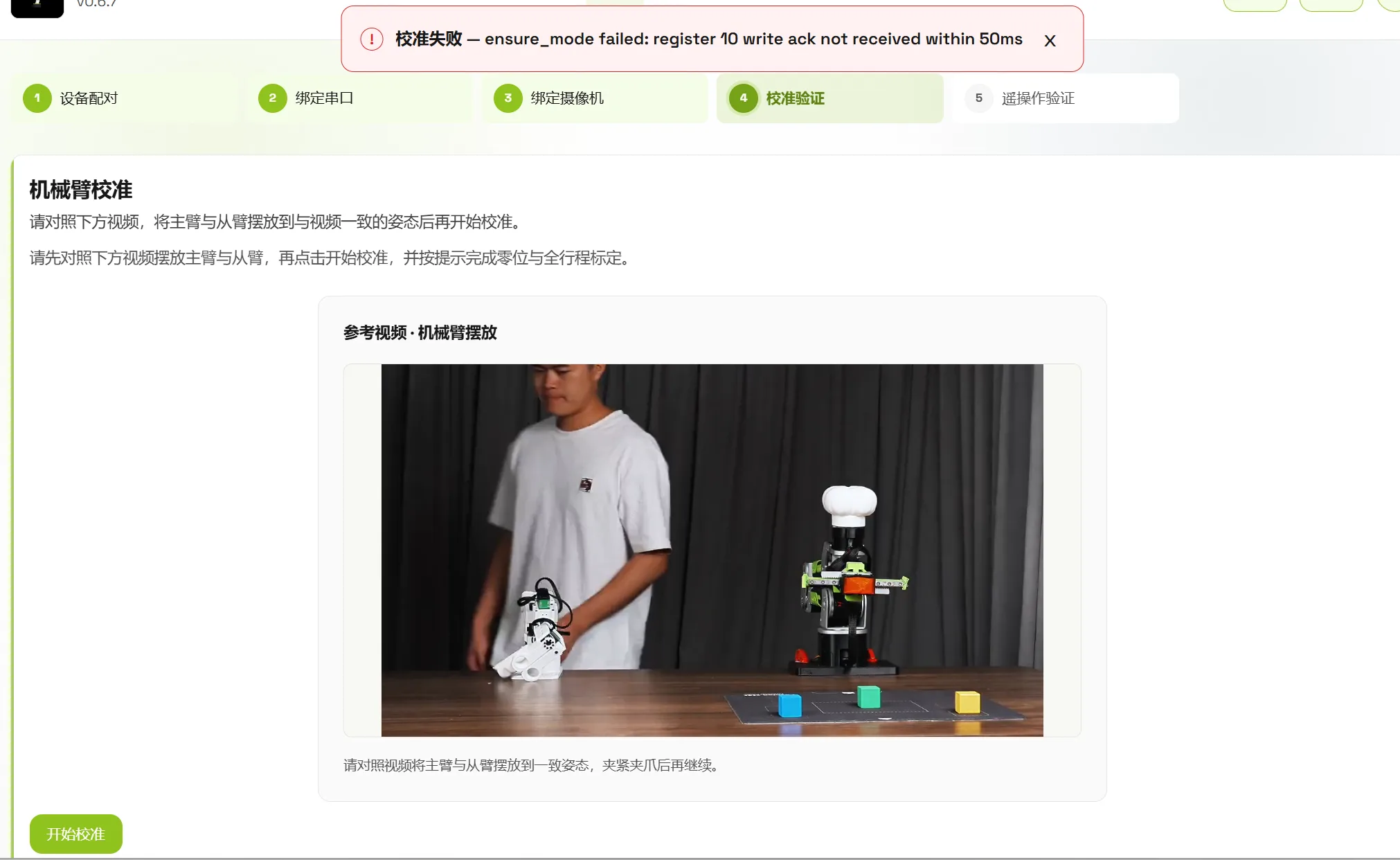
What should I do if the follower arm reports an error after leader arm calibration is complete?
Section titled “What should I do if the follower arm reports an error after leader arm calibration is complete?”If leader arm calibration is complete but an error appears when switching to follower arm calibration, focus troubleshooting on the follower arm.
Check whether the follower arm is powered on, whether the voltage meets the standard, and whether the follower wiring, servo chain, CAN, or serial connection is normal. If needed, bind the follower port again before starting calibration.
What should I pay attention to for SoArm automatic calibration?
Section titled “What should I pay attention to for SoArm automatic calibration?”Before SoArm automatic calibration, make sure there is enough space around the robotic arm to avoid injuring people or colliding with objects on the table.
Also confirm whether the robotic arm wrist has a motion limit. If the wrist has no limit, automatic calibration is not recommended because the movement may pull the cables. For other calibration issues, refer to the ReBot/B601 checks: power supply, device model, port binding, and wiring status.
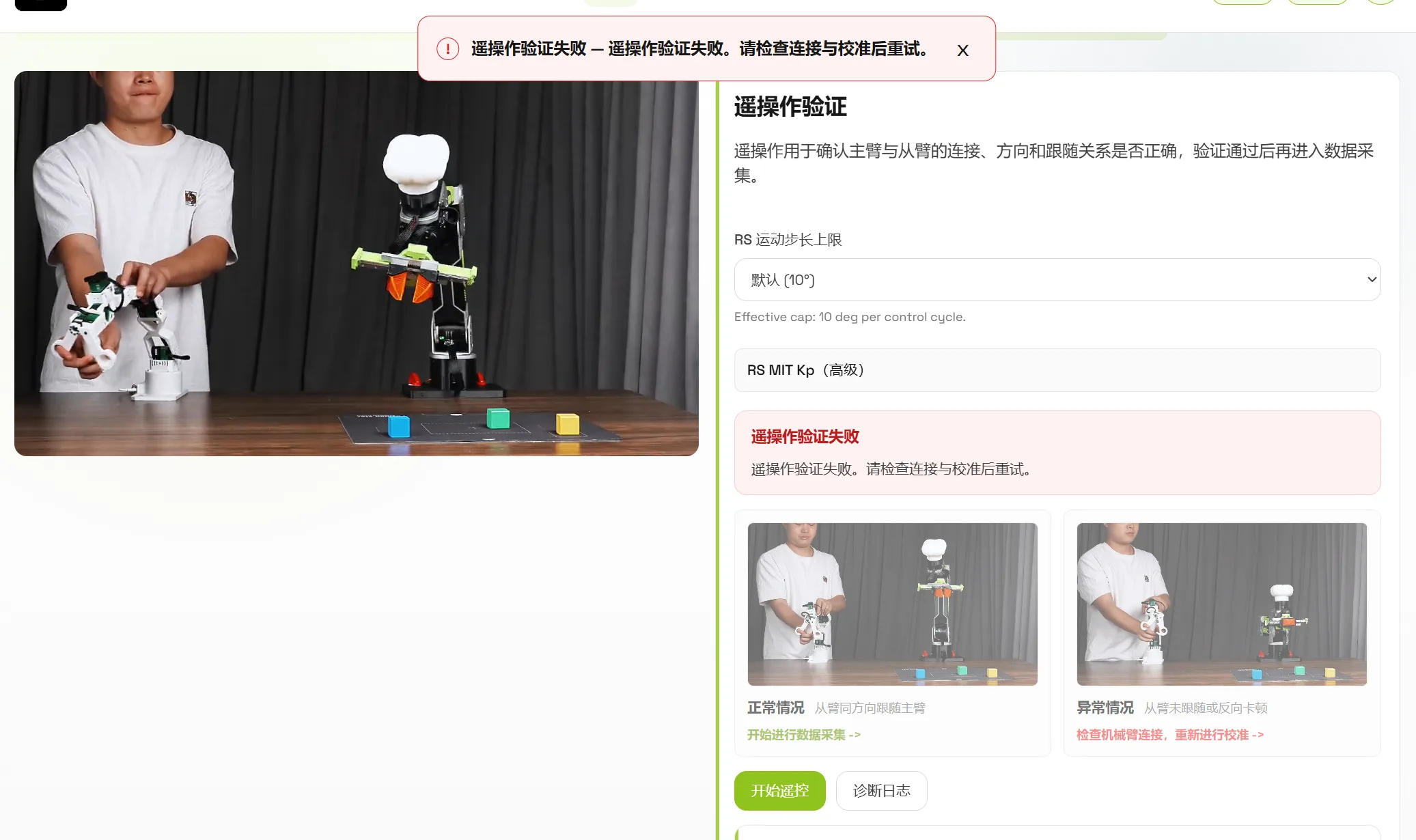
What should I do if teleoperation validation fails?
Section titled “What should I do if teleoperation validation fails?”If teleoperation validation fails, first confirm that the leader and follower arms are connected and paired correctly.
Check in this order:
- Make sure power is on and the voltage meets the standard.
- Make sure the device selected in Device Pairing matches the actual robotic arm model.
- Check whether the leader and follower serial ports are reversed.
- Check whether the leader arm wiring is normal.
- Calibrate again, then perform teleoperation validation with small and slow movements.
Camera and Collection Performance
Section titled “Camera and Collection Performance”Which camera combinations are recommended when camera errors occur during collection on macOS?
Section titled “Which camera combinations are recommended when camera errors occur during collection on macOS?”If camera-related errors occur during collection on macOS, try these combinations first:
- Two Hikvision cameras: keep the robotic arm frame rate at no more than 60 fps. Collection at 120 fps may fail. This usually works, but compatibility issues may still appear in some environments.
- One Hikvision camera + Logi Webcams C270 HD Webcam: currently more stable and can also be used for robotic arm collection at 120 fps.
- Two Webcams C270 HD Webcam: also a stable combination that covers common robotic arm collection frame rates.
What problems can insufficient collection performance cause?
Section titled “What problems can insufficient collection performance cause?”When collection performance is insufficient, buttons such as skip current episode, rerecord current episode, and end collection may respond slowly. Frame drops may also occur. For example, if an episode is set to 15 seconds, the Dataset page may show an actual duration shorter than 15 seconds.
It is recommended to keep a single recording session to about 20 episodes, then organize data later with dataset merging. Too many episodes in one collection session may increase the risk of dataset corruption or write errors.
Model Execution
Section titled “Model Execution”What should I confirm before running a model?
Section titled “What should I confirm before running a model?”Before running a model, use teleoperation to confirm that the robotic arm hardware, connection, calibration, and following behavior are normal. Also make sure the selected camera layout matches the camera layout used when collecting the model’s training data; otherwise inference quality may be affected.