Project Overview
Wi-Fi Analyzer is a standalone ARM64 AppImage for scanning nearby Wi-Fi access points through the FlipCTL WebUI on reComputer RK3576.
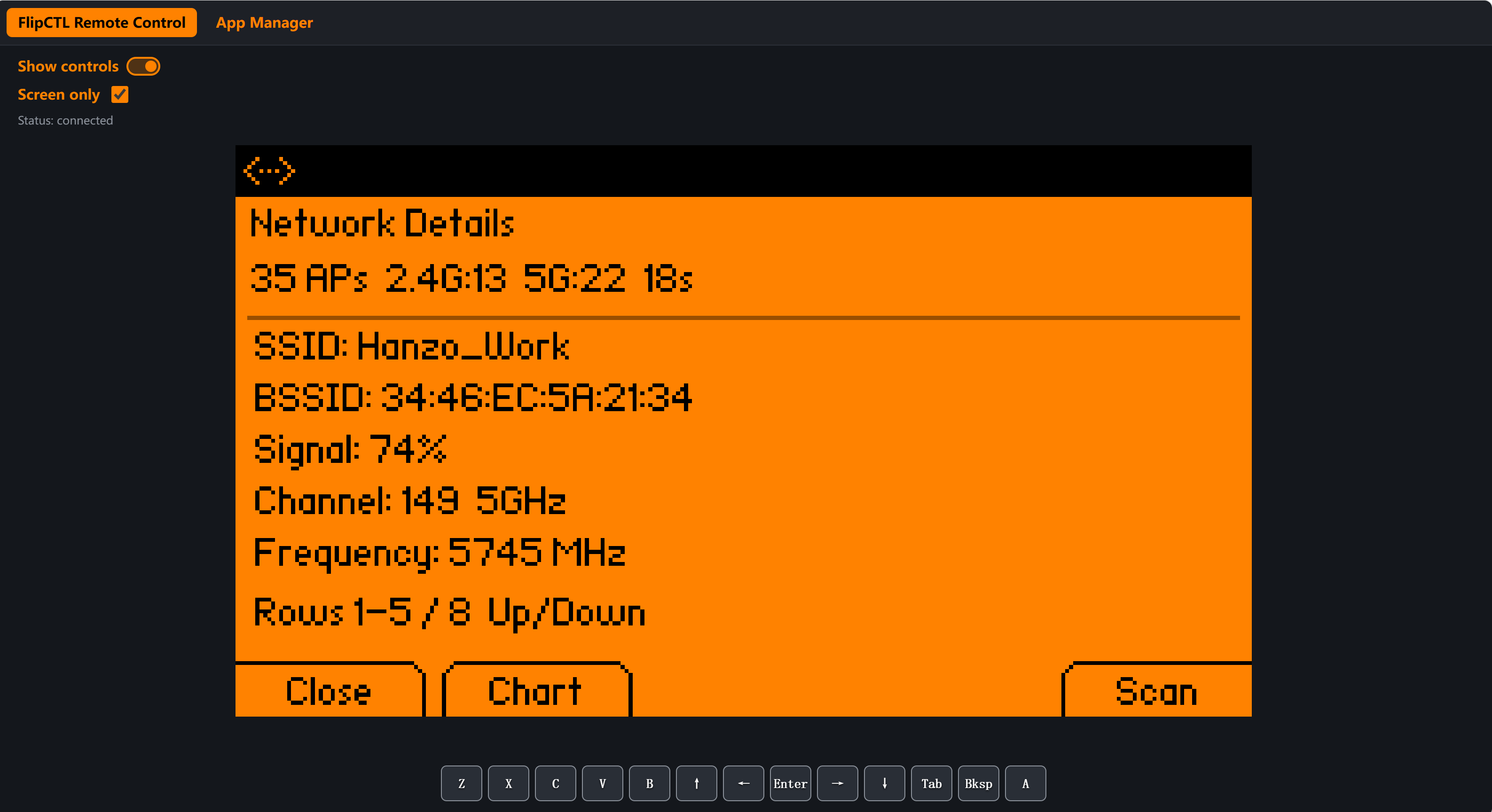
- Network list: SSID, signal percentage and channel, sorted by signal strength.
- AP details: BSSID, frequency, security and connected status.
- Channel analysis: 2.4GHz / 5GHz AP counts and strongest-signal charts.
Signal readings come from nmcli as 0–100%; they are not RSSI dBm. Scans run in the background with a 25-second wait after completion. Errors retain the last successful results. The app does not change Wi-Fi connections or system network settings.
Requirements
- reComputer RK3576 running ARM64 Armbian Debian Bookworm.
- Active NetworkManager,
nmcli, and an enabled, managed Wi-Fi adapter. A hotspot connection is not required. - A working FlipCTL installation with
device,slint,remote,waylandenabled.
Connected-hotspot cases, multiple adapters and radio/driver fault injection remain unverified on hardware.
Install and Launch
Run in a writable directory on the board. Close any running Wi-Fi Analyzer instance before replacing its package.
1. Download the AppImage
curl -fL --retry 3 -o wifi-analyzer-aarch64.fap.AppImage \
  https://github.com/inteintegrity/rk3576-wifi-analyzer/releases/download/v0.1.0/wifi-analyzer-aarch64.fap.AppImage
2. Verify the Download
printf '%s  %s\n' \
  'f2795c7bd8f4036028495c682dc0e84cda6d831f8eff5fc4e492b2fe13d8db91' \
  wifi-analyzer-aarch64.fap.AppImage | sha256sum -c -
Continue only when the checksum reports OK.
3. Install the App
mkdir -p "$HOME/Apps/Network"
install -m 755 wifi-analyzer-aarch64.fap.AppImage \
  "$HOME/Apps/Network/wifi-analyzer-aarch64.fap.AppImage"
4. Launch in FlipCTL
In the existing FlipCTL WebUI, enable Show controls, then open Menu → Apps → Network → Wi-Fi Analyzer and press Enter. Wait for the first scan to finish.
Controls
| Key | Action |
|---|---|
| Up / Down | Select an AP, scroll details, or switch the chart's frequency band |
| Left / Right | Jump four APs, return from details, or page through channels |
| Enter | Open details or return to the list |
| View / X | Open channel analysis; toggle AP counts / signal percentage |
| Run / B | Refresh manually; allow two seconds after releasing before pressing again |
| Close / Z | Exit the app |
| Back | Background the app |
For example, c149 means channel 149. The header shows AP totals, band counts and the age of the last successful scan. Channel counts describe observed APs, not measured interference.