Build a Real-Time Queue Counter with YOLO11 on reComputer RK3576
How long is the line right now? Queue Counter answers that question directly from a video feed. Draw the area where people wait, start processing, and the dashboard shows a live count of everyone inside it.
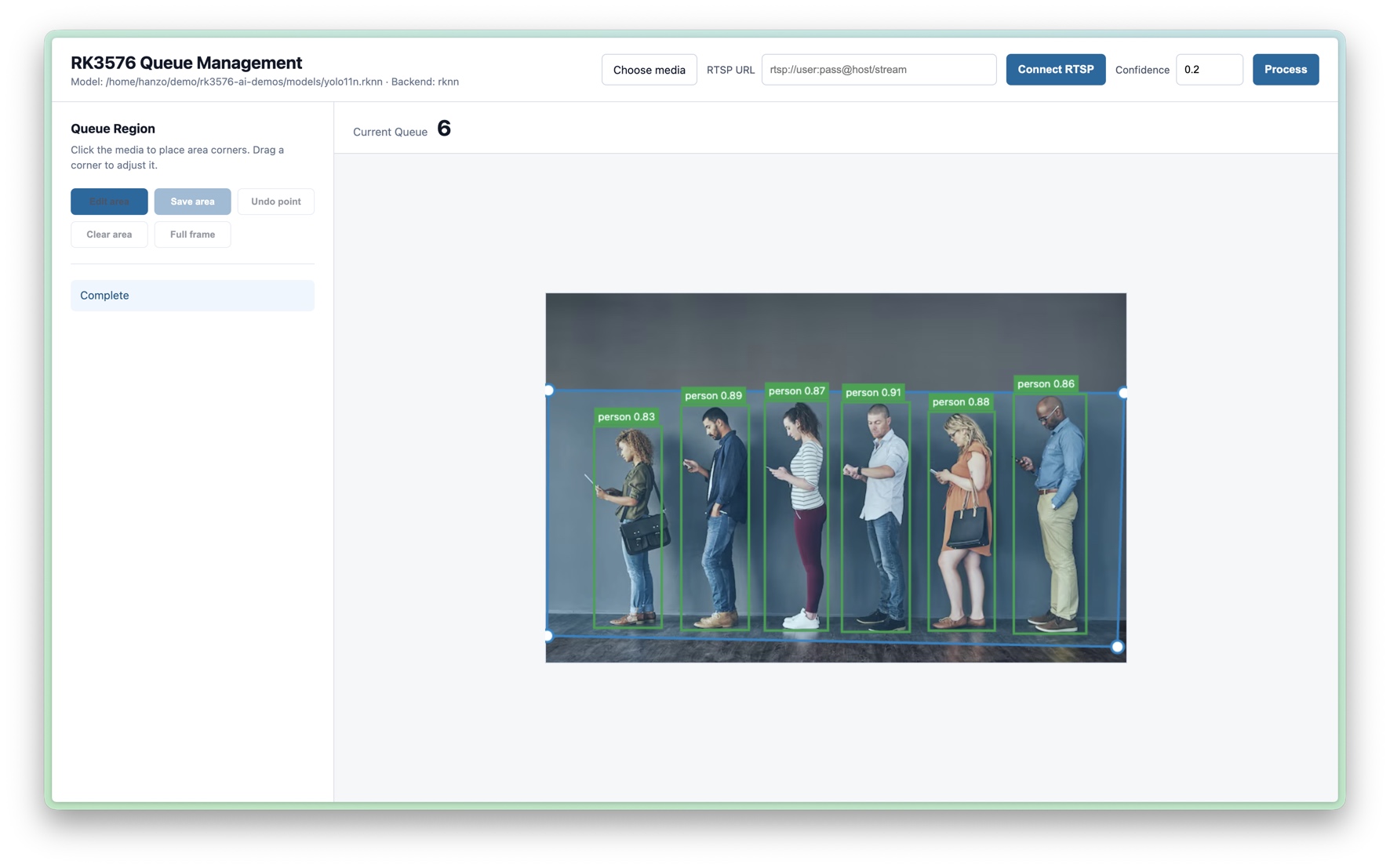
The complete pipeline runs locally on the reComputer RK3576. YOLO11n performs person detection through RKNN, while the browser interface makes it easy to shape the queue region for the scene—no fixed camera layout or cloud inference service is required.
Source code: https://github.com/Hanzo-Huang/rk3576-ai-demos/tree/main/examples/cv/queue-counter
#Why Build It?
Queue length is a simple signal with practical value. A growing line can mean that another checkout should open, more staff are needed at reception, or a boarding area is becoming crowded. Manual checks do not scale, and a count of the entire camera frame includes people who are not actually waiting.
This project solves that by counting only the people inside a region you draw. It can be adapted to checkout lines, service desks, reception areas, transport boarding points, and venue entrances simply by changing the queue boundary.
#What You Get
- A visual queue editor: click to place the queue-area corners, then drag them to match the perspective of the scene.
- Live people counting: the dashboard reports the current number of people inside the saved region.
- Flexible input: process selected media or connect to an RTSP stream.
- Adjustable confidence: tune the detection threshold from the dashboard.
- On-device inference: run YOLO11n through RKNN on the RK3576 NPU.
- Full-frame mode: count across the entire image when a custom region is not needed.
#From Video to Queue Count
- The application reads the selected media or RTSP stream.
- The shared
yolo11n.rknnmodel detects people with RKNN inference. - The application compares each person detection with the saved queue region.
- Detections inside the region are included in the current queue count.
- The browser draws the detections and updates Current Queue.
Because the region is configurable, the same application can focus on a narrow checkout lane, an angled waiting area, or the full camera view without changing the model.
#Run It on reComputer RK3576
Clone the source repository:
git clone https://github.com/Hanzo-Huang/rk3576-ai-demos.git
cd rk3576-ai-demos
Check the Python version, then create and activate a virtual environment:
python --version
python -m venv .venv
source .venv/bin/activate
Install the shared dependencies and the bundled RKNN Lite wheel. The wheel in
this example is for CPython 3.11 on aarch64; select a wheel whose cp tag
matches the Python version reported above.
python -m pip install runtime/wheels/rknn_toolkit_lite2-2.3.2-cp311-cp311-manylinux_2_17_aarch64.manylinux2014_aarch64.whl
python -m pip install -r requirements.txt
sudo cp runtime/lib/librknnrt.so /usr/lib/
Start Queue Counter from the repository root:
python examples/cv/queue-counter/run.pyOpen the URL printed by the application. To use the dashboard from another computer on the same network, replace the local address with the RK3576 device IP address.
#Create Your First Queue Region
- Choose an input. Select Choose media to load a video, or enter an RTSP URL and select Connect RTSP.
- Set the confidence. Increase the threshold to accept only stronger detections, or lower it when people are small or difficult to see.
- Start processing. Select Process to display the annotated video.
- Draw the queue. Select Edit area, then click the media to place the region corners. Drag any corner to fine-tune the boundary.
- Save and monitor. Select Save area and watch Current Queue update. Select Full frame when everyone in the image should be counted.
The blue polygon marks the active queue region, green boxes show detected people, and Current Queue displays the number of detections currently inside the boundary. If the count looks unstable, adjust the region so it covers the waiting area cleanly, then tune the confidence threshold for the scene.