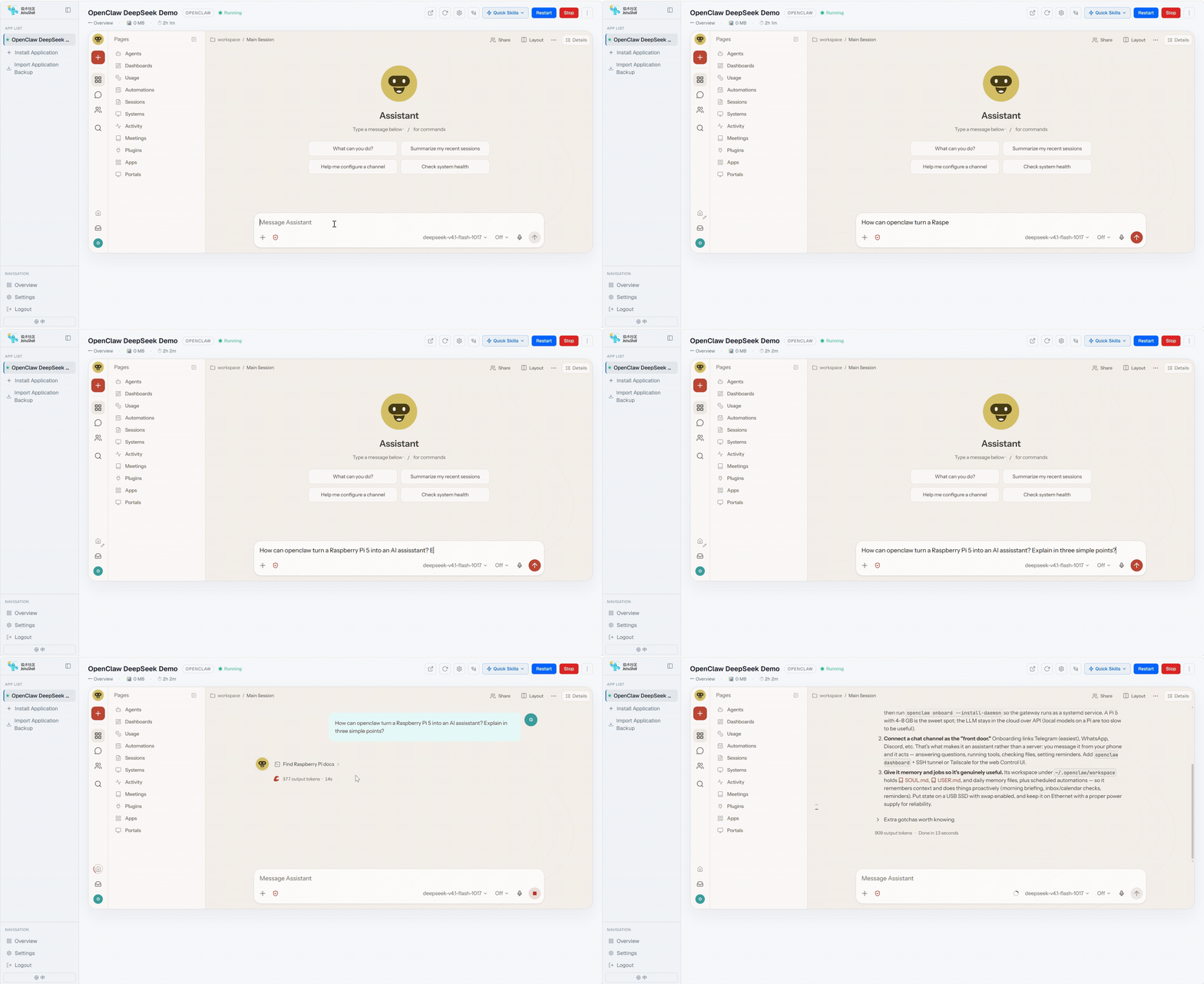
Install the JishuShell management panel on a Raspberry Pi 5 with one command, open the board on port 8090, then configure DeepSeek and create OpenClaw in the browser. The panel manages the application lifecycle and provides an embedded chat interface.
Requirements
- Raspberry Pi 5 running 64-bit Linux.
- Bash, curl, sudo privileges, and network access for dependency downloads.
- Your own model API key; a company gateway also needs its actual API base URL and exact model ID.
- Network access from the PC to the board.
JishuShell runs as a host service and manages OpenClaw and other applications through Docker containers. With a remote model, prompts and tool results are sent to the configured gateway.
Install JishuShell
Run on the board:
curl -fsSL https://raw.githubusercontent.com/inteintegrity/openclaw-deepseek-pi5/main/scripts/install-jishushell.sh | bashThe entry point verifies a fixed official installer, which prepares Node.js, Docker, Nomad, the OpenClaw runtime, and startup services. Sudo credentials or installation choices may be requested. If JishuShell already exists, the helper displays its version and panel address without reinstalling or deleting applications.
Open the panel
In your PC browser, open:
http://<BOARD_IP>:8090Set the panel administrator password on first access. Administrator and model credentials are supplied by the operator and are not embedded in the script.
Configure the model
Open the model-provider area in Settings, add your provider and API key, choose an available model, and set the default provider.
For the official DeepSeek API, choose its corresponding provider. A company gateway needs its real API base URL and exact model ID; its dashboard URL is not an API endpoint. Available form fields depend on the JishuShell version, and an authenticated LAN gateway may need additional provider settings. See the repository's JishuShell guide.
Create OpenClaw
- Choose Install Application in the sidebar.
- Select OpenClaw and enter a name, such as OpenClaw DeepSeek Demo.
- Create the application and wait for Running.
- Open it, confirm the Gateway is online, and check the selected chat model.
- If browser approval is requested, have the administrator inspect and approve the exact device request shown by the page.
Browser pairing is a first-connection step. The installer does not automatically approve a device.
Generate a report in chat
Start a new conversation and send:
Use your tools to inspect this OpenClaw container's architecture and Node.js version. Save the actual results to demo/system-report.md, read it back, and present a short table. Do not access credentials or network services.
Expand the activity group to inspect command execution, writing, and reading. The final reply should show the actual results and saved path. The report describes the container; its Node.js version depends on the selected runtime.
Checks and maintenance
From a clone, use bash scripts/install-jishushell.sh --check to inspect the existing panel, or --dry-run to display an installation plan.
The panel was checked on Raspberry Pi 5, Debian 13 ARM64, and JishuShell 0.8.7 on port 8090. Source verification, existing-install reuse, panel connectivity, and plan-only behavior were checked for the entry point. The validation record states the exact scope.
Before updating OpenClaw, check its container Node.js requirement. Updating host Node.js alone does not update the container runtime. Ordinary instance management and model switching can be performed in the panel.
Optional standalone containers
The repository also includes a standalone Docker Compose path on port 18889 with separate persistent storage, real tool verification, and backup/recovery scripts. See the Compose guide when direct container management is preferred.