Training - Object Detection
Dieser Inhalt ist noch nicht in deiner Sprache verfügbar.
Features of object detection
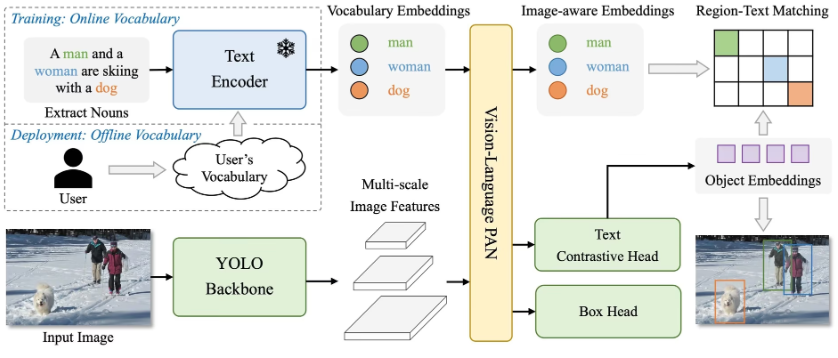
Section titled “Features of object detection”The Seeed SenseCraft AI Platform is an efficient AI training tool tailored for object detection tasks. Built on the advanced YOLO - World object detection model, it offers two convenient training methods:
- Quick Training
Features: No image data is required. Simply input the target name to quickly generate a single-class object detection model. Advantages: Ideal for straightforward scenarios, enabling fast model creation and deployment.
- Image Collection Training
Features: Combines the target name with uploaded image data for training.
Advantages: Leverages diverse image data to significantly improve the detection accuracy of the generated model, making it suitable for applications requiring high precision.
With these two methods, the SenseCraft platform caters to diverse object detection model training needs, simplifying the complexities of AI development while ensuring both usability and precision.
Quick Training
Section titled “Quick Training”We will create a simple demo for recognising human. The quick training feature leverages the following core characteristics of the YOLO – World object detection model:
The quick training feature uses YOLO’s strengths to efficiently create single-class detection models. By combining pretrained weights, text semantics, and efficient feature extraction, it generates a tailored model, such as for “human”, without requiring image data.
Step 1. Determine the object name
Section titled “Step 1. Determine the object name”Enter the target name in the text box. Then click on ‘Start Training’.
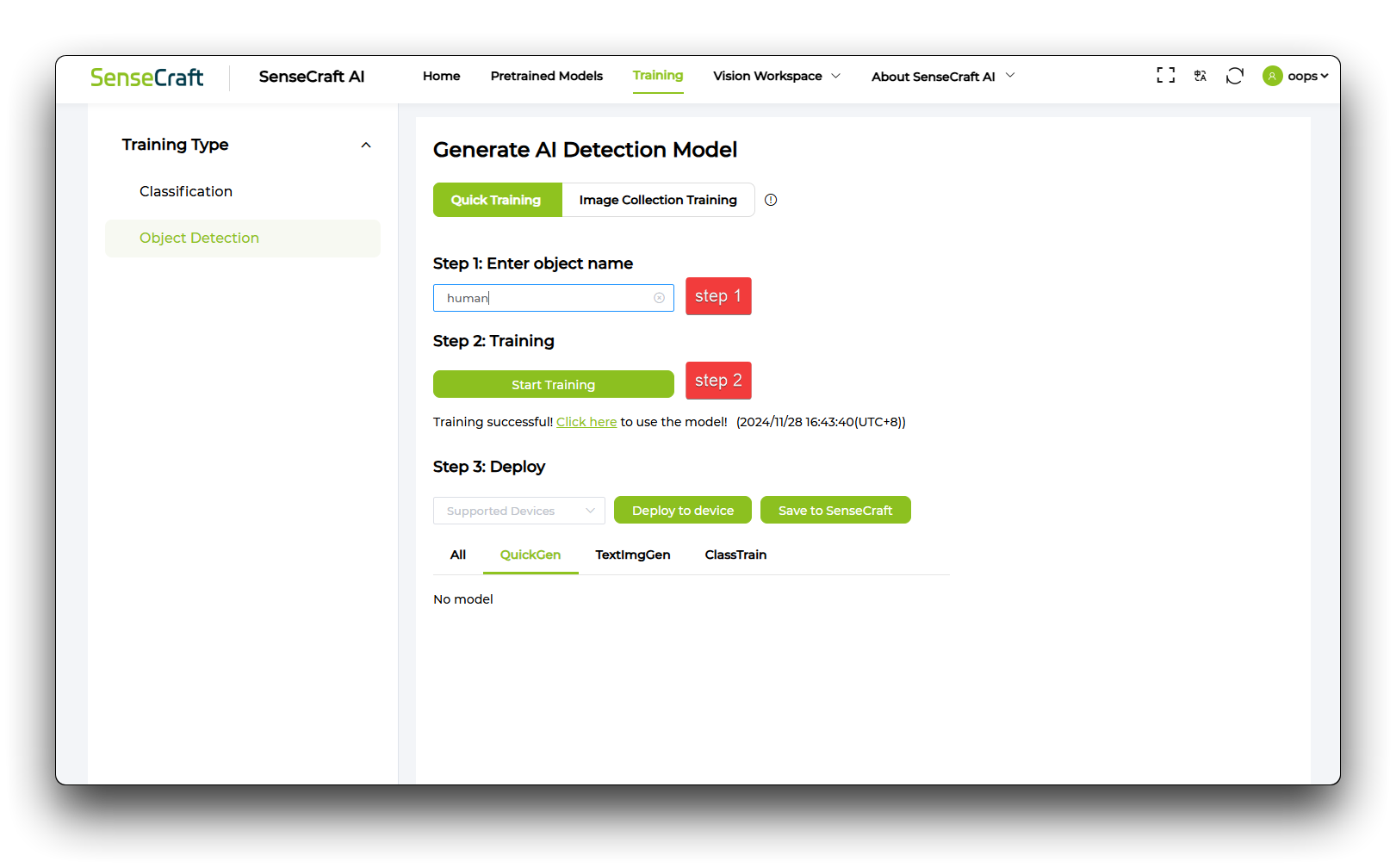
Step 2. Train and upload models
Section titled “Step 2. Train and upload models”After completing the model training, the model will be deployed and Grove Vision AI (V2) will be selected for the deployment. Then choose the correct serial port to connect to, and finally wait patiently for 1-3 minutes to know that the model training is complete!


Demonstration of results
Section titled “Demonstration of results”After completing the above steps, the model will be successfully deployed and run, but care needs to be taken with the Confidence Threshold and IoU Threshold value settings, which will affect the model’s ability to recognise.
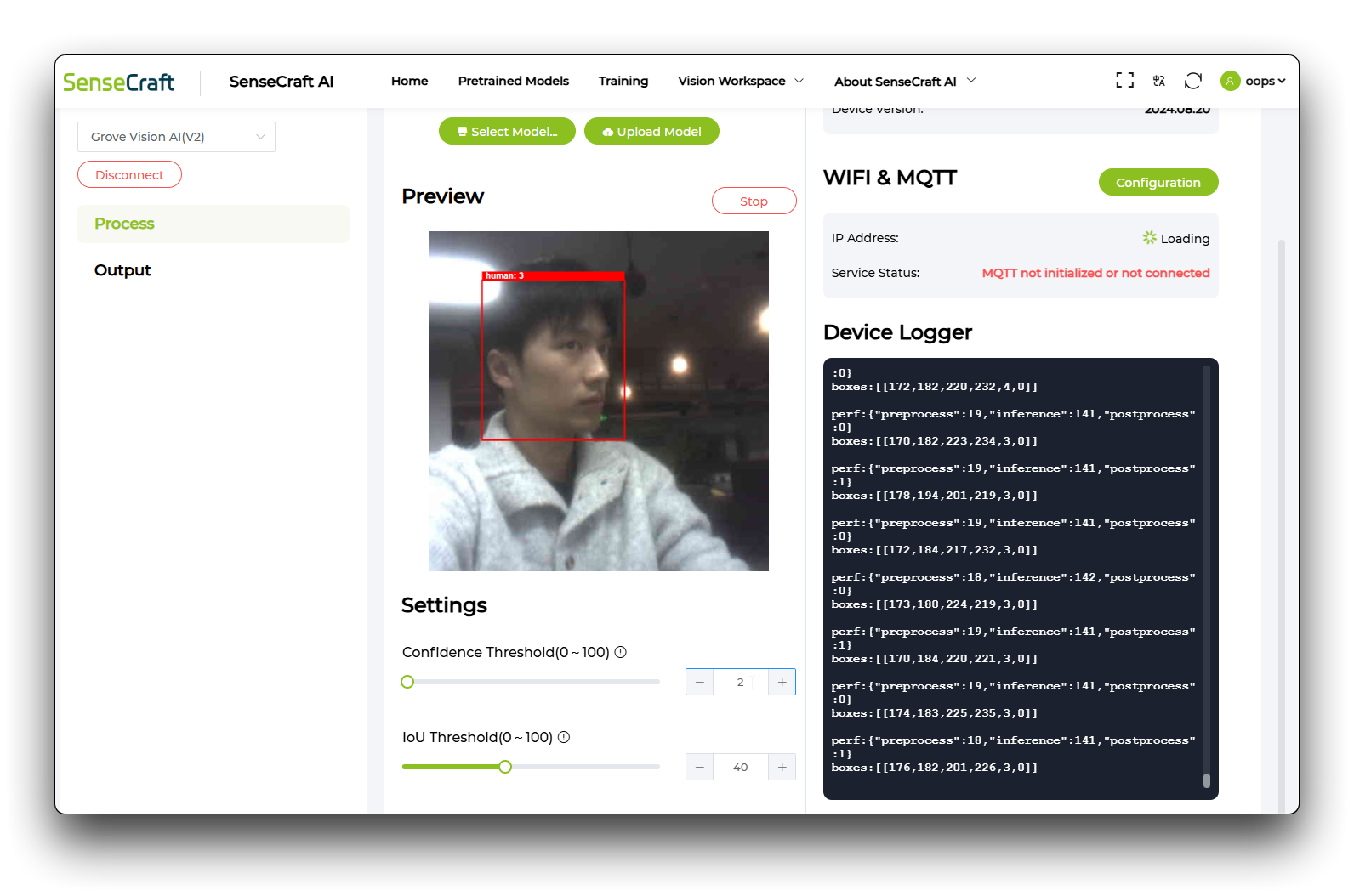
Image Collection Training
Section titled “Image Collection Training”We’ll make a demo that recognises earphones. Based on YOLO – World object detection model, you can customize the training for text and image, which can improve the detection accuracy of the generated model.
Step 1. Determine the object name
Section titled “Step 1. Determine the object name”First enter the target name in the text box and then select Grove Vision AI (V2) to connect.


Step 2. Capture Image
Section titled “Step 2. Capture Image”Then point the camera at the target object and click ‘Capture’, then box the target object with a red box and finally click ‘Confirm’.

Step 3. Train and upload models
Section titled “Step 3. Train and upload models”Click on ‘Training’ and then wait patiently for the model to finish training.

And finally it’s time for model deployment.

Demonstration of results
Section titled “Demonstration of results”Once the above steps are completed, the model will be successfully trained and deployed.

Tech Support & Product Discussion
Section titled “Tech Support & Product Discussion”Thank you for choosing our products! We are here to provide you with different support to ensure that your experience with our products is as smooth as possible. We offer several communication channels to cater to different preferences and needs.