Zone Alert with YOLO11 on reComputer RK3576
Zone Alert turns a reComputer RK3576 into a local video-monitoring system. In the browser, draw a polygon around the area you want to watch. The application uses a YOLO11n RKNN model to detect people and cars, marks whether each detection is inside or outside the zone, and records an event when a selected object class enters the zone.
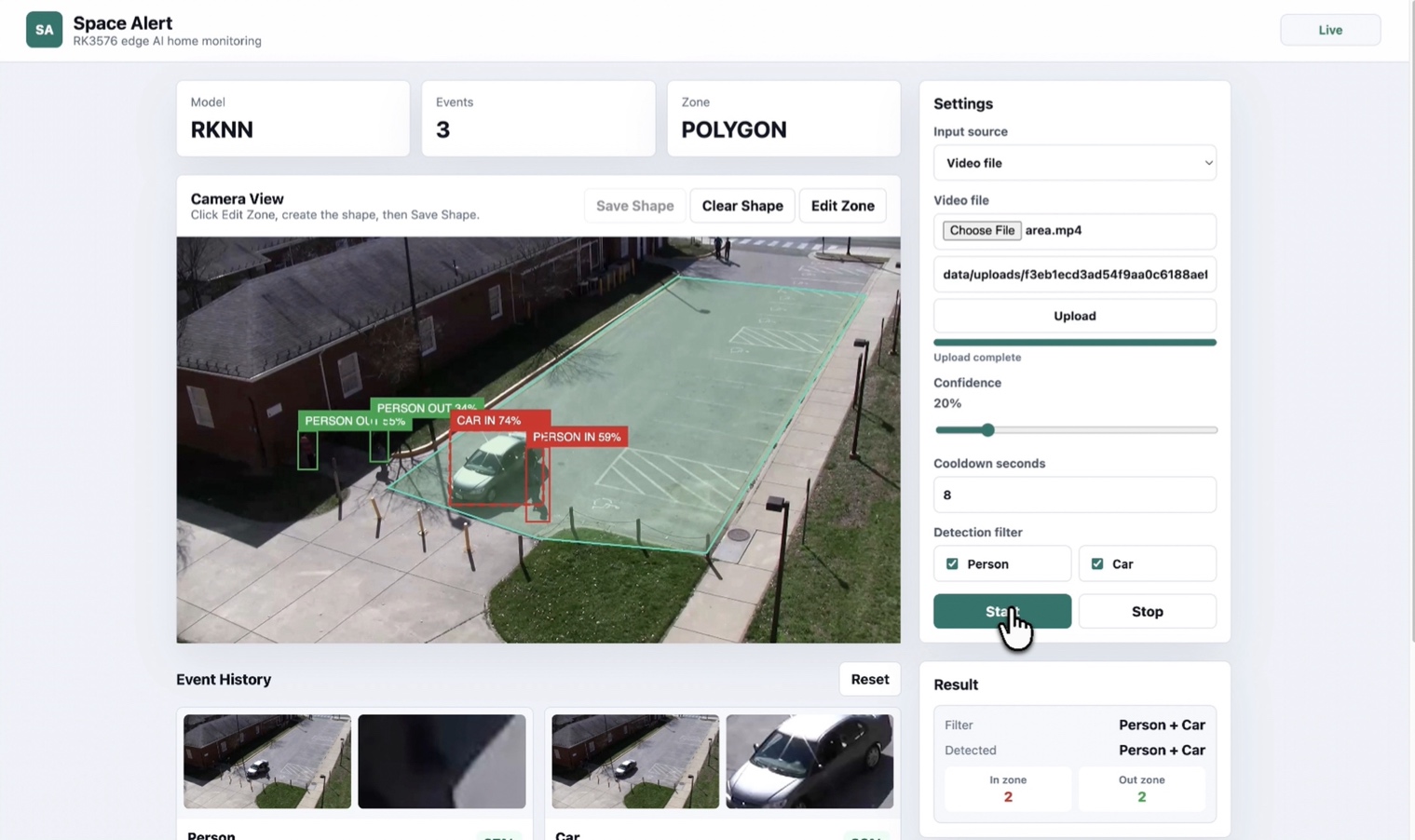
Source code: https://github.com/Hanzo-Huang/rk3576-ai-demos/tree/main/examples/cv/zone-alert
#What Is It For?
Zone Alert is designed for monitoring places where a person or vehicle should not enter without being noticed. For example, it can watch a restricted area, warehouse entrance, parking space, or safety zone. Everything runs locally on the RK3576, so the camera feed does not need to be sent to a cloud service.
The application accepts a USB camera, an uploaded video, or an RTSP/RTSPS stream. You can choose whether to watch for people, cars, or both, then draw the area that matters directly over the video.
#How It Works
- The application reads frames from the selected camera, video file, or RTSP stream.
- The shared
yolo11n.rknnmodel detects people and cars. - Each bounding box is tested for intersection with the saved monitoring zone.
- An in-zone detection triggers an event, subject to the configured per-class cooldown.
- The event store records the class, confidence, bounding box, full-frame snapshot, and object crop for display in the dashboard.
The default settings process video at 1280 x 720 and target 8 frames per second. The confidence threshold defaults to 20%, and the event cooldown defaults to eight seconds. These values can be changed from the browser interface.
#How to Use It
Clone the source repository and enter the demo directory:
git clone https://github.com/Hanzo-Huang/rk3576-ai-demos.git
cd rk3576-ai-demos/examples/cv/zone-alert
Install the shared Python dependencies and the bundled RKNN Lite wheel:
pip install -r ../../../requirements.txt
pip install ../../../runtime/wheels/rknn_toolkit_lite2-2.3.2-cp311-cp311-manylinux_2_17_aarch64.manylinux2014_aarch64.whl
Start the application:
python run.pyOpen http://127.0.0.1:8000 on the RK3576, or replace 127.0.0.1 with the
device IP address when opening the dashboard from another computer on the same
network.
In the dashboard:
- Select a USB camera, upload a video, or enter an RTSP/RTSPS stream URL.
- Draw a polygon or rectangle around the area you want to monitor.
- Select
Person,Car, or both as the detection filter. - Adjust the confidence threshold and cooldown if needed.
- Select Start and watch the event list for zone entries.
#Review Detection Events
When a selected object enters the monitored zone, the dashboard adds a card to Event History. Each card includes the full-frame snapshot, the detected object crop, class, event time, and confidence score. The Current Detections panel shows whether each active detection is inside or outside the zone.
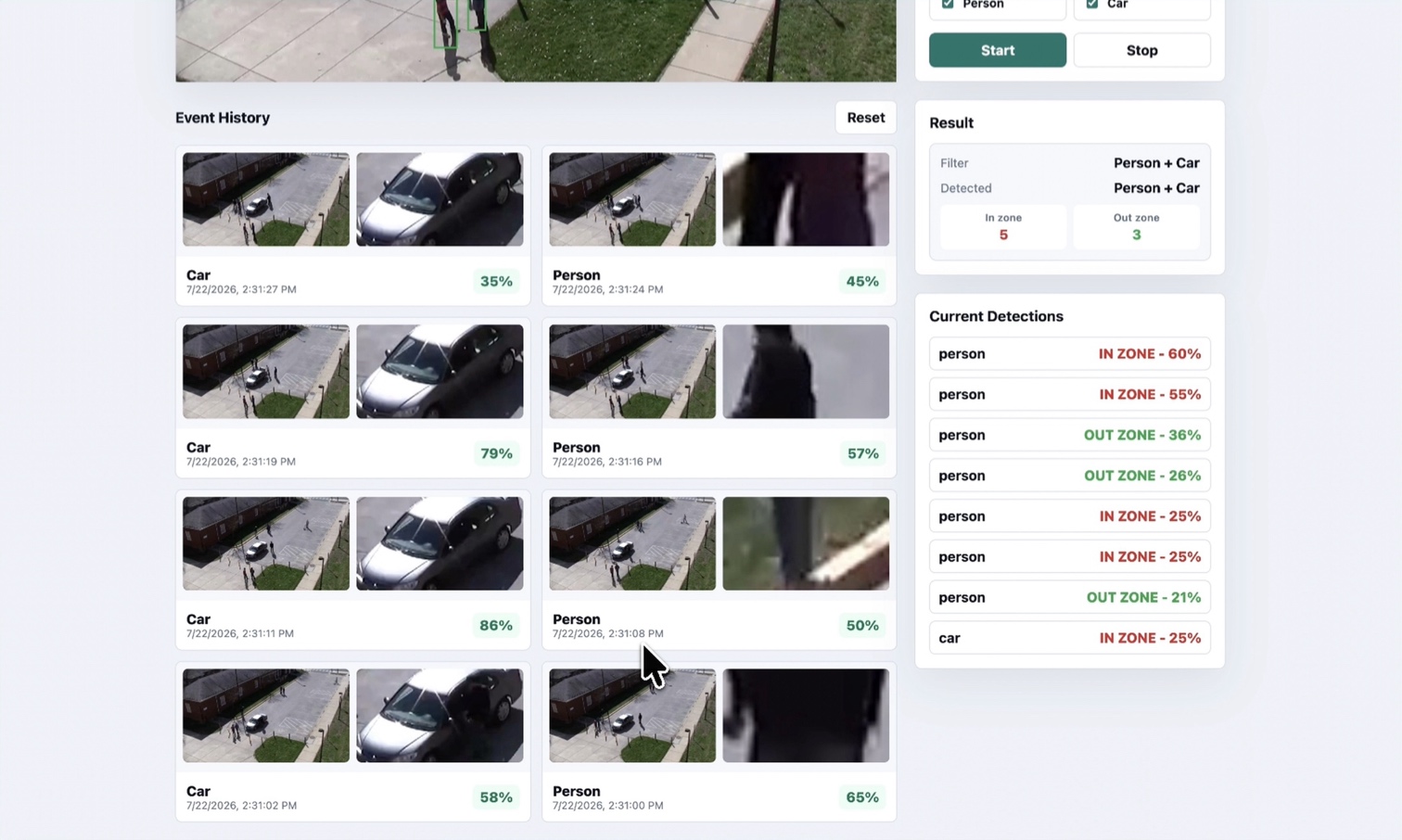
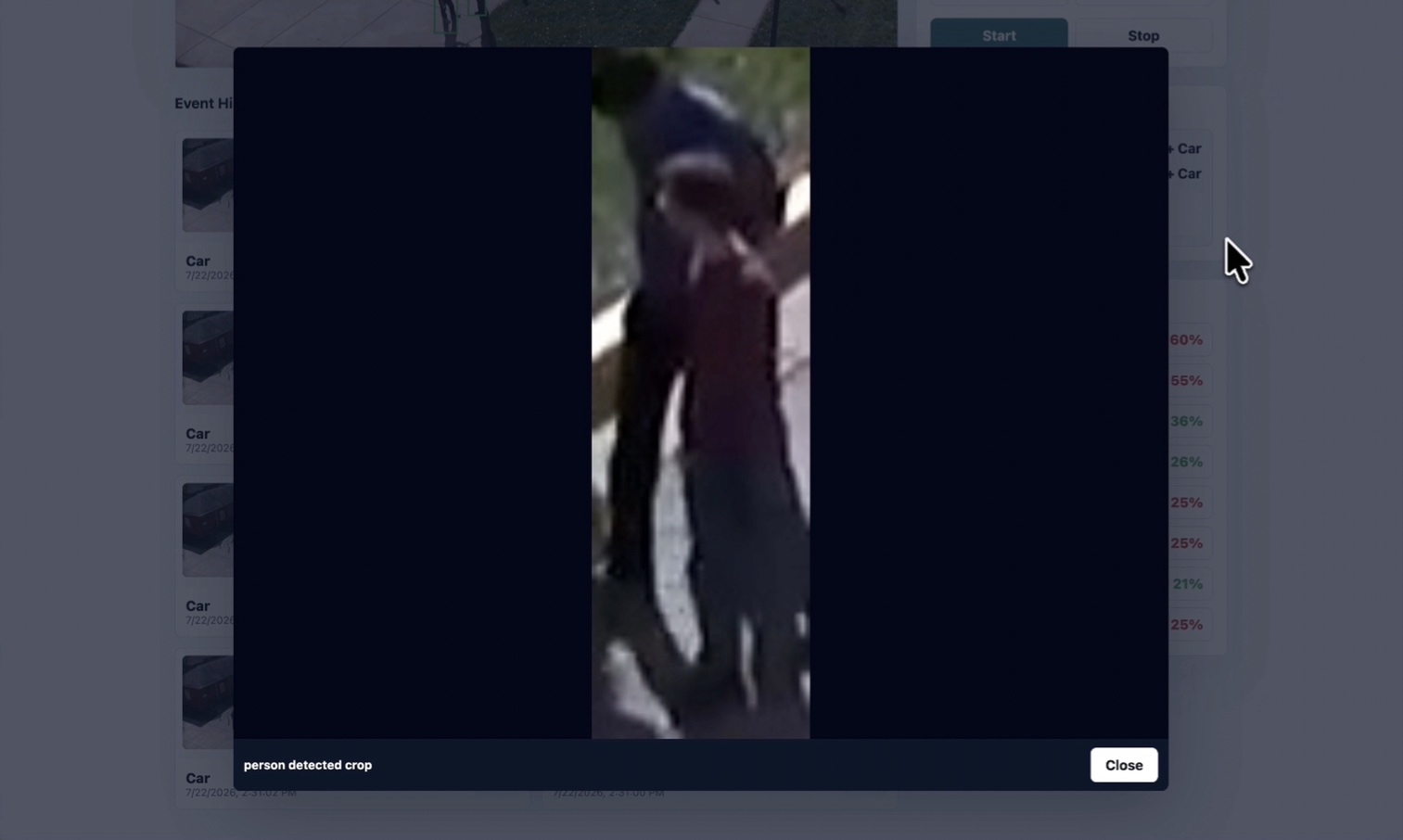
Select an object crop in the event history to open a larger preview. Select Close to return to the dashboard.
The demo uses the shared models/yolo11n.rknn model. The bundled RKNN Lite
wheel targets CPython 3.11 on aarch64. Confirm the operating system, Python
environment, device permissions, and inference performance on the target
reComputer RK3576 before production use.