OpenClaw on reComputer - 隐私优先的情绪 AI Agent
这款 AI Box 的核心特性是情绪感知加上情感回应。
它不会只识别情绪然后告诉你 "我检测到你感到焦虑" ——那样会显得过于机械。
它做的是把情绪状态当作上下文信息,并把它融入日常对话。它不会只识别情绪然后告诉你 "我检测到你感到焦虑" ——那样会显得过于机械。
举例来说:当你看起来焦虑并询问一个代码相关的问题时,Agent 可能会这样回复:
"别担心,这个问题我见过很多次。很容易修复。我们先看看报错信息……"
而不是这样回复:
"我已检测到你当前的情绪状态为焦虑。我将把回复模式切换到冷静且耐心的风格。经过分析,这个问题可能是……"
感知情绪,并自然地融入对话。
这是我们的核心价值:不是花哨的情绪检测噱头,而是让 AI 真正理解人,并具备人文温度。
第一步:烧录 reComputer 设备镜像并登录访问
下载并烧录 Ubuntu 镜像
-
reComputer Industrial R2145 支持 Ubuntu 系统。首先从 Seeed 官网下载 Ubuntu 镜像。
-
将硬件切换到 Boot 模式,使用 USB-Type C 数据线将设备连接到电脑,并连接电源线。
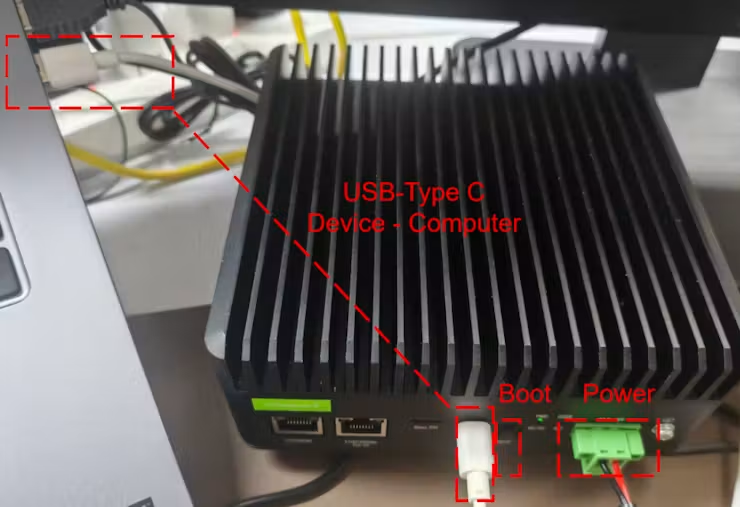
- 打开 rpiboot 与 Raspberry Pi Imager,然后开始镜像烧录。
首次启动与配置
完成镜像烧录后,将硬件切换到非 Boot 模式。通过以太网线将设备与电脑连接到同一网络,然后使用以下命令登录(密码:12345678)。
ssh reComputer@raspberrypi.local第二步:在 reComputer 上配置环境与 OpenClaw
安装 Python 与依赖
pip install tensorflow>=1.7 opencv-contrib-python==3.3.0.9 fer安装 OpenClaw
OpenClaw 下载:
curl -fsSL https://openclaw.ai/install.sh | bash下载验证:
openclaw --version      # confirm the CLI is available
    openclaw doctor         # check for config issues
    openclaw gateway status # verify the Gateway is running
openclaw --version      # confirm the CLI is available
    openclaw doctor         # check for config issues
    openclaw gateway status # verify the Gateway is running
配置 Agent 大脑
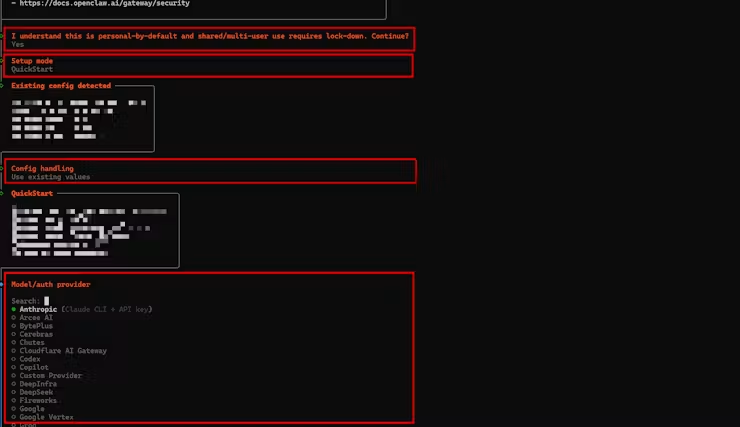
方法一:主流现有大模型的 API
- 如果你在安装时选择了运行入门教程,请在教程的这一步选择对应的模型,并填入你的个人 API key。
- 如果安装已经完成且你需要更换模型,可以执行 openclaw onboard 命令重新配置。
方法二:本地模型部署(Ollama)
安装 Ollama
curl -fsSL https://ollama.com/install.sh | sh
ollama --versio
将 OpenClaw 接入 Ollama
OpenClaw 需要一个 API Key 来识别 Ollama 服务。由于 Ollama 是本地服务,这个 Key 可以是任意字符串。
- 设置环境变量
export OLLAMA_API_KEY="ollama-local- 通过 OpenClaw 进行配置
openclaw config set models.providers.ollama.apiKey "ollama-local"确认 Ollama 服务正在运行
- 检查 Ollama 服务
curl http://localhost:11434/api/tags- 如果未运行,可以启动它
ollama serve查看 OpenClaw 模型
- 在 OpenClaw 中查看当前可用的模型
openclaw models list- 如果没有可用的 Ollama 模型,可以添加
ollama launch openclaw
ollama launch openclaw --model qwen3:8b
运行 OpenClaw 上手向导
- 运行配置向导
openclaw onboard- OpenClaw 会自动检测本地 Ollama 服务。请在向导中按如下进行选择
◆  I understand this is personal-by-default and shared/multi-user use requires lock-down. Continue?
│  ● Yes / ○ No
◆  Onboarding mode
│  ● QuickStart (Configure details later via openclaw configure.)
│ ○ Manual- 接着会显示当前已接入的模型。本文档以 ollama/qwen3:8b 模型为例
◇  Existing config detected ─────────╮
│                                    │
│  workspace: ~/.openclaw/workspace  │
│  model: ollama/qwen3:8b            │
│  gateway.mode: local               │
│  gateway.port: 18789               │
│  gateway.bind: loopback            │
│                                    │
├────────────────────────────────────╯- 你可以在此选择 Use existing values 或 Update values,但不要选择 Reset
◆  Config handling
│  ● Use existing values
│  ○ Update values
│ ○ Reset- Model provider 选择 Skip for now
◆  Model/auth provider
│  ...
│  ○ Cloudflare AI Gateway
│  ○ Custom Provider
│ ● Skip for now- 选择 All providers
◆  Filter models by provider
│  ● All providers
│  ○ amazon-bedrock
│  ○ anthropic
│ ○ azure-openai-responses- 在 Default Model 中,已接入的 Ollama 模型会出现在最上方并作为默认模型;直接选中它,例如
◆  Default model
│  ● Keep current (ollama/qwen3:8b)
│  ○ Enter model manually
│  ○ amazon-bedrock/anthropic.claude-3-haiku-20240307-v1:0
│ ○ amazon-bedrock/anthropic.claude-3-5-haiku-20241022-v1:0- 至此,OpenClaw 已成功接入本地 Ollama 模型。你可以根据自身需要继续配置后续步骤
◆  How do you want to hatch your bot?
│  ○ Hatch in TUI (recommended)
│  ● Open the Web UI
│  ○ Do this later
开始使用 OpenClaw + Ollama
-
向导完成后,OpenClaw 会自动打开 Web UI
-
你的机器人现在可以使用本地 Ollama 模型运行。如果想切换模型,可以执行
ollama launch openclaw- 你也可以直接指定模型
ollama launch openclaw --model qwen3:8b第三步:开发视觉识别算法
情绪识别可以通过三种方式实现。请根据你的资源和需求选择合适的方案。
方法一:多模态大模型(最方便,但资源消耗大、运行速度慢)
采用 GPT-4V 等多模态模型,自带情绪识别功能,无需本地模型。
方法二:小模型(最稳定)
我们可以使用 yolo 与 FER 实现情绪识别,或使用 FaceNet 等开源/自建小模型。
本文采用 YOLO + FER 的高效实现方案来封装推理代码:
YOLO 算法可以通过一条命令从 reComputer AI Lab 平台快速获取并成功运行:
sudo docker run --rm \
--name cm5-hailo8-yolo11n \
--privileged \
--net=host \
-e PYTHONUNBUFFERED=1 \
--device /dev/hailo0:/dev/hailo0 \
-v /usr/lib/libhailort.so.4.23.0:/usr/lib/libhailort.so.4.23.0:ro \
-v /usr/lib/libhailort.so:/usr/lib/libhailort.so:ro \
ghcr.io/seeed-projects/recomputer-hailo8-cv/yolov11n:latest \
python web_detection.py --model_path model/yolov11n.hef --video_path video/test.mp4
第四步:配置 systemd 开机自启
为了让情绪识别服务在 reComputer 启动时自动运行,需要配置 systemd 用户服务,修改情绪识别脚本,并将其保存到 OpenClaw 可读的固定文件中。这样 OpenClaw 在后续对话中就能实时获取情绪信息:
启用并启动服务:
mkdir -p ~/.config/systemd/user
systemctl --user daemon-reload
systemctl --user enable emotion.service
systemctl --user start emotion.service
第五步:配置情绪设置
配置 OpenClaw SOUL.md
编辑 OpenClaw 的 SOUL.md 文件,添加情绪感知能力:
Emotional Awareness Mode
You have an emotional awareness AI companion mode. When the user starts the emotion detection service:
Read emotion state file:
/home/seeed/.openclaw/emotion_state.json
Before every reply, check the emotion and style fields in emotion_state.json, then adjust your tone based on the user’s emotion.
重启 OpenClaw 以应用配置
OpenClaw 的核心操作
Terminal:
    openclaw --Start OpenClaw
    openclaw onboard --Reconfigure OpenClaw
Chat interface:
    chat --Enter the previous conversation
    /new --Create a new conversation interface
第六步:验证与测试
重启设备
sudo reboot设备现在应能自动运行情绪识别服务
摄像头与情绪检测验证
在摄像头前做不同的面部表情,并通过文件 /home/seeed/.openclaw/emotion_state.json 检查情绪更新状态
cd /home/seeed/.openclaw
vim emotion_state.json
预期结果:

完整对话测试
启动 OpenClaw 对话:
openclaw
chat
测试场景:
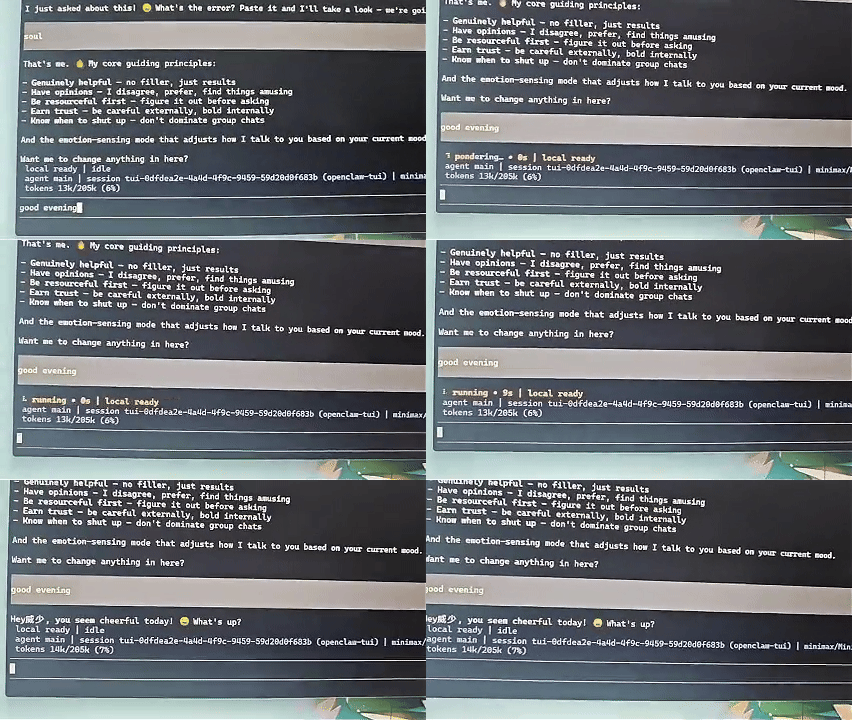
情绪回应示例
场景 1:用户显得焦虑
User (frowning): This code keeps throwing errors, please help me check it.
Agent (Anxiety emotion detected): "Don’t worry, let me take a look at this problem for you. It appears to be a type conversion error. Let me fix it for you:It should work properly after this adjustment. Feel free to tell me if you still run into issues."

Emotion Update → User’s relaxed expression detected after several seconds
Agent: "I see the issue is resolved and you look relieved~ Is there anything else I can assist you with?"
场景 2:用户看起来难过
User (sighing): My coding skills seem to be getting worse lately.
Agent (Frustration emotion detected): "I understand how you feel. It’s perfectly normal to hit a bottleneck sometimes. The fact that you can recognize this means you have high standards for code quality, and that in itself is progress. Would you like me to check exactly what you’re unsatisfied with? Let’s optimize it together."