title: Building an NVR System with Frigate on the reComputer RK3576 summary: One-click Frigate NVR deployment on the reComputer RK3576 with Docker, enabling hardware-accelerated decoding and RKNN inference. keywords:
Quickly build an on-device NVR project based on RK3576 / Docker / RKNN / Frigate.
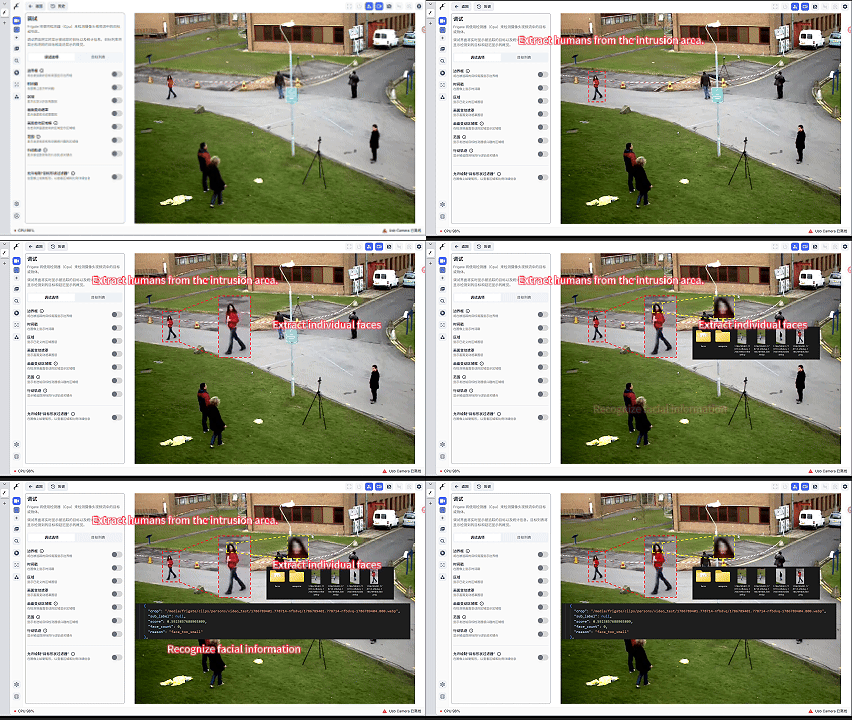
Frigate is an open-source NVR focused on local, real-time AI object detection. All inference runs on your own hardware — camera streams are never uploaded to any cloud server — which both protects privacy and avoids expensive monthly cloud-AI subscription fees. Frigate supports custom detection zones and masking zones, and integrates seamlessly with Home Assistant to bring NVR feeds into smart-home automations.
This guide shows how to deploy Frigate on the reComputer RK3576 with Docker Compose and exploit the RK3576's built-in Rockchip MPP (hardware decoding) + RGA (2D acceleration) + RKNN (NPU inference) stack for real-time video analytics with low CPU usage.
Getting Started
In this guide, we follow the official deployment flow and show how to configure a Frigate Docker environment that performs local AI detection on RTSP camera streams on the reComputer RK3576.
Prerequisites recommended by the official documentation
Frigate officially recommends:
- A Debian-based OS as the best host;
- VMs are not recommended (Proxmox, ESXi, Virtualbox) — some Proxmox setups may work, but they add complexity for Coral/GPU passthrough;
- Windows is not officially supported (WSL / Virtualbox may work, but GPU/Coral passthrough is difficult).
For Rockchip platforms, check your system image version:
$ uname -r
5.10.xxx-rockchip

$ ls /dev/dri
by-path  card0  card1  renderD128  renderD129、

$ sudo cat /sys/kernel/debug/rknpu/version
RKNPU driver: v0.9.2、
Calculating the shared memory required by the device
Frigate uses shared memory to process video frames. The default shm-size Docker provides is 64 MB. For a detection scenario with two 720p cameras, the default 128 MB shared-memory size is sufficient. Choose the shared-memory allocation based on your actual situation to make the most of the resources.
We recommend using the official online calculator: https://docs.frigate.video/frigate/installation#calculating-required-shm-size
Getting the download link
Visit the official site https://docs.frigate.video/frigate/installation#docker and select the following options to get the installation instructions.
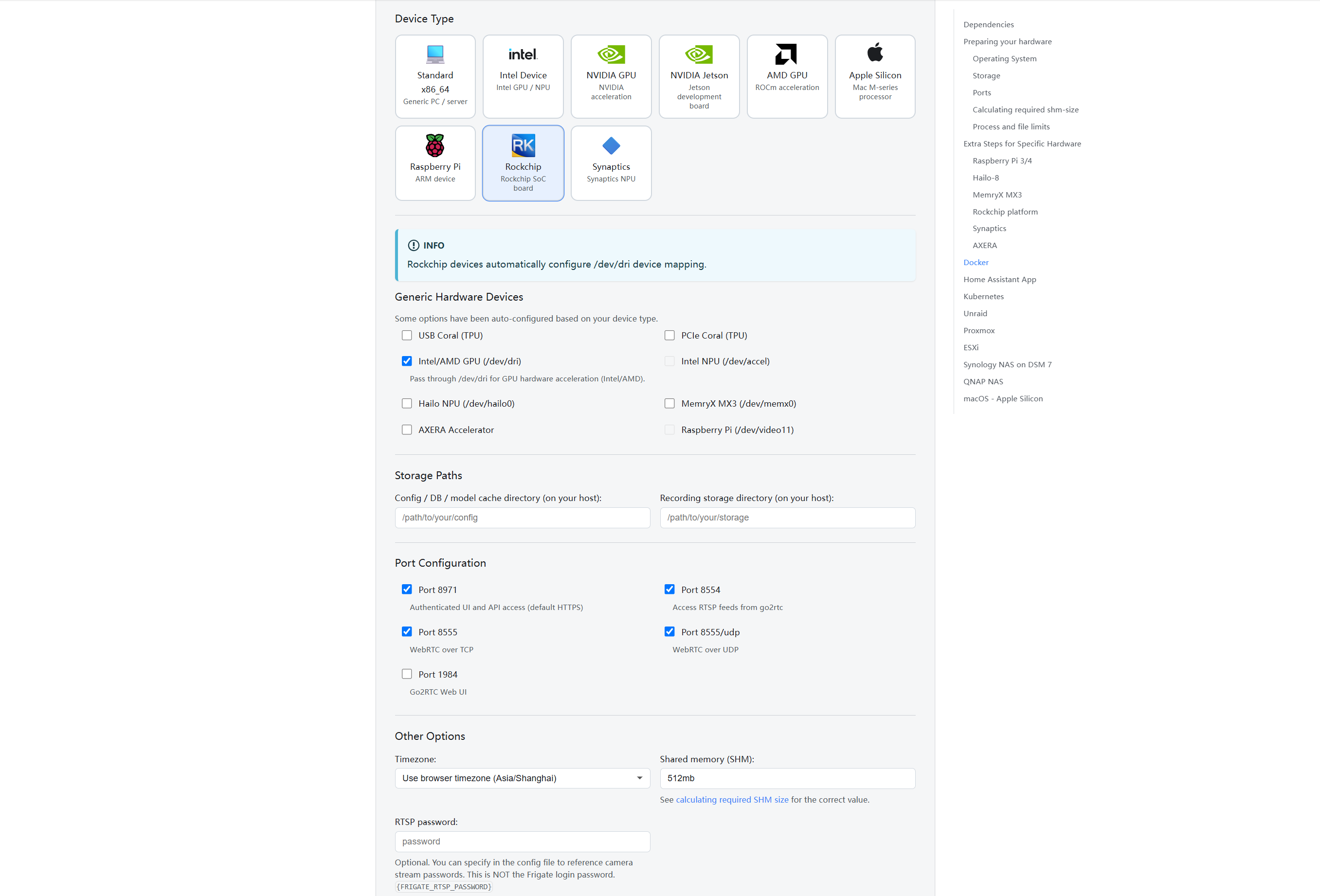
Fill in the Storage Paths section according to your actual needs (you can leave some empty if not needed). In Other Options, fill in the memory size calculated above; you can also set a password manually (optional).
Then copy the installation instructions:
services:
  frigate:
    container_name: frigate
    privileged: true # This may not be necessary for all setups
    restart: unless-stopped
    stop_grace_period: 30s # Allow enough time to shut down the various services
    image: ghcr.io/blakeblackshear/frigate:stable-rk
    shm_size: "512mb" # Update for your cameras based on SHM calculation
    security_opt:
      - apparmor=unconfined
      - systempaths=unconfined
    devices:
      - /dev/dma_heap # Rockchip DMA heap
      - /dev/rga # Rockchip RGA
      - /dev/mpp_service # Rockchip MPP service
      - /dev/dri # Intel/AMD GPU hardware acceleration
    volumes:
      - /etc/localtime:/etc/localtime:ro # Sync host time
      - /path/to/your/config:/config # Config file directory
      - /path/to/your/storage:/media/frigate # Recording storage directory
      - type: tmpfs # 1GB in-memory filesystem for recording segment storage
        target: /tmp/cache
        tmpfs:
          size: 1000000000
      - /sys/:/sys/:ro # Rockchip system info
    ports:
      - "8554:8554" # Access RTSP feeds from go2rtc
      - "8971:8971" # Authenticated UI and API access (default HTTPS)
      - "8555:8555" # WebRTC over TCP
      - "8555:8555/udp" # WebRTC over UDP
    environment:
      TZ: "Asia/Shanghai" # Timezone
Or you can grab the tested-and-verified configuration directly from GitHub: https://github.com/doublelf/RK_friigate_dockeryml
services:
  frigate:
    container_name: frigate
    privileged: true # Run in privileged mode
    restart: unless-stopped
    stop_grace_period: 30s # Allow enough time to shut down the various services
    image: docker.cnb.cool/frigate-cn/frigate:stable-rk # Mainland China mirror source; the original address is ghcr.io/blakeblackshear/frigate:stable-rk
    shm_size: "512mb" # Update this value for your cameras based on the calculation above
    devices:
      - /dev/dri:/dev/dri # For GPU hardware acceleration
      - /dev/dma_heap # RockChip DMA heap
      - /dev/rga # RockChip RGA
      - /dev/mpp_service # RockChip MPP service
    security_opt:
      - apparmor=unconfined
      - systempaths=unconfined
    volumes:
      - /etc/localtime:/etc/localtime:ro # Sync host time
      - /home/seeed/frigate/config:/config # "/home/seeed/frigate/config" is the host path where you want to store the configuration files
      - /home/seeed/frigate/video:/media/frigate # "/home/seeed/frigate/video" is the host path where you want to store the recorded surveillance videos
      - type: tmpfs # Use 1 GB of memory as a temporary store for recording segment storage
        target: /tmp/cache
        tmpfs:
          size: 1000000000
      - /sys/:/sys/:ro # RockChip system info
    ports:
      - "8971:8971" # Default Frigate service port; defaults to HTTPS
      - "8554:8554" # RTSP video streams
      - "8555:8555/tcp" # WebRTC over TCP
      - "8555:8555/udp" # WebRTC over UDP
    environment:
      FRIGATE_RTSP_PASSWORD: "password" # RTSP password; please change it to the password you want
      TZ: "Asia/Shanghai" # Set to the China +8 time zone
      HF_ENDPOINT: "https://huggingface.mirror.frigate-cn.video" # Hugging Face mainland-China mirror source we provide, used to speed up downloading the partial models Frigate needs
      GITHUB_ENDPOINT: "https://github.mirror.frigate-cn.video" # GitHub mainland-China mirror source we provide, used to speed up downloading the partial models Frigate needs
      TF_KERAS_MOBILENET_V2_WEIGHTS_URL: https://cnb.cool/frigate-cn/mirrors/storage.googleapis/-/git/raw/main/tensorflow/keras-applications/mobilenet_v2/mobilenet_v2_weights_tf_dim_ordering_tf_kernels_0.35_224_no_top.h5 # Weights file required by the classification model
Create a docker-compose.yml file with the content above and run the following in a terminal:
docker compose up -d
When the build is finished, Frigate is already up and running locally. After that you can edit the configuration file, restart it, and check the runtime results.
Official minimal config.yml
The config.yml below is a minimal "just-make-it-run" configuration: one RTSP camera + MQTT disabled + the default detector (CPU). It is the default selection Frigate ships after installation; if you don't have the file, create it yourself.
mkdir -p ~/frigate/config
tee ~/frigate/config/config.yml > /dev/null << 'EOF'

mqtt:
  enabled: False

cameras:
  my_cam:
    ffmpeg:
      inputs:
        - path: rtsp://viewer:{FRIGATE_RTSP_PASSWORD}@<camera-ip>:554/stream
          roles:
            - detect
    detect:
      width: 1280
      height: 720

detect:
  fps: 5
EOF
Replace <camera-ip> with the actual IP of your camera. Save the file to /path/to/your/config/config.yml (i.e. the /config mount in docker-compose).
You can also extend this configuration to run multiple cameras at the same time — just add more structures below the existing configuration. The configuration below, for example, starts two cameras with different detailed setups:
mqtt:
  enabled: false

face_recognition:
  enabled: true

go2rtc:
  streams:
    usb_camera:
      - ffmpeg:device?video=0&video_size=640x480#video=h264

cameras:
  usb_camera:
    ffmpeg:
      inputs:
        - path: rtsp://127.0.0.1:8554/usb_camera
          input_args: preset-rtsp-restream
          roles:
            - detect
            - record
    detect:
      width: 640
      height: 480
      enabled: false  # Detection is disabled initially; test the video stream first

    record:
      enabled: true
      continuous:
        days: 0 # When set to 0, by default no surveillance video of unspecified types will be recorded
      alerts: # Specify here that only alert videos will be recorded; this overrides the setting above
        retain:
          days: 30
          mode: motion

    zones:
      zone_b32f13ac:
        coordinates: 0.867,0.093,0.417,0.115,0.437,0.859,0.974,0.85
        loitering_time: 0
        friendly_name: Zone 1

  video_test:  # Give this test camera a name
    ffmpeg:
      inputs:
        - path: /home/seeed/frigate/test.mp4  # Path to your video file
          input_args: -re -stream_loop -1 -fflags +genpts
          roles:
            - detect
            - record
    detect:
      enabled: true
    record:
      enabled: false  # Recording is recommended to be disabled during testing
    snapshots:
      enabled: false  # Snapshots are recommended to be disabled during testing

version: 0.17-0
The indent level of cameras and video_test each represents one camera's configuration. ffmpeg holds the overall configuration for the camera, including the video file path and applied roles; detect enables object detection, record enables recording, and snapshots enables snapshotting.
Startup and verification
Follow these steps:
cd /path/to/your/frigate
sudo docker compose up -d

# View the startup logs
sudo docker compose logs -f frigate
When the logs contain INFO : Frigate started successfully. or the Web UI is listening on 0.0.0.0:8971, the startup is successful.
Search for keywords in the logs to retrieve the account and password:
docker logs frigate 2>&1 | grep -Ei 'rtsp://|rtsps://|password|passwd|user|username|@'You may see something like rtsp://admin:password@192.168.1.100:554/stream.
# Verify the container status
sudo docker compose ps
# The expected status of the frigate service is running / healthy# Open in your browser
https://<your-host-ip>:8971Enter the account and password to log in.
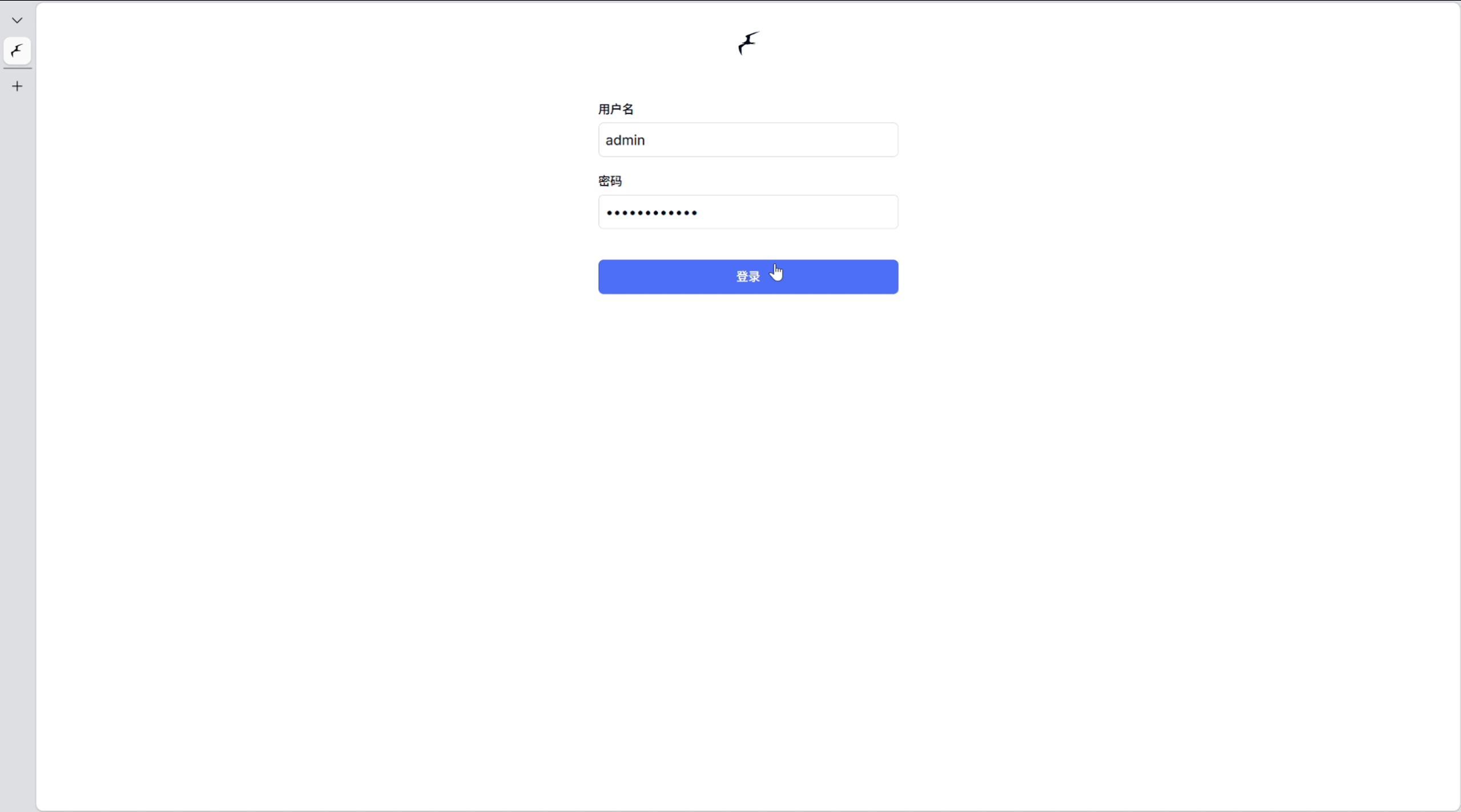
After a successful login, you can see all the cameras configured in the previous config file:
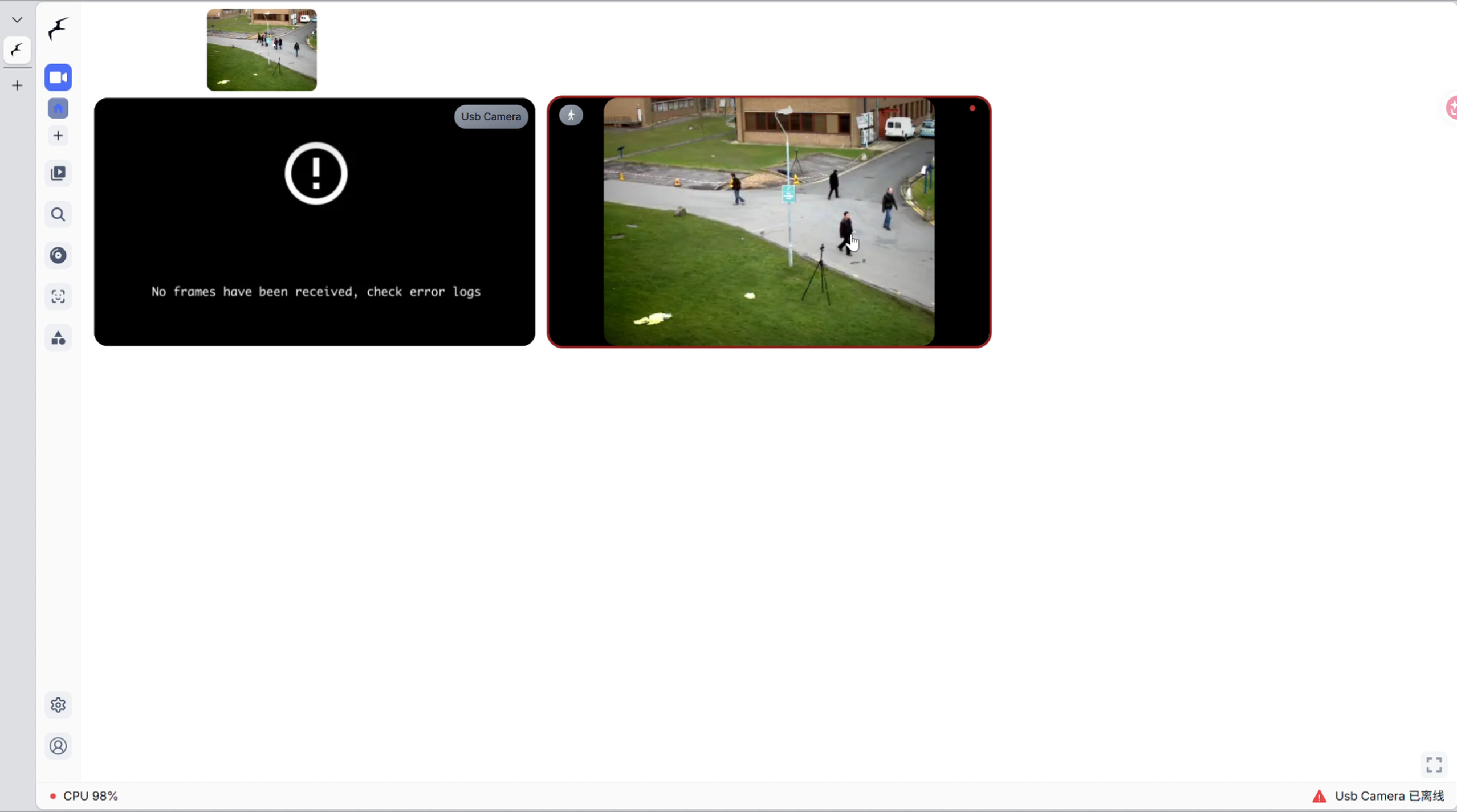
Select one of them and click into it, then click the debug icon in the top-right corner to see all features available for that camera. The top-right area lets you toggle features that are configured in config, including whether they are enabled by default; the left side provides built-in features such as designing detection zones: