Vision Story Studio turns an image into creative text using a local vision-language model. On a reComputer RK3576 with an RK1820 accelerator, upload a picture, choose a writing direction, and watch the response stream into the browser. The project's model is Qwen2.5-VL-3B_prune; image and prompt processing stay on the device while its local model service is running.
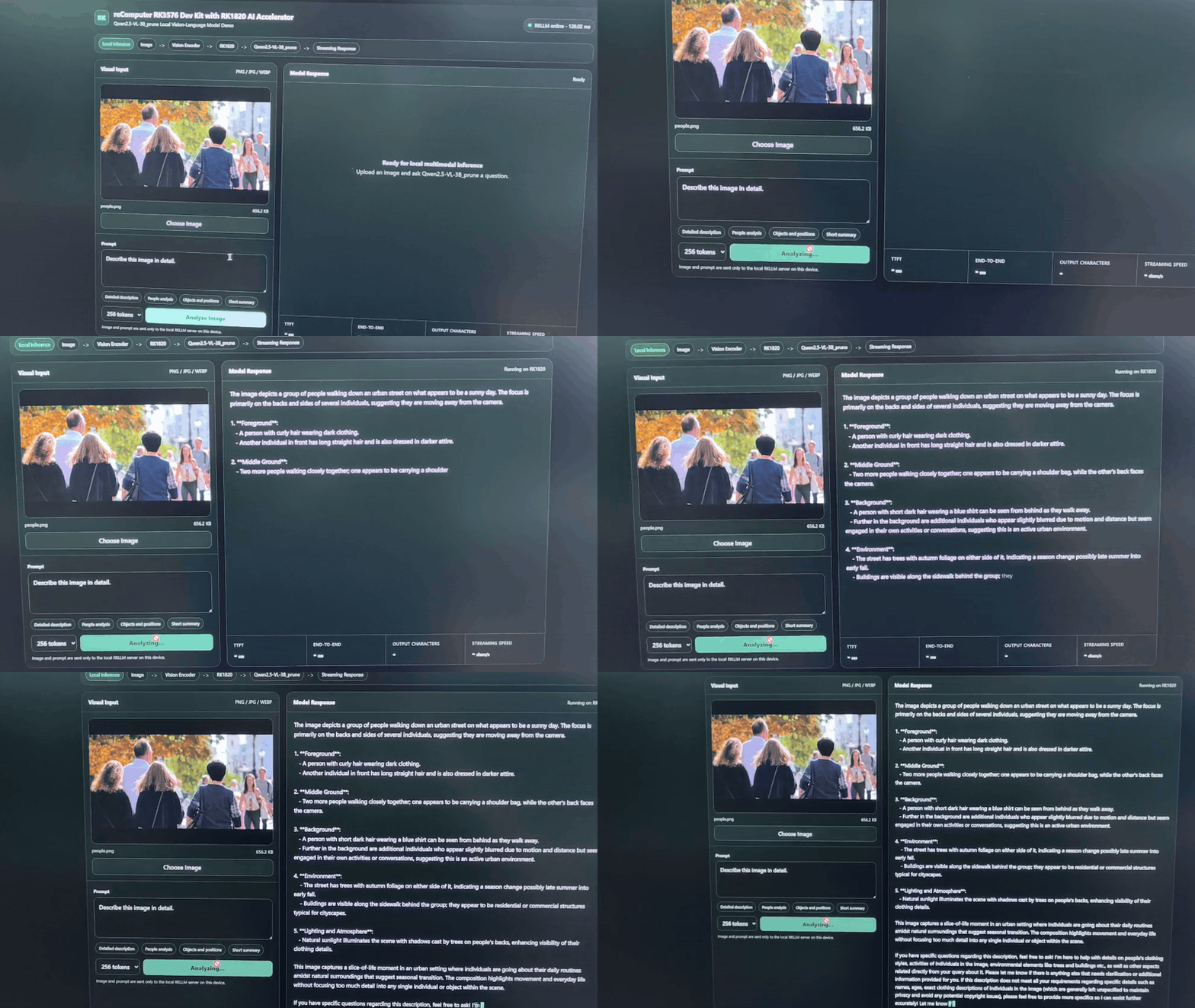
The clip shows a related image-understanding demo using RK1820 and Qwen2.5-VL-3B_prune: an image is uploaded and the response appears progressively. Vision Story Studio uses the same hardware and model combination for its creative writing presets.
What you can create
Upload a JPG, PNG, or WEBP image and select one of the built-in directions:
- a postcard inspired by the image;
- a short story;
- a visual scene description; or
- a set of creative prompts.
You can edit the prompt before pressing Create Story. The answer streams from the local model service to the browser.
Hardware and model files
- reComputer RK3576 with an RK1820 module installed and recognized.
- A compatible RKNN3/RKLLM runtime with
rkllm3-serveravailable on the board. - Python 3 with
venvfor the FastAPI web interface; its packages are listed in the project'srequirements.txt. - A separately obtained Qwen2.5-VL-3B_prune model package. Model binaries are not included in the standalone project archive.
The model launcher expects these files under MODEL_DIR:
llm_Qwen2.5-VL-3B_prune.rknn
llm_Qwen2.5-VL-3B_prune.weight
vision_Qwen2.5-VL-3B_prune.rknn
vision_Qwen2.5-VL-3B_prune.weight
Qwen2.5-VL-3B_prune.tokenizer.gguf
Qwen2.5-VL-3B_prune.embed.bin
Check that the model package and the board's runtime are compatible before starting the service.
Run the studio
Clone the repository and enter the project directory:
git clone https://github.com/Seeed-Projects/Lab-Prooject-RK.git
cd Lab-Prooject-RK/projects/rk1820-vlm-creative
chmod +x *.sh
In the first terminal, point to the prepared model directory and start the VLM service:
MODEL_DIR=/path/to/Qwen2.5-VL-3B_prune ./start_vlm_server.shKeep that terminal running. In a second terminal, enter the same project directory and start the web interface:
./start_ui.shOpen http://<RK3576-IP>:7861 from a browser on the same network. The UI connects to the model service at http://127.0.0.1:8080 by default. On its first run, start_ui.sh creates a virtual environment and installs the Python dependencies, so package access is required unless they are already cached.
Notes
The project's code and launch scripts are in Seeed-Projects/Lab-Prooject-RK. Keep the web interface on a trusted local network or add access controls before exposing it more widely. The model package and compatible board runtime must be prepared separately.