A useful voice interface should feel like a conversation, not a recording that must finish before the user can speak again. This project builds an edge voice terminal that listens, answers through a speaker, and stops its reply as soon as the user starts talking over it.
Speech recognition and speech synthesis run on the edge device. The conversation model can be an OpenAI-compatible cloud endpoint or a model running locally, depending on the selected hardware and privacy requirements. This makes the same project suitable for service desks, exhibits, kiosks, smart-room terminals, and robot voice interfaces.
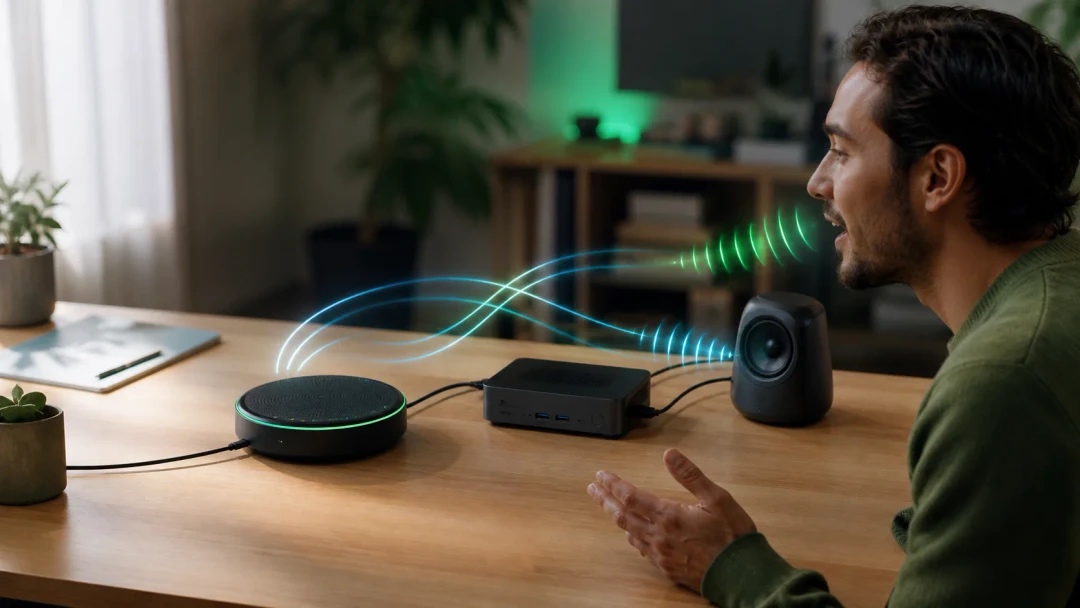
What makes this project different?
The key feature is barge-in: the microphone continues to capture processed audio while the speaker is playing a reply. When the system detects new speech, it interrupts playback and starts listening to the next request.
This behavior depends on a microphone array with hardware acoustic echo cancellation (AEC). Without AEC, audio from the speaker can return through the microphone and be mistaken for the user's voice. The reSpeaker XVF3800 is the validated default because it exposes an AEC-processed USB capture channel.
The project also keeps the speech pipeline close to the user:
- Automatic speech recognition (ASR) runs on the voice host.
- Text-to-speech (TTS) runs on the voice host.
- The resident voice agent manages listening, interruption, conversation, and playback.
- Only the conversation request needs to leave the device when a cloud LLM is selected.
- A fully local preset can keep speech and conversation processing on-site.
How the system works
The microphone array sends AEC-processed audio to the voice host over USB. The host detects speech, converts it to text, sends that text to the selected conversation model, and turns the response back into audio through the speaker connected to the reSpeaker's 3.5 mm output.
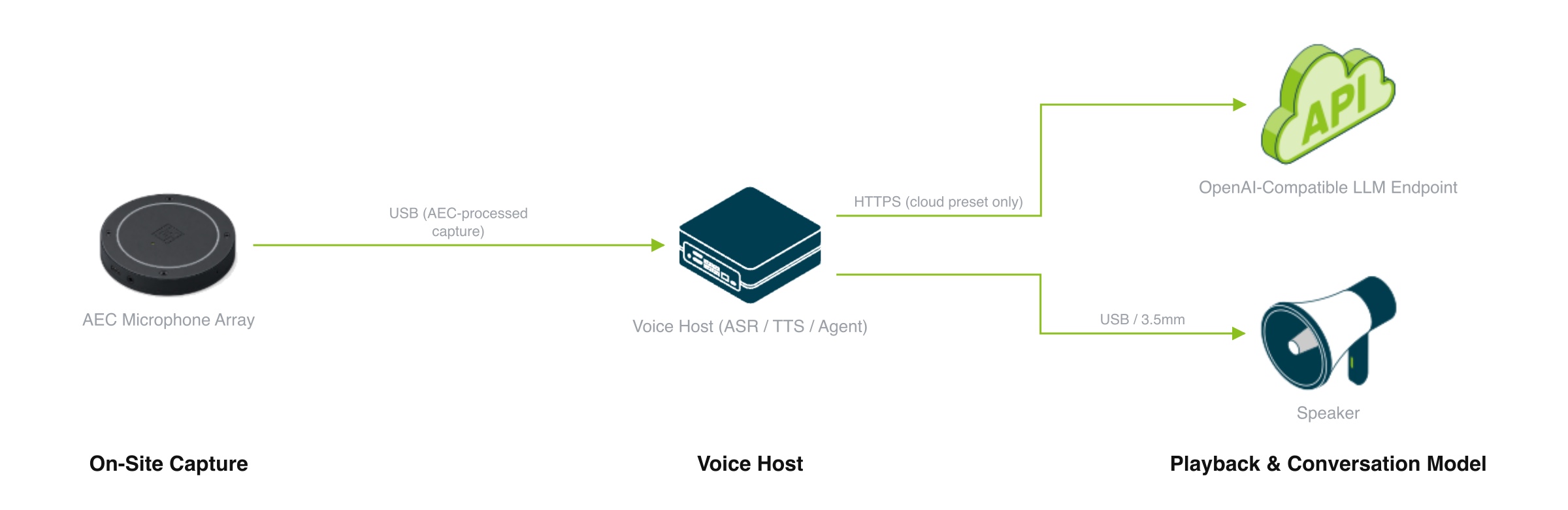
The diagram shows the logical audio flow. For the hardware setup in this guide, connect the speaker to the reSpeaker XVF3800's 3.5 mm output.
| Stage | Role |
|---|---|
| On-site capture | A USB microphone array captures speech and removes playback echo in hardware. |
| Voice host | The reComputer runs ASR, TTS, voice activity detection, and the conversational agent. |
| Conversation model | An OpenAI-compatible endpoint or a local LLM generates the reply. |
| Playback | A speaker connected to the reSpeaker XVF3800's 3.5 mm output plays the synthesized response. |
| Barge-in | New user speech interrupts the current reply and begins another turn. |
The open-source implementation is available in OpenVoiceStream. It provides device-specific speech backends while keeping the conversational application and service interfaces consistent across supported hosts.
Choose a deployment option
Cloud or OpenAI-compatible LLM
This is the simplest option for most deployments. ASR and TTS remain on the voice host, while the recognized text is sent to Qwen API or another OpenAI-compatible endpoint. You provide the endpoint base URL, API key, and model ID during deployment.
Choose this option when you want broad model choice, do not need all conversation text to stay on-site, or are using a host that does not have enough capacity for both the speech stack and a local LLM.
Fully local conversation
Choose a local preset when audio and conversation text must stay on the device or the terminal needs to work without an ongoing internet connection. In this walkthrough, the fully local configuration uses a reComputer RK3588 with an RK1828/RM182X accelerator for Qwen3-4B. It does not need a cloud API key.
The first deployment still needs internet access to obtain container images and model artifacts. After those artifacts are cached, a local preset can operate offline.
Choose the voice host
The SenseCraft Solution options covered here are:
| Conversation option | Device | Where the conversation model runs |
|---|---|---|
| Cloud or OpenAI-compatible LLM | reComputer RK3576 | Cloud or another compatible endpoint; ASR and TTS stay on the RK3576 |
| Cloud or OpenAI-compatible LLM | reComputer RK3588 | Cloud or another compatible endpoint; ASR and TTS stay on the RK3588 |
| Fully Local Conversation | reComputer RK3588 + RK1828/RM182X | On the local accelerator alongside the RK3588 speech stack |
Select a conversation language supported by the chosen device. The language is set during deployment, and the app selects the corresponding speech models.
What you need
Hardware
- A reComputer RK3576 or RK3588 for the cloud option, or RK3588 with an RK1828/RM182X card for the fully local option.
- A USB microphone array that exposes an AEC-processed capture channel. The reSpeaker XVF3800 is the validated default.
- A speaker connected to the reSpeaker XVF3800's 3.5 mm output.
Network and service access
- Network access from the deployment computer to the voice host.
- Internet access during the first deployment for images and model artifacts.
- Ongoing internet and API access when using a cloud conversation model.
- The base URL, API key, and model ID for a custom OpenAI-compatible endpoint.
Set up the hardware
- Connect the reSpeaker XVF3800 to the reComputer over USB.
- Plug the speaker into the 3.5 mm output on the reSpeaker.
- For the fully local option, install the RK1828/RM182X card in the RK3588 host and connect the card's separate 12 V power supply.
See the reference design for device requirements.
How to run
1. Install and open SenseCraft Solution
Go to the SenseCraft Download Center, find SenseCraft Solution, and download the installer for your computer's operating system. Install and open the application.
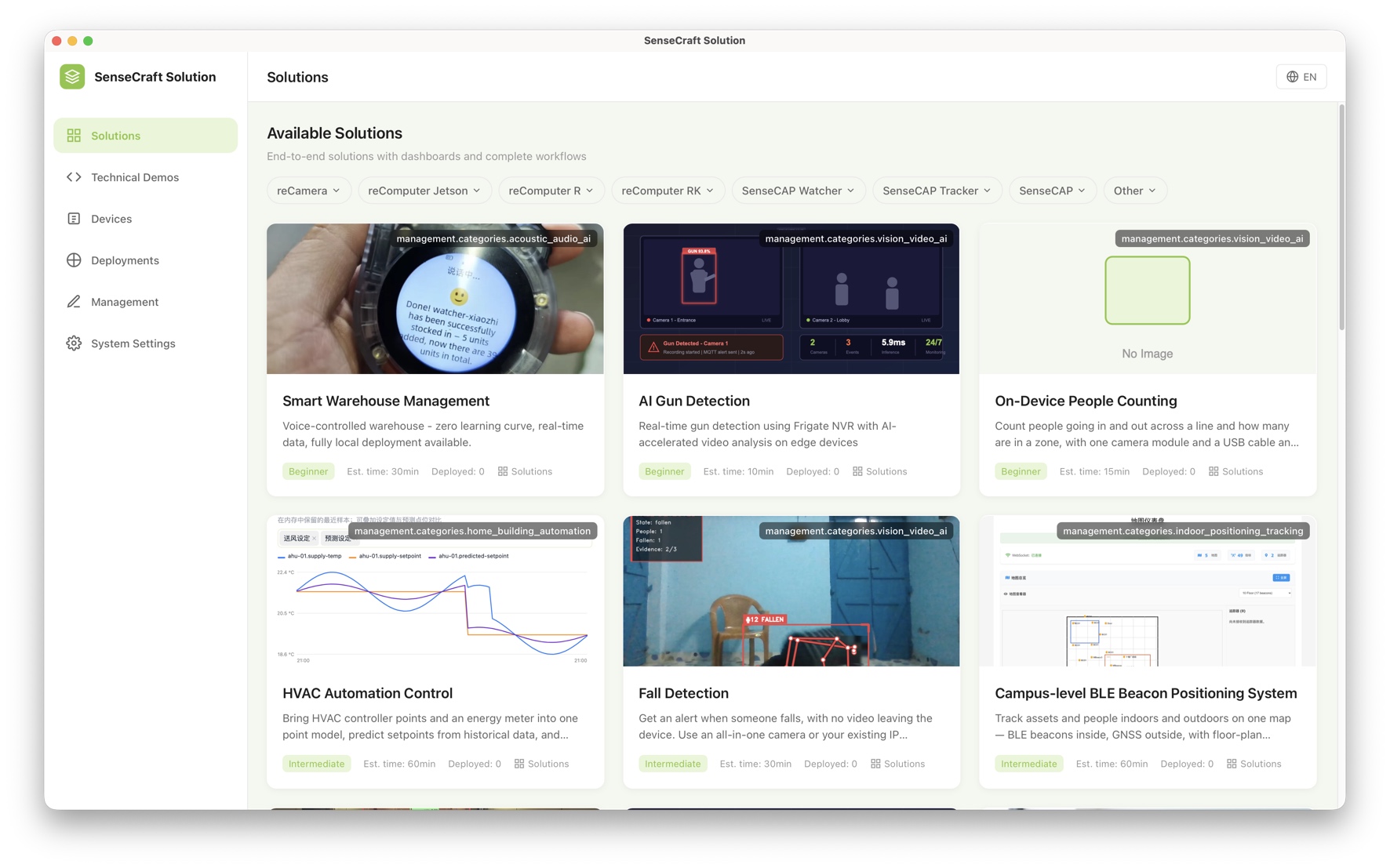
2. Find the voice AI solution
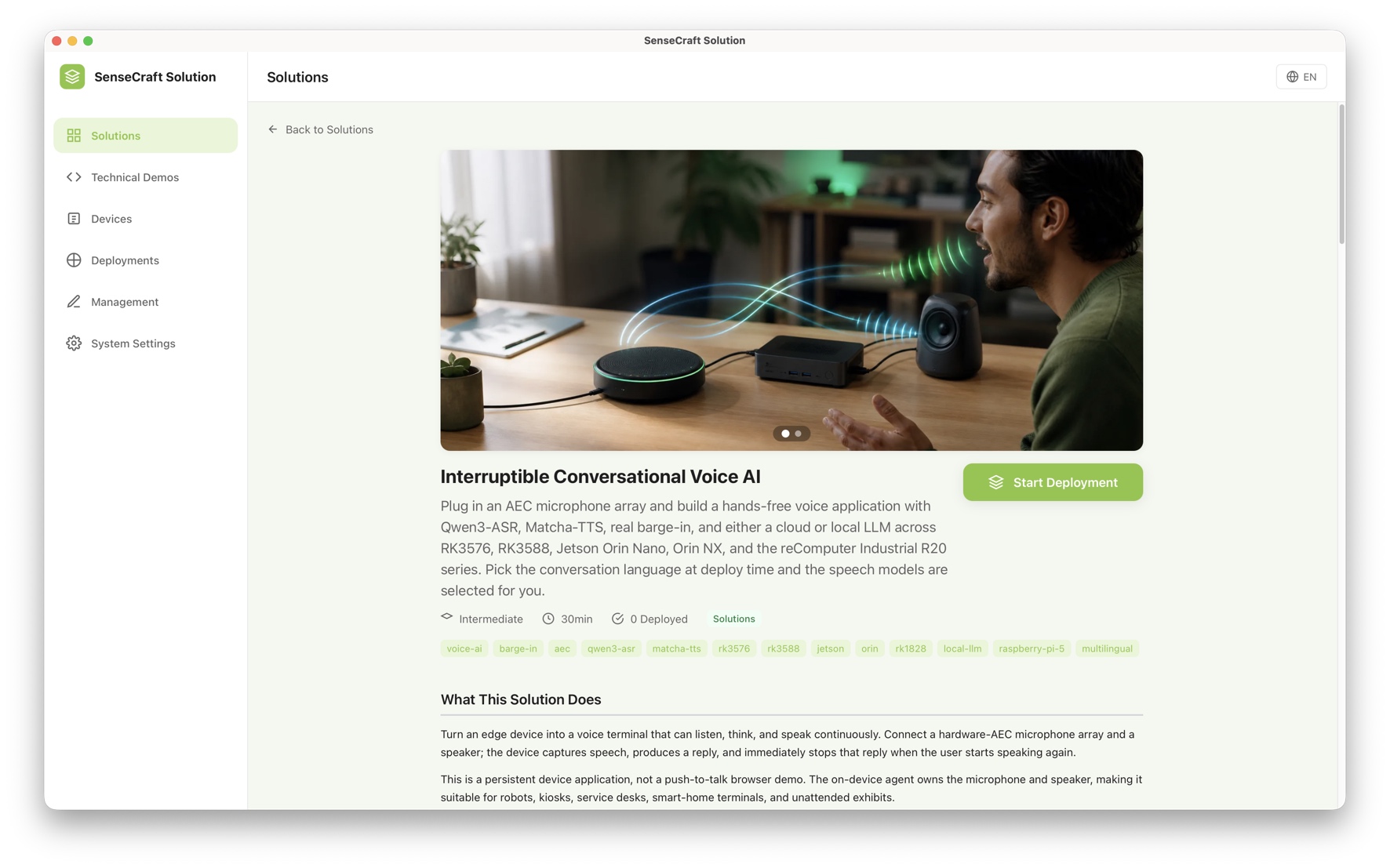
On the Solutions page, scroll down to Interruptible Conversational Voice AI and open its card.
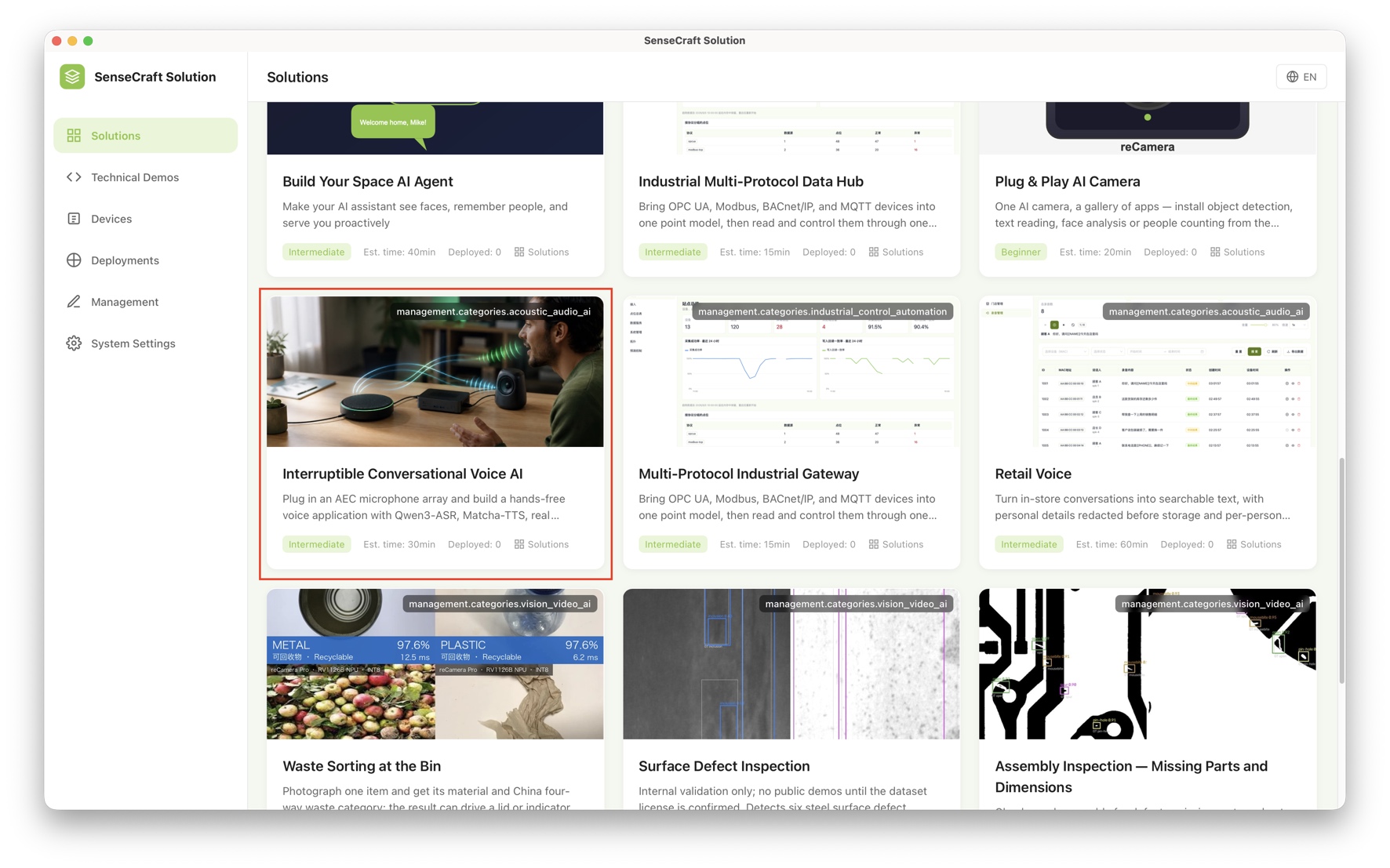
On the solution page, click Start Deployment.
3. Choose the deployment mode and device
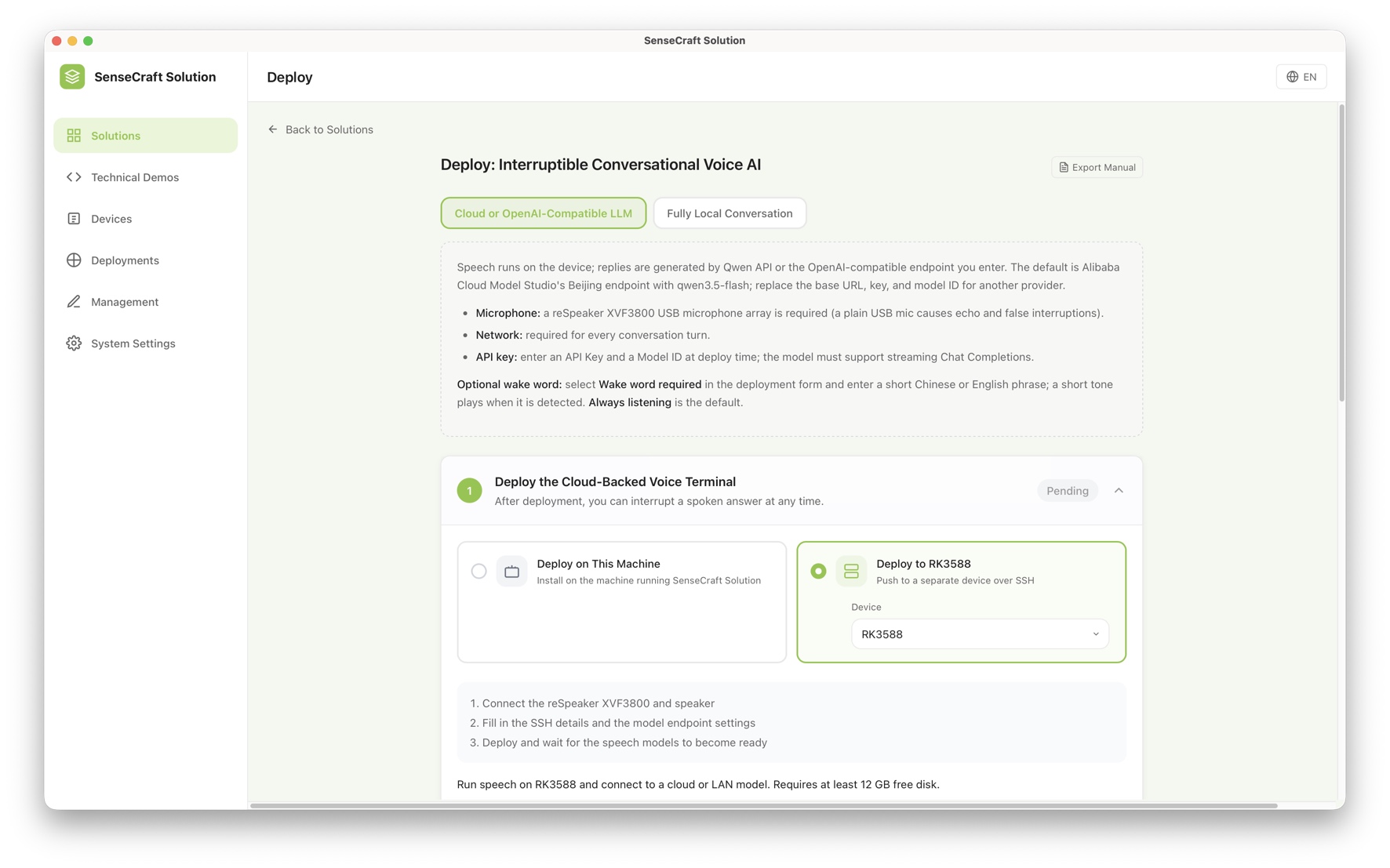
Select Cloud or OpenAI-Compatible LLM for a reComputer RK3576 or RK3588. Select Fully Local Conversation for a reComputer RK3588 with an RK1828/RM182X card. In the device selector, choose the hardware you connected.
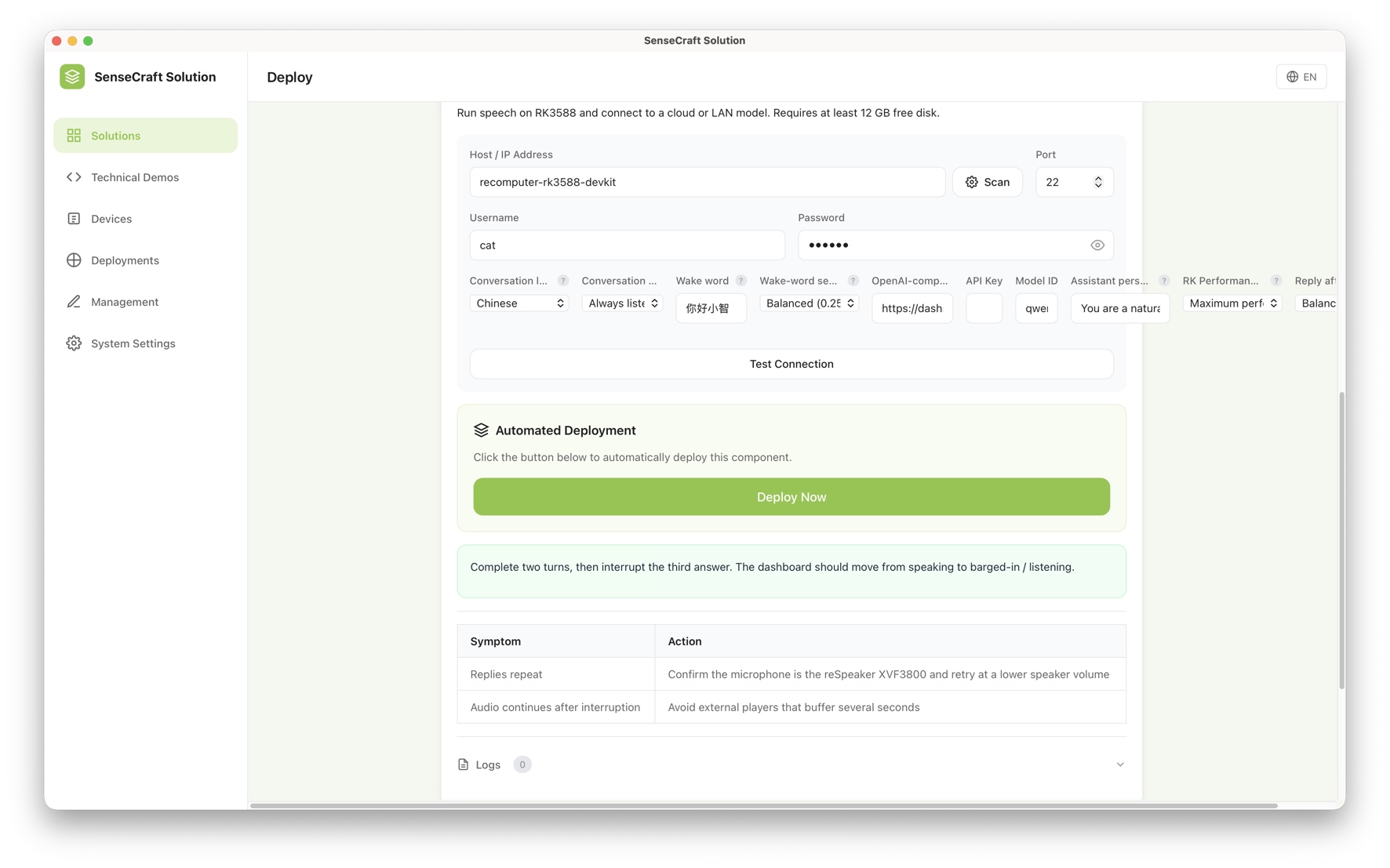
4. Enter connection and conversation settings
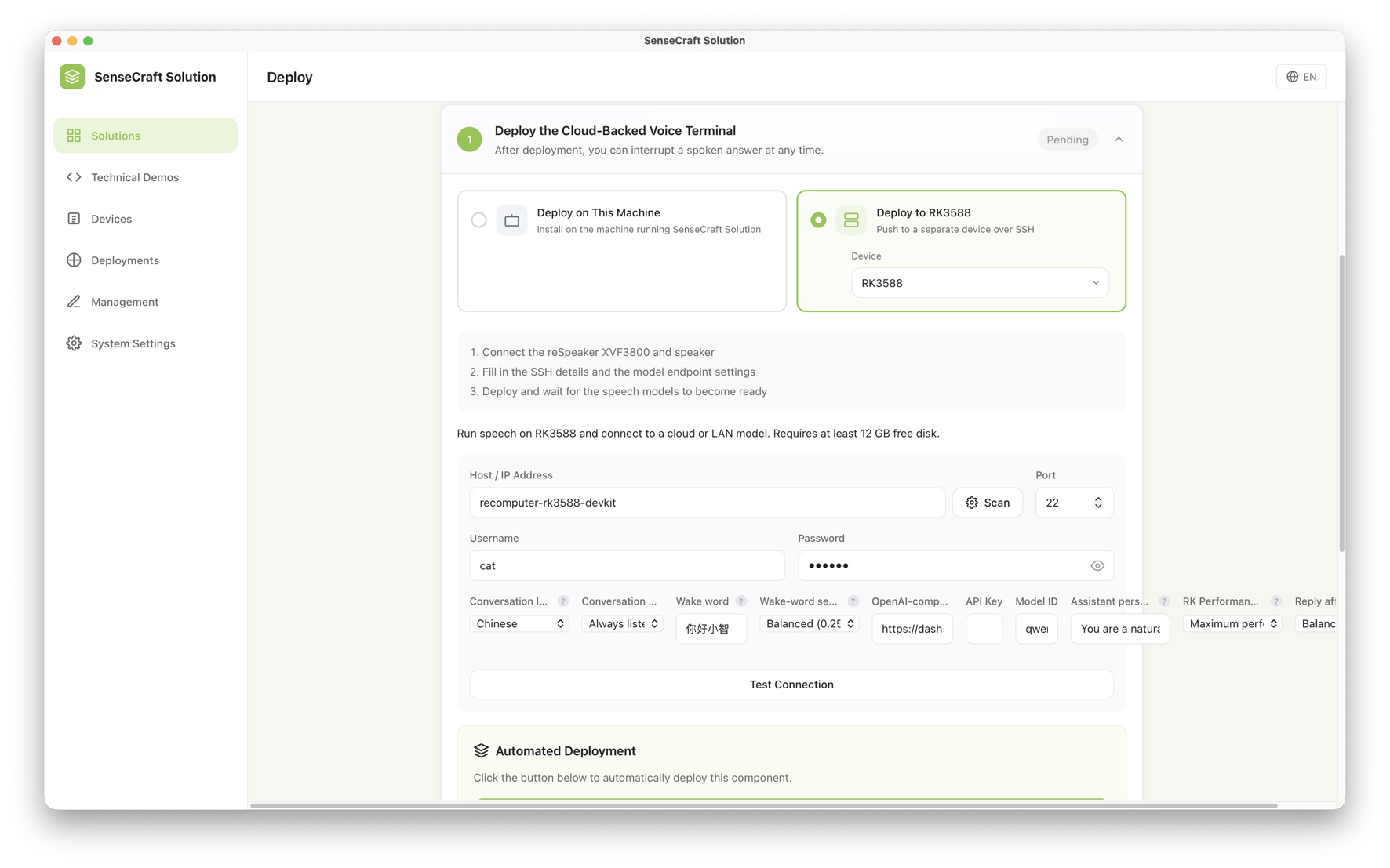
For a cloud deployment, enter the voice host's hostname or IP address, SSH username and password, and conversation language. Enter the API key for your conversation model. If you use a custom OpenAI-compatible provider, also check its base URL and model ID. Use Test Connection to check access to the host.
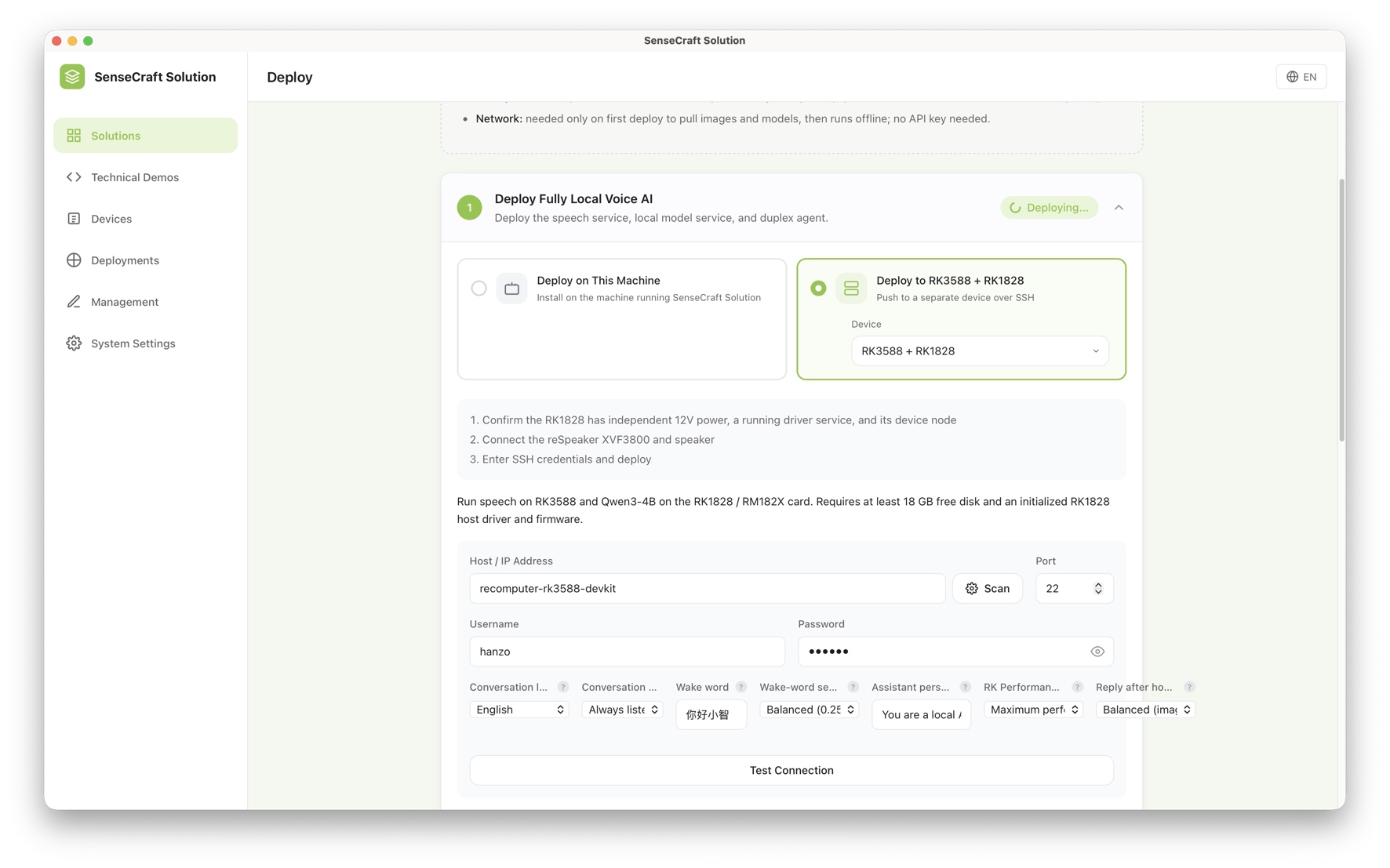
For a fully local deployment, enter the RK3588 host's hostname or IP address, SSH username and password, and conversation language. The local model runs on the RK1828/RM182X card, so no cloud API key is required. Confirm the card has its independent 12 V power, driver, and device node, then select Test Connection.
5. Deploy the solution
Click Deploy Now and wait for SenseCraft Solution to install the services and prepare the speech models automatically. The first deployment downloads container images and model artifacts, so keep the device connected to the internet until deployment completes.
6. Open the Web UI and test a conversation
After deployment succeeds, open the voice host's Web UI on port 18000. For the
RK3588 devkit shown here, use
http://recomputer-rk3588-devkit.local:18000. If that hostname does not resolve
on your network, use http://<device-ip>:18000 with your device's IP address.
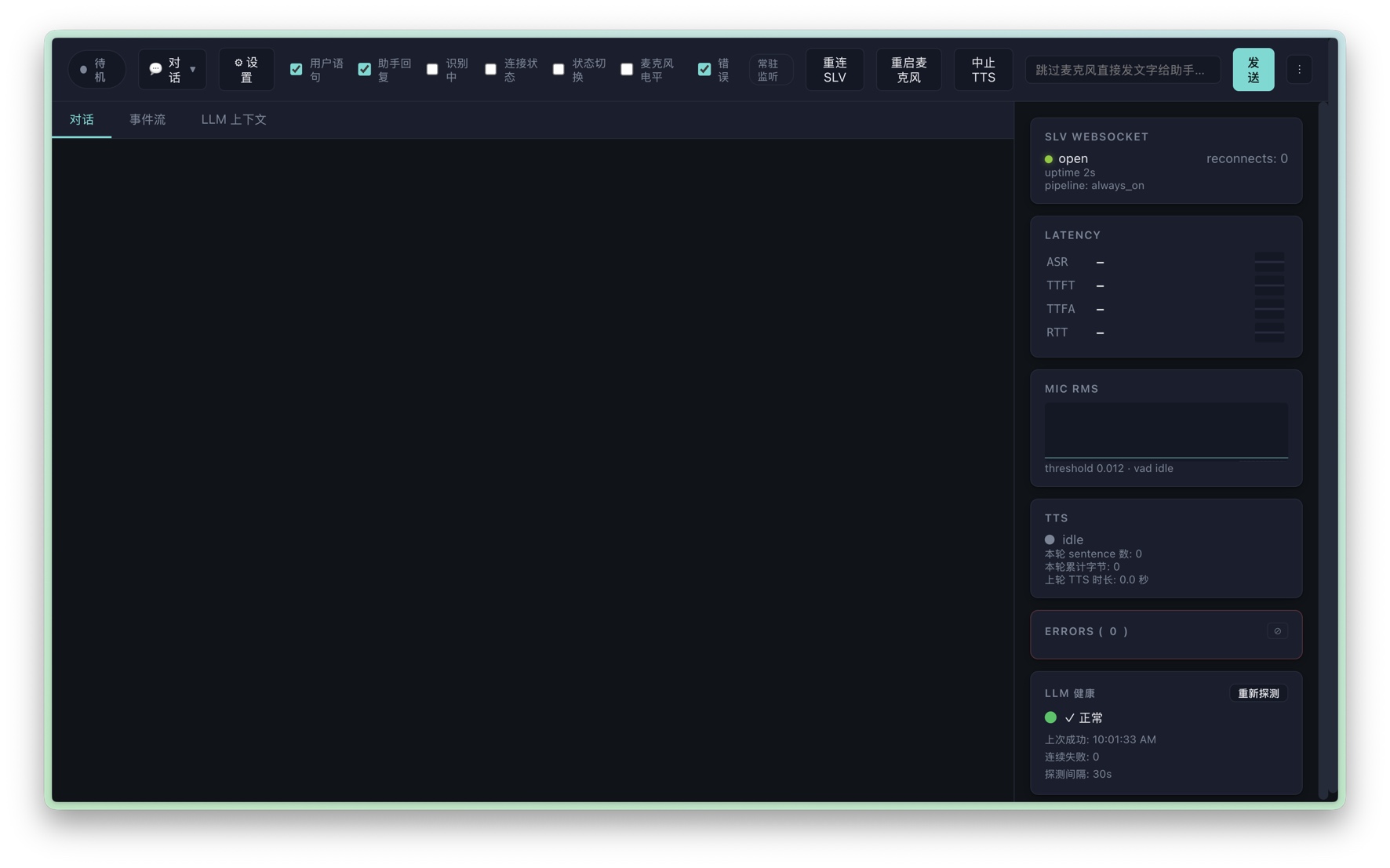
Speak to the microphone and listen for the reply from the speaker connected to the reSpeaker. Then speak again while a reply is playing to check that the terminal stops speaking and listens to the new request.