OpenClaw on reComputer - Privacy-First Emotion AI Agent
The core features of this AI Box are emotion perception plus emotional response.
It does not merely recognize emotions and tell you "I detect that you are feeling anxious" — that would be overly mechanical.
What it does is treat emotional state as contextual information and integrate it into daily conversations.It does not merely recognize emotions and tell you "I detect that you are feeling anxious" — that would be overly mechanical.
For example: When you look anxious and ask a code-related question, the Agent might reply:
"Don't worry, I've seen this issue many times. It's easy to fix. Let's check the error message first..."
Instead of replying like this:
"I have detected your current emotional state as anxious. I will switch my response mode to calm and patient style. After analysis, this problem may be..."
Perceive emotions, and embed them naturally into dialogue.
This is our core value: not a fancy emotion detection gimmick, but making AI truly understand people and possess human warmth.
Step 1: Flash the reComputer device image and log in for access
Download and Flash the Ubuntu Image
-
The reComputer Industrial R2145 supports the Ubuntu system. First, download the Ubuntu image from the official Seeed website.
-
Set the hardware to Boot mode, connect the device to your computer with a USB-Type C cable, and connect the power cable.
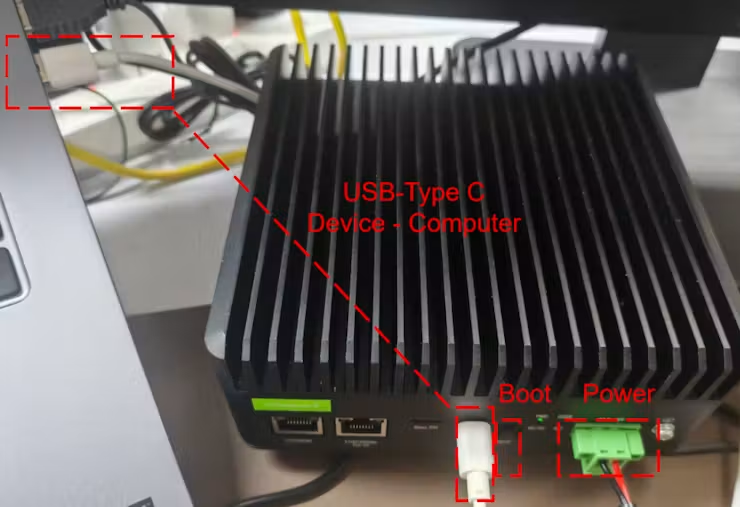
- Open rpiboot and Raspberry Pi Imager, then proceed with image flashing.
First Boot and Configuration
After finishing the image flashing, set the hardware to non-Boot mode. Connect the device and your computer to the same network via an Ethernet cable, then use the following command to connect (password: 12345678).
ssh reComputer@raspberrypi.localStep 2: Environment and OpenClaw Configuration on reComputer
Install Python and Dependencies
pip install tensorflow>=1.7 opencv-contrib-python==3.3.0.9 ferInstall OpenClaw
OpenClaw Download:
curl -fsSL https://openclaw.ai/install.sh | bashDownload Verification:
openclaw --version      # confirm the CLI is available
    openclaw doctor         # check for config issues
    openclaw gateway status # verify the Gateway is running
openclaw --version      # confirm the CLI is available
    openclaw doctor         # check for config issues
    openclaw gateway status # verify the Gateway is running
Configure the Agent Brain
Method 1: API of Mainstream Existing Large Models
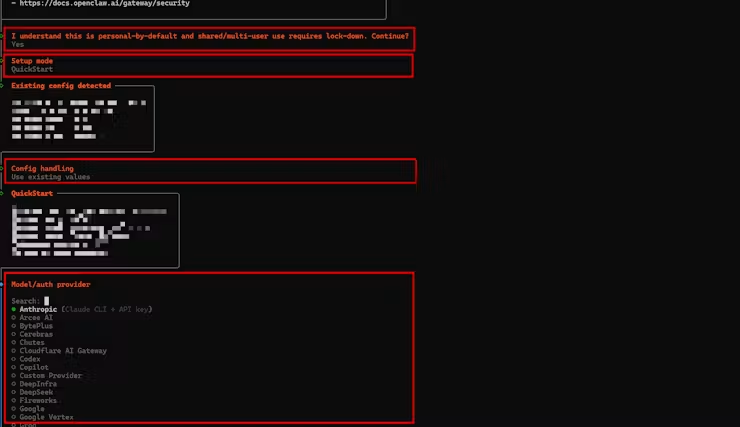
- If you selected to run the beginner tutorial during installation, select the corresponding model at this position in the tutorial and enter your personal API key.
- If the installation is complete and you need to change the model, you can enter the openclaw onboard command to reconfigure.
Method 2: Local Model Deployment (Ollama)
Install Ollama
curl -fsSL https://ollama.com/install.sh | sh
ollama --versio
Connect OpenClaw to Ollama
OpenClaw requires an API Key to identify the Ollama service. Since Ollama is a local service, this Key can be any string.
- Set environment variables
export OLLAMA_API_KEY="ollama-local- Configure via OpenClaw
openclaw config set models.providers.ollama.apiKey "ollama-local"Confirm that the Ollama service is running
- Check the Ollama Service
curl http://localhost:11434/api/tags- If it is not running, you can start it
ollama serveCheck OpenClaw Models
- View currently available models in OpenClaw
openclaw models list- If no Ollama model is available, you can add it
ollama launch openclaw
ollama launch openclaw --model qwen3:8b
Run the OpenClaw Onboarding Wizard
- Run the Configuration Wizard
openclaw onboard- OpenClaw will automatically detect the local Ollama service. Make selections in the wizard as follows
◆  I understand this is personal-by-default and shared/multi-user use requires lock-down. Continue?
│  ● Yes / ○ No
◆  Onboarding mode
│  ● QuickStart (Configure details later via openclaw configure.)
│ ○ Manual- It will then display the currently connected model. This document takes the ollama/qwen3:8b model as an example
◇  Existing config detected ─────────╮
│                                    │
│  workspace: ~/.openclaw/workspace  │
│  model: ollama/qwen3:8b            │
│  gateway.mode: local               │
│  gateway.port: 18789               │
│  gateway.bind: loopback            │
│                                    │
├────────────────────────────────────╯- You can choose either Use existing values or Update values here, but do not select Reset
◆  Config handling
│  ● Use existing values
│  ○ Update values
│ ○ Reset- Select Skip for now for Model provider
◆  Model/auth provider
│  ...
│  ○ Cloudflare AI Gateway
│  ○ Custom Provider
│ ● Skip for now- Select All providers
◆  Filter models by provider
│  ● All providers
│  ○ amazon-bedrock
│  ○ anthropic
│ ○ azure-openai-responses- In Default Model, the connected Ollama model will appear at the top and serve as the default model; just select it, for example
◆  Default model
│  ● Keep current (ollama/qwen3:8b)
│  ○ Enter model manually
│  ○ amazon-bedrock/anthropic.claude-3-haiku-20240307-v1:0
│ ○ amazon-bedrock/anthropic.claude-3-5-haiku-20241022-v1:0- At this point, OpenClaw has successfully connected to the local Ollama model. You can configure the subsequent steps according to your own needs
◆  How do you want to hatch your bot?
│  ○ Hatch in TUI (recommended)
│  ● Open the Web UI
│  ○ Do this later
Start Using OpenClaw + Ollama
-
After the wizard completes, OpenClaw will automatically open the Web UI
-
Your robot can now run with the local Ollama model. If you want to switch models, you can
ollama launch openclaw- You may also specify the model directly
ollama launch openclaw --model qwen3:8bStep 3: Develop Visual Recognition Algorithm
Emotion recognition can be implemented in three ways. Select the appropriate solution according to your resources and needs.
Method 1: Multimodal Large Model (Most convenient, but high resource consumption and slow running speed)
Adopt multimodal models such as GPT-4V, which have built-in emotion recognition functions and do not require local models.
Method 2: Small Model (Most stable)
We can implement emotion recognition with yolo and FER, or use open-source/self-built small models such as FaceNet.
This paper adopts the efficient implementation scheme of YOLO+ FER to encapsulate the inference code:
The YOLO algorithm can be quickly obtained and successfully run from the reComputer AI Lab platform through a single command:
sudo docker run --rm \
--name cm5-hailo8-yolo11n \
--privileged \
--net=host \
-e PYTHONUNBUFFERED=1 \
--device /dev/hailo0:/dev/hailo0 \
-v /usr/lib/libhailort.so.4.23.0:/usr/lib/libhailort.so.4.23.0:ro \
-v /usr/lib/libhailort.so:/usr/lib/libhailort.so:ro \
ghcr.io/seeed-projects/recomputer-hailo8-cv/yolov11n:latest \
python web_detection.py --model_path model/yolov11n.hef --video_path video/test.mp4
Step 4: Configure systemd Auto-start on Boot
To make the emotion recognition service run automatically when reComputer starts up, configure the systemd user service, modify the emotion recognition script, and save it to a fixed file readable by OpenClaw. This allows OpenClaw to obtain emotional information in real time during subsequent conversations:
Enable and start the service:
mkdir -p ~/.config/systemd/user
systemctl --user daemon-reload
systemctl --user enable emotion.service
systemctl --user start emotion.service
Step 5: Configure Emotion Settings
Configure OpenClaw SOUL.md
Edit OpenClaw's SOUL.md file to add emotion perception capabilities:
Emotional Awareness Mode
You have an emotional awareness AI companion mode. When the user starts the emotion detection service:
Read emotion state file:
/home/seeed/.openclaw/emotion_state.json
Before every reply, check the emotion and style fields in emotion_state.json, then adjust your tone based on the user’s emotion.
Restart OpenClaw to Apply the Configuration
Core Operations of OpenClaw
Terminal:
    openclaw --Start OpenClaw
    openclaw onboard --Reconfigure OpenClaw
Chat interface:
    chat --Enter the previous conversation
    /new --Create a new conversation interface
Step 6: Verification and Testing
Reboot the Device
sudo rebootThe device should now automatically run the emotion recognition service
Camera and Emotion Detection Verification
Make different facial expressions in front of the camera, and check the emotion update status via the file /home/seeed/.openclaw/emotion_state.json
cd /home/seeed/.openclaw
vim emotion_state.json
Expected result:

Full Conversation Test
Start an OpenClaw conversation:
openclaw
chat
Test Scenario:
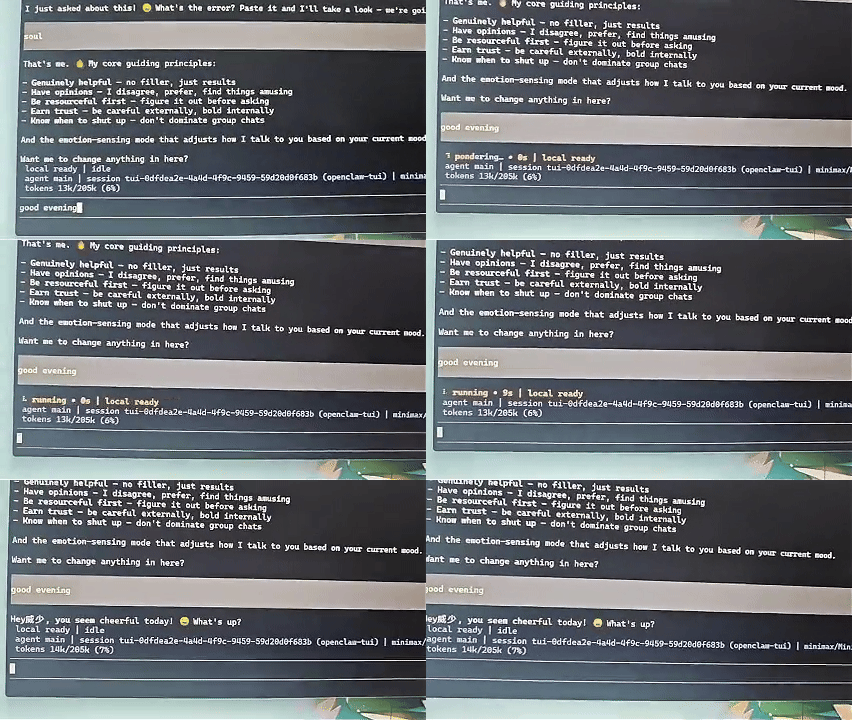
Emotion Response Examples
Scenario 1: User appears anxious
User (frowning): This code keeps throwing errors, please help me check it.
Agent (Anxiety emotion detected): "Don’t worry, let me take a look at this problem for you. It appears to be a type conversion error. Let me fix it for you:It should work properly after this adjustment. Feel free to tell me if you still run into issues."

Emotion Update → User’s relaxed expression detected after several seconds
Agent: "I see the issue is resolved and you look relieved~ Is there anything else I can assist you with?"
Scenario 2: User looks sad
User (sighing): My coding skills seem to be getting worse lately.
Agent (Frustration emotion detected): "I understand how you feel. It’s perfectly normal to hit a bottleneck sometimes. The fact that you can recognize this means you have high standards for code quality, and that in itself is progress. Would you like me to check exactly what you’re unsatisfied with? Let’s optimize it together."