What Is PPE Detection?
Personal protective equipment (PPE) detection uses computer vision to identify people and protective equipment, such as hardhats, safety vests, and masks. This project runs on Raspberry Pi 5 with a Hailo-8 accelerator and displays results in a browser dashboard. It checks the equipment you require only for people inside a saved polygon, allowing you to focus on a specific work area.
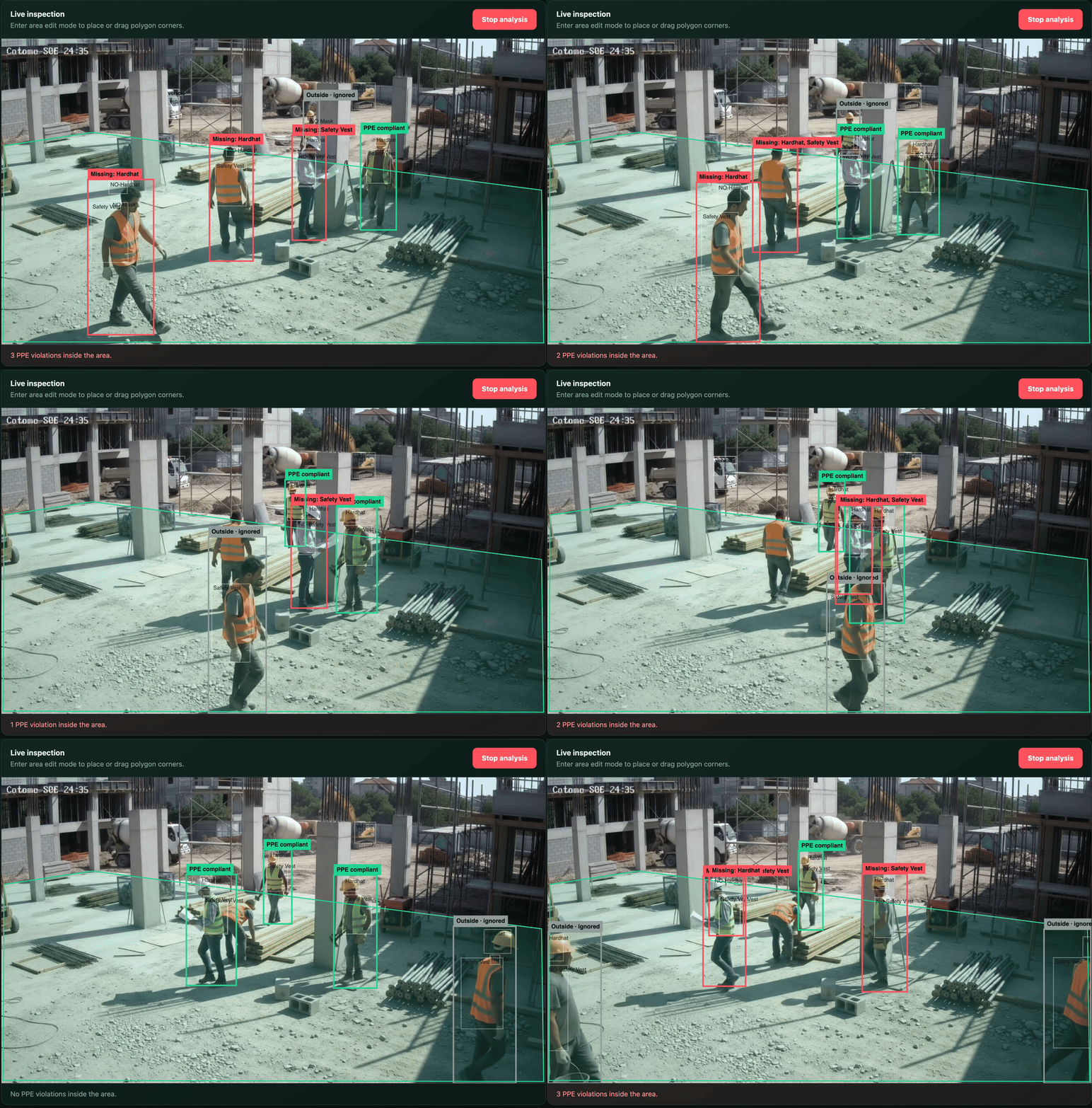
The dashboard accepts uploaded images, browser-played videos, a USB camera, and RTSP/RTSPS cameras. A person's bottom-center point determines whether they are inside the selected area. People outside it appear in gray and are excluded from compliant and violation totals.
For people inside the area, the application associates equipment detections with each person. A required item without a matching positive detection counts as missing. When positive and negative labels conflict, the higher-confidence label wins. These totals reflect the model's detections and configured rules.
PPE Model and Dataset
The project's model notes reference the Construction Site Safety Image Dataset Roboflow on Kaggle. The Kaggle link is the dataset reference; inference uses the exported model included in the project repository, so downloading the dataset is not part of the quick start.
The demo loads models/ppe_hailo_model/ppe.hef, an Ultralytics export for
Hailo-8 with per-class non-maximum suppression (NMS). Its
metadata
specifies a 640 × 640 input and these class labels:
| ID | Label |
|---|---|
| 0 | Hardhat |
| 1 | Mask |
| 2 | NO-Hardhat |
| 3 | NO-Mask |
| 4 | NO-Safety Vest |
| 5 | Person |
| 6 | Safety Cone |
| 7 | Safety Vest |
| 8 | machinery |
| 9 | vehicle |
The dashboard lets you require hardhats, safety vests, masks, or a combination of them. The other detection classes are not additional PPE requirements.
Get Started
These steps follow the upstream environment guide and PPE demo instructions.
1. Prepare the Raspberry Pi and Hailo Runtime
Use Raspberry Pi 5 with a Hailo-8 accelerator and 64-bit Raspberry Pi OS Bookworm. Install the Hailo packages:
sudo apt update
sudo apt install hailo-all
sudo reboot
After rebooting, open a terminal and verify the device and architecture:
hailortcli fw-control identify
ls /dev/hailo0
uname -m
The architecture must be aarch64. The bundled Python wheel requires
HailoRT 4.23 and CPython 3.12 on 64-bit Linux ARM. Check the installed runtime
before using it: if your driver uses another HailoRT version, obtain a matching
wheel from the Hailo Developer Zone as described in the upstream guide.
2. Get the Code and Create the Python Environment
git clone https://github.com/Hanzo-Huang/pi-ai-demos.git
cd pi-ai-demos
The upstream guide recommends Miniforge to install Python 3.12 without replacing the system Python. If Miniforge is not installed, run:
sudo apt install curl
curl -L -O https://github.com/conda-forge/miniforge/releases/latest/download/Miniforge3-Linux-aarch64.sh
bash Miniforge3-Linux-aarch64.sh
Accept the default installation location and allow shell initialization. Close
and reopen the terminal, then return to the cloned pi-ai-demos directory.
Create and activate the environment:
conda config --set auto_activate_base false
conda create --name pi-hailo python=3.12 pip -y
conda activate pi-hailo
python --version
python -m pip install -r requirements.txt
python -m pip install runtime/wheels/hailort-4.23.0-cp312-cp312-linux_aarch64.whl
python --version should report Python 3.12.x. Verify the dependencies:
python -c "import cv2, fastapi, hailo_platform, numpy; print('Python dependencies: OK')"
hailortcli fw-control identify
3. Start the Project
From the repository root, with the environment active, start without a USB camera:
python examples/cv/ppe-detection/run.py --camera-id -1Open http://<pi-ip>:8000 in a browser on the same network, replacing
<pi-ip> with the Raspberry Pi's IP address. To use the first USB camera,
stop the server with Ctrl+C and run:
python examples/cv/ppe-detection/run.py --camera-id 0In another terminal on the Pi, check the backend:
curl http://127.0.0.1:8000/api/healthBefore analysis, the response should contain "model_exists":true and
"hailo_platform_importable":true. The default model path is
models/ppe_hailo_model/ppe.hef. Activate pi-hailo again whenever opening
a new terminal to run the demo.
4. Select a Source and Detection Area
- Upload an image or video, use the USB camera, or enter a full
rtsp://orrtsps://URL and select Connect RTSP. - Select Edit area and draw a polygon with at least three points, or select Full frame to check the whole image.
- Select Save area. Analysis always uses the last saved polygon; the canvas cannot be changed outside edit mode.
- Choose the required equipment: hardhat, safety vest, and/or mask.
- Review the detection overlays and compliant/violation totals for people inside the saved area.
5. Check the PPE Rules
The upstream project includes dependency-free tests for the area and compliance rules. Run them from the repository root:
python -m unittest discover examples/cv/ppe-detection/tests -v