Describe an application in natural language, connect to an edge device, and work with Codex until the complete application runs on real hardware. This project demonstrates that workflow using reComputer AI R2140, Hailo-8, and a YOLOv8m-Pose video WebUI.
You define the user experience and hardware constraints. Codex inspects the board over SSH, reuses the installed HailoRT environment, builds the application around official Hailo examples, deploys it, and fixes errors discovered through physical-device testing.
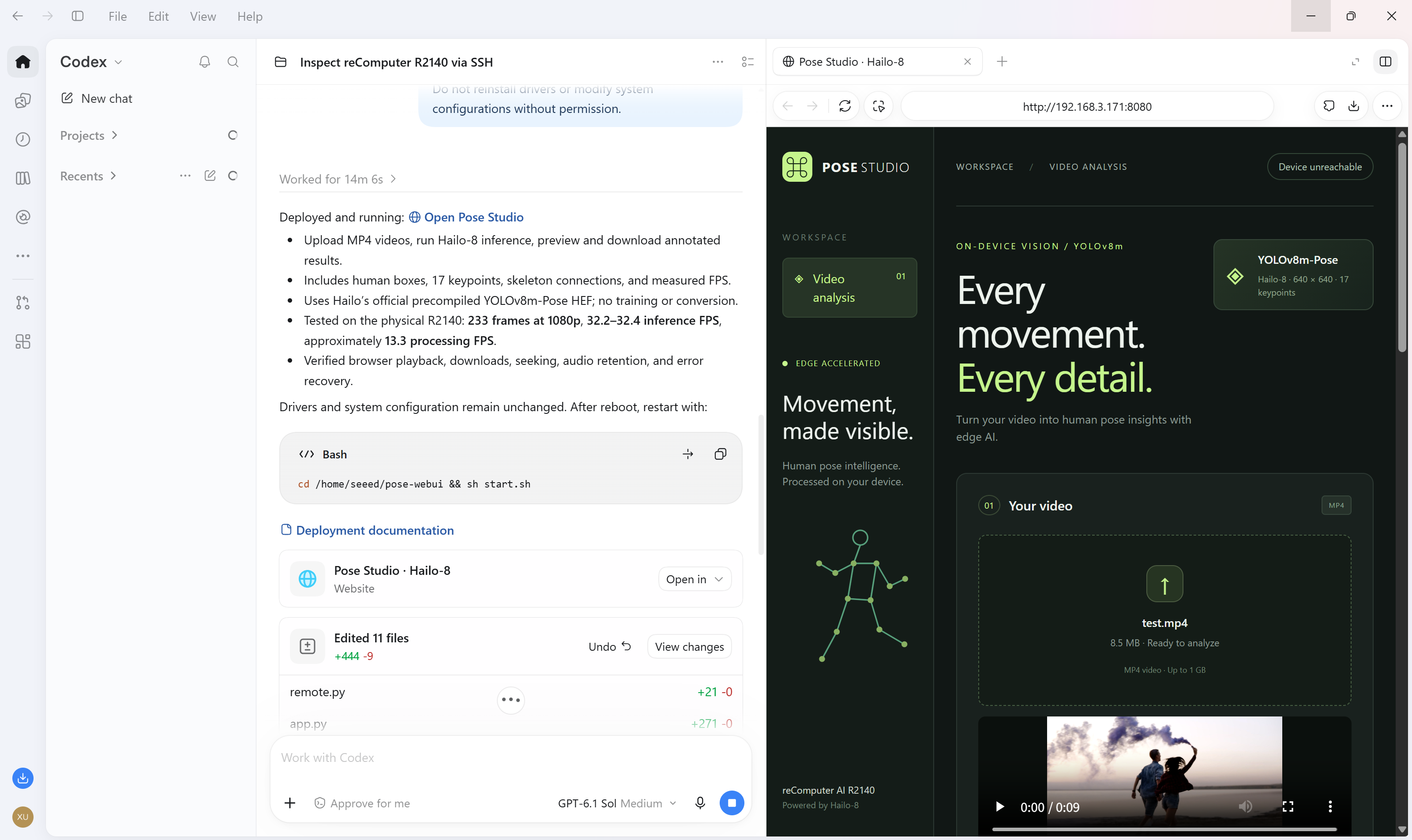
The result is Pose Studio: upload an MP4 from your PC, run human pose estimation on Hailo-8, and view or download a video with human bounding boxes, 17 COCO body keypoints, skeleton connections, and measured inference FPS.
Project source: codex-recomputer-r2140-pose
What you will learn
- Describe an application goal, implementation boundaries, and acceptance criteria to Codex.
- Inspect a remote device before changing its environment.
- Reuse existing dependencies, official inference examples, and a compatible precompiled model.
- Build uploads, progress, video playback, and downloads around hardware inference.
- Test the complete application and use observed failures to guide fixes.
Codex assists with development from your PC. The deployed application and model inference run locally on the R2140; the video is not sent to a cloud inference service.
The application
Pose Studio provides an English interface with MP4 upload, configurable person/keypoint confidence, processing progress, annotated video playback, MP4 download, and recent analyses. It shows inference FPS separately from overall processing FPS and preserves optional input audio as AAC in the output.
See the WebUI screenshot, pose result, and sample input/output videos in the repository.
Hardware and software
| Component | Verified environment |
|---|---|
| Device | reComputer AI R2140, Raspberry Pi 5-based ARM64 platform |
| Accelerator | Hailo-8 |
| OS | Debian 13.6 |
| HailoRT / driver / firmware | 4.23.0 |
| Python | 3.13.5 |
| NumPy / OpenCV | 2.2.4 / 4.10.0 |
| Web layer | Flask 3.1.3 and Waitress 3.0.2 in an application virtual environment |
| Video tools | FFmpeg and ffprobe |
| Model | Official precompiled YOLOv8m-Pose HEF for Hailo-8, 640 × 640 RGB input |
Use a development PC with Codex, an SSH connection to the board, and an MP4 for testing. This project starts from an existing working Hailo environment; it does not require model training or conversion.
Step 1. Connect and inspect before changing anything
Open a local project folder in Codex and provide your device's SSH details in the local session. Ask for a read-only inspection first:
Connect to my reComputer AI R2140 via SSH.
Host: <DEVICE_IP>
Username: <DEVICE_USER>
Use the SSH authentication details provided in this local session.

Check the OS, CPU architecture, memory, disk space, Hailo-8 device,
driver, HailoRT version, Python dependencies, and existing pose models.
Verify that remote commands execute successfully.

Do not modify the system yet. Report the environment and any blockers.
In this build, the accelerator and HailoRT were already working. NumPy and OpenCV were available, but the full TAPPAS/Python GStreamer environment was not. The implementation therefore used Hailo's standalone Python inference and pose decoder, avoiding a driver reinstall.
Step 2. Give Codex the application requirements
Describe what the user should be able to do, identify the required accelerator, and define how completion will be checked:
Build and deploy a YOLOv8 Pose Estimation WebUI on my reComputer AI R2140.
Use Hailo-8 for inference. Download a compatible official precompiled
YOLOv8m-Pose .hef model. Do not train or convert models.
Reference: https://github.com/hailo-ai/hailo-apps

Create a modern English UI for uploading an MP4 from my PC, running pose
estimation, and viewing/downloading the processed video. Draw human boxes,
17 COCO body keypoints, and skeleton connections.
Show measured inference FPS separately from overall processing FPS.

Reuse the installed HailoRT and official examples. Keep new dependencies
in an app virtual environment. Do not reinstall drivers or modify system
configuration without permission.

Test the complete workflow on the physical R2140, fix errors, and provide
the working WebUI URL and actual validation results.
The project reuses the official inference wrapper and pose postprocessing from Hailo Apps. Its selected Model Zoo v2.18.0 HEF targets Hailo-8 and the verified HailoRT 4.23.x environment. The repository records the model URL and SHA-256 checksum.
Step 3. Implement and deploy in verifiable stages
Ask Codex to verify the inference path before adding the complete interface:
- Confirm the installed HailoRT Python package and Hailo-8 device access.
- Download and checksum-verify the compatible HEF.
- Run a frame through Hailo-8 and decode the actual pose outputs.
- Implement video decoding, RGB letterboxing, inference, official pose decoding, and overlays.
- Add upload, job status, playback, seeking, download, and recent-result handling.
- Deploy the application and provide start/stop commands and its LAN URL.
Use the environment found during inspection and verify a real frame on
Hailo-8 before processing a full video. Keep the app in a dedicated directory.
Record model provenance, dependencies, and performance measurement definitions.
Deploy the WebUI and document how to start and stop the app without changing
system services or the existing driver configuration.
The resulting processing path is:
PC browser: upload MP4
    → R2140: video decoding and RGB letterboxing
    → HailoRT: YOLOv8m-Pose inference on Hailo-8
    → official pose decoding and NMS
    → bounding boxes, keypoints, skeletons, and FPS overlay
    → FFmpeg: H.264 MP4 with optional AAC audio
    → PC browser: preview and download
Step 4. Test the complete user workflow
Use a real test video and verify the output, not just the page response or model initialization:
Upload video/test.mp4 through the app and process all frames on the R2140.
Check human boxes, keypoint alignment, skeletons, and the FPS overlay.
Verify browser playback, seeking, MP4 download, output frame count, and
successful decoding of every output frame.

Test optional audio, invalid uploads, busy-device handling, and a second
inference run. Fix errors and repeat the affected checks.
Report inference FPS and complete processing FPS separately.
Two issues were found and fixed during this build: HailoRT passed a callback keyword that initially did not match the application signature, and FFmpeg's -shortest option truncated video frames when audio ended first. The corrected application was retested, including an audio clip whose 52 processed video frames were all retained.
| Full sample validation | Result |
|---|---|
| Resolution / playback FPS | 1920 × 1080 / 25 FPS |
| Input and output frame count | 233 / 233 |
| Video duration | 9.32 seconds |
| Measured inference FPS | 32.2–32.4 |
| Overall processing FPS | 13.3–13.4 |
| Playback, seeking, and download | Verified on the tested deployment |
Inference FPS measures completed HailoRT calls, including binding preparation, transfers, scheduling, and output retrieval. Overall processing FPS also includes CPU-side video and image processing. Neither value is the video's playback FPS or a chip-only benchmark. See the validation report for the recorded test conditions.
Step 5. Reproduce the application from GitHub
On an R2140 with the required HailoRT 4.23.0 environment, Python dependencies, and FFmpeg already installed:
git clone https://github.com/inteintegrity/codex-recomputer-r2140-pose.git
cd codex-recomputer-r2140-pose
sh setup.sh
sh start.sh
Open http://<DEVICE_IP>:8080/ from a PC on the same network. Select the included video/test.mp4, run pose estimation, inspect the result, and download the MP4.
The setup script checks prerequisites, creates a virtual environment that reuses system packages, installs the web dependencies, and downloads/verifies the model. It does not install drivers or change system configuration. Use sh stop.sh to stop the app; after a reboot, run sh start.sh again. For a fresh board, verify the setup and dependencies in your own environment before relying on the earlier deployment's results.
Keep iterating with Codex
After the application works, ask Codex to refine the interface, add a feature with clear acceptance criteria, or package the project for others. Keep credentials, uploaded user videos, and local runtime data out of the source repository. Retain model provenance and third-party license notices.
The project repository contains the source, test videos, screenshots, reusable prompts, and deployment notes. Original application code and documentation use the MIT license; reused Hailo code retains its upstream notice, and model/runtime terms remain separate.